En esta sección
Article editing
When we access the section Configuration Items, the following screen opens. From here, you can change the name of the selected family as well as delete it. It is necessary to highlight that a family with items inside cannot be deleted, so if you want to delete a family, you must first delete all the items it includes.
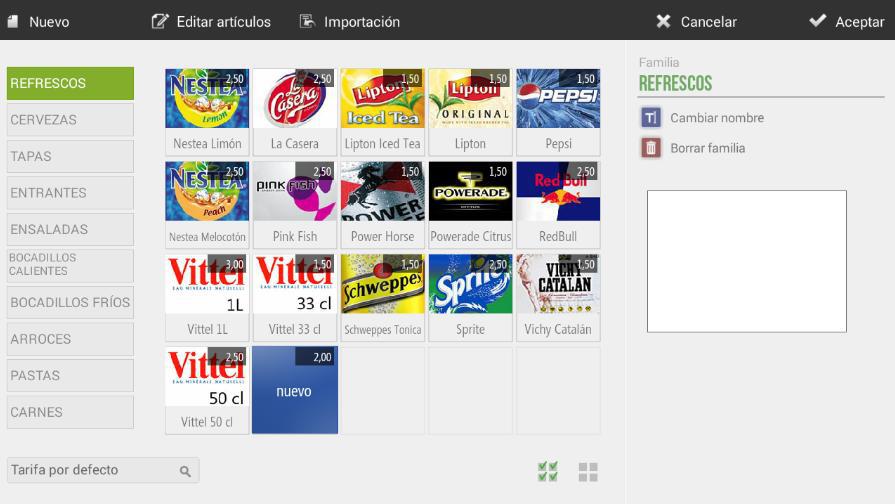
In the white box that appears on the right margin of the screen, you can select an image for the family. This image will not be reflected in the POS, but it will if you have a Kiosk version terminal or a configured Electronic Menu.
Upon selecting an item, the following options related to this item will open:
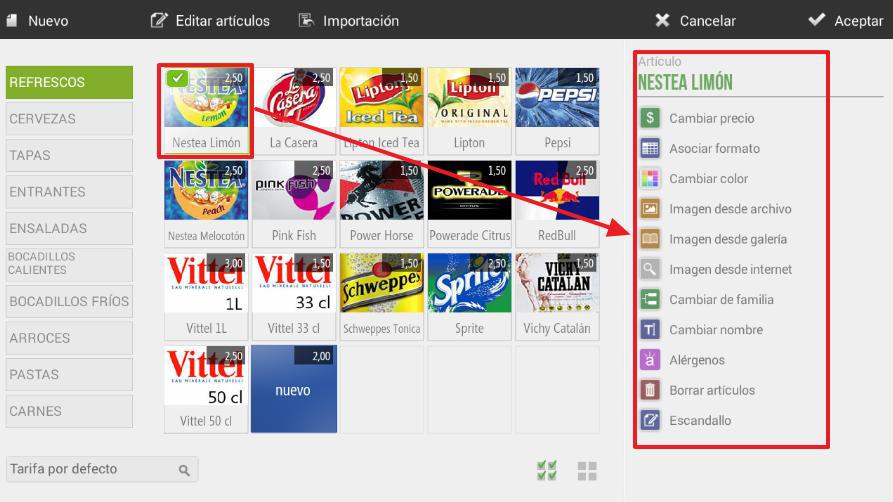
- Change price: allows changing the price manually of the selected item.
- Associate format: We will be able to associate a purchase or sales format with the selected item. In section 1.9, we will see an example of how to configure an item with formats.
- Change color: this option changes the color of the item, whether it has another color or an image.
- IImage from file: an image can be added by searching for it on the device itself.
- Image from gallery: an image can be added from the gallery depending on the type of business, which ICG makes available to customers
- Image from the internet: This option allows searching for an image directly from the Google browser. Upon selection, the Google page will open with the article's name. To select any of the photos, you must long-click on the desired image.
- Change families: allows changing the family of the selected item. A popup will open with all the families to select the desired one.
- Change name: allows changing the name of the item.
- Allergens: allows to indicate the different allergens corresponding to the item.
- Delete article: allows deleting the article.
- Costing: This option allows us to cost our item. In section 1.10 we will see how to configure a costing.
AI Assistant
Section summary
AI can generate inaccurate information; verify the results.