En esta sección
Main screen
Once we enter the program, it is already ready to receive orders. If we select products from HioPOS Cloud, these will appear on the HioScreen in this way:
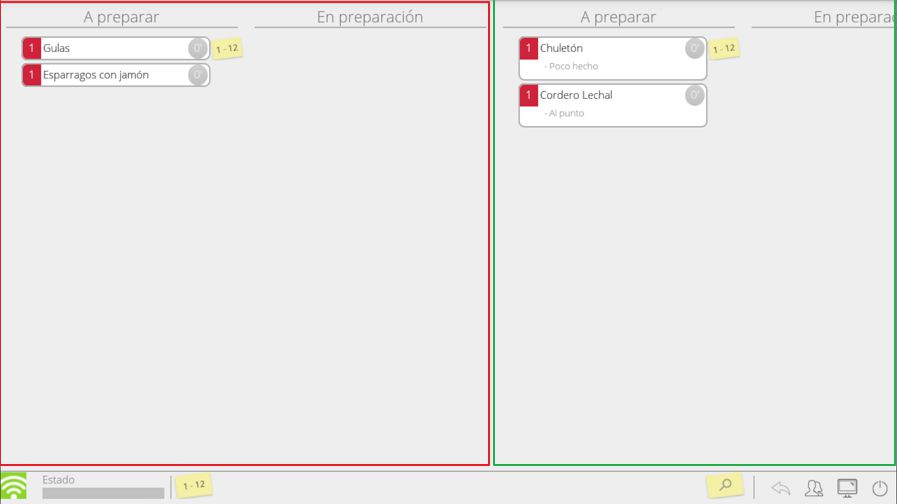
In the default configuration, the column marked in red shows the items that are configured for situation 1. The column marked in black shows the items configured for situation 2.
On both sides are shown the processes of To prepare and In preparation, if we have an item to prepare and select it, it will automatically move to the preparation state.


Red: Ticket/Table Number
BlueNumber of servings/dishes and dish status color
Purple: Dish waiting time
Using the bottom bar, we can select the tickets we want to see. If we select one, the others will disappear.

Using the magnifying glass icon, we can search for a ticket.

Using the vendors icon, we can filter the tickets by vendor.

AI Assistant
Section summary
AI can generate inaccurate information; verify the results.