En esta sección
Configuration
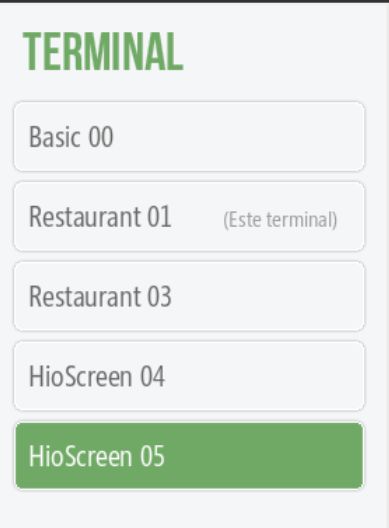
The configuration of the kitchen screens will be carried out from a hospitality terminal. To configure the kitchen screen, we have to go to Settings, terminal and select the HioScreen that we want to configure.
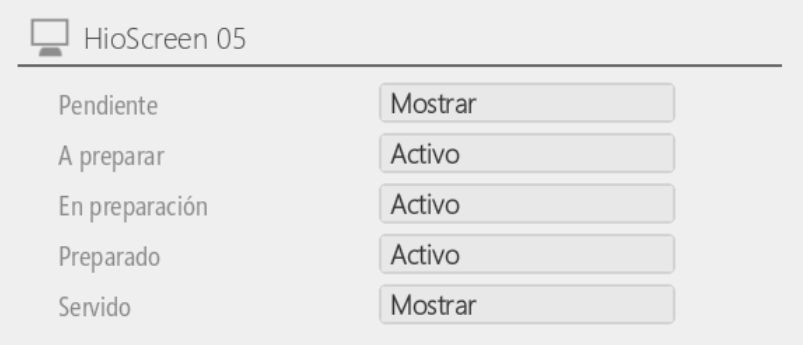
State configuration
In this section we can select the states we want to be visible on our device. The states of Getting ready and Ready they are fixed and cannot be modified, whereas the states of Pending, In preparation, and Served They are optional. By default, all are shown.
Default values
In this section, we can configure the default values for our HioScreen.
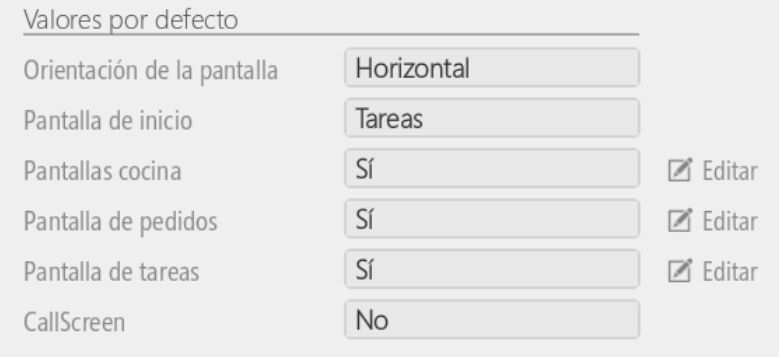
- Screen orientationWe can define whether we want to work with HioScreen horizontally or vertically.
- Home screenWe can define which screen HioScreen will start with. You can choose between kitchen screen, task screen, or orders screen.
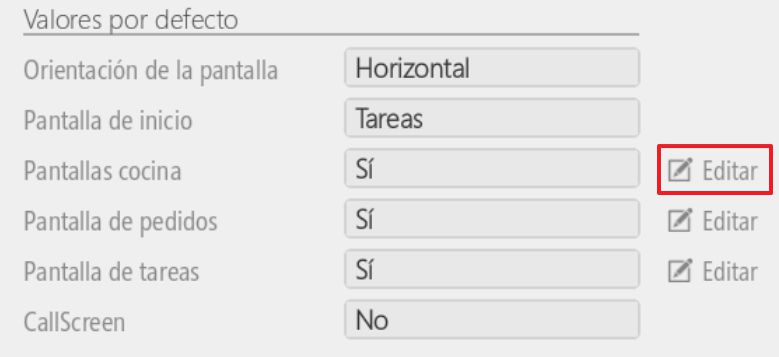
- ScreensWe can specify whether we want the 3 screen types to be displayed or not. We can also access the settings for these screens. We will see this in section 10.4.5.
- CallScreen: Using this button, we can transform the HioScreen into CallScreen.
Alarms and orders
From this section, we can define the alarm time and the name we want to give to the different commands.
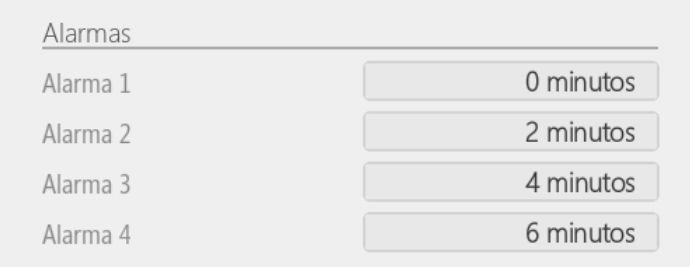
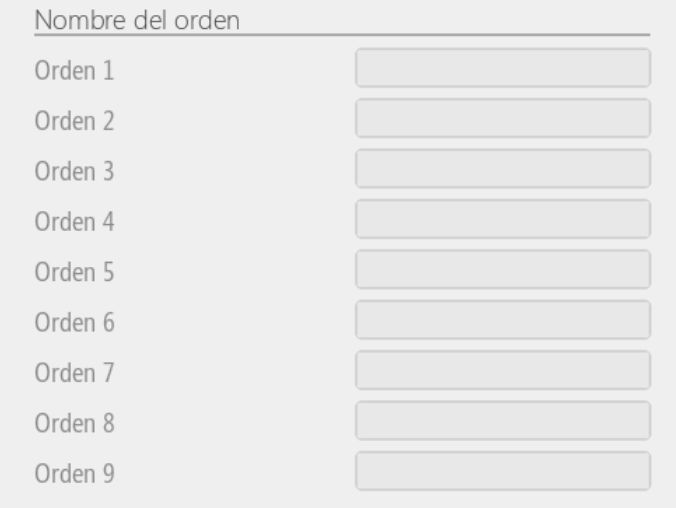
Number of orders
In this section, we can enter the name we want to be displayed for each order.
Kitchen screen
To access the kitchen display settings, we must select the Edit button in the Default Values section.
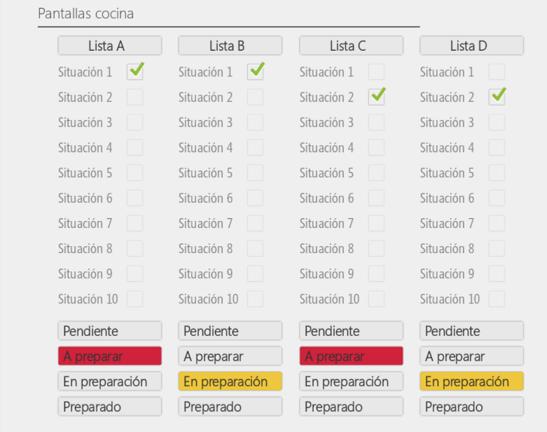
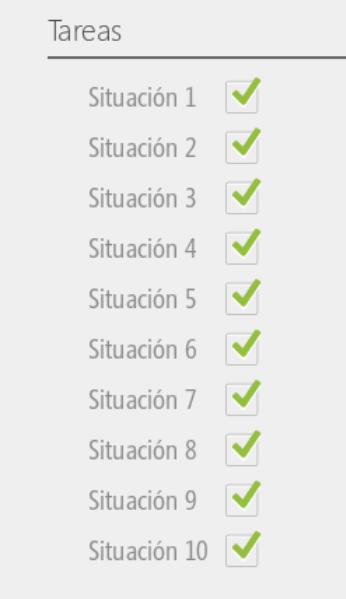
Once inside, we can configure the different situations and statuses we want to see in each column when working with a kitchen display. If no situation or status is selected for a column, the column will not be displayed.
Orders and Tasks Screen
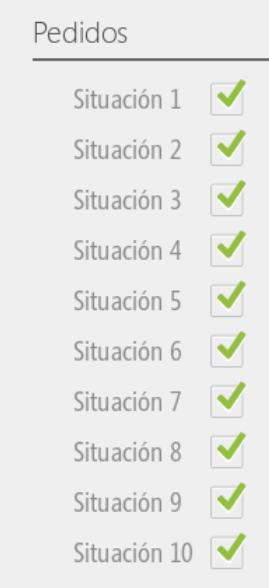
To access the settings for the order screen and the task screen, we must select the Edit button in the Default Values section.
Once a screen type has been selected, we can configure the different situations that will be displayed.
Change screen type
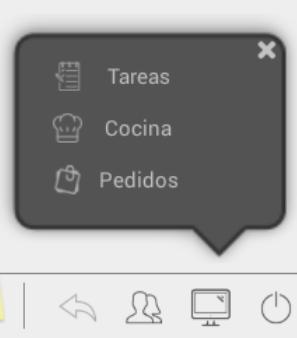
To switch from the kitchen screen to the orders or tasks screen, you must select the screen icon:

Once opened, you will be able to select from the available options.
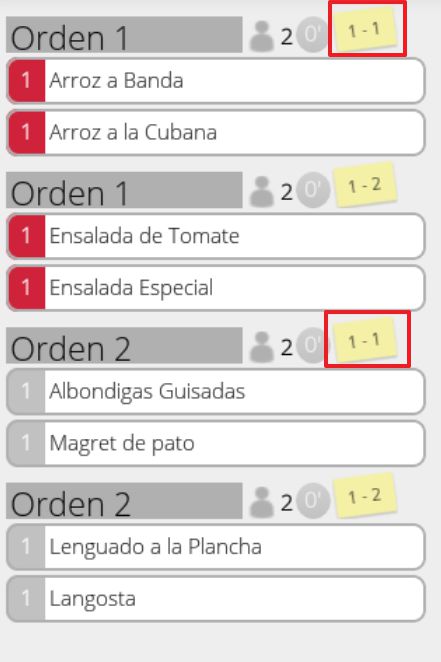
Task screen: On this screen, orders are displayed in order of arrival. In this case, we see that the first orders from each table go through first, followed by subsequent orders.
Orders screen: On this screen, orders will be displayed, sorted by table or ticket.
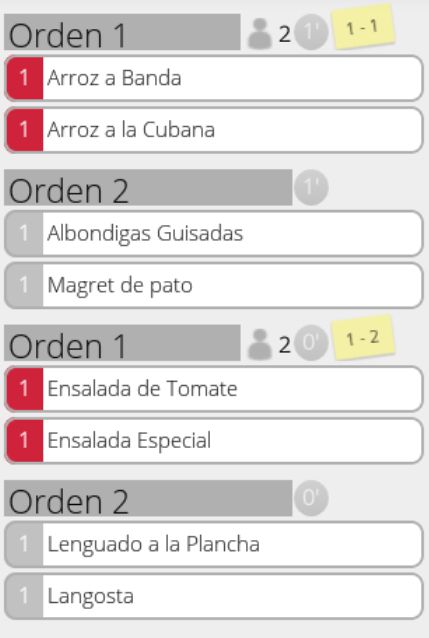
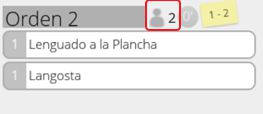
Both on the order screen and on the task screen, we are informed of the number of diners at each table.
Undo an order change
If we have moved a product from one state to another by mistake, the operation can be undone using the arrow icon.

Check statuses
If we wish to check the order statuses, we can do so using the Status icon.
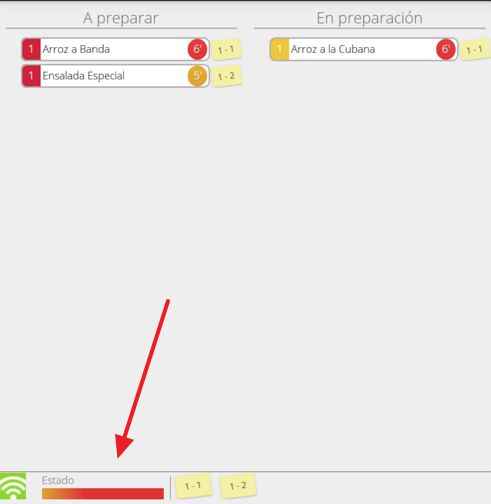
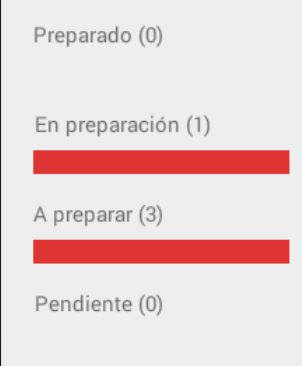
When you select it, a pop-up will open informing us of the order status.
AI Assistant
Section summary
AI can generate inaccurate information; verify the results.