En esta sección
Configuration Terminal type
In the section Configuration, Terminal type we will find several options to configure in reference to the Business type, Printing options, Pack modifiers, Tip, Timeout, and Service charge.

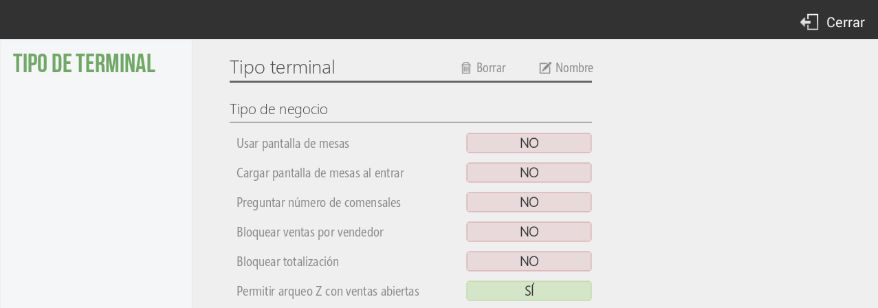
In the option of Type of business, we will have the option to customize our terminal, if we want to use a table screen and if we want it to load when a vendor logs in. This way, if it's a hospitality establishment, we are interested in showing the table screen, whereas if it's an establishment of fast food, we will be interested in the direct sales screen.
Also, if we want that when selecting a table, it asks how many diners will be seated. We can configure whether we want to block sales by salesperson, meaning that if a salesperson starts a sale, only they can access and finalize it. As for the totalization block, it indicates that terminals of this type cannot totalize sales. Finally, whether terminals with this configuration can perform Z-audits even with open sales.
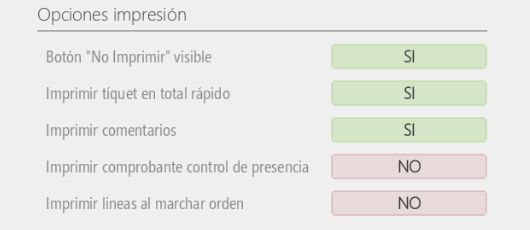
In the section Printing Options, we will select if the button Do not print upon completing a sale, it will be visible or not; if we want to print the ticket in Total Rápido, that is, for the option to appear on the sales screen to Cash to finalize the quick sale. Also, it is selectable if we want to print the comments added to an item, using the ticket printer. If we enable the option to Print presence control record, a ticket will be printed each time a salesperson logs in.
On the sales screen, from the ticket header, there is the option to Dispatch order. Then, from the settings of Terminal Type We can configure whether we want the items to be printed when an order is sent to the kitchen.
In the section Menus, Modifiers We can decide whether, when selecting a menu, all item modifiers will be shown, or only those that appear in the price list.

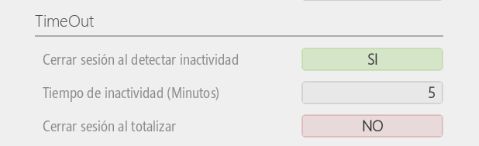
In the section on TimeOut We can select whether to close the open session of the vendor in question upon detecting inactivity and its timeout period. Also, whether to close the vendor's session and return to the vendors screen every time a sale is finalized.
As for the configuration of Tip and Charge For service, they are explained in sections 2.11.1 and 2.11.2, respectively.
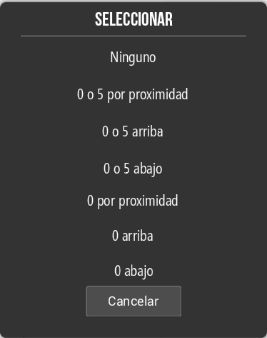
Finally, you will be able to round the last digit of the net total of the sales ticket, choosing from the following options:

This checkbox allows us to choose whether we want to work offline or prevent it. If there were a disconnection, we wouldn't be able to open a table or leave an order pending; we would need to restore the connection to do so.

From this section, we can configure the printing of QR codes on the ticket for delivery control.

In the next point, we are going to see the operation of the delivery control.
AI Assistant
Section summary
AI can generate inaccurate information; verify the results.