En esta sección
Management of deliveries on account
HIOFFICE: Management of Deliveries on Account
Below, we will show how to generate an advance payment linked to a customer or supplier and how to use it, either from Treasury or when finalizing an accounting document.
Entry for payments on account:
From finance Collections - Receivable / Payments - Payable.
We must activate the collect/pay operation and in the field Payable The delivery amount would be stated, without offsetting any outstanding value that the client/supplier might have.

Upon accepting that window, a record would have been generated for us on the Tab of On account, for the value of the amount.
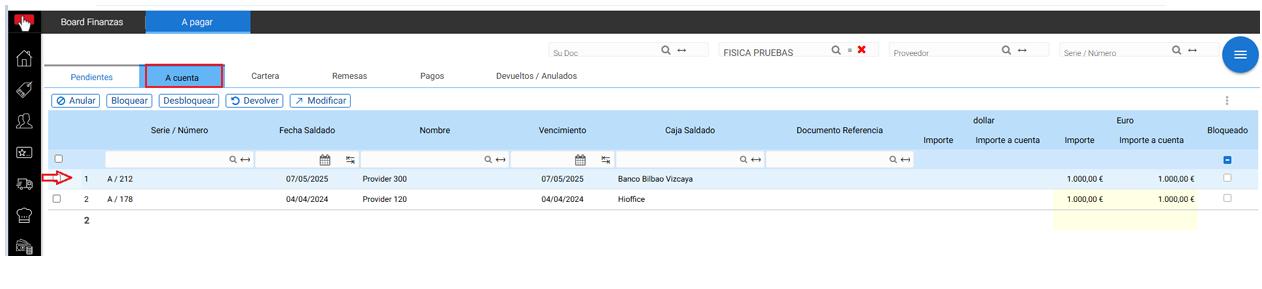
2. From Document - Purchase / sales order.
In these types of documents, we have an operation called To charge / To pay.
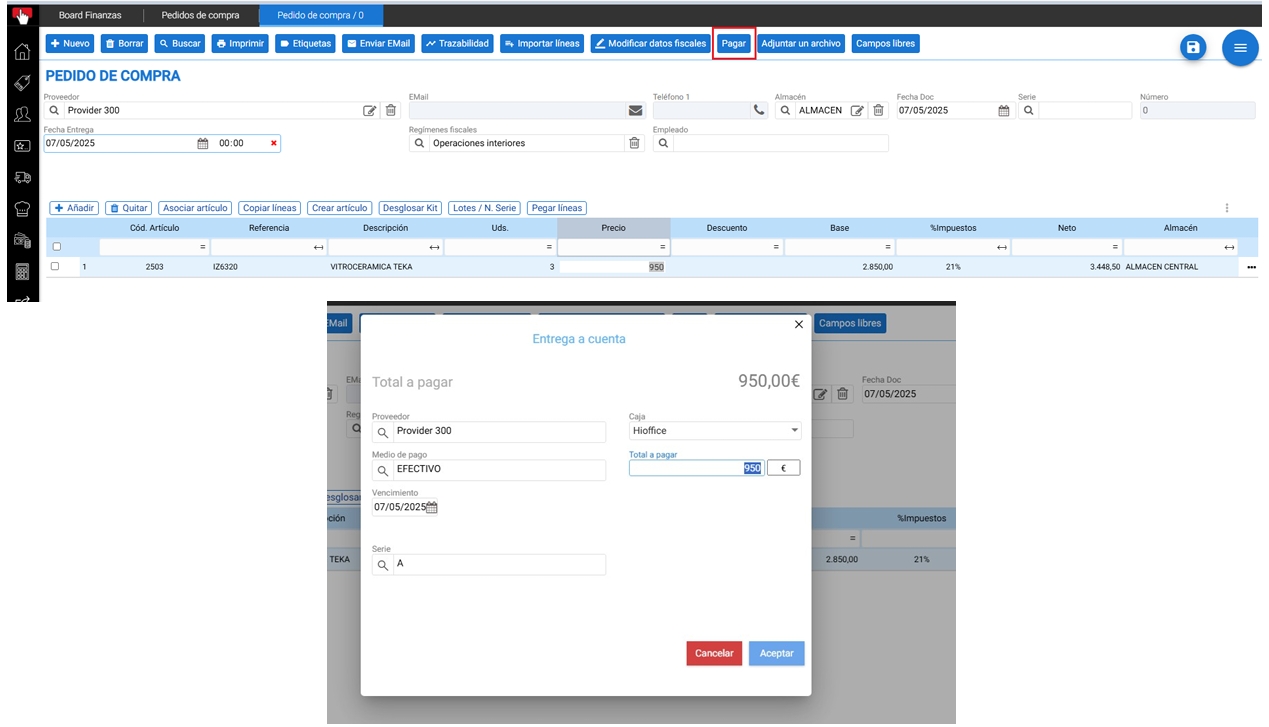
Clicking this option would display a dialog box where we can assign an advance payment amount.
In both cases, it would generate the corresponding accounting entries for the booking of the advance payment.
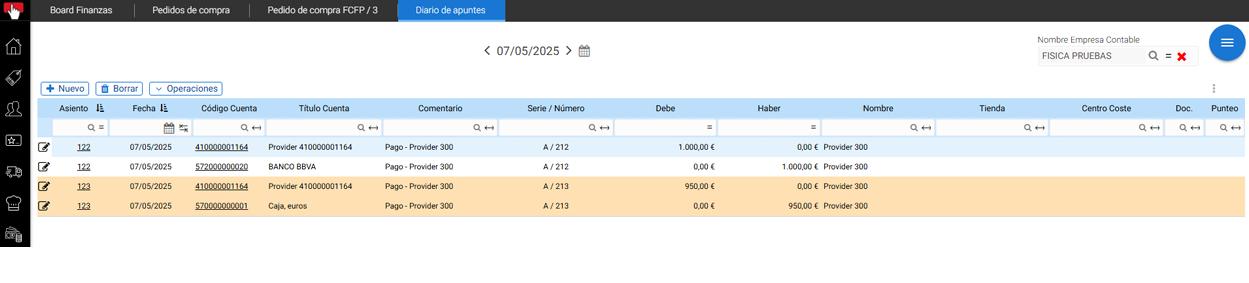
Use of deliveries on account.
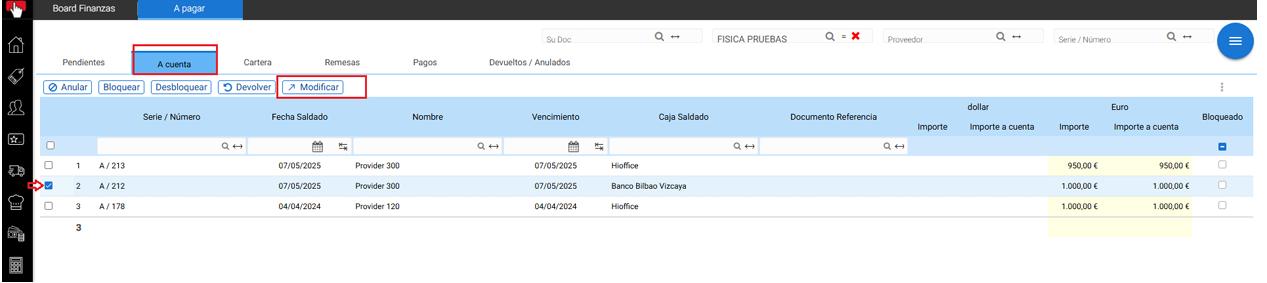
From finance: Receivables - To collect / Payables - To pay.
We're going to the pub. On account and we select the on-account delivery record that we want to offset with any of the outstanding receivables / payables.
And then we press the button Modify.
This screen will display the client's / supplier's outstanding due dates.
We can select the due dates we want to offset and then press the button To distribute.
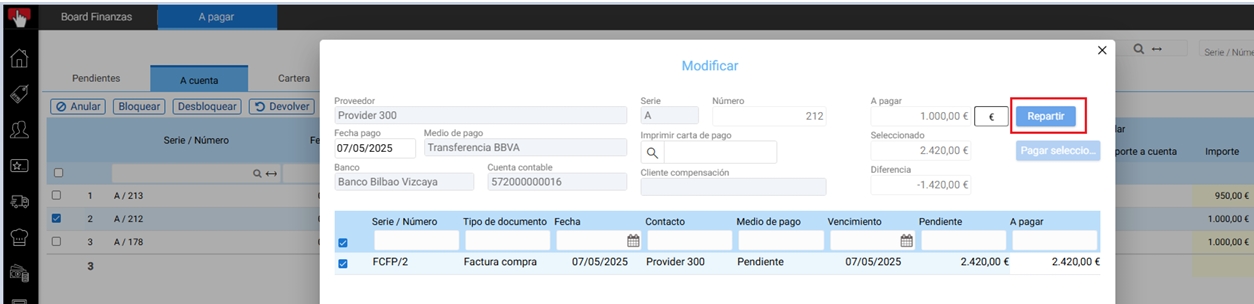
This will complete the advance payment amount for us, which is the amount to pay for the selected document(s). It can be a part or all of the delivery value.
We can choose not to select any due date, and with the "distribute" button, it would attempt to settle the outstanding invoices, by ascending due date.
2. From Document - Purchase / Sales Invoice.
When invoicing a Purchase/Sales order or delivery note, or generating a Purchase/Sales invoice, a button would be displayed on the totals screen indicating that the Supplier / Customer has outstanding advance payments to be offset.
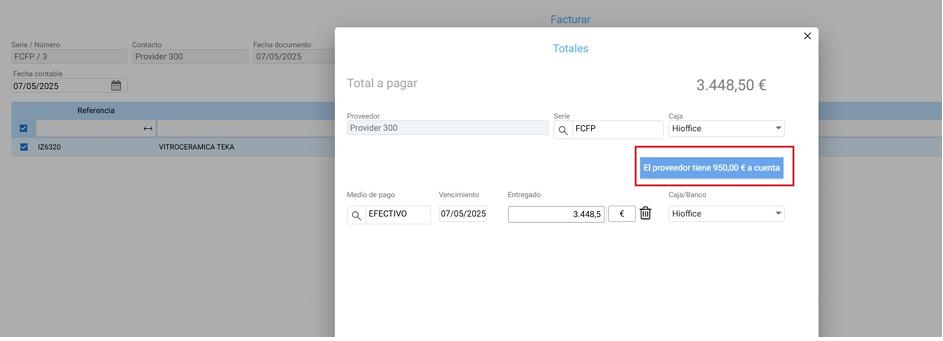
If you wish to offset the advance payment amount, simply click that button and it would show us what amount of the total invoice can be offset, or alternatively, we can enter a different amount in the field. Selected.
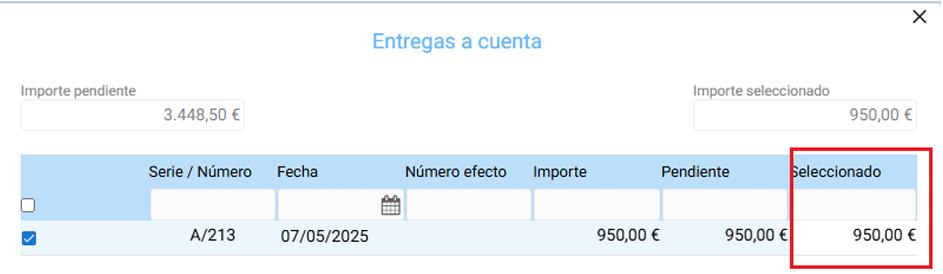
Upon accepting this painting, the portion of the delivery amount on account would fully or partially settle the invoice amount.
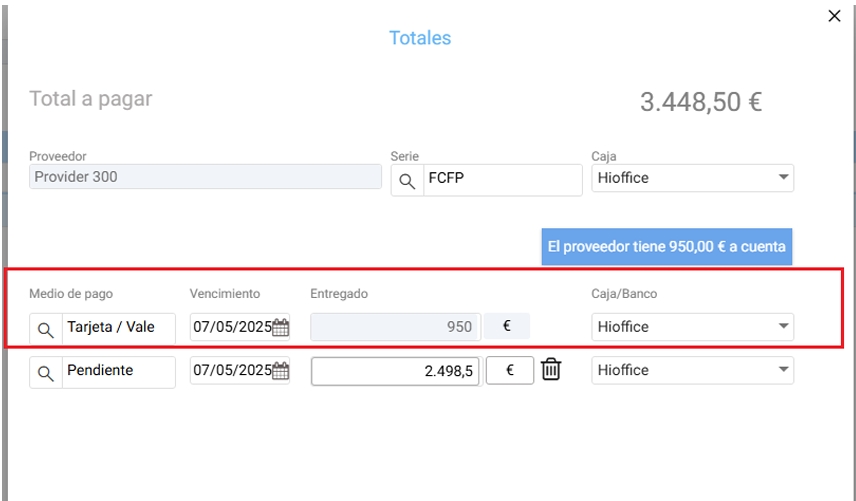
And for accounting purposes, it would offset the value of the delivery on account against the partial or total amount of the invoice.

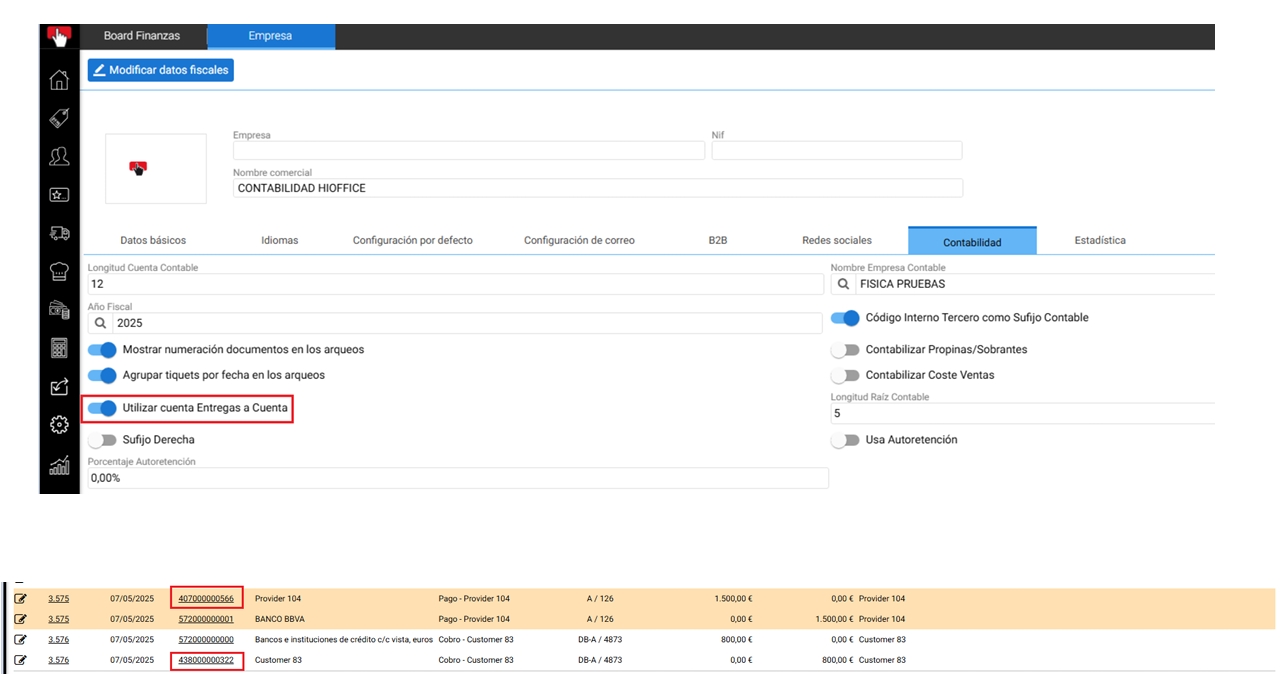
In settings Company -> Accounting We have the option to choose whether we want to use the accounting root for advance payments, by checking the box for Use account for deliveries on account.
| - |
AI Assistant
Section summary
AI can generate inaccurate information; verify the results.