The tip and the service charge
The system allows applying tips and service charges on sales.
By default, the tip can be added at checkout.
Administration > Settings > Terminal type..
The tip
Manual tip application
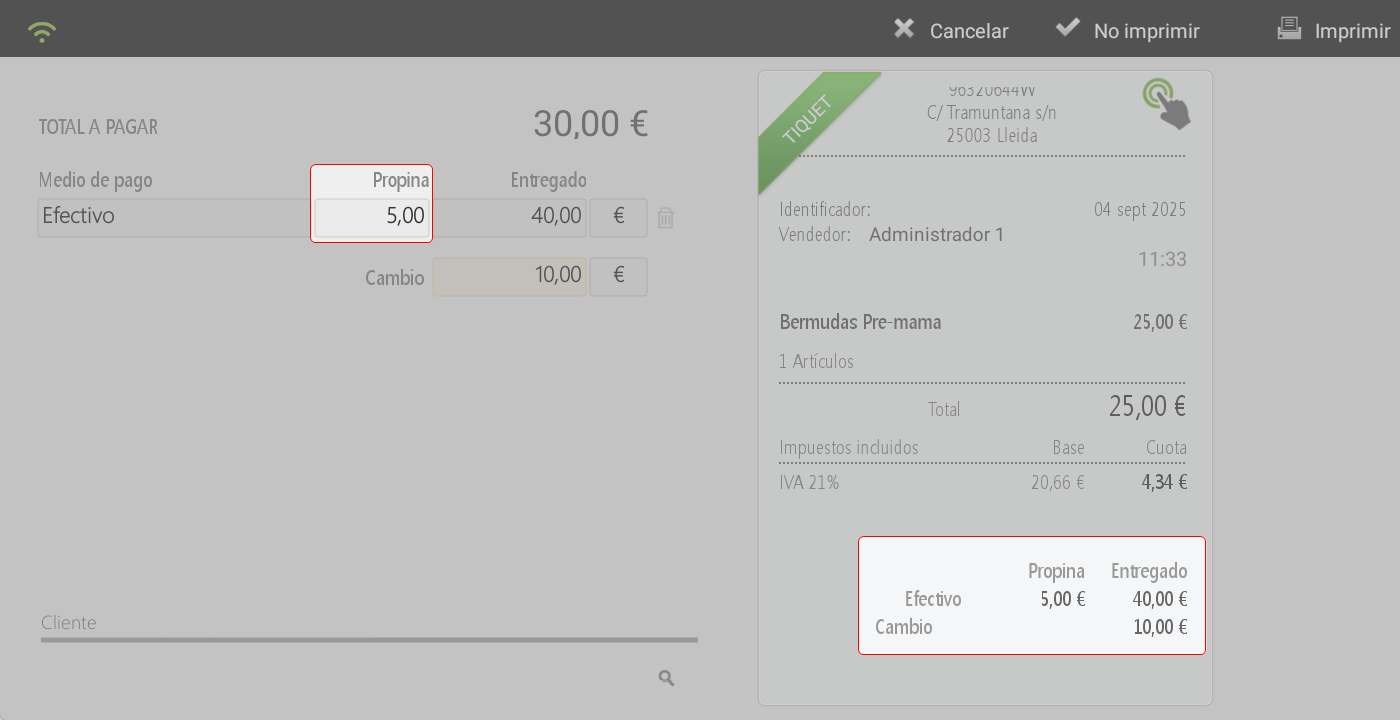
On the screen of total, the tip box appears next to the payment method.
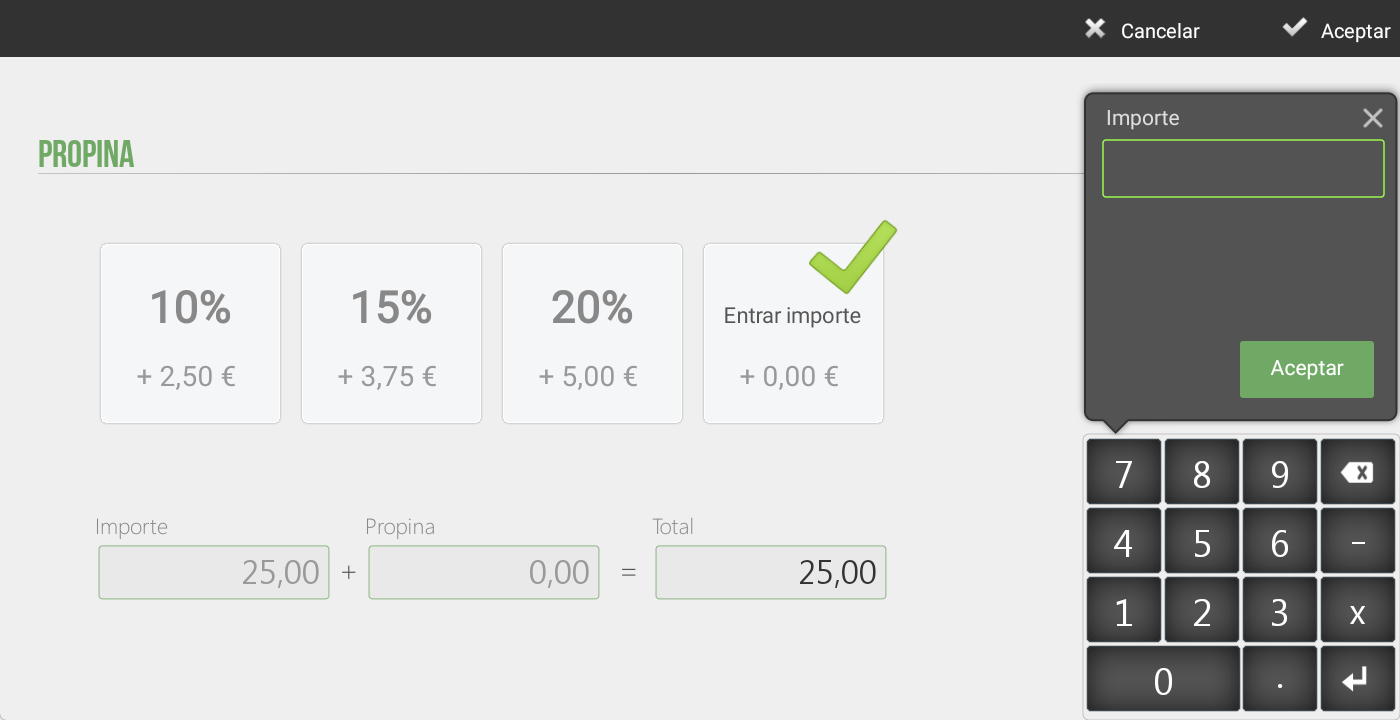
Long-pressing the amount field will open a window on the right side of the screen to enter the tip amount.
If payment is made in cash, the tip must be added after entering the amount given by the customer. In this way, the system will add the tip to the total and automatically calculate the change to be returned.
Tip Settings
The system allows defining default parameters for tip management:
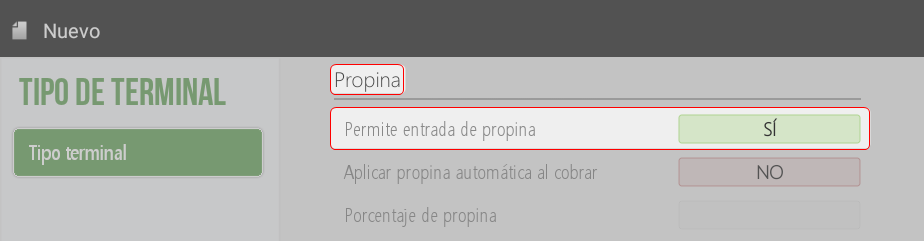
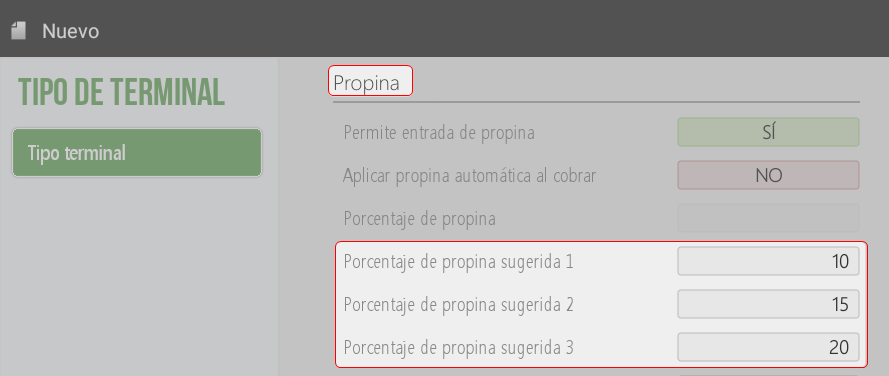
Allow tip entry:
Enable or disable the option to apply a tip on the total screen.
By default, this option is active.
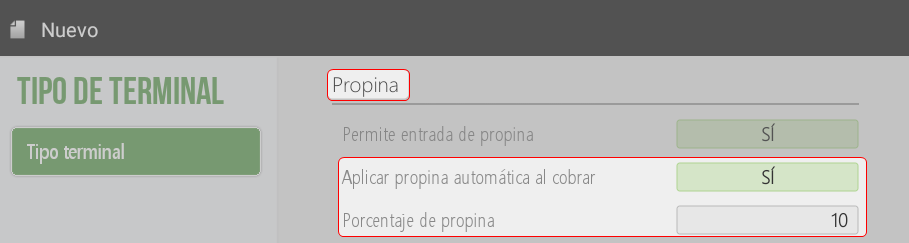
Apply automatic tip when charging:
Default value: NO.
If activated, the system will always apply an automatic tip, although the employee can modify the amount on the total screen.
Automatic tip percentage:
The percentage to be automatically applied on the sale is defined.
Suggested tip percentages (1, 2, and 3)
You can configure up to three suggested tip percentages.
Print suggested tips on the subtotal:
Available only in hospitality businesses.
In retail, this option does not apply.
Additional tip:
Allows adding an extra tip to the one initially configured.
Calculate before tax:
Default value: NO.
No: The tip will be calculated on the total sale (after taxes).
Yes: The tip will be calculated on the taxable base (before taxes).
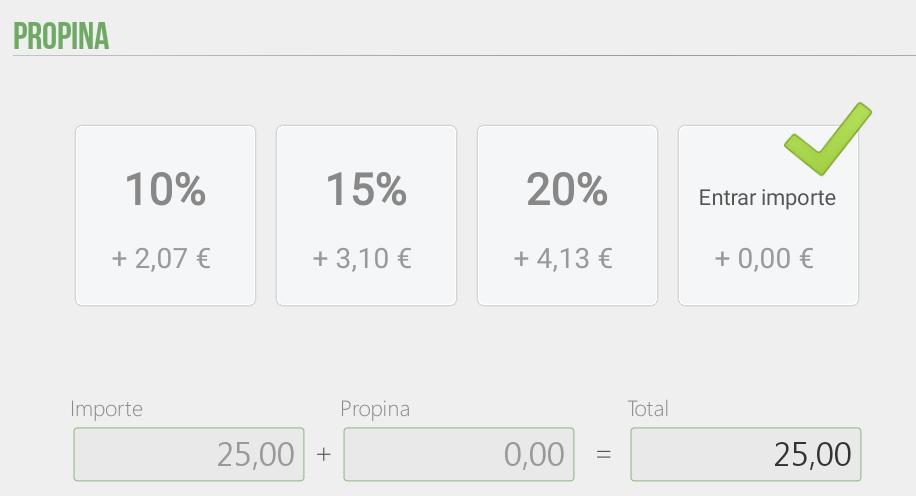
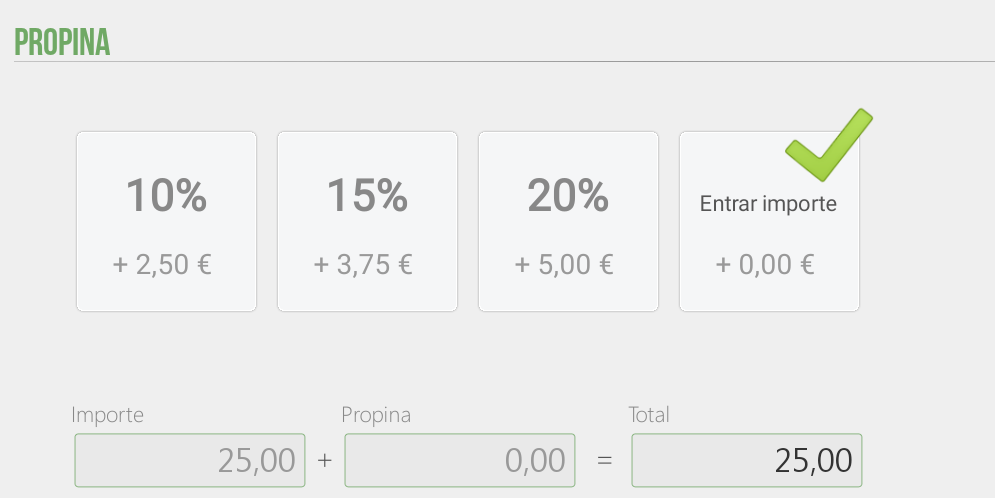
On the total screen, tapping 'tip' will open a window to select the desired percentage, as well as a new option to enter a fixed amount if desired.
The service charge
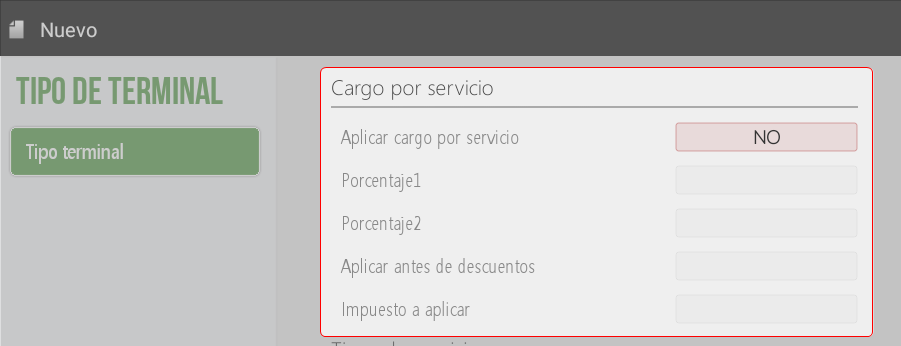
In Administration > Settings > Type of terminal, it is possible to enable the application of a service charge.
By default: The option appears configured in NO.
Upon activating it (YES option), you can:
Define up to two percentages.
Establish if the charge applies before the discounts.
Indicate if it should include an additional tax.
AI Assistant
Section summary
AI can generate inaccurate information; verify the results.