En esta sección
Modifiable parameters
Each payment method can be configured independently of the others.
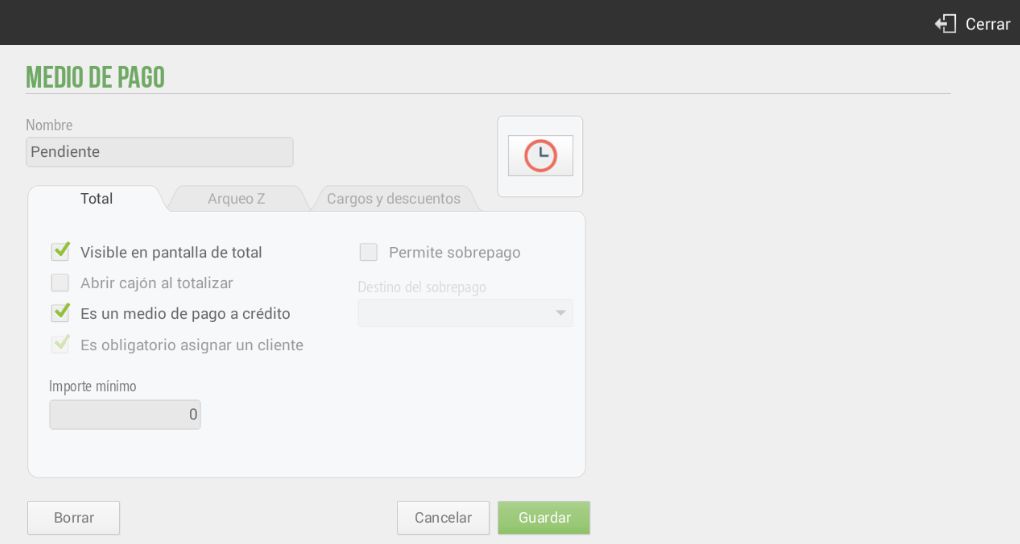
- Visible on the total screen: the payment method will appear on the ticket's checkout screen, so it can be selected as the payment method for that transaction.
- Open drawer when totaling: Once the sale is complete, the drawer will open (requires having a cash drawer connected; configure it in the Devices section of Settings)
- It is a means of payment on credit: When using this payment method, it will be necessary to assign a customer to the document, in order to track credit sales from the Pending option of the Cash tab in the top menu.
- It is mandatory to assign a client: Customer data will appear printed on the ticket, and the document will also be invoiced or sent by email if configured.
- Allows overpayment: In case of accepting overpayments, you can select how to apply this amount (Change, Tip or Remaining Amount), so that it appears reflected on the ticket.
- Minimum amount: Enter the minimum transaction amount so that this payment method can be used.
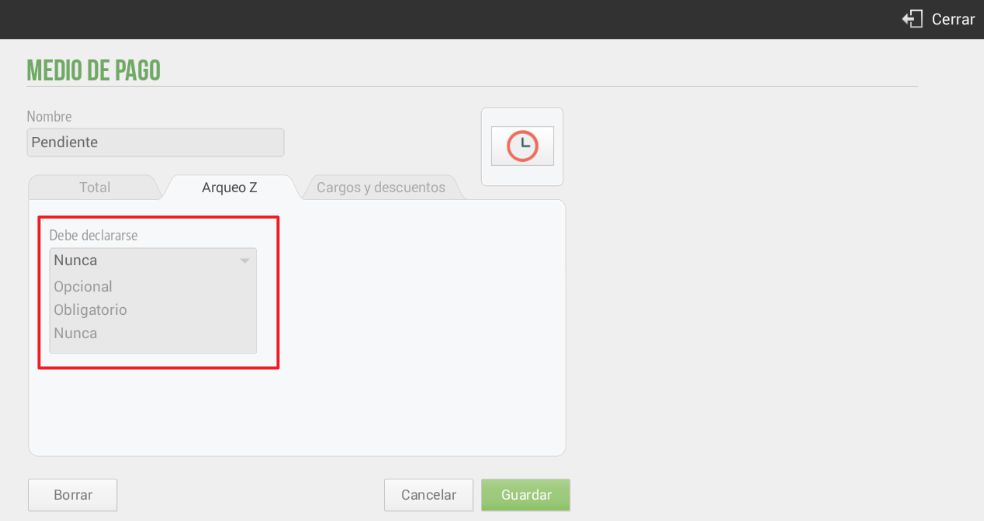
You can also configure whether the payment method must be declared in the Z-Report (top tab). Select whether the payment method is required to be declared, if it is optional, or if it is never declared.
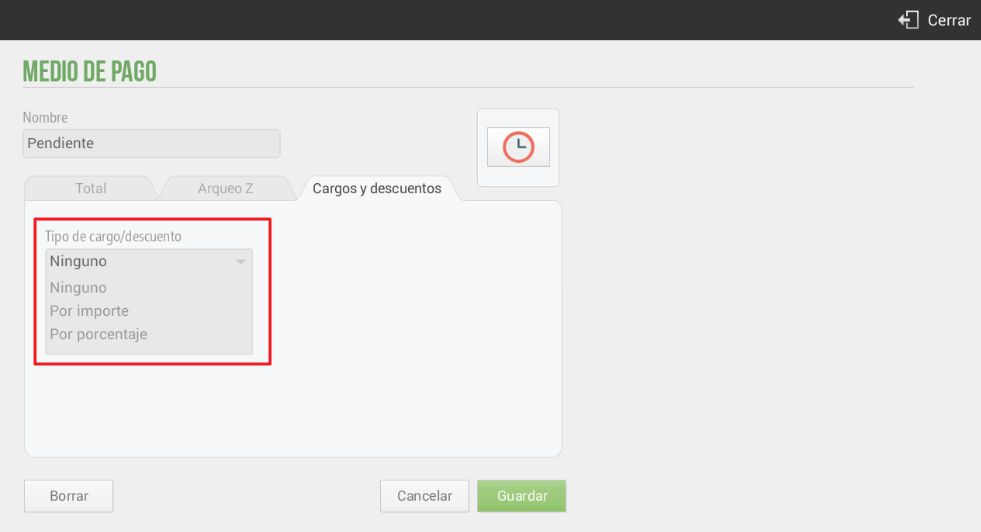
Finally, there is the option to apply a Cargo o Discount for the payment method. This functionality is available for all payment methods.
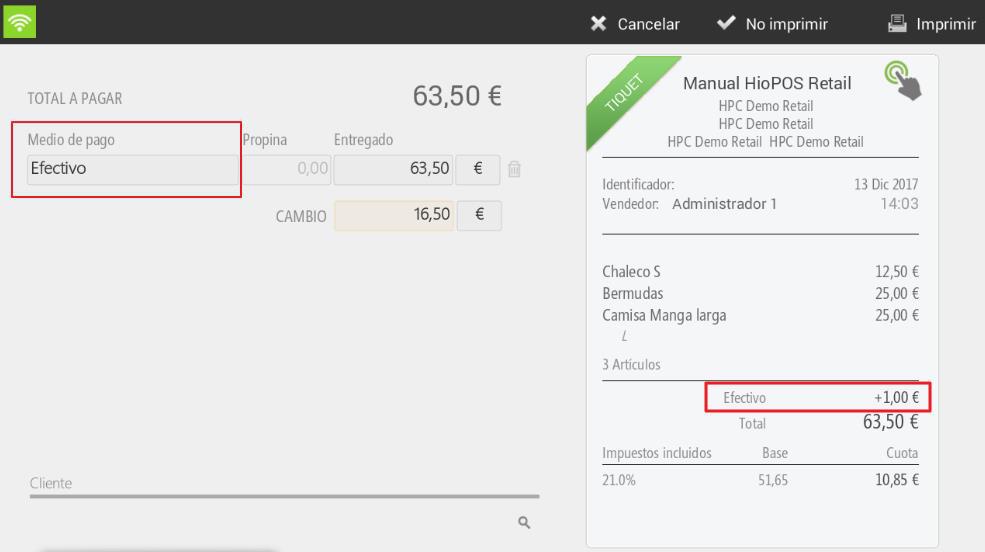
For example, let's imagine that we add a €1 charge to the Cash payment method; this increase will then be displayed on the ticket, added to the total amount due, as shown below:
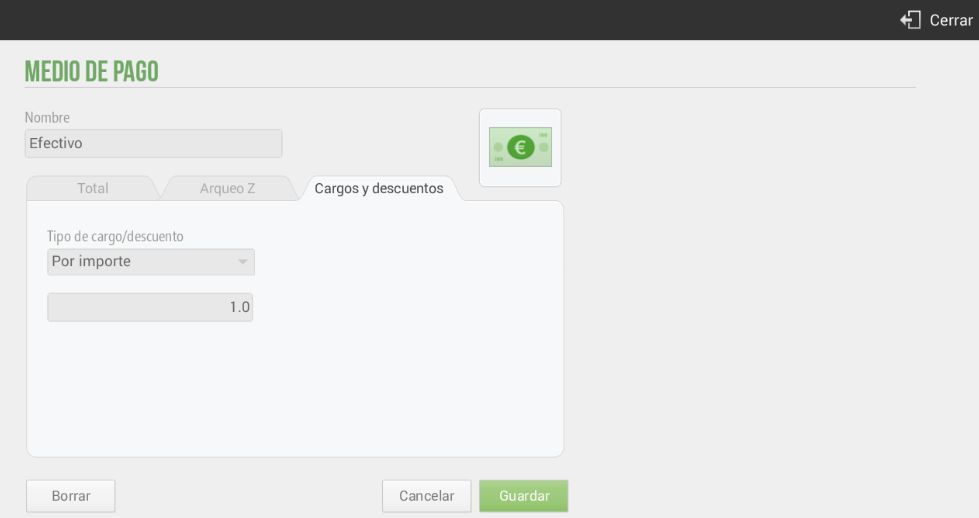
When selecting the payment method Cash, the price increase is added to the ticket:
AI Assistant
Section summary
AI can generate inaccurate information; verify the results.