En esta sección
Assign sizes to an an item
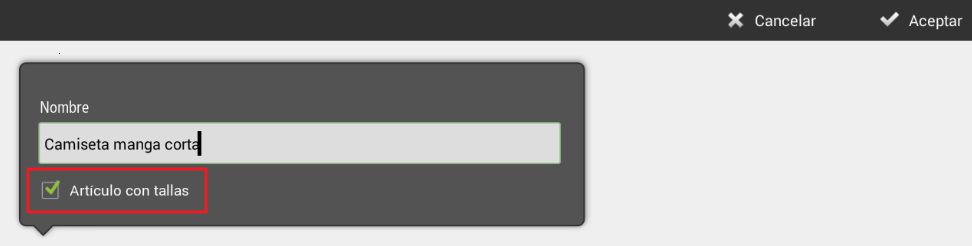
Let's go to the menu Articles English Settings. There we select a family and create a new item, where we will check the option Article with sizes at the moment of specifying the item.
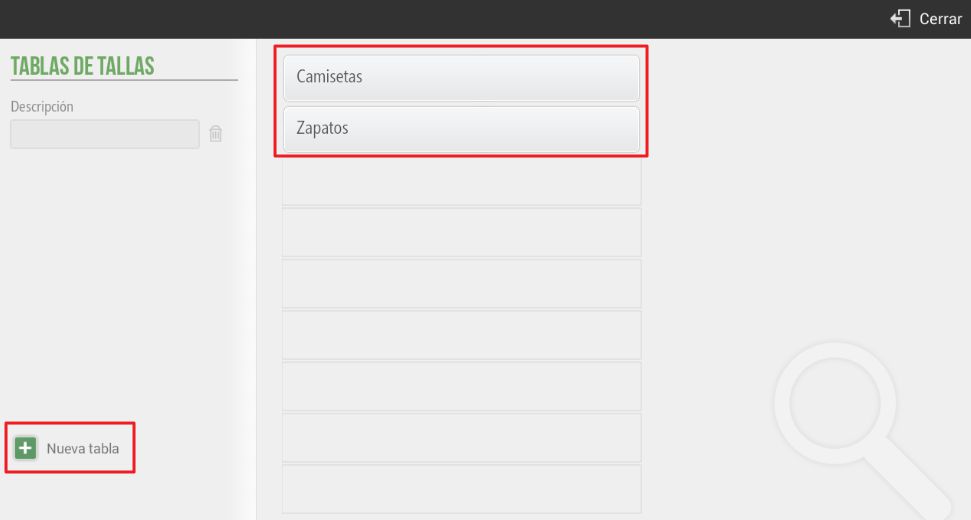
Once the item is created, select the size chart you wish to apply, and you can create a new one at that very moment.
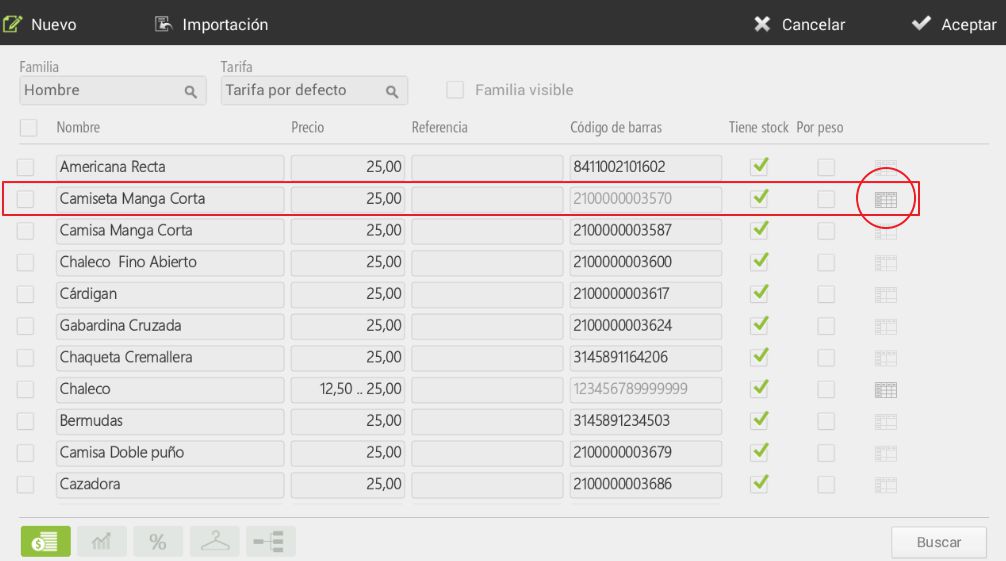
Next, enter the price and you will have created a new size-based item. When you have created a new size-based item, at the end of its line you will see a box with a table added, this means it is an item sold by sizes.
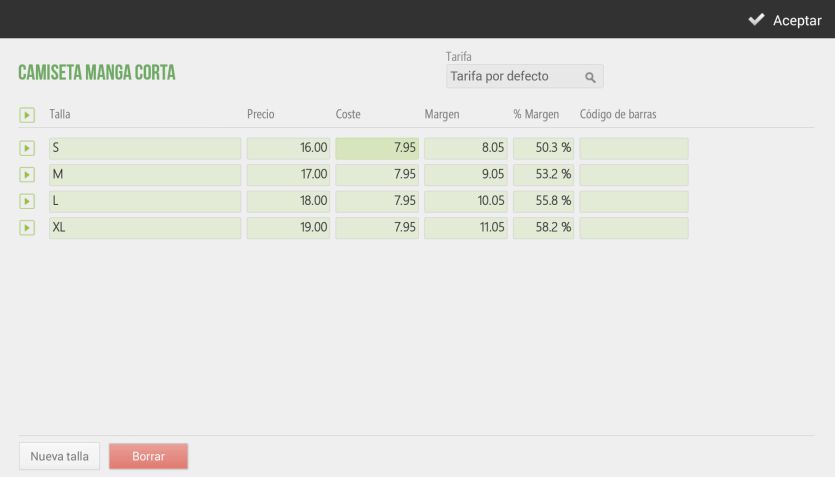
Click on the table to modify prices according to size, as well as the cost, margin, barcode, and rate. You can also add a new size.
If, when creating a new article, ' has not been selectedArticle with sizes", sizes will have to be assigned manually to each item. We will go to the screen of Settings, we will select Article, Edit articles. We will select in the table that appears almost transparent at the end of an article's line, and there we can add various sizes.
AI Assistant
Section summary
AI can generate inaccurate information; verify the results.