En esta sección
Multi-store configuration
To access the settings options of the store the terminal is working on go to the tab Administration and then select Configuration. In the settings menu go to Stores.

The parameters you can configure include those we added during the installation process; click the Edit button next to the store name, such as the Legal Name, Tax ID, Address, Postcode, City, Province, Phone, and logo.

The Properties It allows you to select the group of stores that will be affected by the modifications you make. Grouping stores will help you create user profiles, as in that section you will be able to select which store that profile has access to: the seller's store, the seller's store group, or all stores. This option is beneficial for businesses such as franchises.
The option Shared resources allow you to share data such as pending sales, between terminals that are on the same local network. Whenever there is more than one terminal, this option will be activated by default. If there is only one terminal in the establishment, it is important that this option is deactivated.
The Cash Reconciliation option allows you to enable automatic email sending when a Z-report cash reconciliation is performed. If you want this option enabled, you must enter the email address where the reconciliations should be sent. Additionally, there is an option to notify that same email address if there is a discrepancy in the reconciliation, and to specify the minimum discrepancy amount for notification.
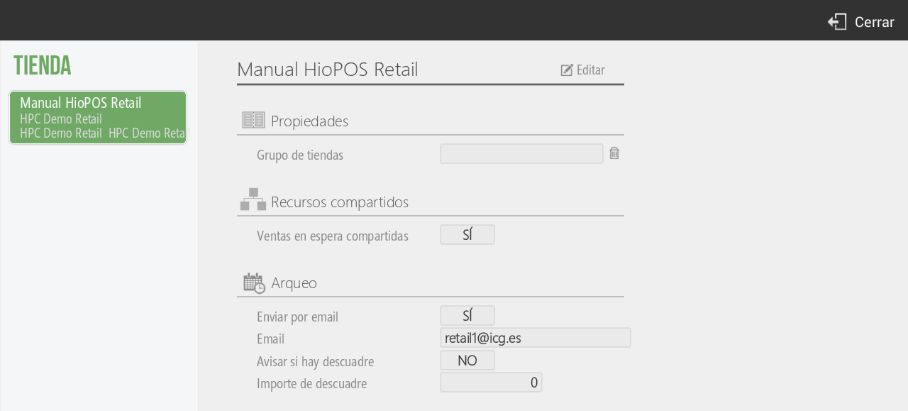
The Sellers option will allow you to share sellers between the terminal groups you have created. Click Edit to select the stores with which you want to share it.
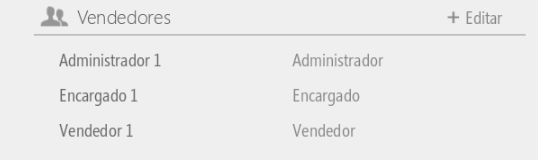
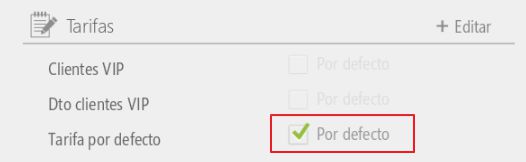
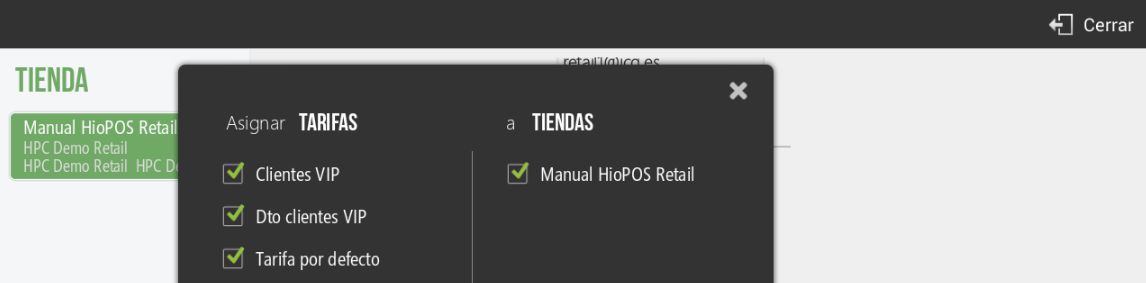
The option Rates allow you to select the default rate to be used on the terminal, as well as to share a rate among the group of terminals you have created. Press Edit to select the rates that each store can use.
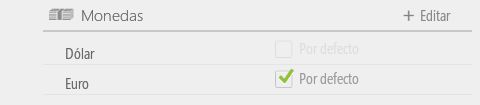
The option Monethe it allows you to select the currency that will be used by default at the point of sale, as well as share it among the group of terminals you have created. Click Edit to select the stores with which you want to share the currency.
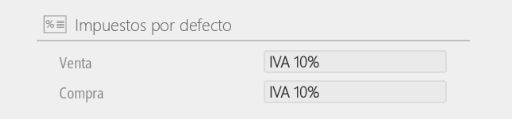
The option Impurepile for defect It allows you to select from the list of taxes you have created, the tax that will be applied to each type of transaction.
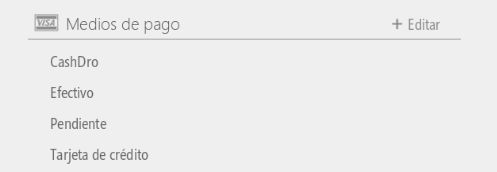
The option Payment methods allows you to share the payment methods you have available in the store with the group of stores you select. Press Edit to select the stores you want to share them with.
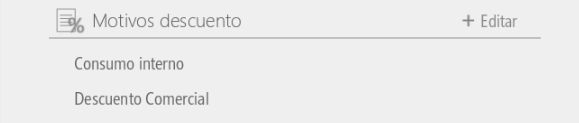
The option Reasons for discount it allows you to share the available discount offers in the store with the group of stores you select.
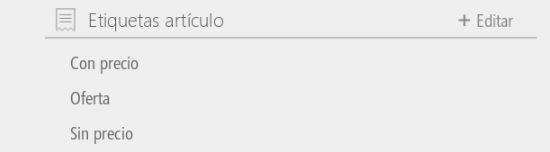
The option Labels it allows you to select which tags you will use in the Store. To select or deselect as desired, tap Edit. This option will only be available if the Label Printing module is activated.
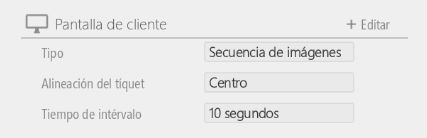
The option of Customer Screen it allows you to select whether you want to display a video or a sequence of images (with the option to select a single image, in which case this would appear) or a video on the second screen of the Android terminal. It also allows you to choose the alignment of the sales receipt, whether you want to display it in the center, left or right margin of the second screen.
AI Assistant
Section summary
AI can generate inaccurate information; verify the results.