En esta sección
Collections
This tool allows you to consult and settle those sales that are pending collection. The operations shown on each of the tabs will depend on the type of payment method used; the tabs that make up the collections window are explained below.
- Earrings
- On account
- Wallet
- Remittances
- Collections
- Returned / Canceled
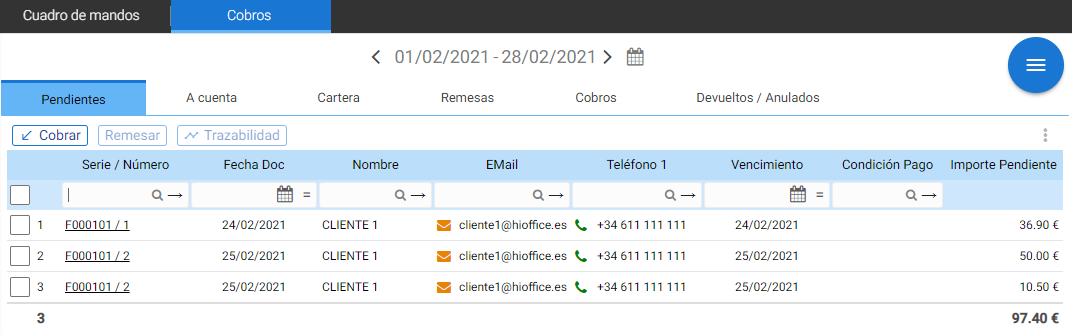
Earrings:
It is the selection of collected sales with a pending payment method.
In this section, you can multi-select different documents and collect or remit them. The process involves identifying the documents pending collection, selecting them, and marking one of the options above the table as agreed with the client.
The available options are Collect y Remit.
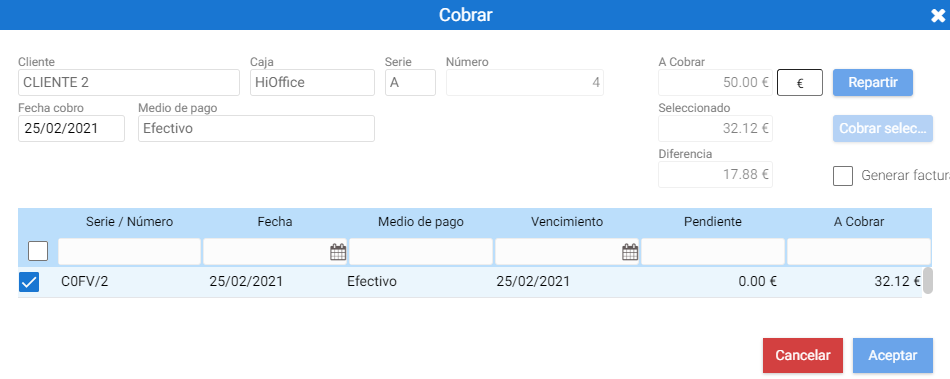
By checking Charge A floating screen opens with the document filter and the fields to enter the amount.
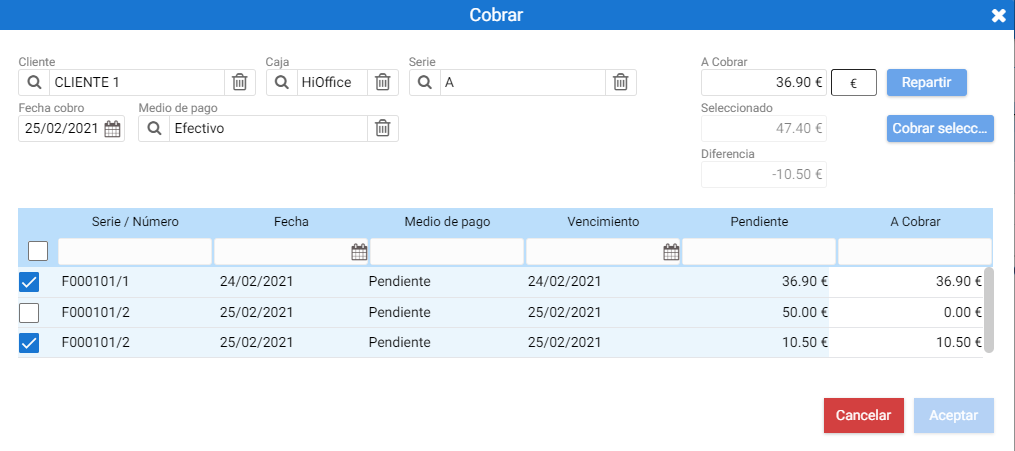
In the window header are the selection filters for customer, till, and series.
The collection date and the payment method used to settle the selected documents must be reported.
On the right, a field with the name Amount Due allows you to indicate the amount to be entered, below will be displayed the total of the selected due dates and the difference between what was selected and the amount entered.
To facilitate the settlement of various outstanding amounts, two buttons are enabled that allow you to split the amount among the selected items or directly collect the exact amount for those that have been chosen.
The allocation option is very useful for when the client is overpaying and you want to settle everything at once, generating a prepayment in their favor that can be recorded on an invoice if desired.
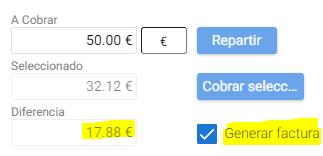
If the difference in a charge is positive and an advance is generated that is seen on the tab On account.
Al Remesar You will see a floating window where you must indicate the due date, the remittance date, and the series. Grouping can be performed by Due Date, by Contact (Client), or by General Ledger Account.
It is necessary to have a Bank-type box Once configured, it must have the bank details set up to which the remittance will be applied.
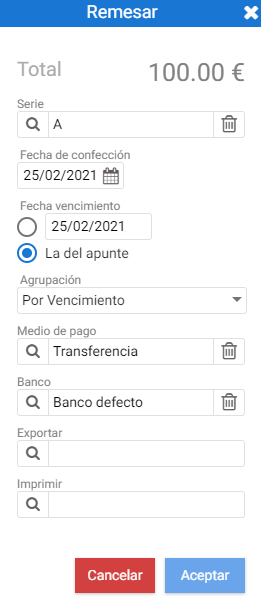
Once the parameters are finalized, upon clicking on Accept the status of the document will be modified and can be viewed in the tab Remittances.
On Account:
This section displays customer advances.

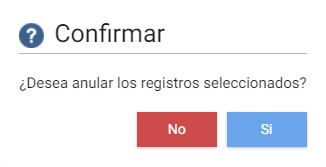
It can be canceled, modified, or returned. The [Cancel] option displays a prompt where you must confirm that you wish to proceed with the cancellation process.
The button of Modify will reopen the payment screen to modify it.
Return requires indicating a date for this return, and upon accepting, a record will be generated which can be seen in the tab of Returned / Canceled.
Wallet:
Maturities that have been finalized with a "bill of exchange" type payment method are displayed in this section. Promissory notes, checks, or bank drafts fall into this group of payment methods.
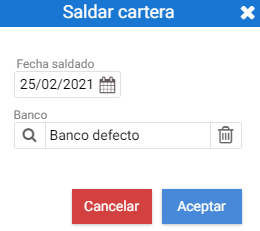
The actions that can be performed from here are cancel, return, and settle portfolio.

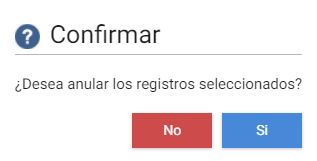
Aluminum Cancel The program asks for confirmation. If accepted, a record will be generated in Returned / Canceled
Remittances:
Once a pending document has been remitted, it is displayed in this tab, which allows settling the selected remittance.

This section consists of three blocks: the selection of remitted maturities, the remittance information, and the document data that can be seen at the bottom of the screen.
Shipment Information:

Document data:

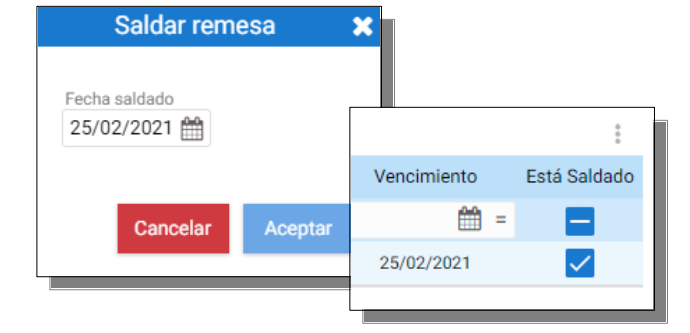
Aluminum Settle Remittance A settlement date must be indicated; upon accepting the function, the " button will automatically activate.It's paid offwhat is in the first block.
Collections:
All collected payments are displayed in this tab. Selecting one or another will show the original document's information at the bottom of the screen.


Just as with payments on account, from here you can cancel, modify, or refund the settled amount.
Returned / Cancelled:
All cancelled or returned items are displayed on this tab. Once they have been returned or cancelled, there is no turning back, which is why this tab does not contain modification buttons.


AI Assistant
Section summary
AI can generate inaccurate information; verify the results.