En esta sección
Bank reconciliation
Bank reconciliation will allow us to import the transactions from our bank account statements and thus compare and verify that the transactions recorded in the company's accounting match said statement.
This allows us to detect errors, duplications, or unregistered movements.
Firstly, the user should obtain a record of the bank transactions for a specific period.
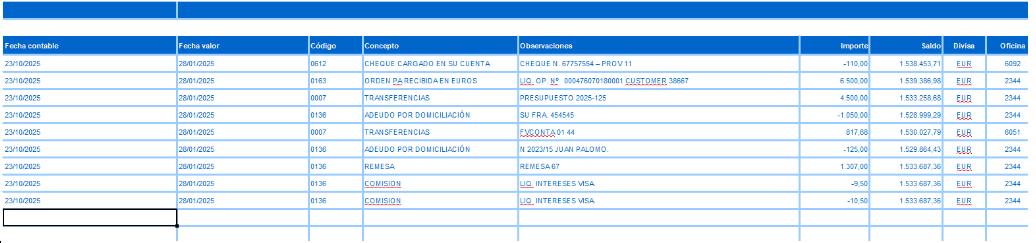
Example of file downloaded from bank.
Next, from the Treasury menu → Bank Reconciliation.
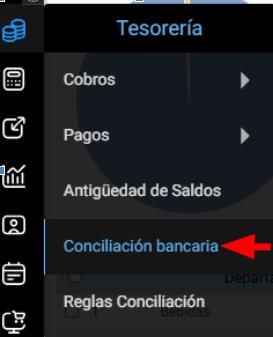
You must select the accounting firm to which the bank entity from the statement to be imported into the system belongs, and also assign the accounting account related to that bank's movements.

Available operations
Import
This option is the first one that should be used if there is a need to insert new entries into the bank statement.

This option allows mapping a CSV file obtained from the bank, containing those transactions, to be inserted into the database and subsequently generate a reconciliation of the accounting transactions.
The file is selected and the fields are mapped.

First, the header values must be completed, such as the rows to discard from the file, the decimal separator for amounts, the date format, and the field separator.
Note: Spreadsheet files can also be mapped by specifying the field separator, normally the semicolon.
In the columns containing the movements, we must map the values to be recorded. Bearing in mind that values marked with an (*) are mandatory to map.
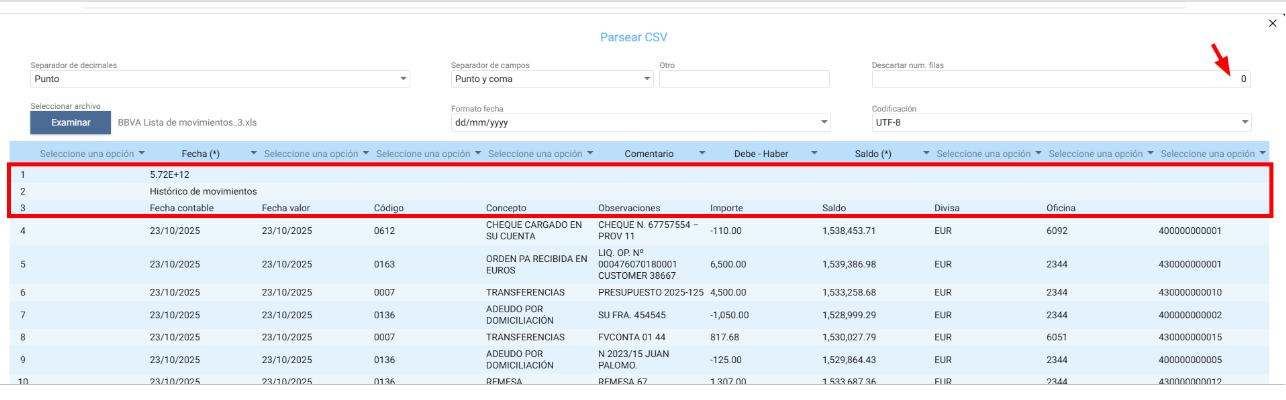
By accepting these values, they will be recorded in this dashboard linked to the accounting firm and accounting account that had been previously specified.
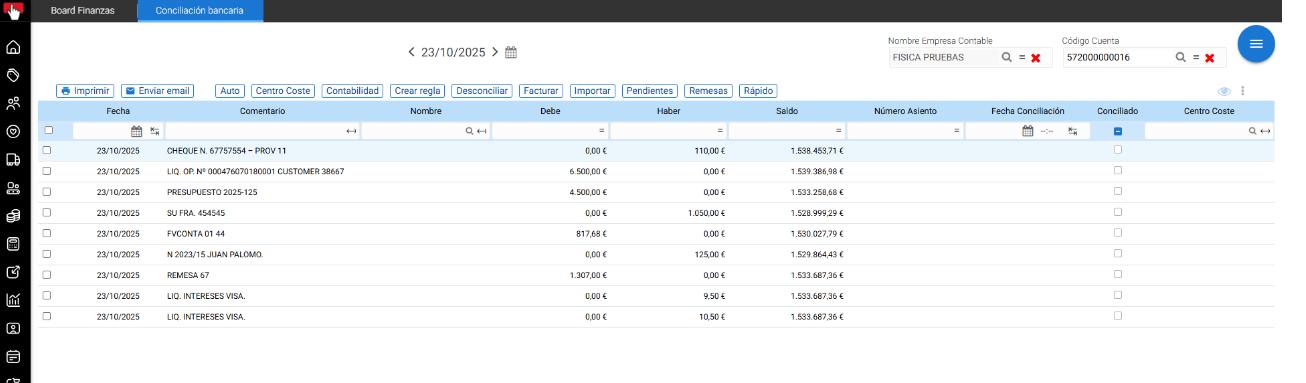
AUTO
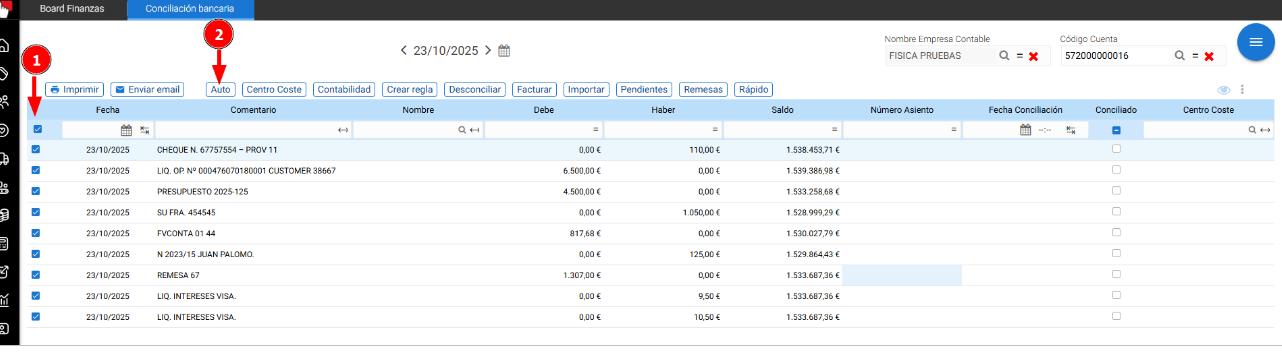
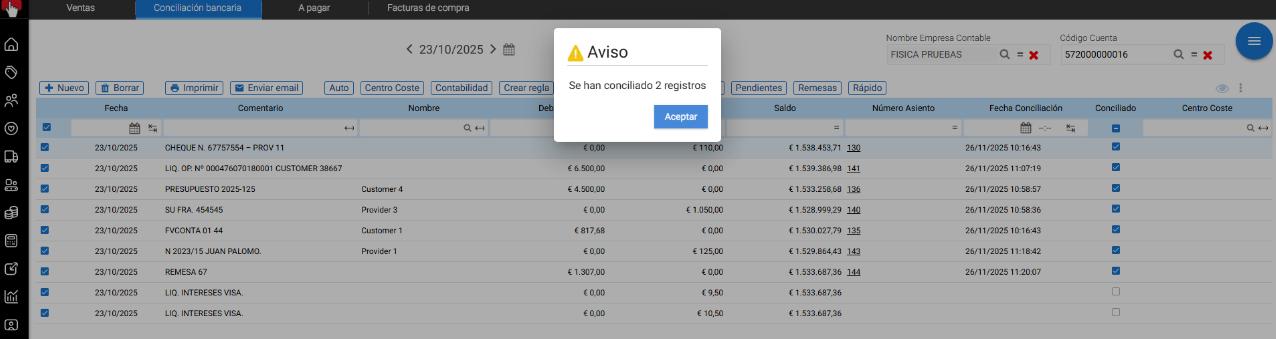
Once the records have been imported, you can proceed with automatic reconciliation. To do this, a multi-selection Prior review of all records unreconciled.
Upon pressing the Auto button, the system will go through all selected records and, for each of them, it will search in accounting for a record from the same accounting company and accounting account, with the same date (allowing a margin of plus or minus three days), and with the same debit or credit amount, that is not reconciled.
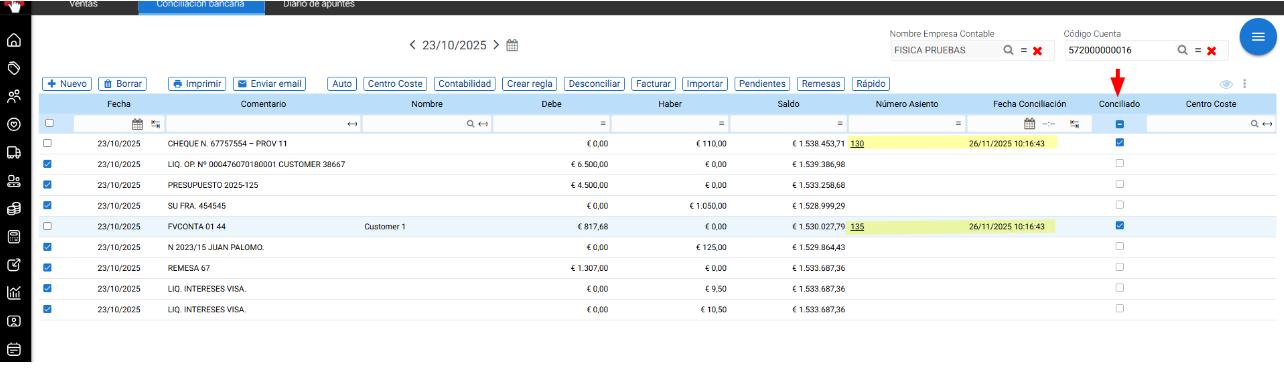
If a matching record is found, it will be reconciled by assigning the entry number and the reconciliation date.
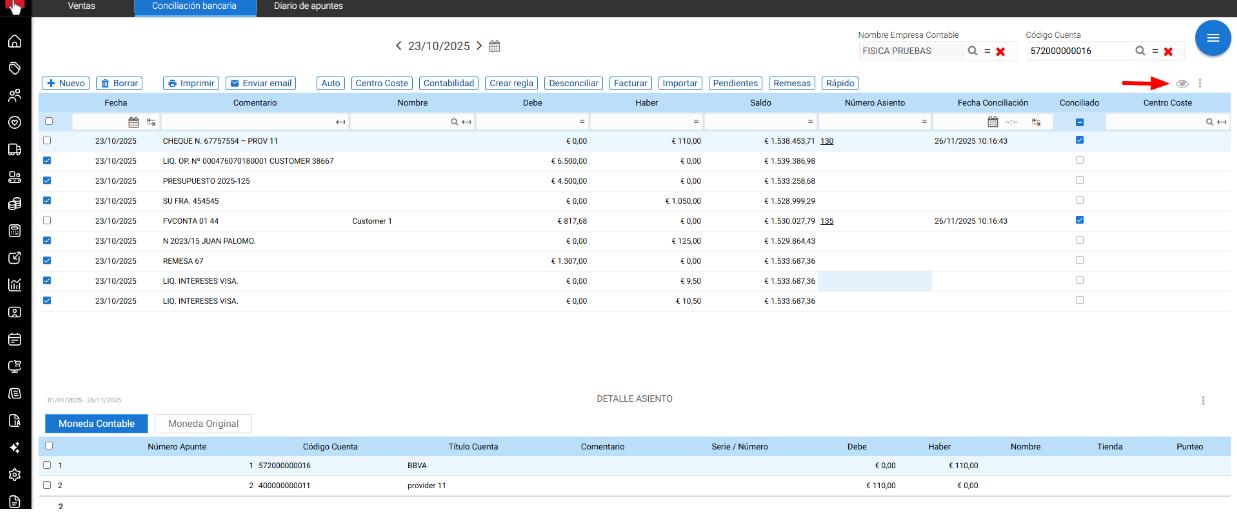
From this screen, if we are in a reconciled record and click the button  The detail of the entry can be viewed.
For the remaining records not automatically found in accounting, the user can use the other available operations, by first marking the record to be reconciled.
ACCOUNTING
For the selected entry, one would search in accounting for records with the same accounting firm, the same account, the same debit and the same credit, that are not reconciled, even if they are from different dates.
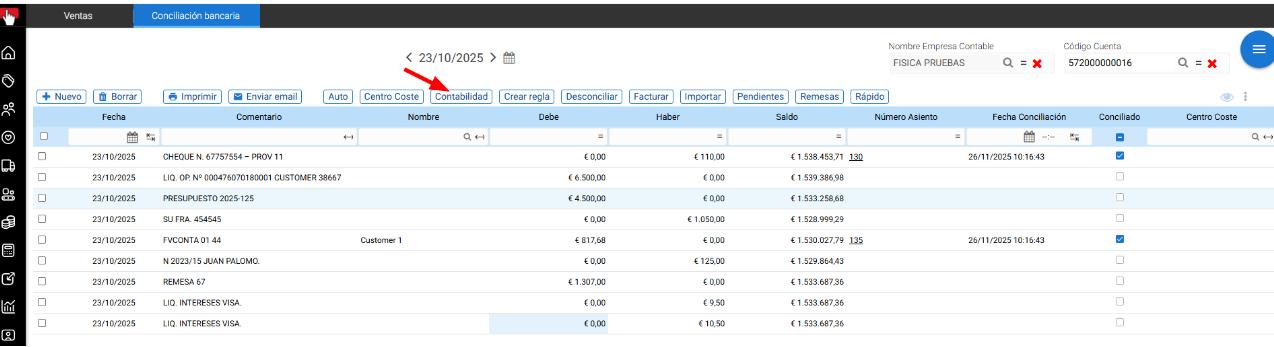
If there are matches, a popup will be displayed with the accounting records found.
If the user selects one of the records and accepts, the entry will be reconciled.

Earrings
For the selected record, I would search the pending treasury for records with the same accounting firm and the same amount, displaying them in a popup.
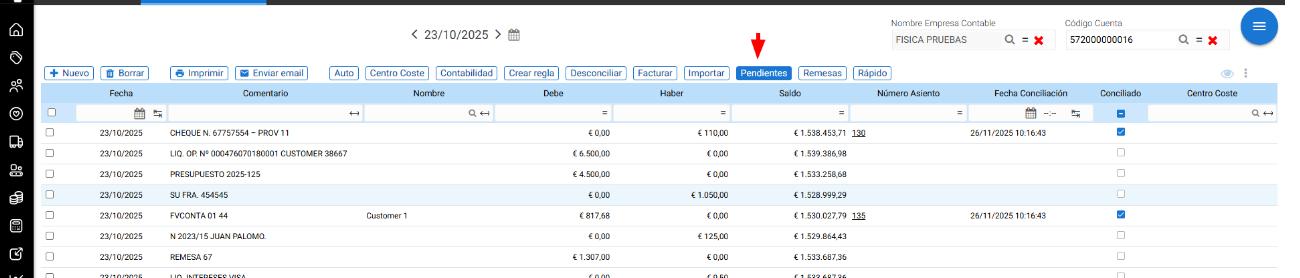
If the user selects one of them and presses the button conciliar, the said maturity will be settled, it will be accounted for on the date of the bank transaction and the record will be reconciled.

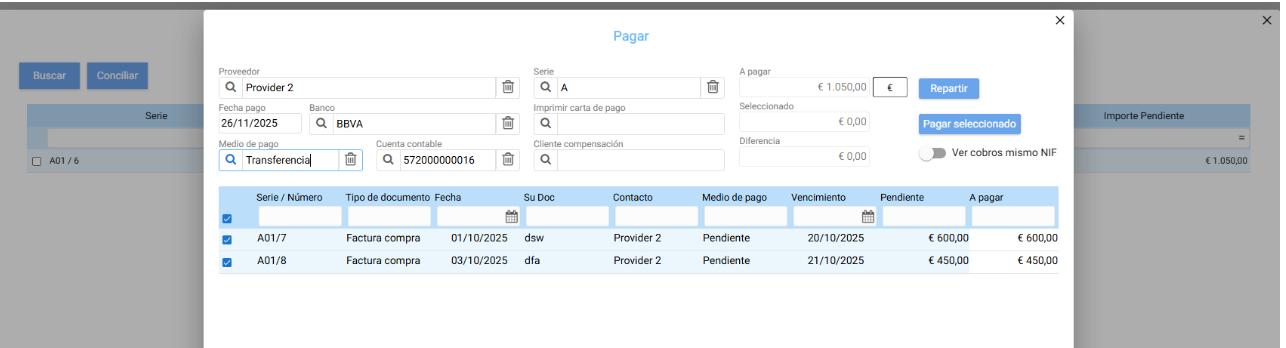
If the user does not select any record, using the button search You will access the Collections or Payments screen, where you can select a customer or supplier, and their pending due dates will be displayed.

From that moment on, the operation will be the same as on the screen of Charge or Pay
The user will be able to select the records to be settled until the amount to be reconciled is complete, finalize the receipt or payment, and reconcile it with the selected bank record.
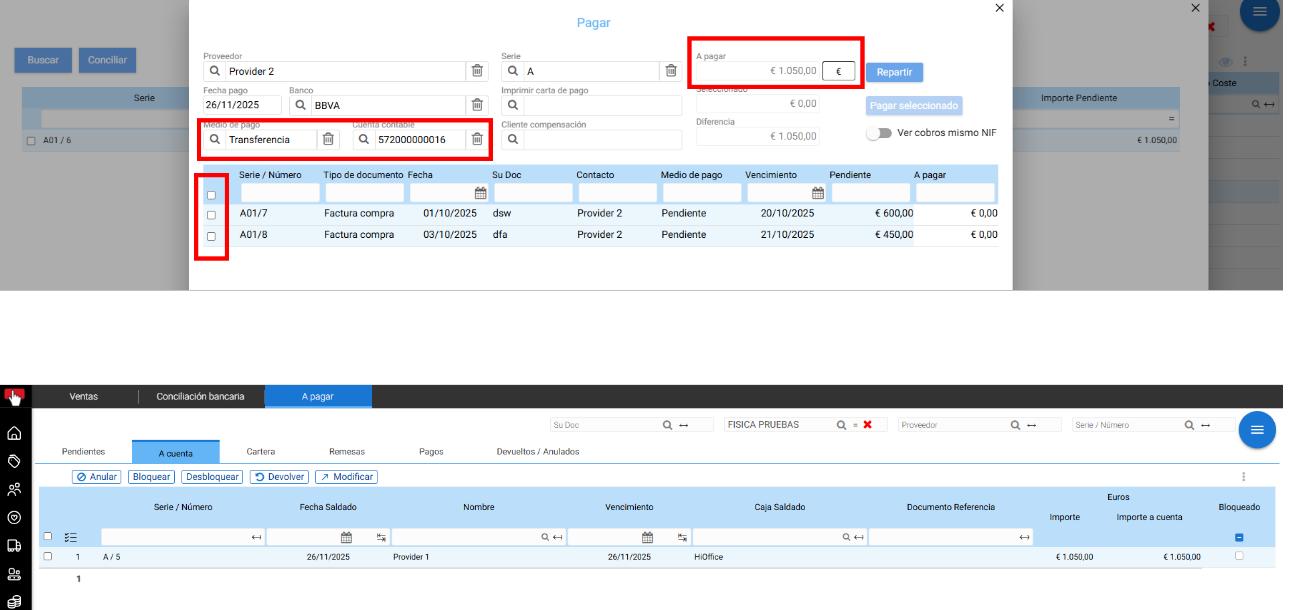
It may also accept the amount without marking any record for settlement, generating a Payment on account linked to the bank's entry for reconciliation.
REMITTANCES
For the selected record, entries with the same accounting company and amount will be searched for in remittances and displayed in a popup.
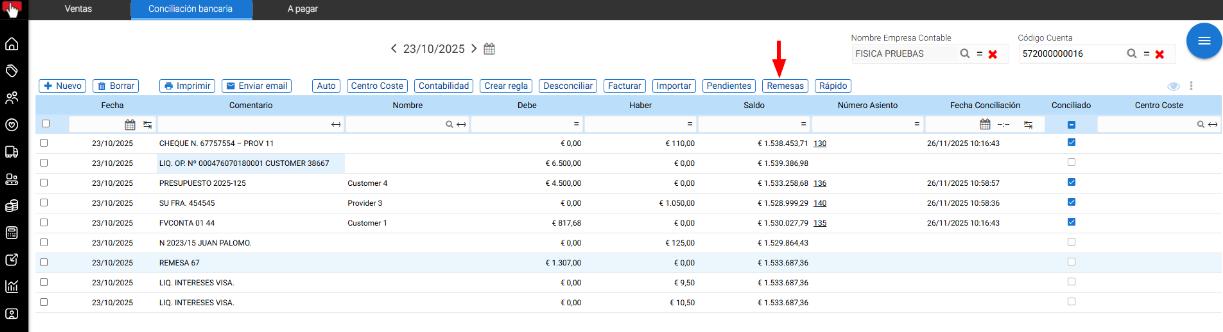
If the user selects one of them and accepts, the remittance will be settled in the accounts on the date of the bank record, and the selected entry will be reconciled.
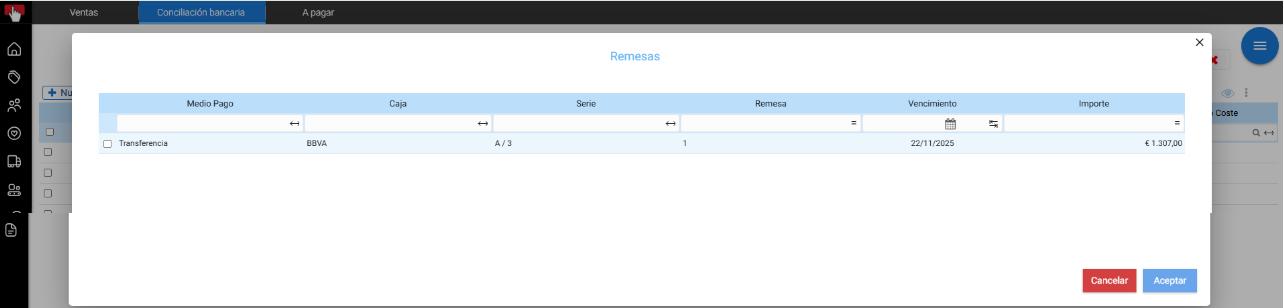
If no matching entry is found, neither from accounting nor from finance, the user may choose the following operations.
FAST
Upon selecting this option, you will need to provide an accounting account, and an accounting entry must automatically be generated against the bank's accounting account.
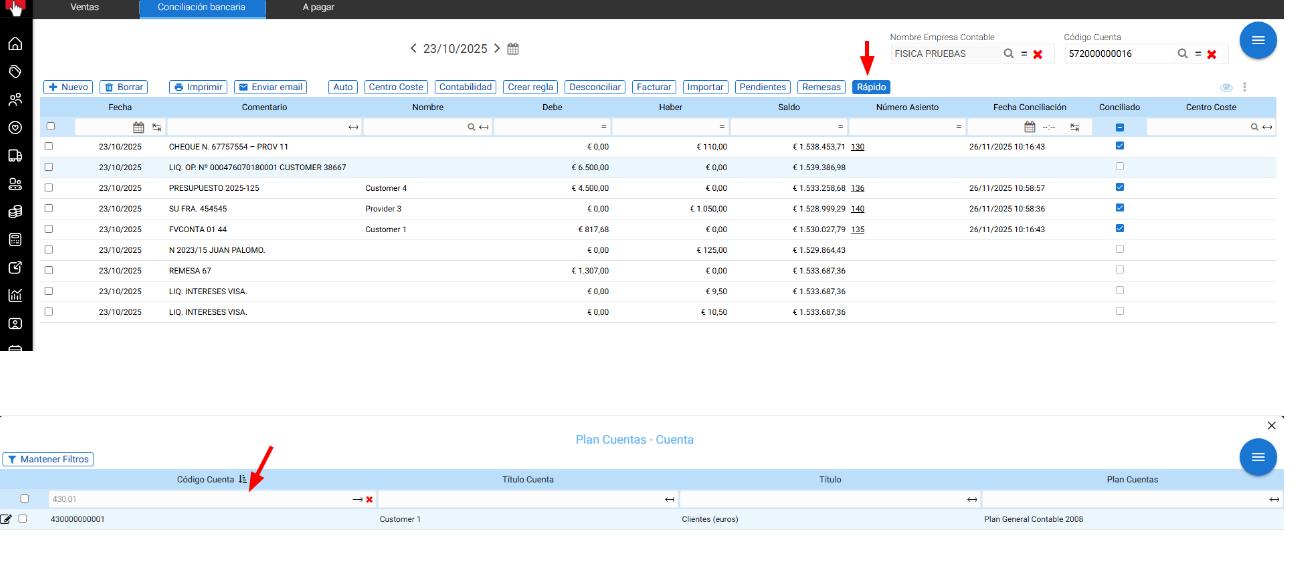
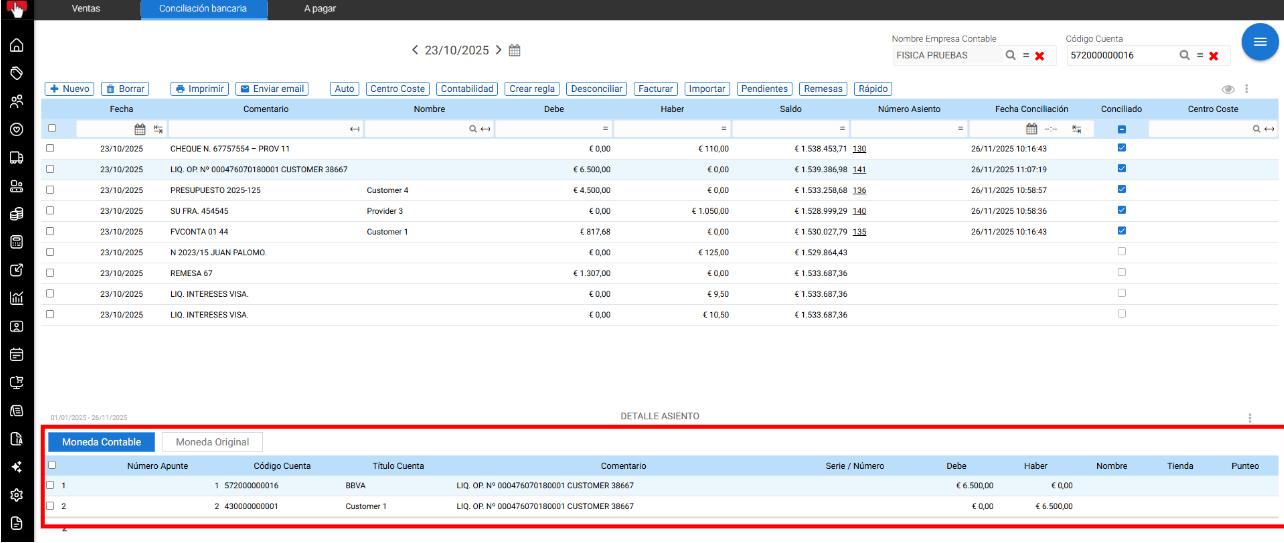
To invoice
This option will only be available for records corresponding to purchase or expense documents.
A popup will be displayed to complete the information regarding a purchase or expense invoice or credit note.
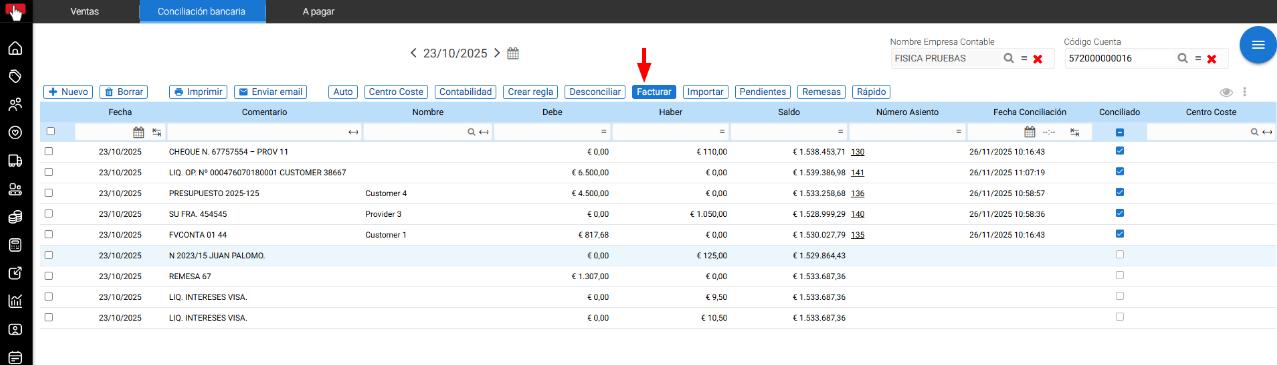
The total amount will be that of the bank transaction, with the tax base calculated based on the tax assigned to the expense item.
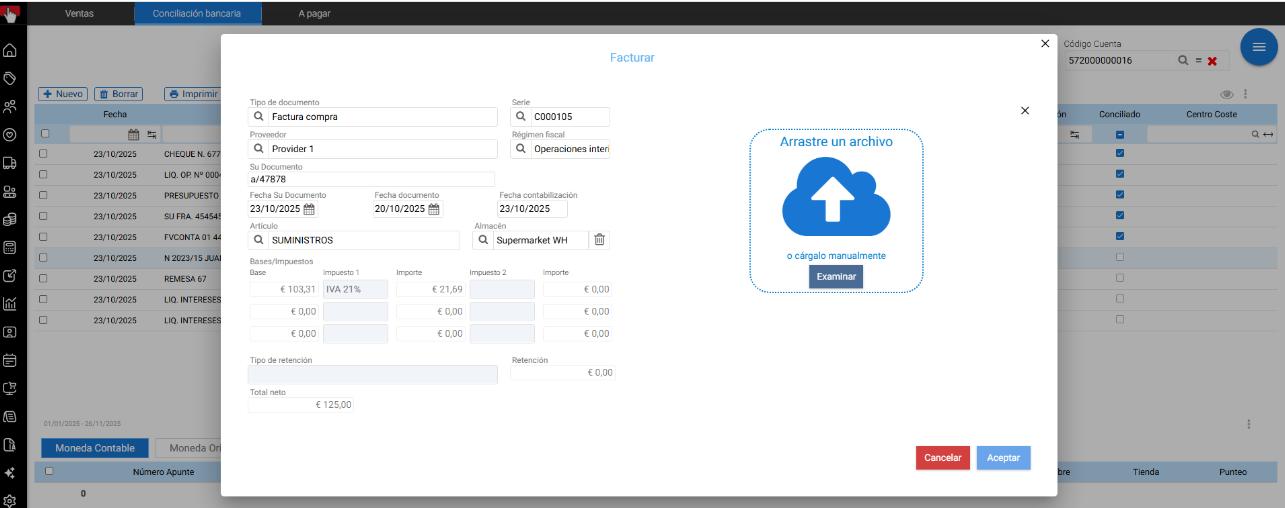
Upon accepting, the document of Purchase invoice or expense and its automatic settlement against the bank's ledger account, with the record reconciled.
RULES
It allows entries that match that rule to be located during automatic reconciliation, and subsequently reconciled.
For this, the user will first need to create a rule, locating a common factor for certain records that are not managed through finance or billing.
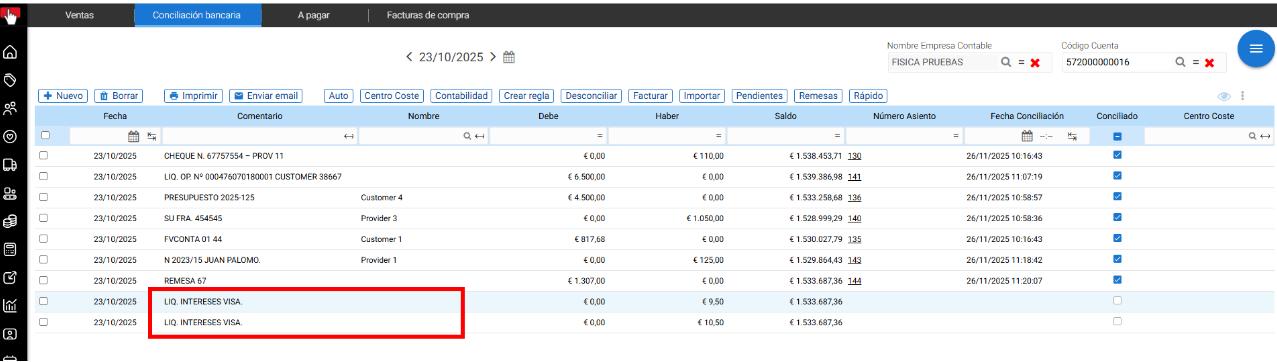
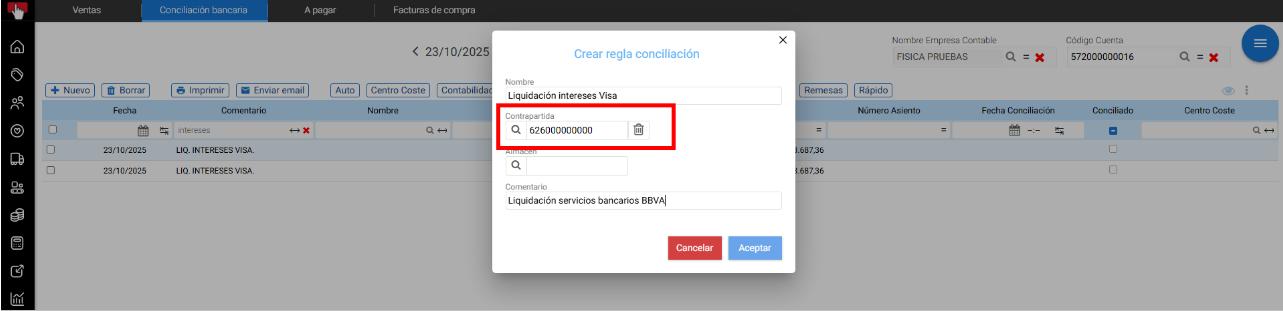
The appropriate filter should be applied to the necessary columns and select the operation of create rule.

A screen will open to create the reconciliation rule, where a/an must be specified name, a mandatory accounting balancing entry a warehouse if you wish to link a cost center, and the commentor what will be registered in the seat
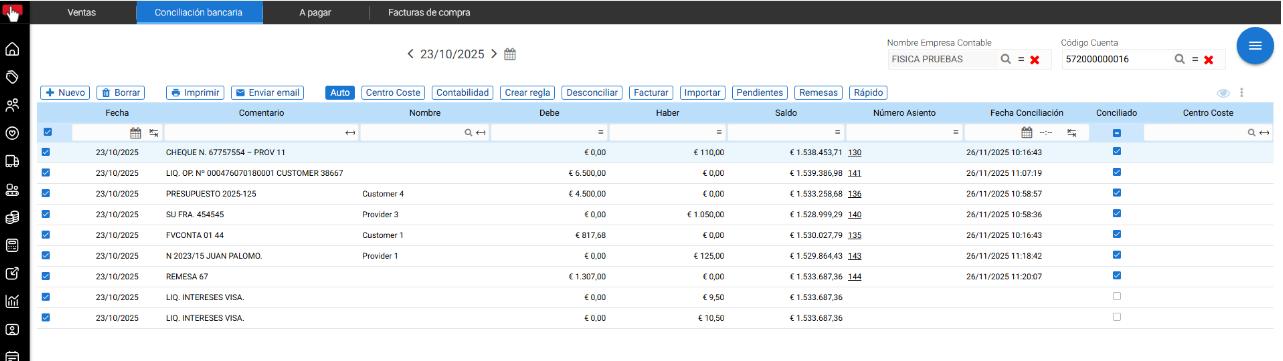
Once the rule is created, upon running the automatic reconciliation, the entries that match that rule will generate a simple accounting entry and will be automatically reconciled.

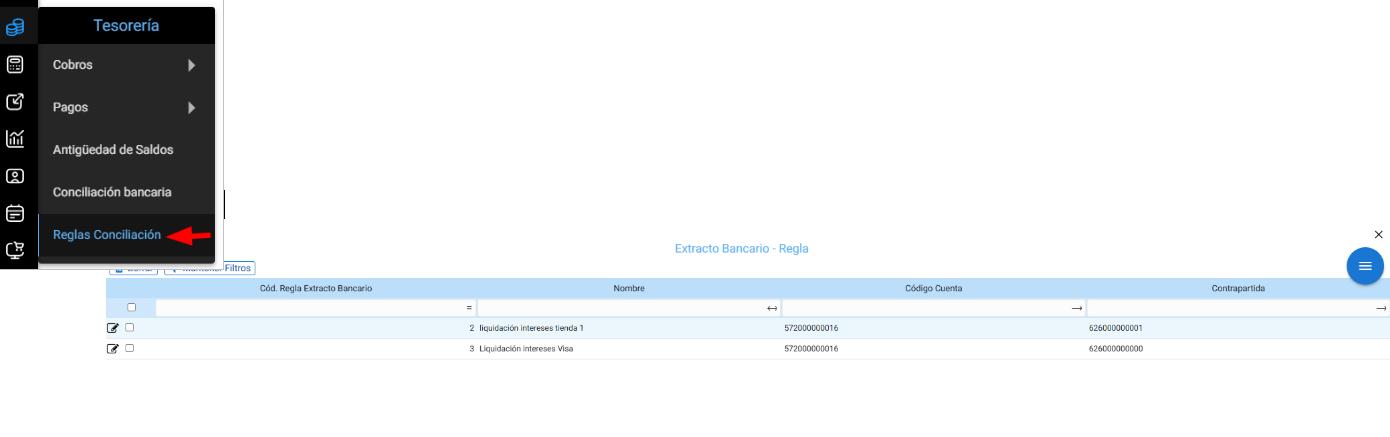
The rules can be consulted, modified, or deleted from the menu Treasury → Reconciliation rules
OTHER OPERATIONS
COST CENTER
This operation allows for the mass assignment of a cost center to reconciled entries.
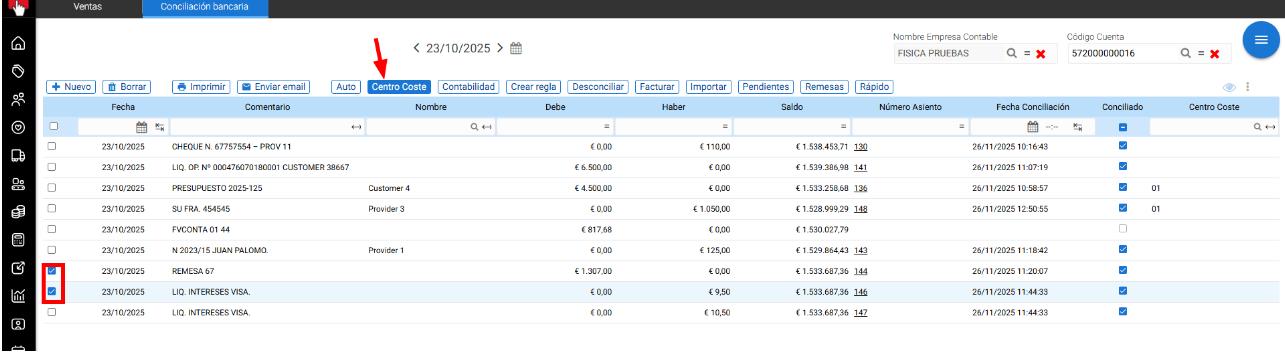
The records must be selected and, when clicking cost center, choose one of the available ones.
Upon acceptance, the accounting entries will be associated with the assigned cost center.
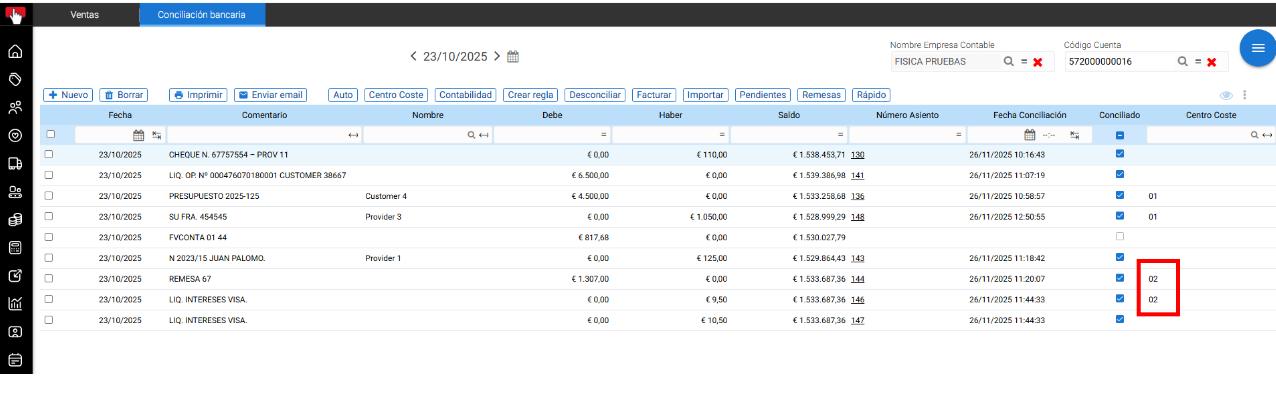
This option allows unlinking a reconciled item from its accounting entry.
The seats that come from rules If they are unreconciled, they would be eliminated.
Note: Reconciled entries cannot be modified or deleted.
AI Assistant
Section summary
AI can generate inaccurate information; verify the results.