En esta sección
How to start digitizing documents in HIOFFICE?
Upon pressing the button TRYwill open the module dashboard for Document Reception to start digitizing new documents.
In this first dashboard, a detailed User Manual will be displayed with all the functionalities and possible scenarios that a user may encounter.
With the button selected in the image, it will be possible to access this Manual for the Document Digitization module in HiOffice.

This option allows digitizing new documents with the option NEW.
Upon selecting this option, the following fields appear for registration:
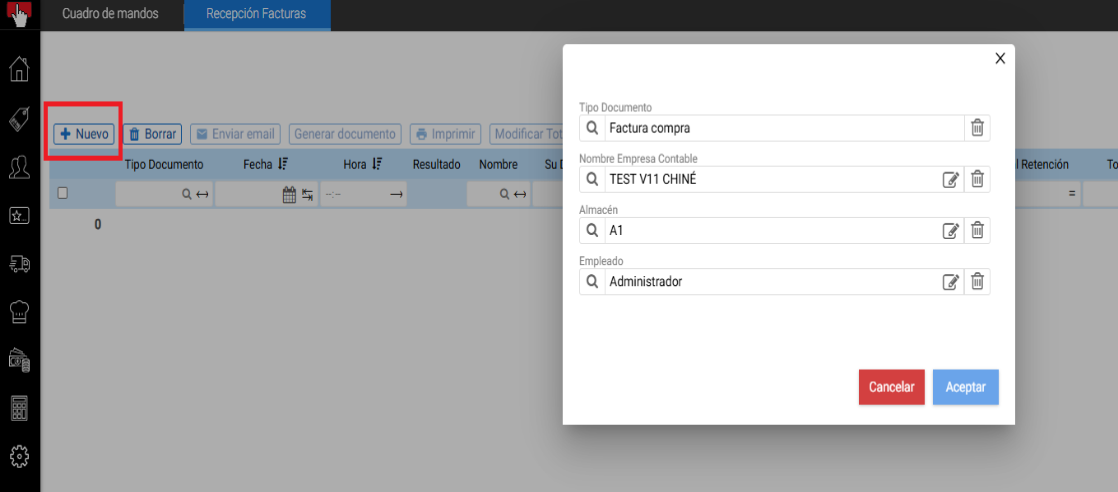
The following outlines what to consider for each of these values before digitizing documents:
- Type of document To digitize:
- The AI module allows registering expense invoices, purchase invoices, purchase delivery notes, or expense receipts.
- When starting the digitization, we must select what type of document we are going to register.
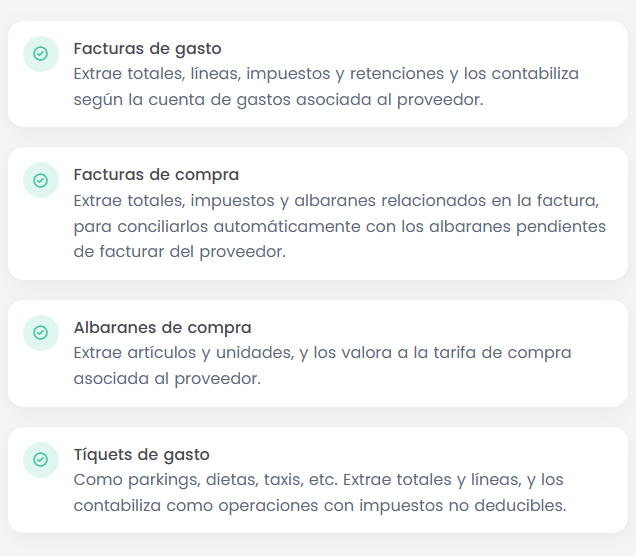
- Delivery notes → As is often the case, delivery notes are received unvalued or without totals. In this case, the document is not blocked at the totals level, and if the lines are modified, the totals are automatically recalculated.
- Expense tickets → These are documents that we want to control and record, but for which we cannot reclaim VAT. Consequently, the tax amount is also recorded as an expense and not as taxes. In addition, the supplier is created in the database, but is not assigned a specific accounting account.
- Name of the Accounting firm on which the document has an effect.
- Warehouse of the company that the document affects.
- If the warehouse has an associated cost center, the document will be posted affecting the corresponding cost center.
- Employee: The HiOffice user who logged in.
Important note: If multiple PDFs are selected, Hioffice understands that each PDF is a document, so all of them will be digitized regardless of the number of pages in each document.
If a single PDF is selected and it has more than one page, Hioffice asks:
- The selected file has more than one page. How do you want to extract the information?
- The file corresponds to a single document.
- Each page of the file corresponds to a different document.
This will allow digitizing a single PDF with multiple documents.
If a stack or group of documents is scanned with a scanner and a single PDF is generated, all of them can be digitized by selecting option number 2.
Once all values have been registered, you must press the button Accept And the following image appears to select or drag the files to upload from a repository on the client's PC. Here it is possible to select one or multiple documents.
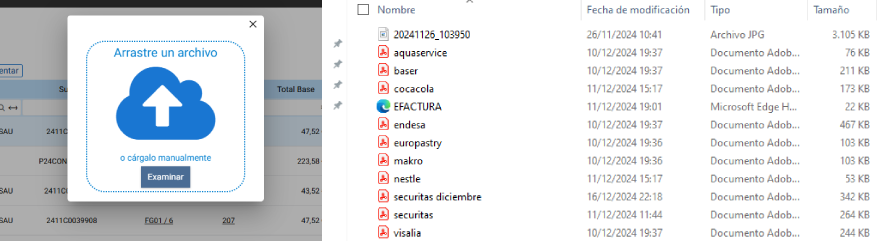
Note: It is also possible to digitize documents through an XML. The format must be Factura-E and it will be digitized correctly.
Once the documents are selected, HIOFFICE will begin processing them, and all their data will be recorded in HIOFFICE.
The artificial intelligence model implemented in HIOFFICE will identify all document data and record it in HIOFFICE.
- Supplier data, document lines, product barcodes, amounts, discounts, withholdings…
On this Document Intake dashboard, the list of scanned documents is displayed, and it will allow us to quickly identify whether the documents have been correctly registered in the system via the column Result.
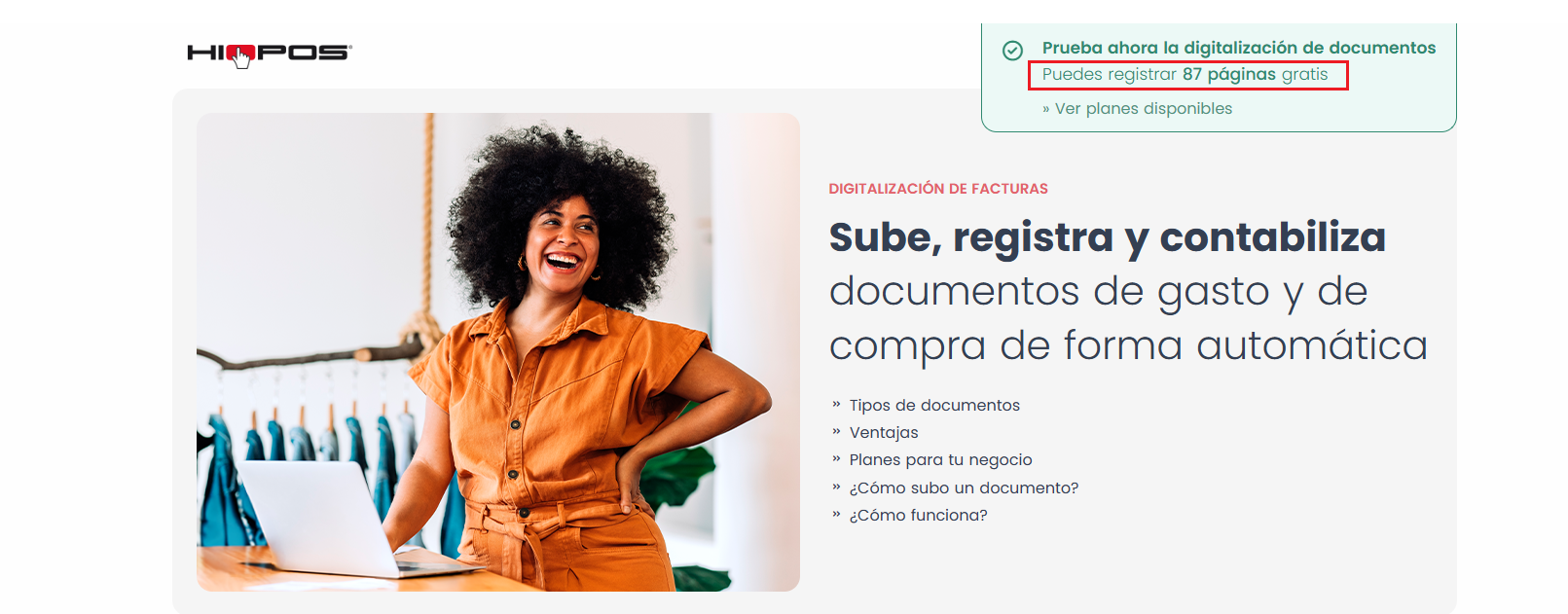
On the informational website, if the module has not been purchased, upon accessing it, the remaining pages will be displayed to complete the 100 demo pages.
Every time the Document Reception module is accessed, this screen will be displayed to re-access document digitization with the TRY option.
AI Assistant
Section summary
AI can generate inaccurate information; verify the results.