En esta sección
Label design
Premium*
To create and edit labels, the Label Design tool must be used.
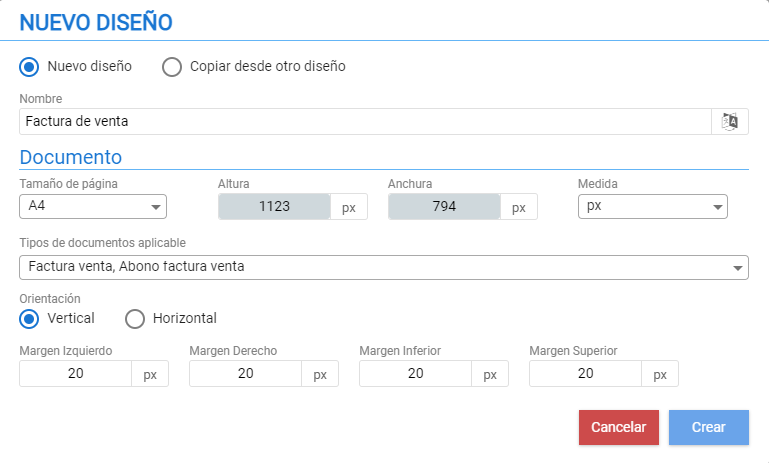
By checking [+ New] The Document Editor tool is accessed.

The first thing that must be defined is the Document size, which will depend on the type of printer you want to use. For example, when using a thermal ticket printer, it is advisable to base it on the paper width and indicate the desired length (height) for a group of labels.
Once the paper size has been set, in Label Design, you must indicate how many labels per row and column should fit, taking into account their dimensions.
Once [Create] is selected, the document design tool opens.
When expanding the settings menu, two tabs can be seen: Properties and Component.
The difference with Document Designs is in the database Fields, since these types of design require access to other fields:
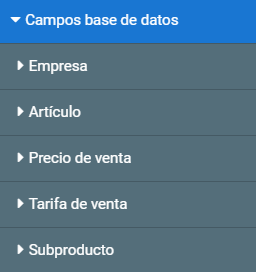
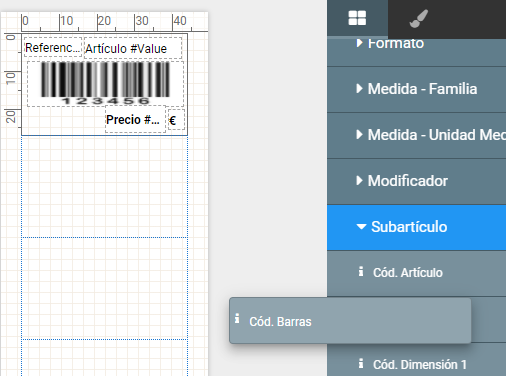
Example barcode field:
To associate a barcode, drag the Barcode field found in [Database fields - Subproduct - Subarticle]. Once added, double-click on the field.
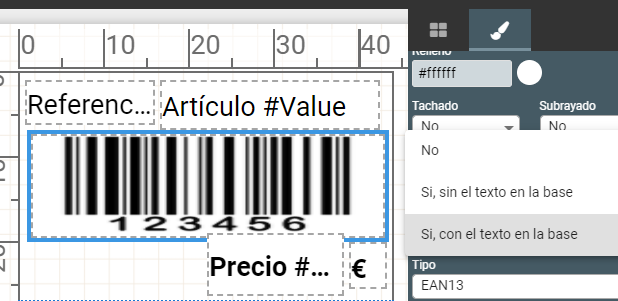
To access the text properties of this element, scroll down to find a dropdown menu for “Print as Barcode” where you must select [Yes, without text at the bottom] or [Yes, with text at the bottom].
AI Assistant
Section summary
AI can generate inaccurate information; verify the results.