En esta sección
User profiles
Premium*
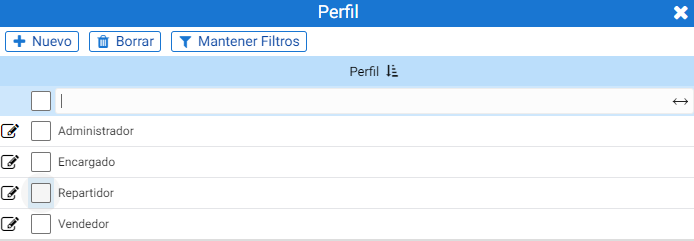
Once this option is accessed, a search and selection window for the existing profiles opens. To create a new profile, you can use the [+ New] button or from the details of an already created profile.
When creating a new profile, the first thing you see is the maintenance form, where you must fill in the Name field and select whether access is by vendor's store group, vendor's stores, or all:
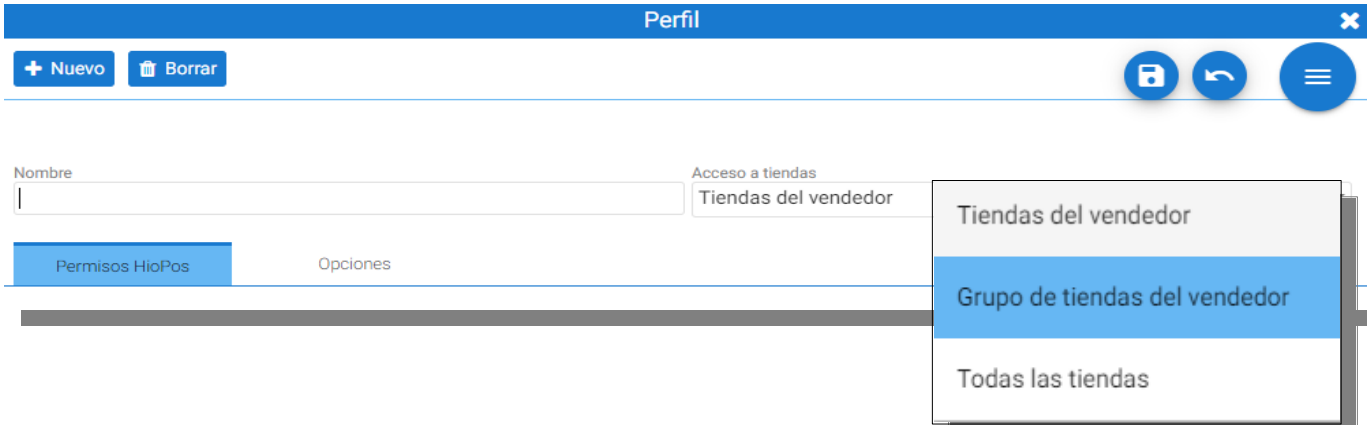
The store or establishment selected for the profile allows filtering the visibility of entities by establishment for employees assigned to this profile. Visibility can be filtered for: warehouses, items, sales prices, purchase prices, suppliers, and customers, as well as other profiles.
Once the main aspects are defined, the permissions for this profile are configured through the HioPos Permissions and Options tabs.
HioPos Permissions:
It contains, grouped into eight blocks, different buttons to enable/disable the various accesses to the HioPos database:
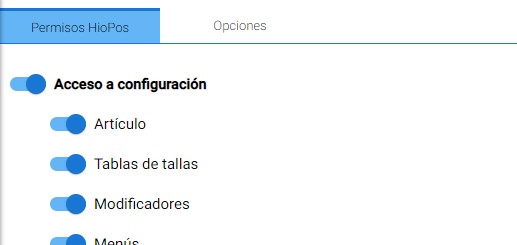
1. Access to settings: By disabling access, the user will not be able to enter the settings from the POS.
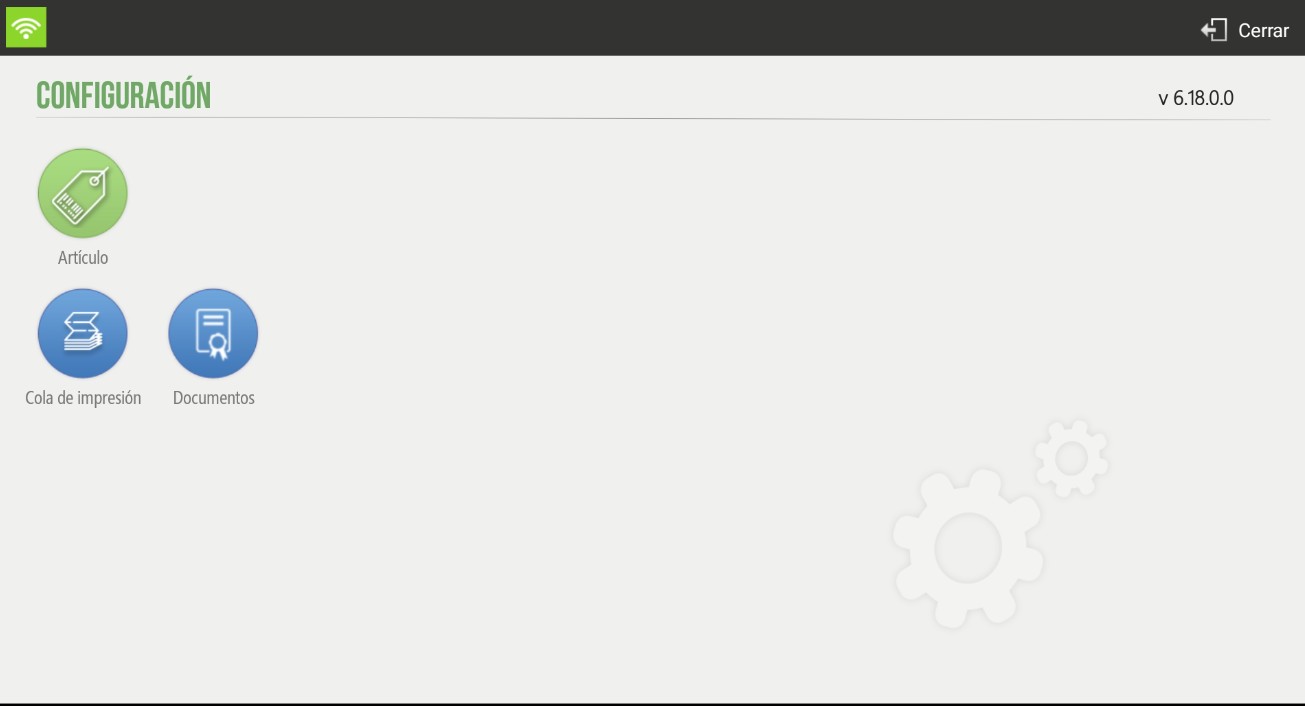
With an option for each tool in the HioPos Settings. If a field is not activated, that function will not be available in the settings menu for that vendor.
In this example, only the options [Article] and [Modifiers] are marked:
2. Sales Access: From here, you can determine the limitations users will have when making sales. This defines whether the user can access sales blocked by another salesperson, modify sales lines with discounts or changes in price/rates, access to finalize documents, create subtotals, process payments, and invoice, among other actions.
3. Cash Register Control Access: To determine the permissions users will have when performing cash transactions.
4. Cash Count Z: Reporting of amounts, cash control, and viewing the cash count.
5. Query access: Ability to view lists of purchases, sales, cash counts, ins and outs, deliveries, and distribution.
6. Access to purchasing and stock: Purchasing process and stock management. It is important to know that this is where the permission to print labels is found.
7. Access to statistics: Here you can determine whether users can access the statistics module or the T-Quiosk configuration.
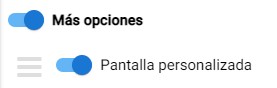
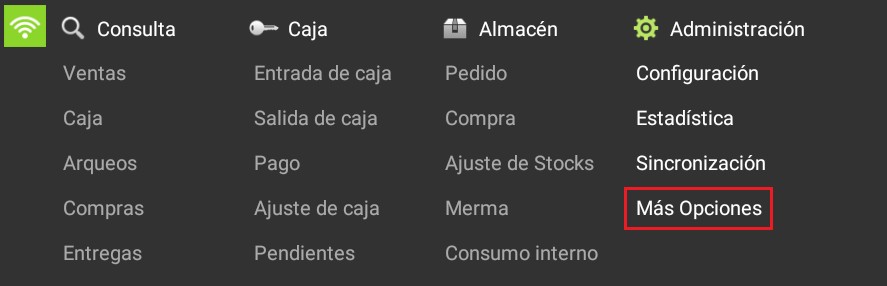
8. More options: Enables the visibility of custom HiOffice Gold screens that have been created with Partner Advanced Engineering tools. If the client has not contracted HiOffice Gold, they will not be able to activate the visibility of the custom screens.
Options
Here you can define which Date filters will be visible in the statistics and document listings.

AI Assistant
Section summary
AI can generate inaccurate information; verify the results.