En esta sección
Permissions
Premium*
Access to HiOffice, for both employees and user profiles, must be configured in the Permissions window.
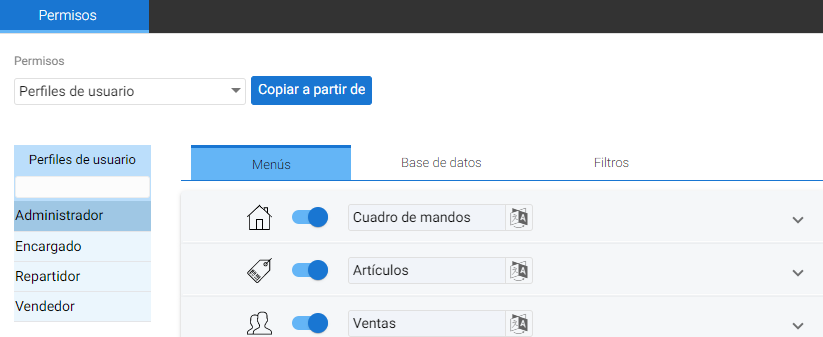
At the top of the screen is the filter by profiles or by sellers.
Below the filter, in the left column are the employees or types of profiles created, and upon selecting one, you access its permissions to view or modify them in the three following tabs: Menus, Database, and Filters. Additionally, if Salespeople is selected, one more tab is shown with the name "Default Configuration".
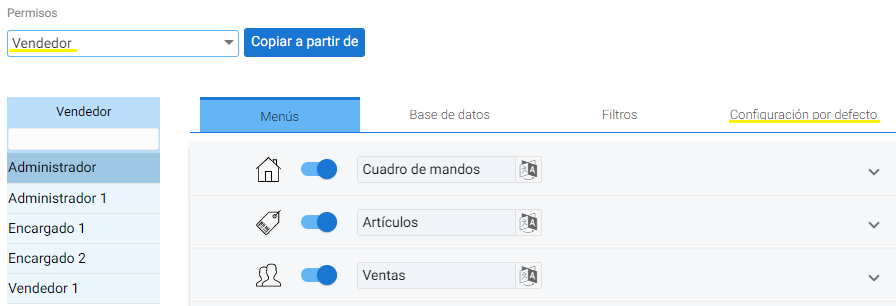
Menus:
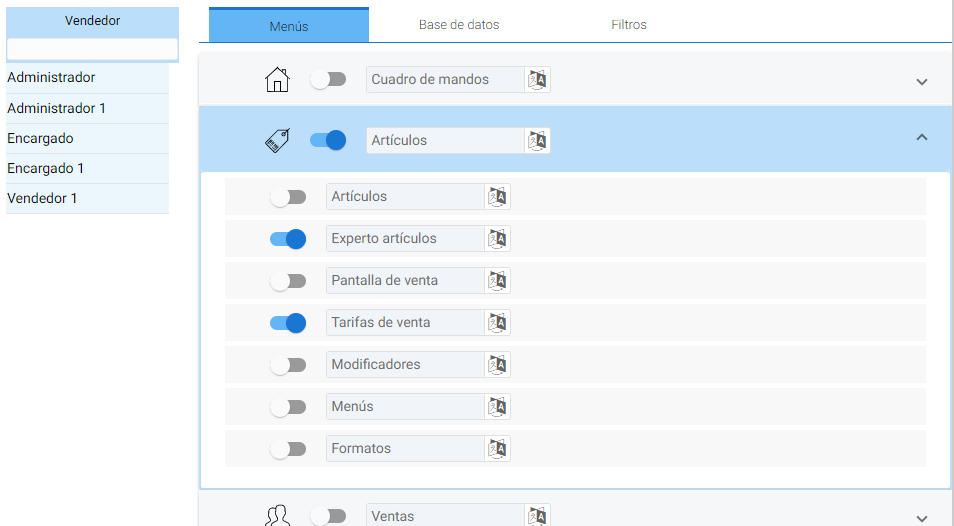
Using the Menus tab, you can enable or disable access to HiOffice tools and menus.
Database:
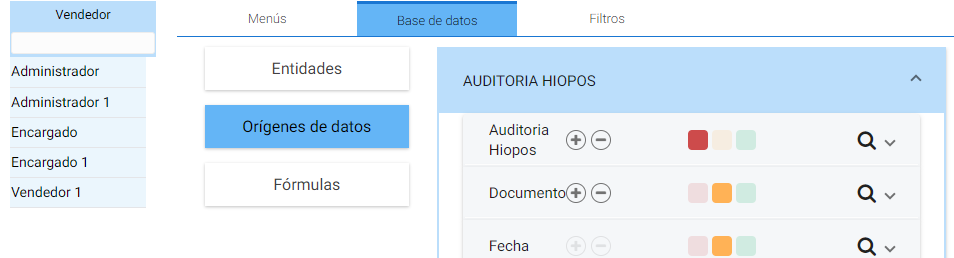
On the Database tab, you will find the traffic light, which, with red, yellow, and green buttons, activates read/write permissions for the database's entities, data sources, and formulas.

- Red: This option cannot be accessed.
- Yellow: Allows viewing but not modifying
- Green: Allows access and modification.
Filters:
To add an access filter based on an entity. For example, to limit access to only the information of a terminal.
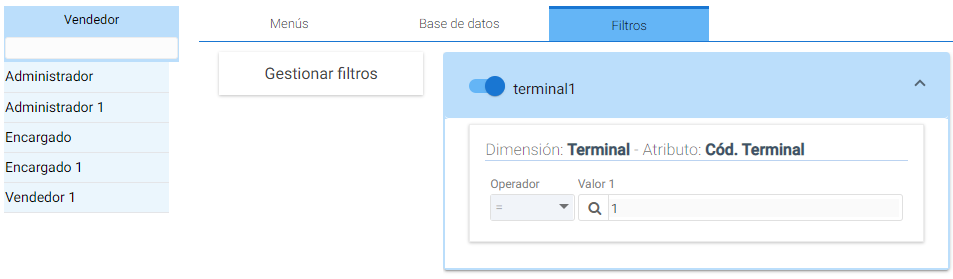
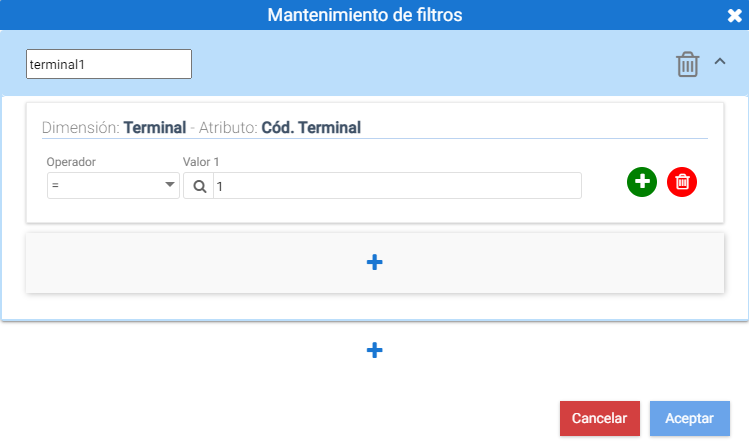
To do this, you must click the [Manage filters] button, and a floating maintenance window will open where you can create filters, first by entering the name and then by clicking the [+] button.
For example, in the following image, a filter is assigned to the profile by terminal code equal to 1:
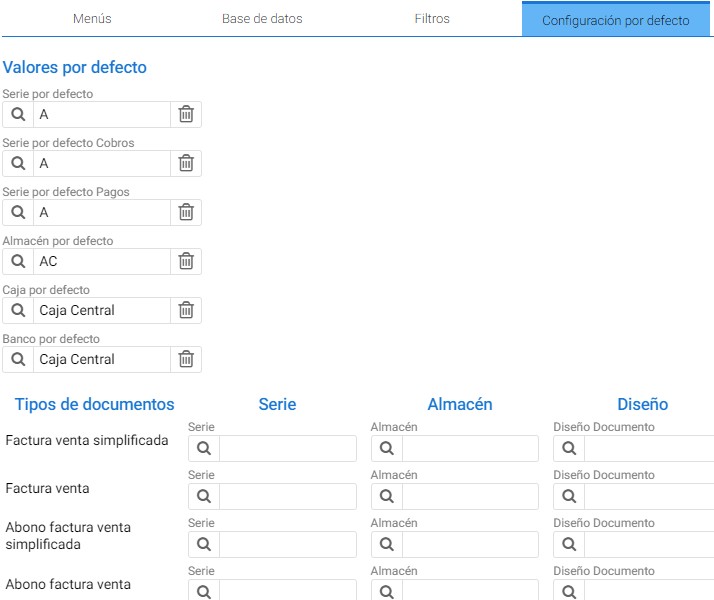
Default settings:
This section contains the default series, bank, and cash that will be automatically applied to the documents created by the salesperson in question.
AI Assistant
Section summary
AI can generate inaccurate information; verify the results.