En esta sección
Sales screen
Once articles are created, their display order on the sales screen is defined for when they are sold. At this point, the distribution of families and subfamilies with their articles is managed.
The first buttons are for selecting the establishment where the change is applied, the rate used in the venue, and the format (in rows x columns).
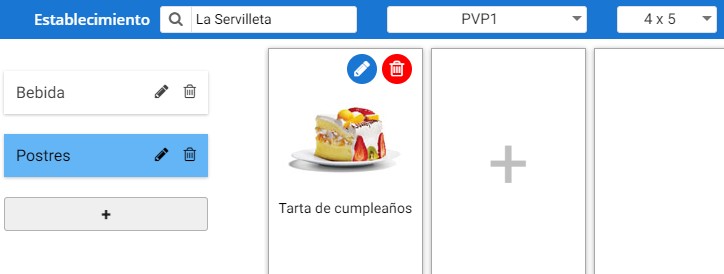
Example family creation and articles:
On this screen, you can create new families, subfamilies, and items. To do this, select the [+] button on the left side of the screen to create a new family. A floating screen will open where you must enter the family name and its translations.
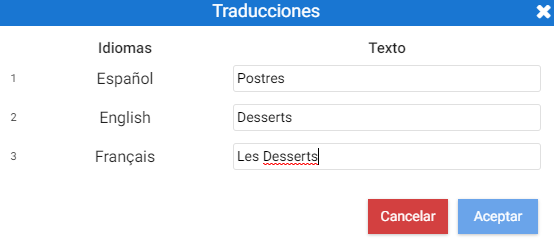
Once the changes have been accepted, the family is created. On the right, you can see the selection grid for subfamilies and items, where a new element can be added using the [+] button, and a floating window labeled "Create" will open again, containing three options: Subfamily, Item, and From gallery.
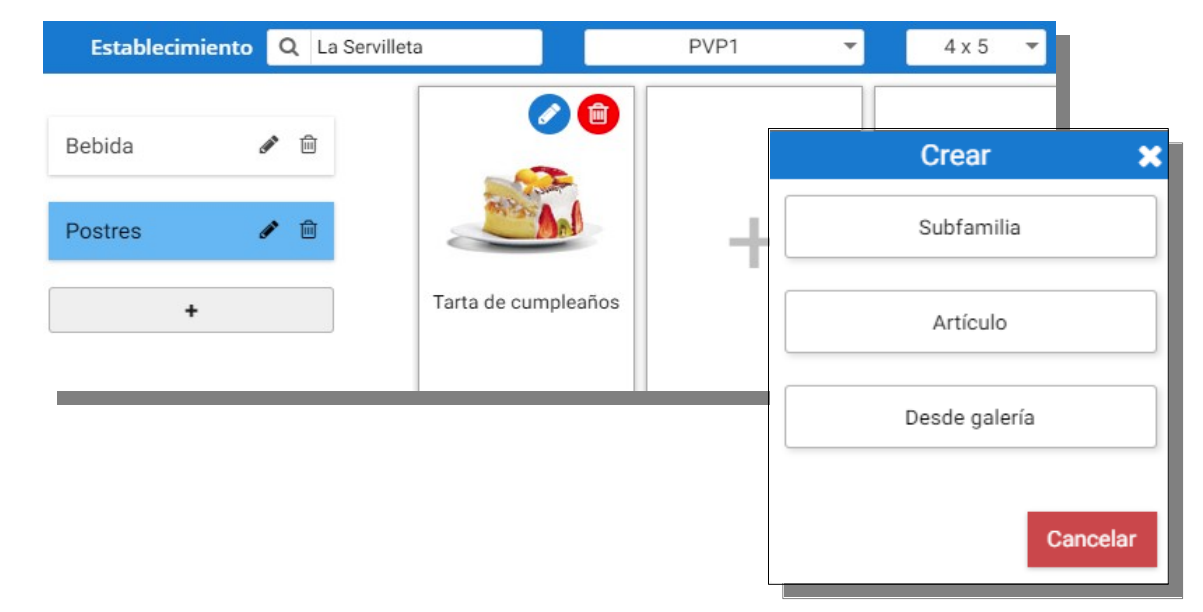
The subfamily option will reopen the family creation window, with the text field for the description configured in each language.
The items option displays an item maintenance window to select or create one.
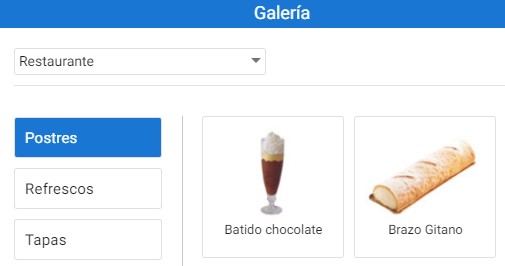
Finally, the [From gallery] option accesses the Cloud gallery and allows multi-selection of the items of interest: these items will be automatically created in our database.
AI Assistant
Section summary
AI can generate inaccurate information; verify the results.