En esta sección
Chart of accounts
Premium*
Clicking on the Chart of Accounts tool in the Accounting menu displays a search tool where you can select the plan to use.

The program includes by default the Spanish General Accounting Plan (PGC 2008), which already contains the grouped roots used in Spain.
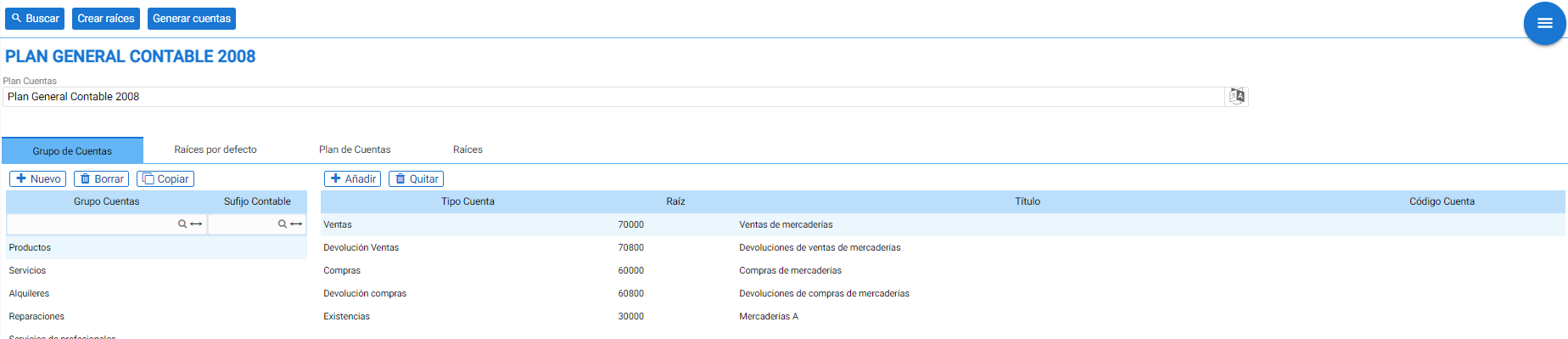
Upon accessing the Chart of Accounts, a screen is displayed with a header showing the Plan's name and four tabs.
The header at the top has three buttons:
• Search: to access the search engine again
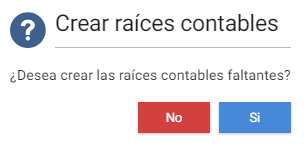
• Putting down roots: an automatic tool that locates the missing roots and creates them automatically. When clicked, the program asks if you want to create these roots.
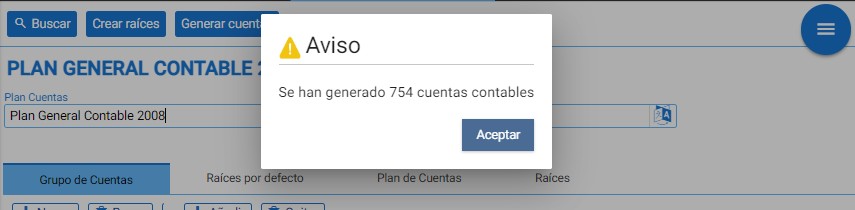
• Generate accounts: an automatic function like the previous one, this allows creating the accounting accounts based on the current General Plan. Upon confirming the selection, it executes and finally displays a notice.
Below the header are the tabs containing the accounting accounts and root accounts within the Chart of Accounts.
Group of Accounts:
The different groupings of accounting roots serve to separate accounting accounts according to the type of accounting record, and thus easily locate the root that belongs to an entity, such as a product, a customer, or a supplier.
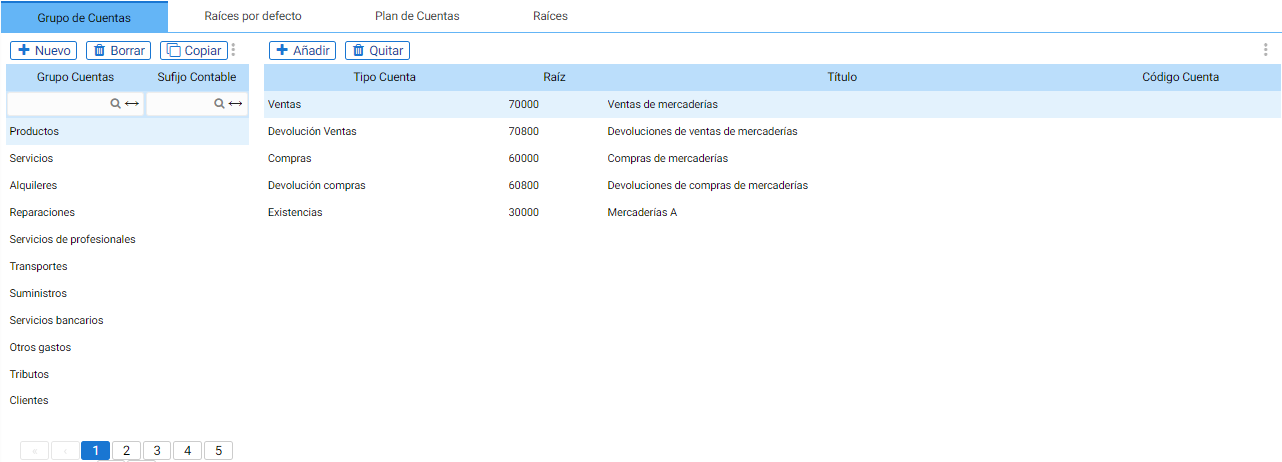
The items, customers, and suppliers have a tab labeled 'literal'. Accounting that contains the account group finder to assign to that entity the group to which it belongs.
The buttons of New, Delete and Copy They allow modifying existing records.
Default Roots:
The set of account roots that make up the selected Chart of Accounts. By default, this table is in ascending order by root, starting with 129 (Profit/Loss for the year) and ending with 769 (Other financial income).
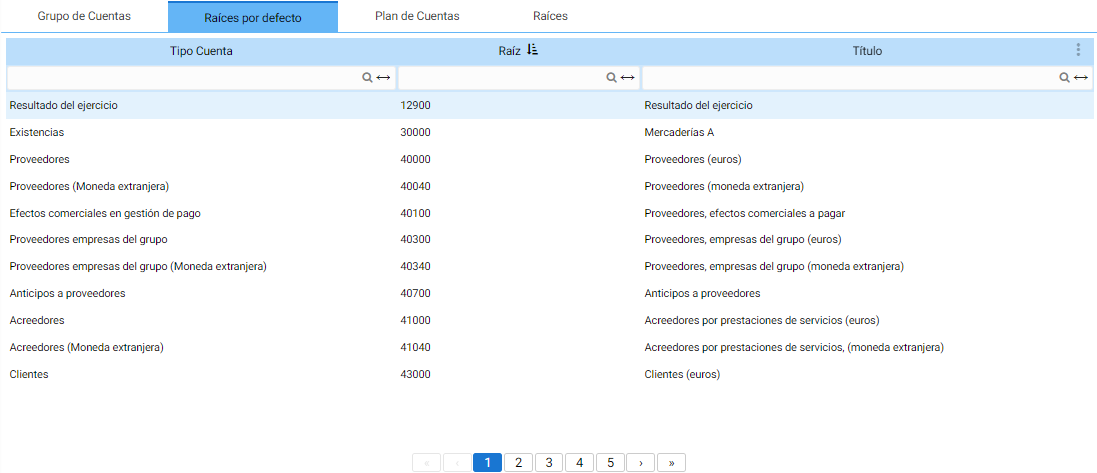
Chart of Accounts:
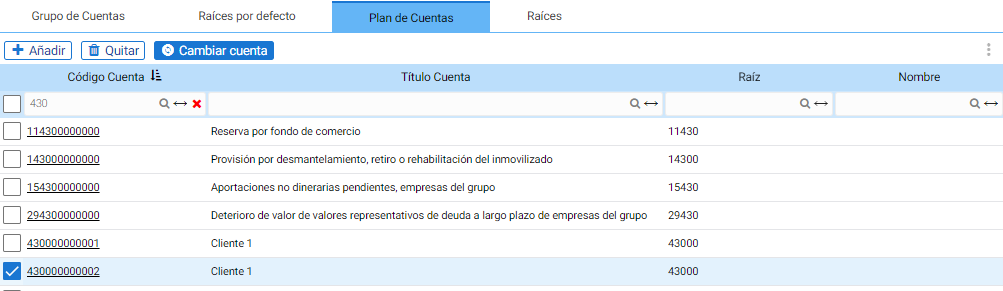
All existing accounting accounts within the selected Plan, sorted ascendingly by account code.
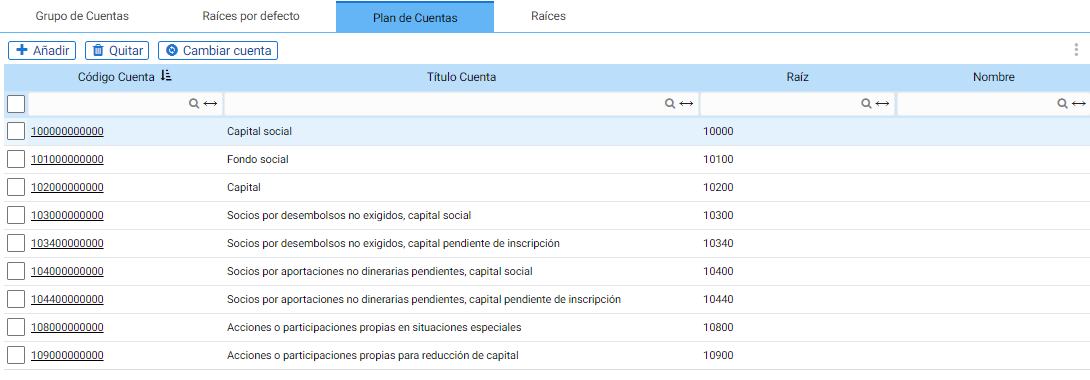
The tab contains the buttons of Add and Remove to modify the selected records and a tool to swap one accounting account for another by clicking on Change account.
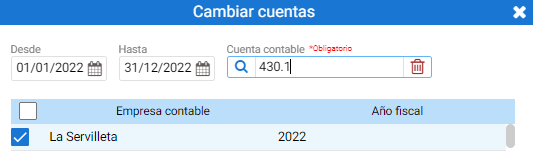
To change one accounting account for another, it is necessary to select it on this screen and then by clicking on Switch account A floating screen pops up where you must select the date range to which the change applies, the accounting account to be exchanged, and the affected accounting firm.
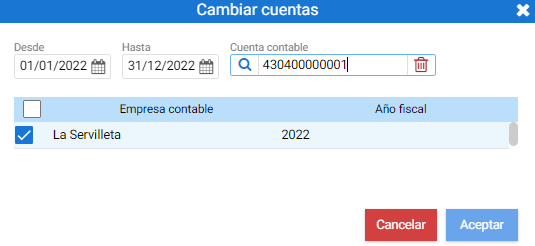
Upon clicking Accept, the records containing the source account are modified to point to the selected ledger account.
Example:
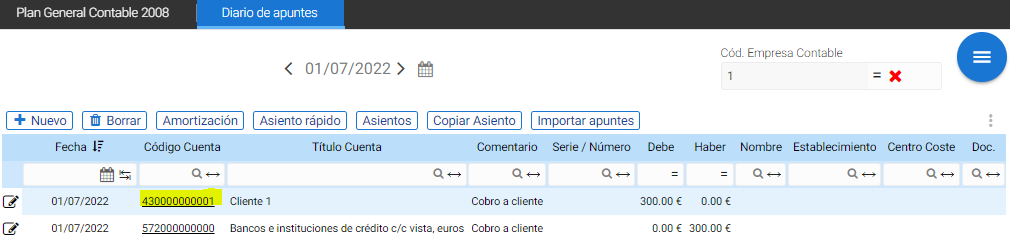
The account 430000000002 has a charge recorded in the Journal.
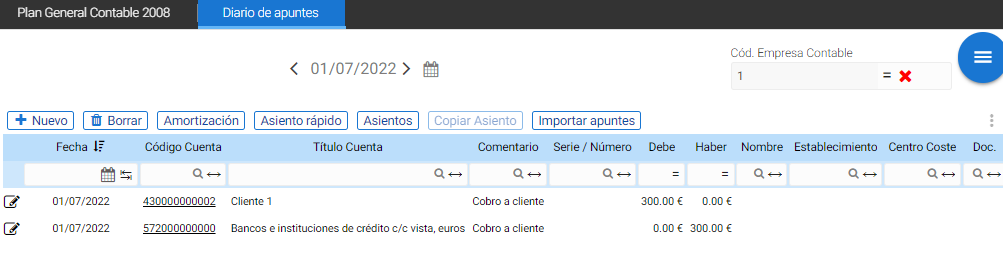
Clicking on Change account and indicating the destination account “430.1”, the recorded entry will change to point to 430000000001
Roots:
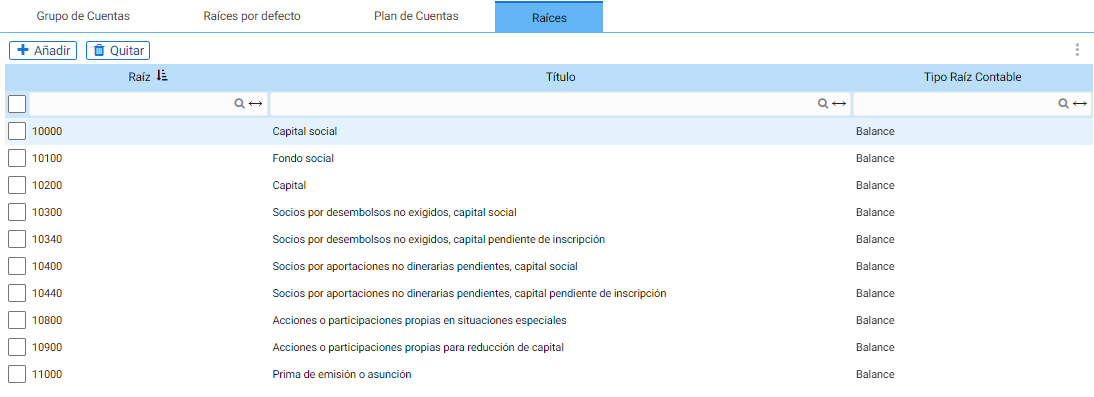
All registered accounting roots, in addition to those that are by default in the Chart of Accounts.
AI Assistant
Section summary
AI can generate inaccurate information; verify the results.