En esta sección
Shifts and schedules of the establishment
In the first section of Shifts, we will be able to configure the establishment's shifts and schedules. To add shifts, we will need to select New and enter the name we wish to give it.
This setting will be useful for the sales screen, which will retrieve the corresponding rate based on the schedule configured in the terminal and the day of the week. Additionally, on the calendar screen, the time slots when the establishment is not open will be marked in gray.
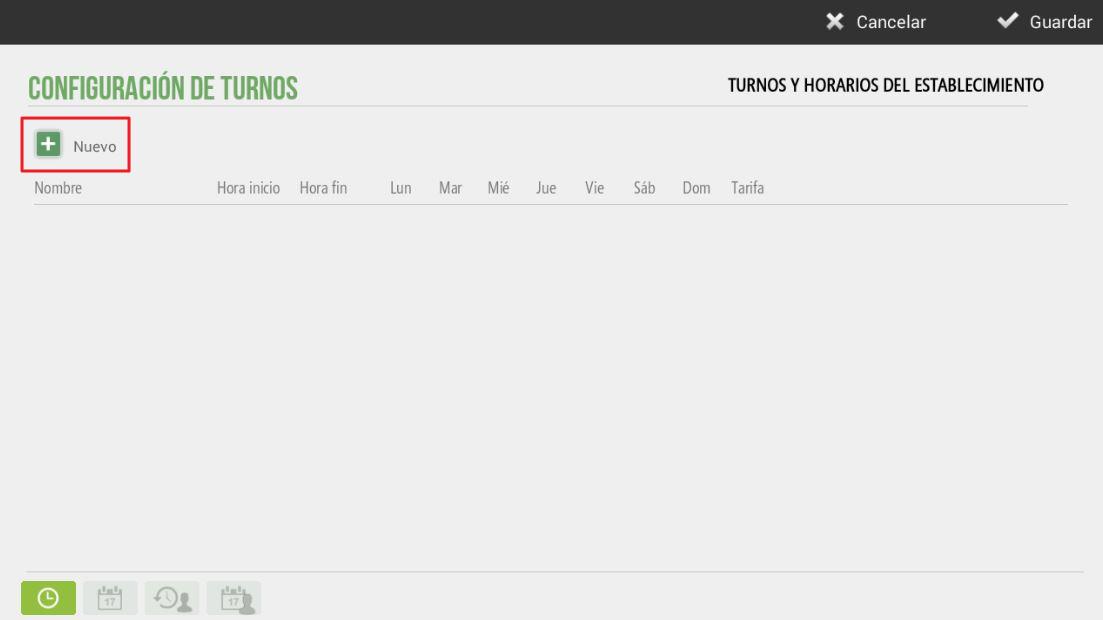
For example, in this section we will configure the morning and afternoon shifts with their start and end times for the workday and which days of the week they will be available. The following image shows an example:
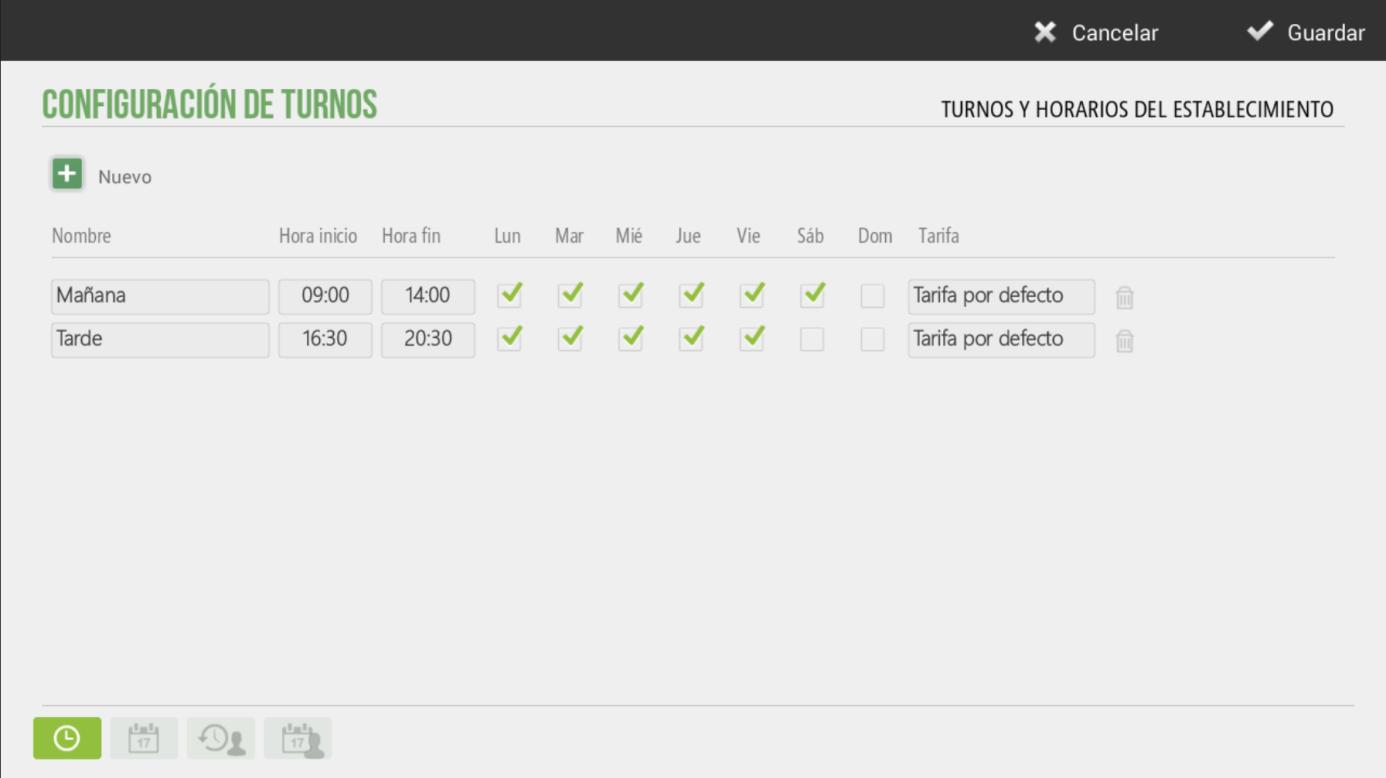
As can be seen, the establishment will operate in the morning from Monday to Saturday and in the afternoon, from Monday to Friday. Any of the already created rates can be selected; in the example, the default rate is assigned to these two shifts.
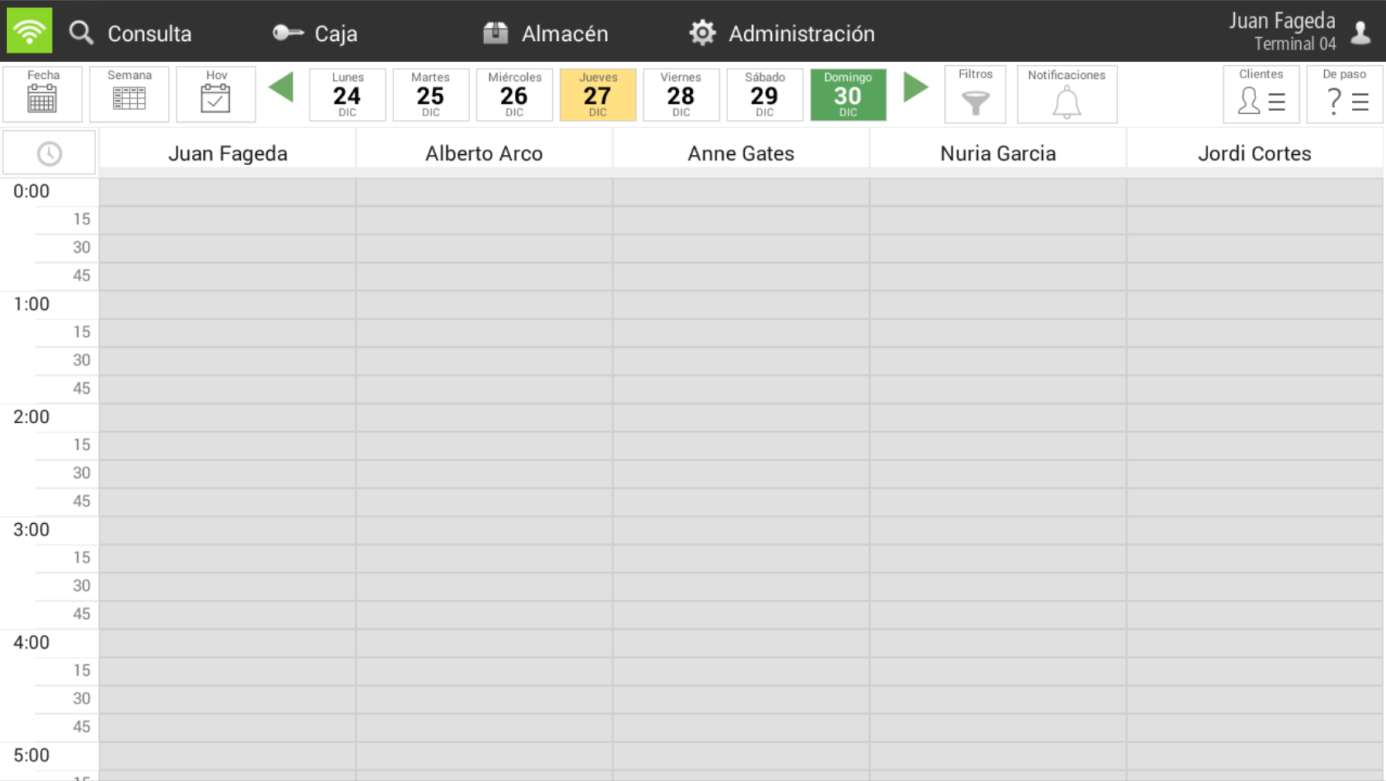
On the calendar screen, it will be displayed as follows:
-On Saturday from 2:00 PM, the establishment will remain closed.
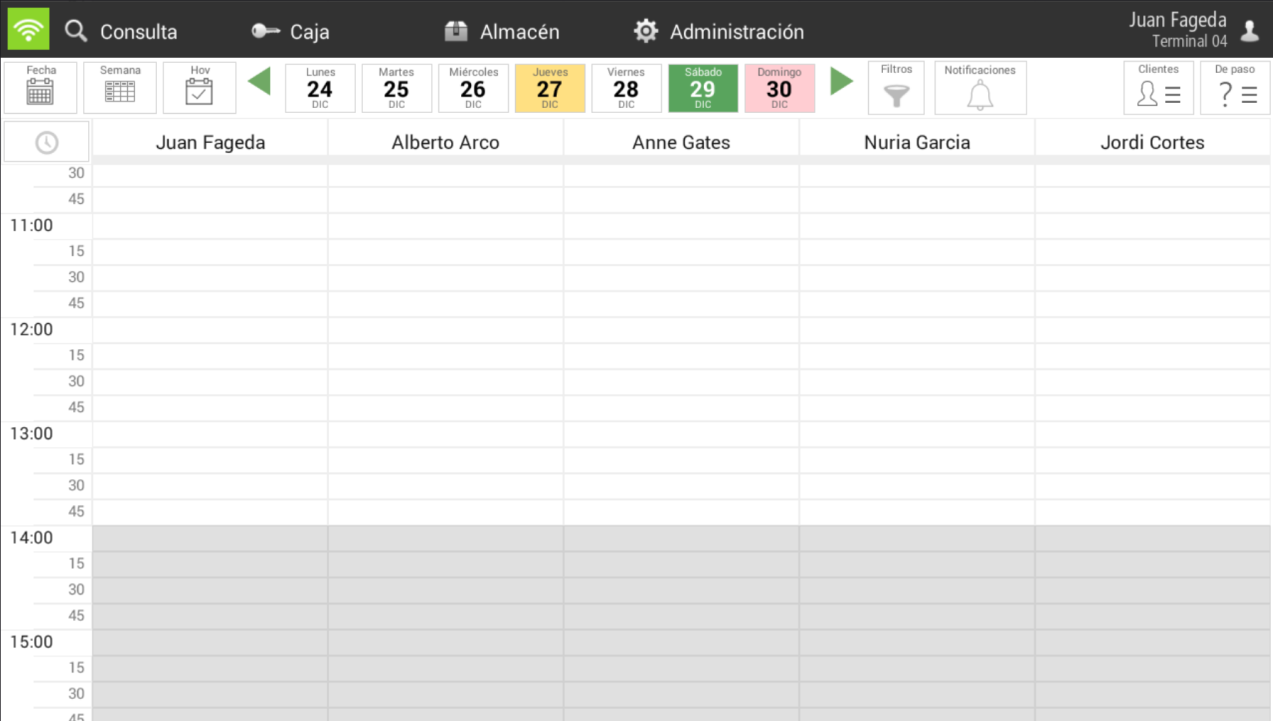
On Saturday afternoon, according to the schedule we have set up, you can work from 4:30 PM to 8:30 PM.
-On Sunday the establishment will not be open.
AI Assistant
Section summary
AI can generate inaccurate information; verify the results.