En esta sección
Discount
In the sales process, two different types of discounts can be applied: on the total or on a line, that is, on a particular item. Additionally, discounts can have an associated reason.
Discount reasons
Discount reasons are necessary to apply a discount on the total. To create or modify a discount reason, we have to go to Settings and select the option Reasons for discount.

Within the discounts menu, we can modify the name and select the maximum and minimum percentage that the cashier will have as a margin.
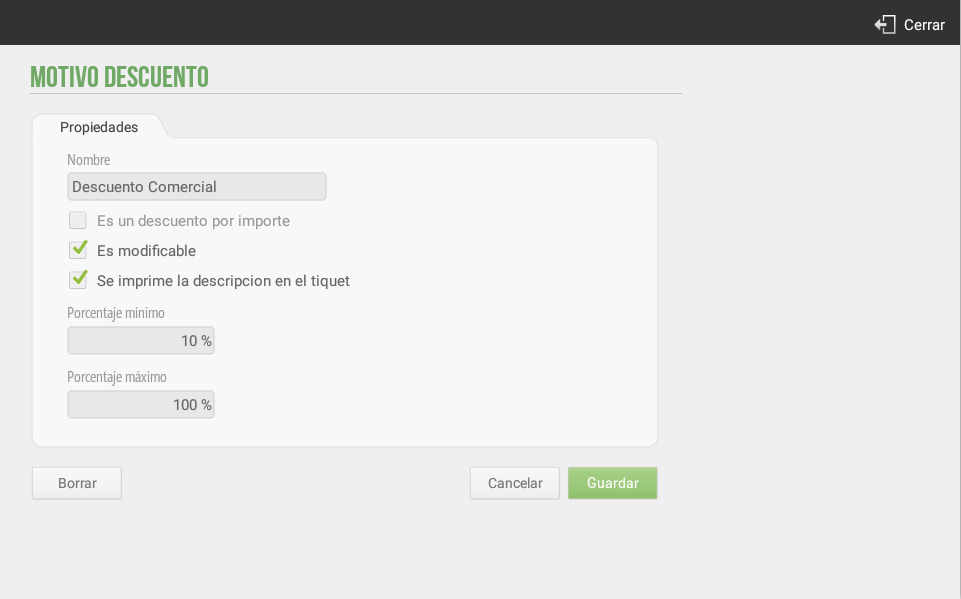
We can also make the discount percentage non-modifiable, so every time the discount is selected, it will apply a discount for the value of the Maximum percentage of the total.
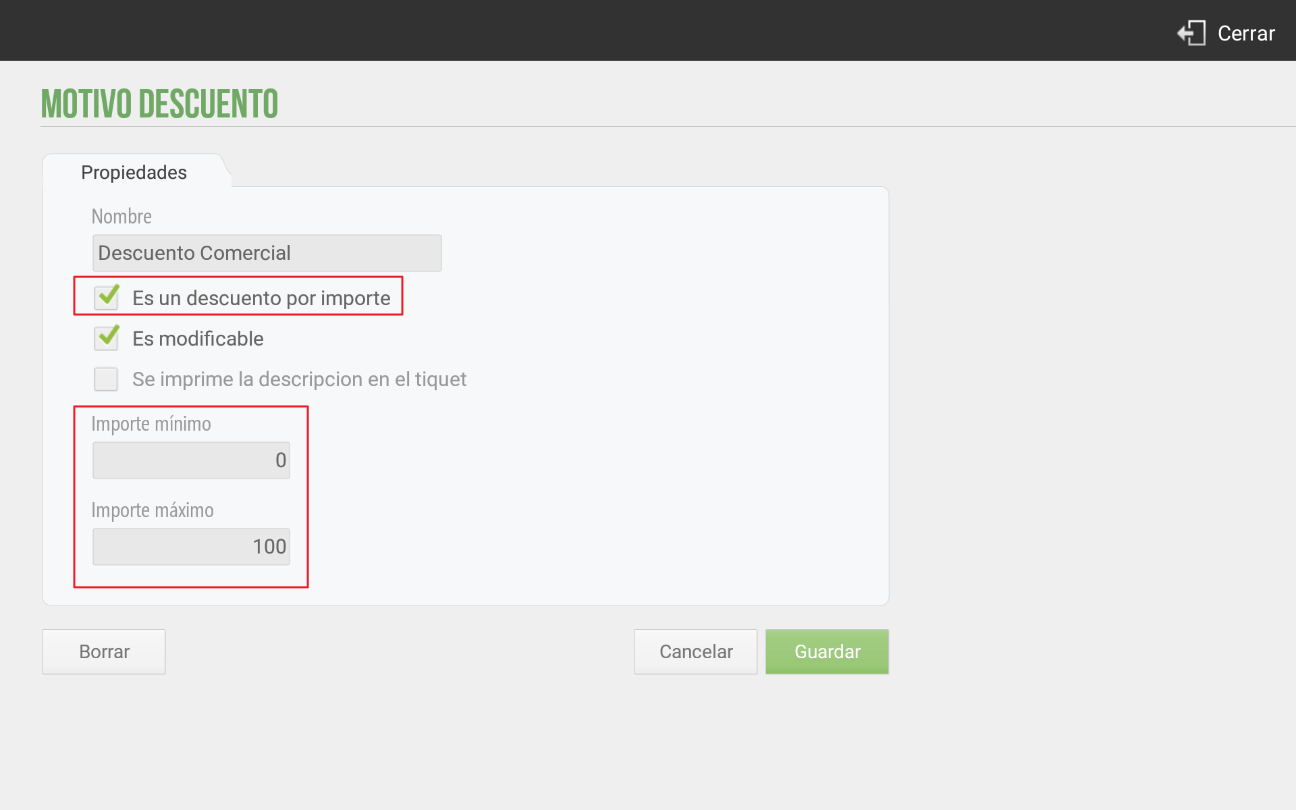
Example Discount Reason: Internal Consumption
There are many possibilities for creating discount reasons; trade discount, customer loyalty discount, early payment discount… In our case, the configuration of the discount for internal consumption of items will be explained below.
In Settings, Reasons for discount, We will create the discount. When creating the discount reason, the application will ask us for certain information: a name; whether it is an amount-based discount or a percentage discount; whether it is a discount that we can modify; and whether we want the tax description to be printed on the sales receipt.
For more information about discount settings, see the document section related to the creation dand discount reasons
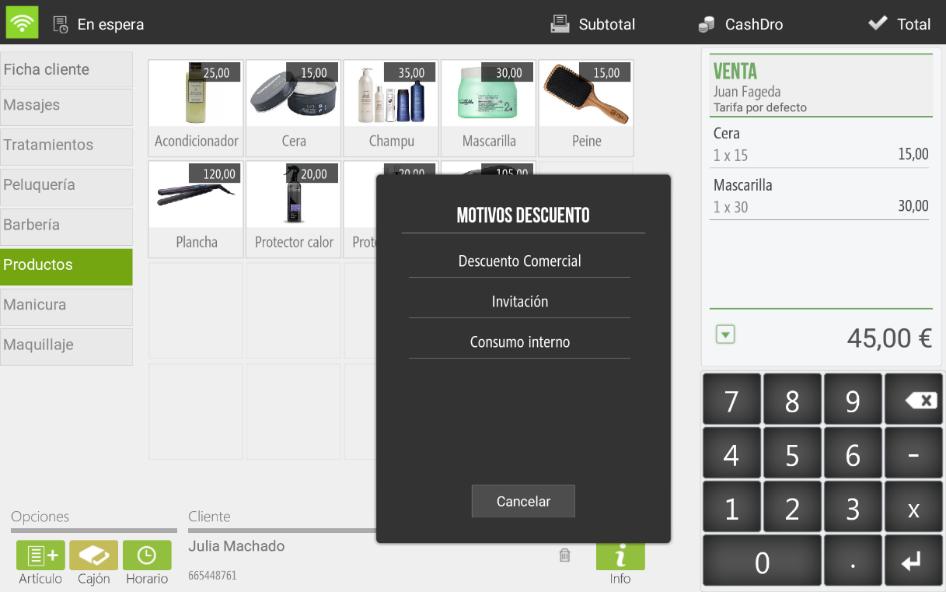
To apply the Internal Consumption discount (100% discount), we will need to navigate to the Sales line of the application when making a sale. We will select to display the options menu and choose the Discount option. It will prompt us to apply one of the configured Discount Reasons; we will select Internal Consumption.
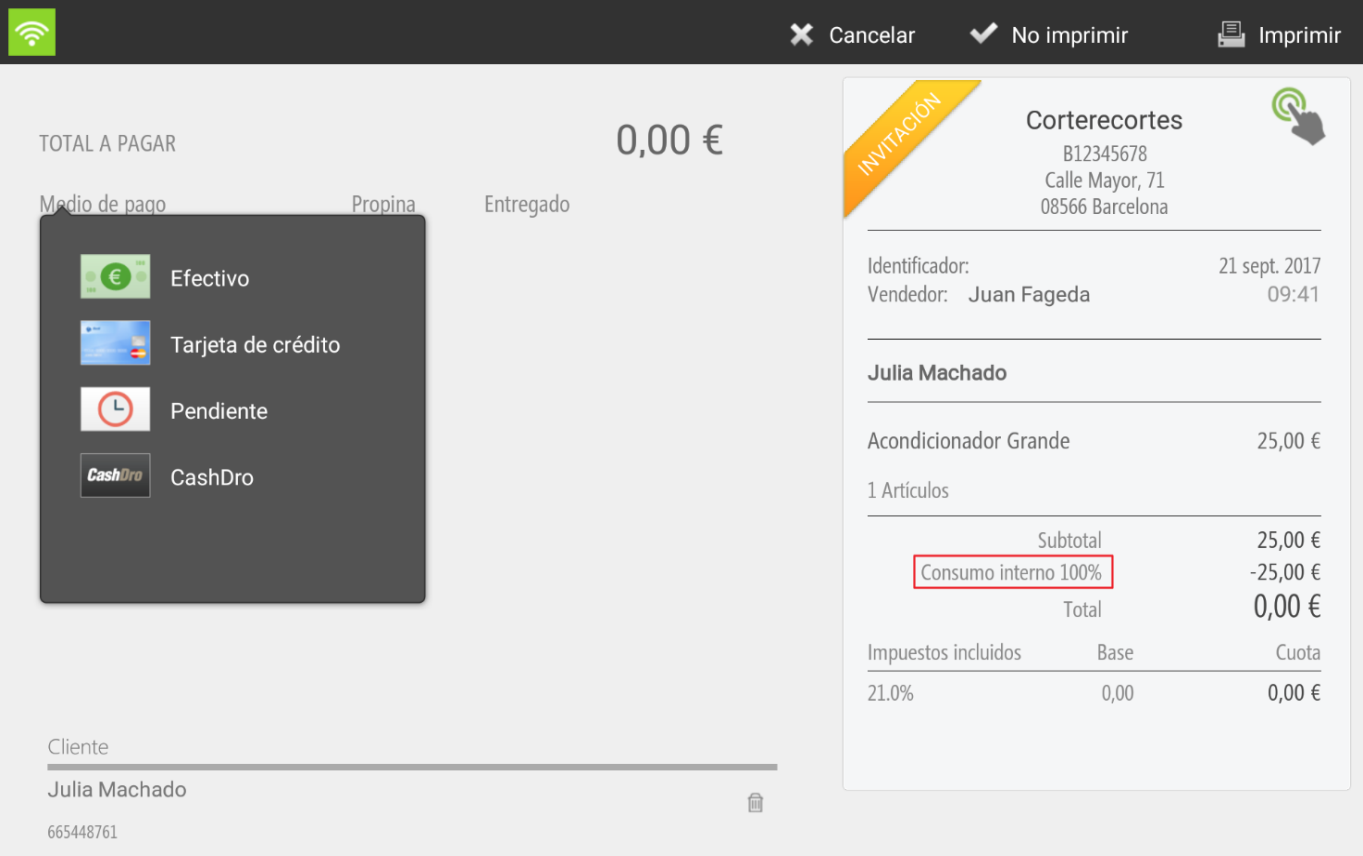
At this moment, HioPOSCloud will generate an Invitation, with the total discounted price.
The user will always be able to view all internal consumptions by retrieving the data in the section Consultation, Saleand by selecting the Invitations filter in the bottom right corner. This way, you will be able to view the invitations generated during a specific period of time. Provided that the option had been selected on the Internal Consumption Discount Reason configuration screen; It is printed the description on the ticket, The Invitation will contain the Discount Name, allowing for faster viewing of internal usage across all Invitations.
Discount on the total
You can select this type of discount by tapping on the ticket header on the sales screen or by tapping on the ticket on the payment methods screen.
A discount on the total will always imply assigning a reason for the discount, having to select one from the list of existing discount reasons. Once the discount reason has been selected, we will enter the amount, as a percentage, to be discounted and press accept.
To apply a new discount, you will need to remove the current discount. Click on the ticket header (or on the ticket, depending on the screen) and select Remove discount. Now you can apply a new discount
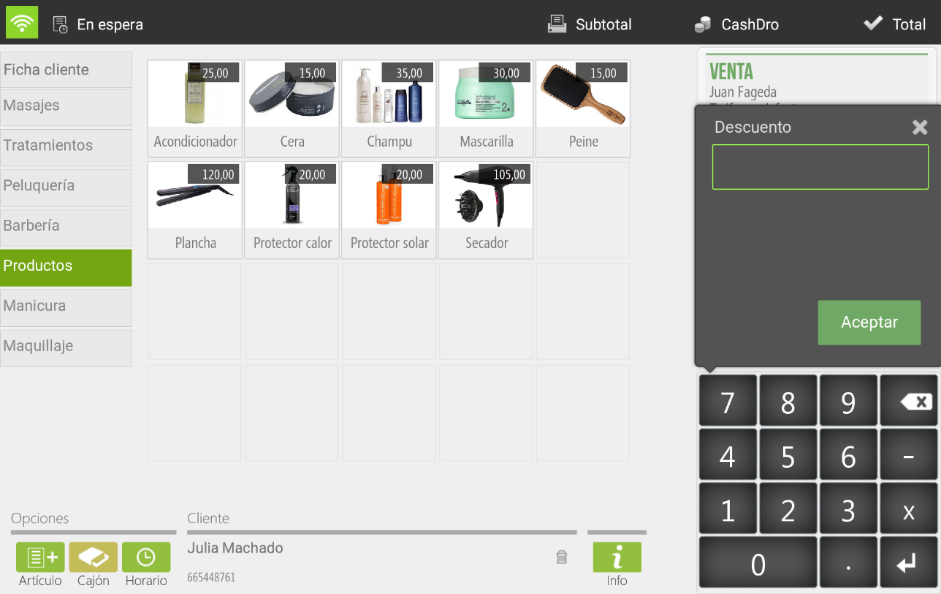
The function Discount allows applying a percentage reduction on the item's price. Once we have entered the discount, we press Accept
AI Assistant
Section summary
AI can generate inaccurate information; verify the results.