En esta sección
Creation of new establishments
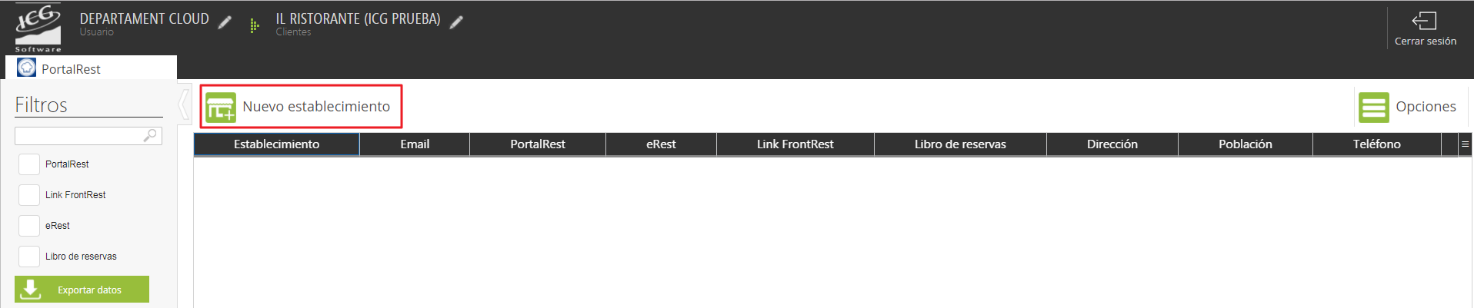
To create a new establishment, select the "New establishment" option and provide all its details. The establishment's data can be modified from the application and will be the default information on the sales receipt.
An establishment is defined as each restaurant within the same client, meaning an owner could have one or more locations. Each location or establishment has its own warehouse.
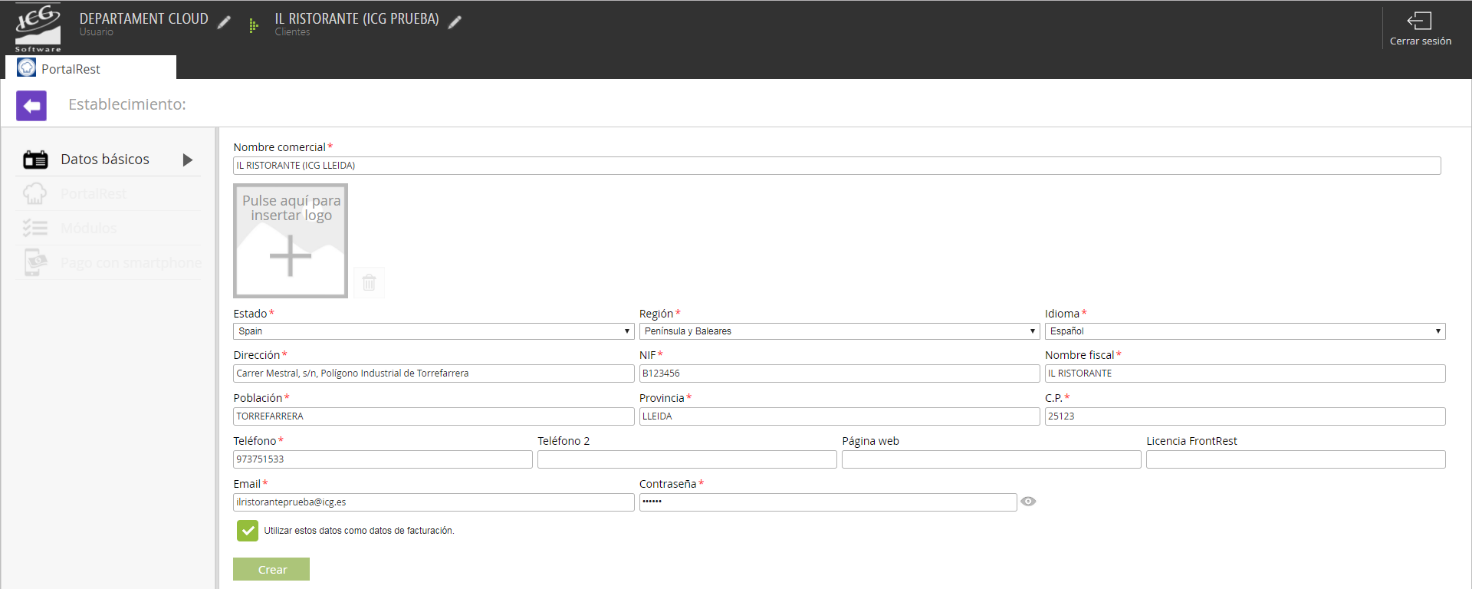
On the next screen, we will display the establishment's details, which can be modified later from the application (website, too) and will be the ones that appear by default on the store's receipt. Once all fields are complete, we will select Create to save the data.
If when selecting Create We look back, we will see how the establishment has been properly created.
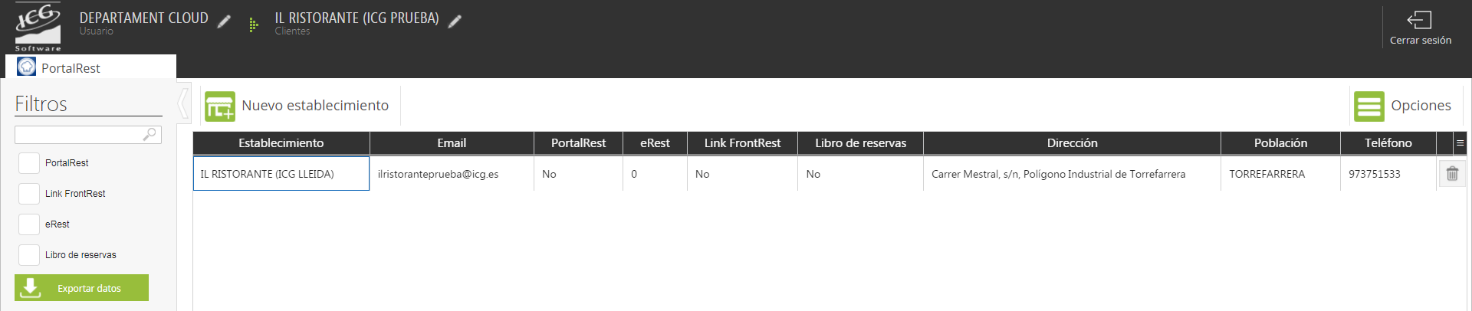
If we want to create more establishments, we would do the same: select "New establishment", complete all its data, and on this same screen, we could see all establishments created within the same client.
Once we have the establishment created, three more sections will be activated on the left side of the screen: PortalRest, Modules and Smartphone Payment.
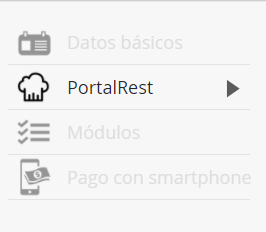
The second section of PortalRest features a direct link to the application. You will need to select the option: PortalRest and click on Go to PortalRest, as shown in the following image:

Upon clicking this button, the application will link us directly to the PortalRest website and the establishment's main menu. Upon entering, we will find different configuration screens, explained on page 13 of this manual.
The third section, Modules, refers to the configuration of PortalRest modules. As we have seen in the previous image, the modules in PortalRest can be viewed on the application's website (see previous section of the manual).
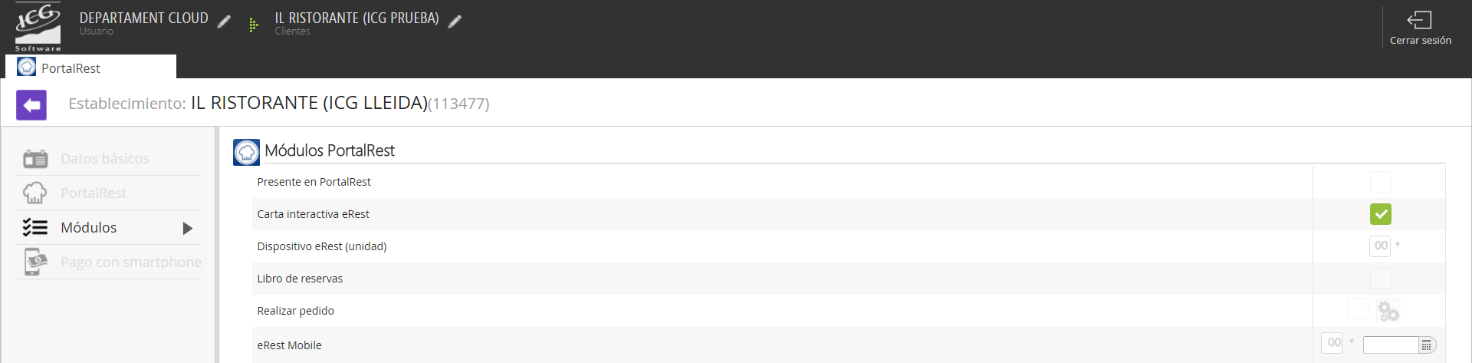
We will have 6 modules:
1. Present in PortalRest: This module allows the establishment to be visible in PortalRest so that users of the application can locate it. With this option, if the user is looking for this restaurant, they will be able to locate it.
2. Interactive eRest Menu: eRest is the multi-language electronic menu, allowing customers to view the menu and a la carte items interactively, with photos and descriptions of the dishes, information on ingredients, allergens, calories, and even the price of the dishes. Being multi-language allows customers of different origins to access it without language problems on the establishment's menu. The language is configurable from within the application.
There are two eRest versions: eRest with a touchscreen for installation at the establishment's entrance, and eRest Mobile for tablets. In this modules section, we can select the number of devices, choosing up to 50.
3. eRest Device (unit): as explained in the previous section, there is the possibility of having 50 units.
4. Reservations: Users of the establishment can book a table 24/7. If the business has a website or social media, online access to FrontRest's table booking engine can be configured.
The customer will access from the restaurant's website or social media and click the Reserve button. They will be able to select the day and time, enter contact details, and the number of diners. At this point, the restaurant will confirm the reservation and receive it in the FrontRest reservation book. The restaurant will be able to consult the reservation book from FrontRest or from any other internet-connected device.
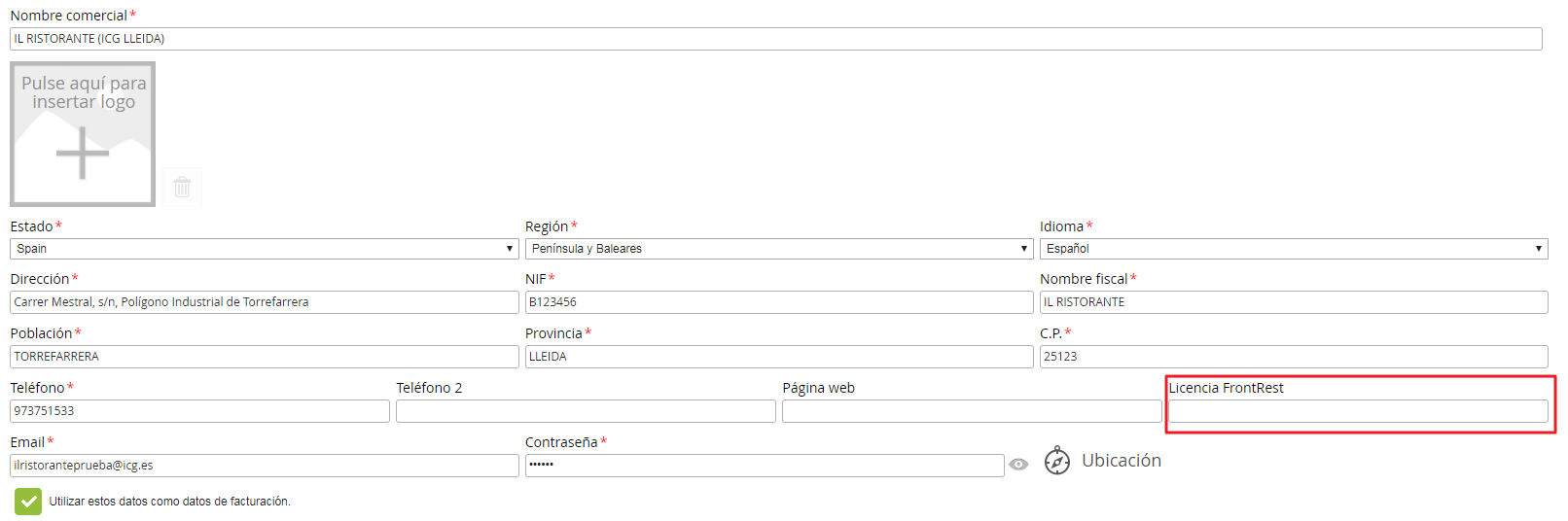
5. Place order: By activating this module, restaurant customers will be able to place orders through the application. The restaurant will be able to configure the hours it wants to receive orders, as well as select the order delivery method. Users can choose whether to manage the order from HioPOS Cloud or FrontRest, as well as the type of printer where the order will be printed. This option will only be available if the FrontRest license has been registered in the establishment's basic data:
6. eRest Mobile: up to 50 eRest Mobile device units can be activated.
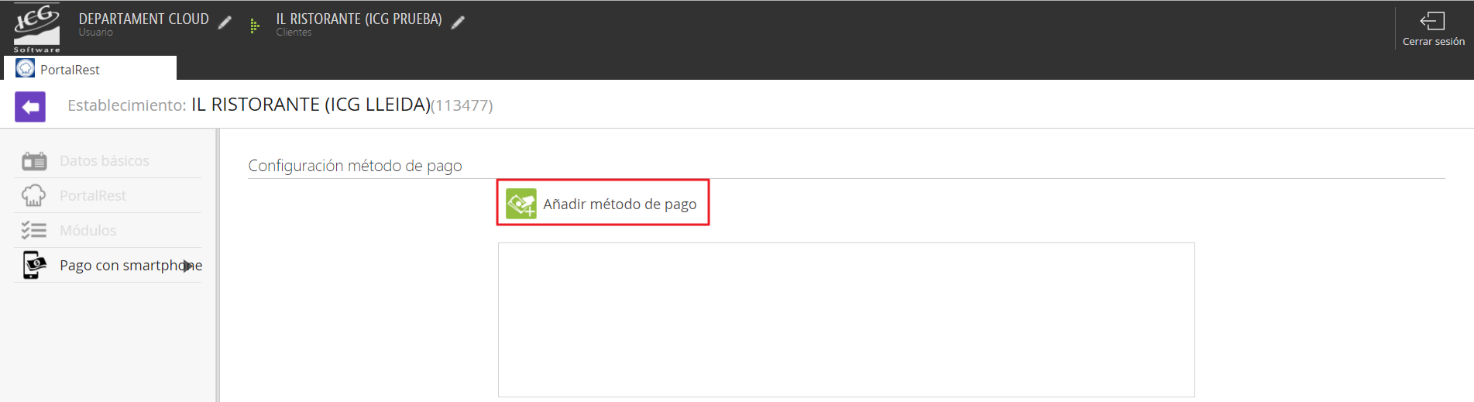
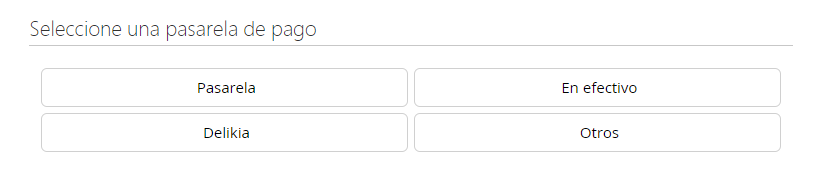
Finally, the Smartphone Payment section allows you to set up a payment gateway so that end customers can place orders and complete the corresponding payment.
AI Assistant
Section summary
AI can generate inaccurate information; verify the results.