En esta sección
Reservations
PortalRest enables our customers to book directly, easily, and intuitively via the application.
The first time we access the section of Reservations, PortalRest will show us the screen of the free trial of the Booking book, for 30 days. Initially, it will be necessary to activate the module by clicking the green option: Try it now!
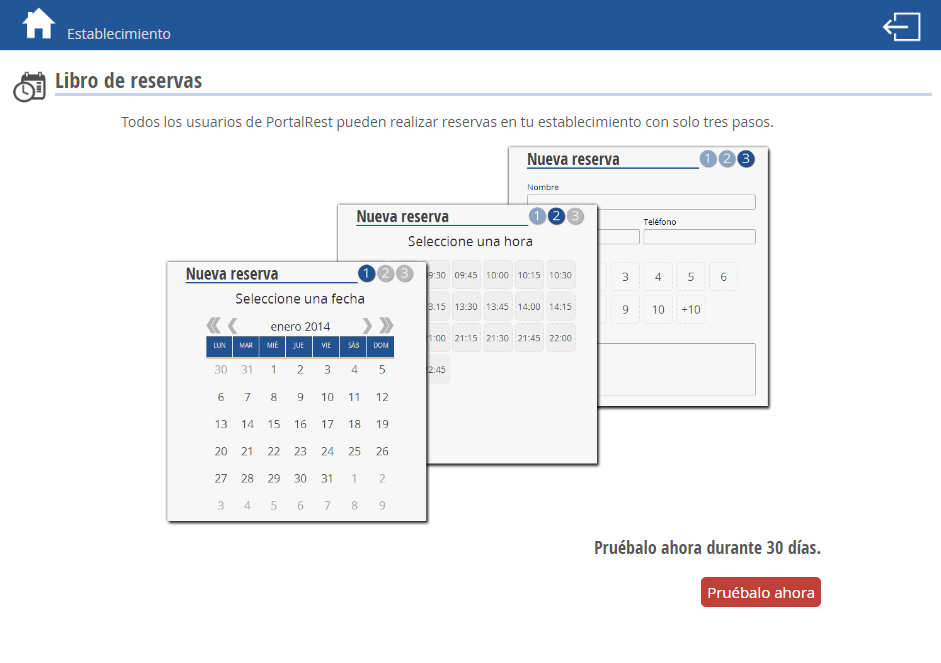
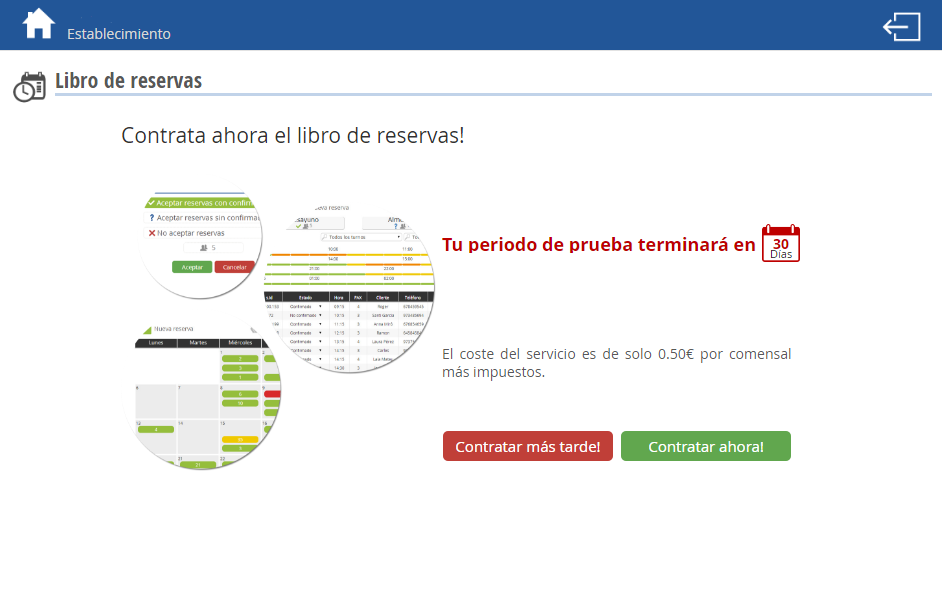
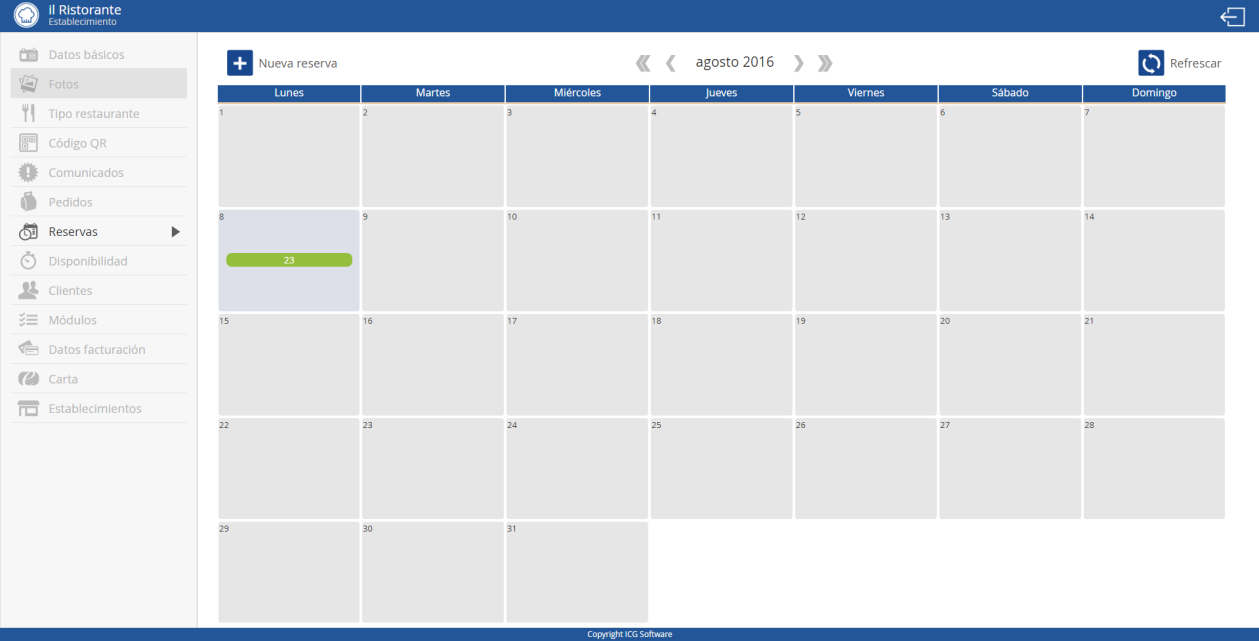
By selecting the Reservations option, the booking calendar will appear first, where if we select one of the days on the calendar, we can view the customers' bookings, filtering by shifts (breakfast, lunch, and dinner) and by statuses (unconfirmed, confirmed, cancelled, no-show, attended, and not accepted).
1. Not confirmed: The establishment has not yet validated receipt of the reservation.
2. Confirmed: the establishment has validated the table reservation for the diners.
3. Canceled: the user has canceled their reservation.
4. Not presented: the user has not attended their reservation.
5. Presented: the user has arrived at the restaurant at the time of their reservation.
6. Not accepted: the restaurant has not rejected the user's reservation.
The following is an example intended to show in more detail how the application works in this section.
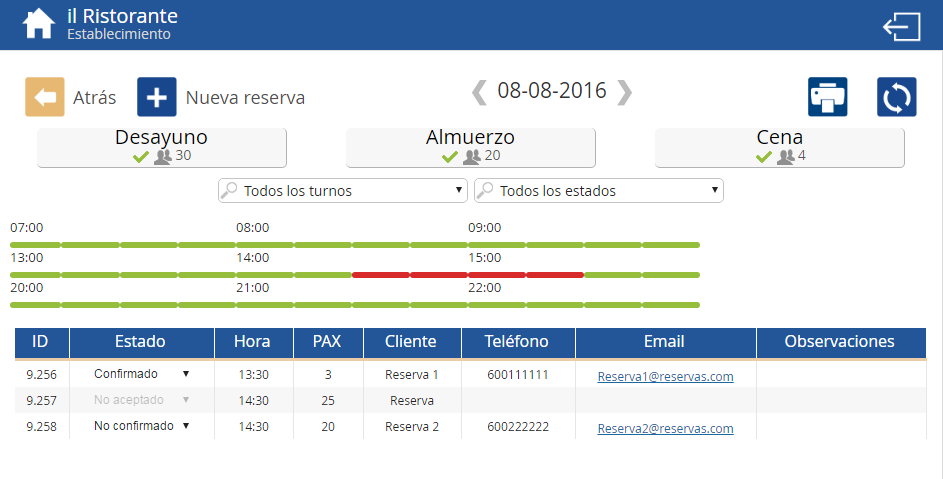
As can be seen on the previous screen, a graph is displayed with 3 distinct lines corresponding to breakfast, lunch, and dinner, respectively.
This chart aims to be a very visual representation of the reservations made by customers through PortalRest. As shown in the image, we have a reservation for Lunch from 2:30 PM to 3:30 PM for 20 people. Because the maximum capacity for Lunch is 20 people, the chart is marked in red, indicating unavailability for new reservations.

If a customer wished to make another reservation during this time, the available times would appear directly to them, but they would not be able to confirm the reservation. The screen they would see would be very similar to the one detailed below, depending on the time slots available at the restaurant.
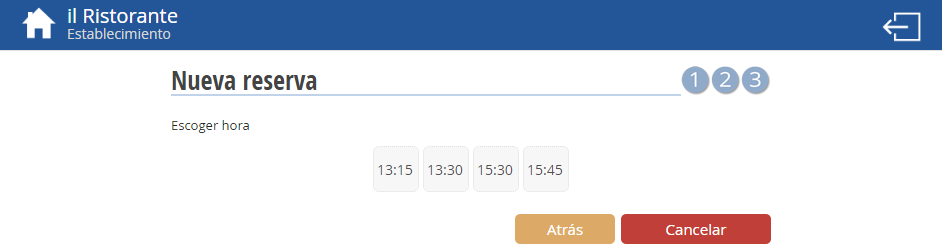
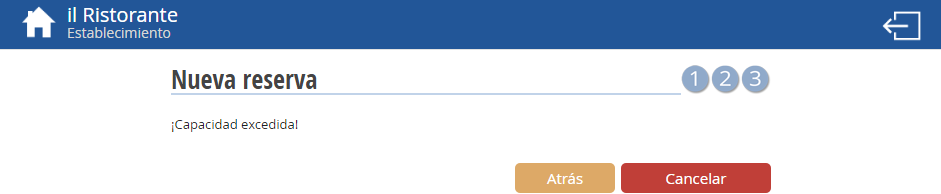
In the event that capacity had been exceeded because the number of diners in the reservation was greater than the maximum number configured by the client, the message that would appear to us would be the following: Capacity exceeded, unable to finalize the reservation.
AI Assistant
Section summary
AI can generate inaccurate information; verify the results.