Letter
CloudLicense allows us to configure our own online menu. To access the configuration of our menu, we will have to go to the main menu and select the Menu option.
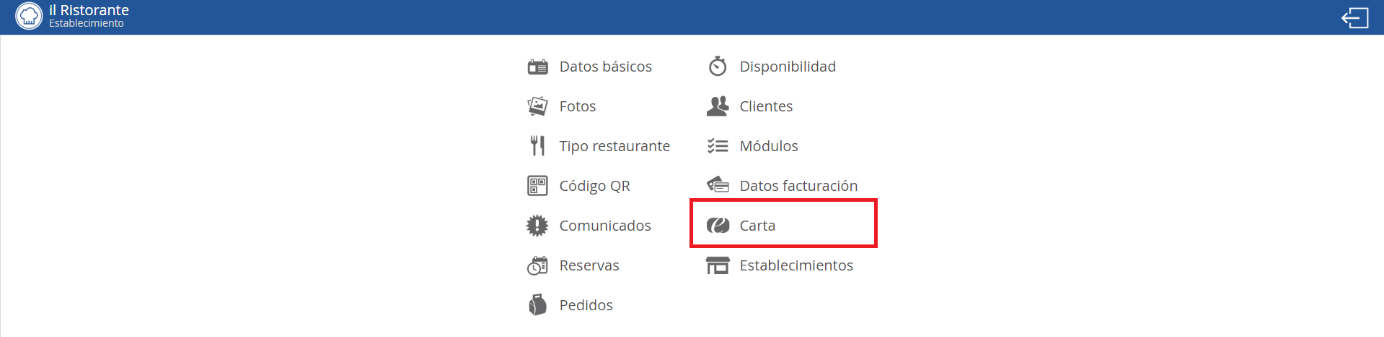
Once inside the Menu, we will be able to configure three main groups: item editing, category editing, and menu configuration. We will also be able to order the categories, for example, first course, main course, dessert, etc.
Product Editing
The first major group within menu editing is product editing. In this section, we can add a new product, order existing products, delete items, or edit them.
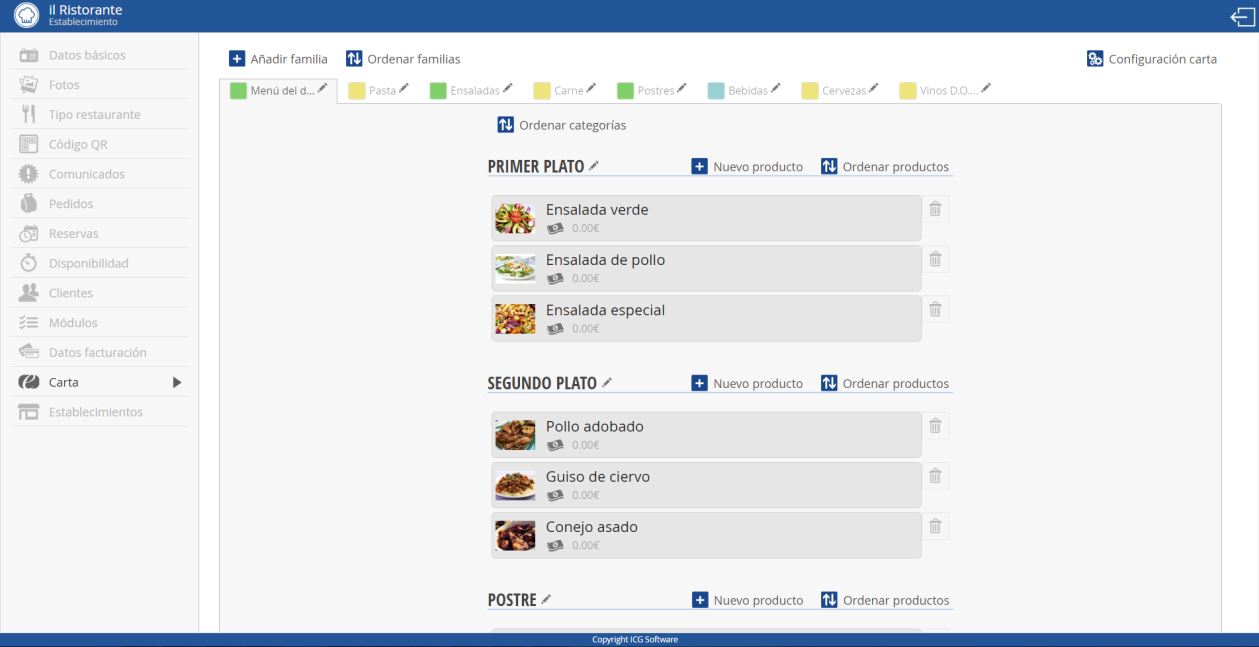
To add a new product, we will select the New Product option in the row of the category where we want to introduce this item.

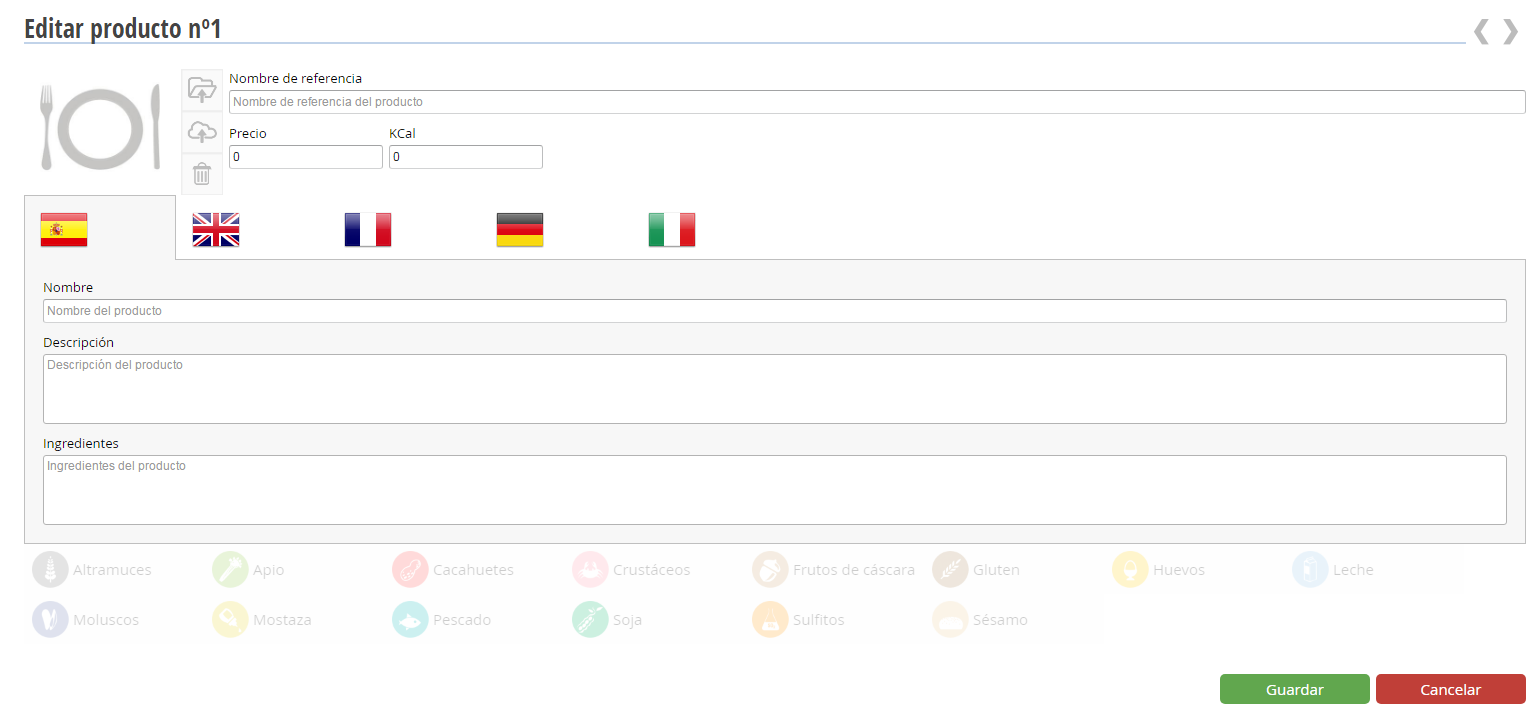
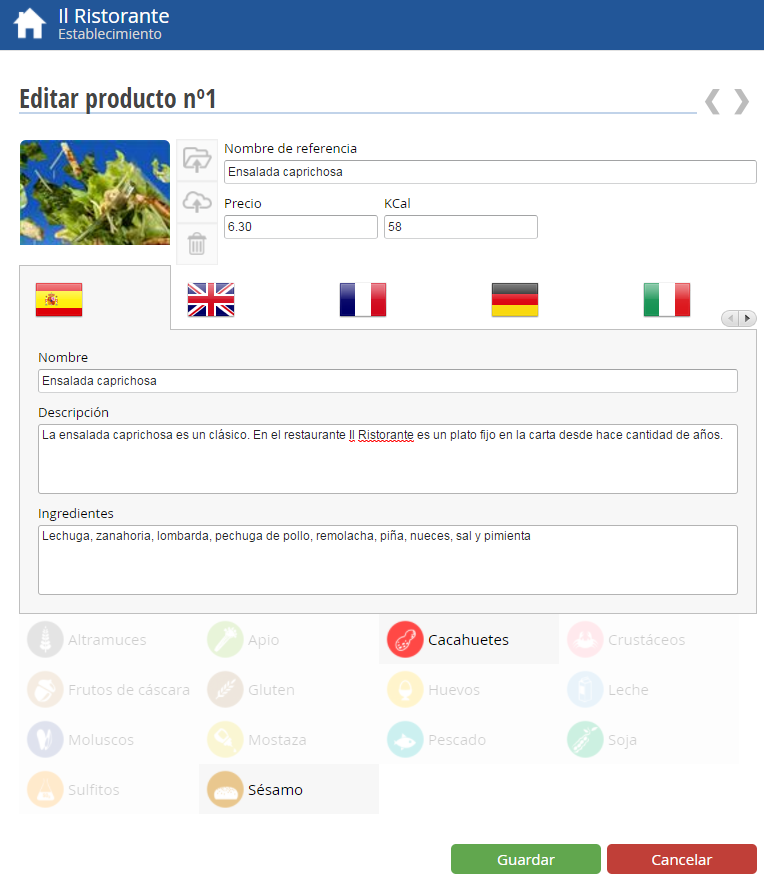
When we select the creation of a new product, the screen that appears will allow us to enter the product's reference name, the supplement, and the kCal. We will be able to configure the item by entering its name, description, and ingredients in all the languages in which we have the Menu configured.
For nutritional purposes and to prevent allergic reactions, PortalRest allows you to report the food composition of the new product by selecting whether the product contains lupin, celery, peanuts, crustaceans, nuts, gluten, eggs, milk, molluscs, mustard, fish, soy, sulfites, and sesame.
We will also be able to sort products. This way, we will be able to organize the items as we see fit. We will have to select the option: Sort products, in the category line. If you want to sort the families, you must select Sort families.

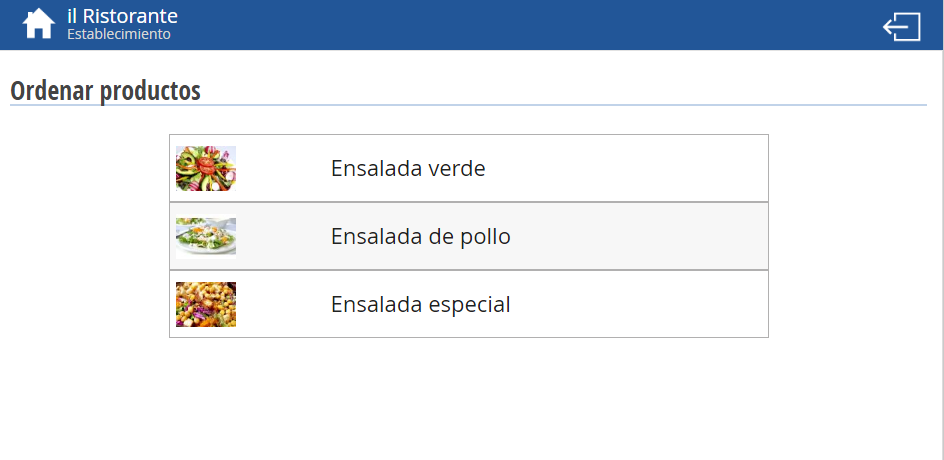
On this screen, products from the selected category can be ordered. To organize them, simply click on the option you want to move and place it in the appropriate position. To save the changes, go to the bottom right corner of the screen and click accept.
To edit existing items, we will click on the item we want to modify and the product editor will appear, in which we can modify all the item's fields. We can modify the reference name, the supplement, the kCal, the name, the description, the ingredients, and the nutritional characteristics.
Family Edition
To add a new Family, we select the Add Family option on the line of the category where we want to add this family.

When creating a new family, the screen that appears will allow us to add a photograph for that family, the family's reference name, select the color of the label that will be displayed in our electronic menu (eRest), and, if desired, to hide this family.
We can configure the family by providing its name and description in all the languages in which we have the Menu configured.
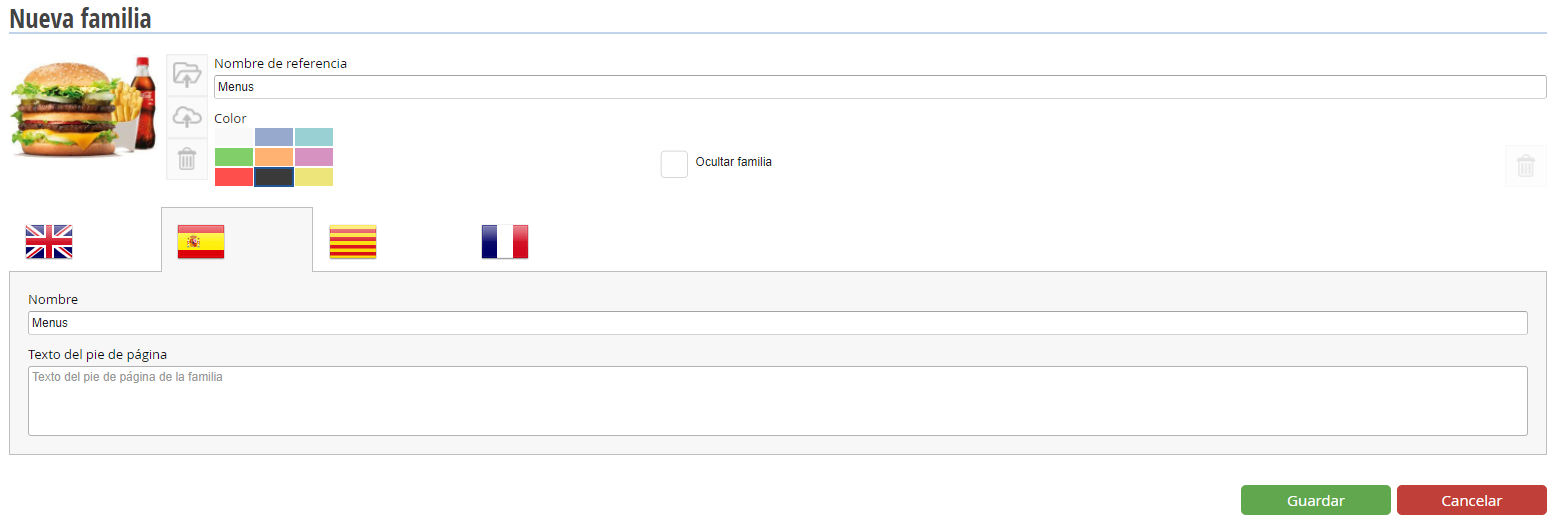
PortalRest allows editing families through the option to add a family and to sort families.
We will be able to add existing families that are not listed in the current PortalRest. In case there are no existing families, we will have to create them.
It is important to know that it is not necessary to have a point of sale (like HioPOS Cloud or FrontRest) linked to register PortalRest and manage reservations or orders placed.
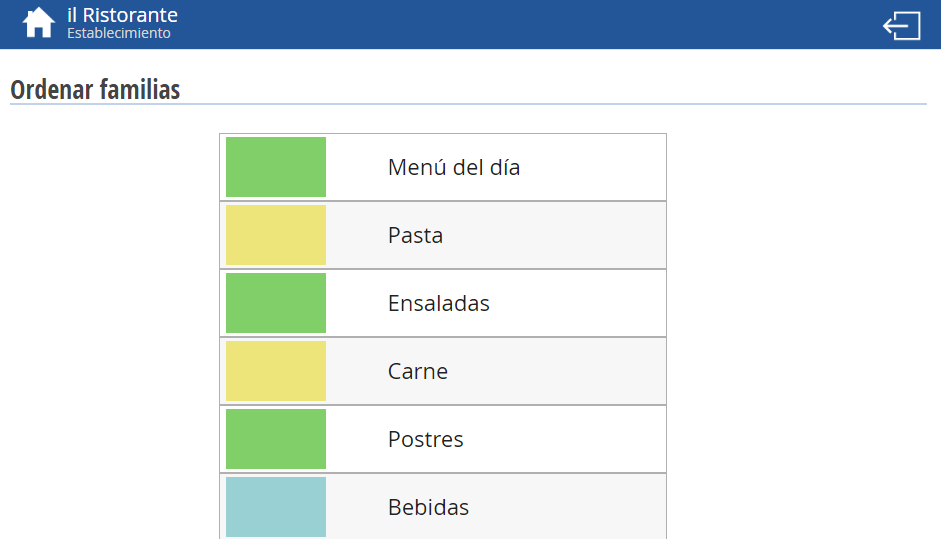
PortalRest also allows ordering existing families. To organize them, we simply have to click on the option we want to move and place it in the appropriate position. To save the changes, we will have to go to the bottom right corner of the screen and click accept.
Letter configuration
PortalRest allows configuring the Menu. We will select the option located in the upper right margin: Menu Configuration
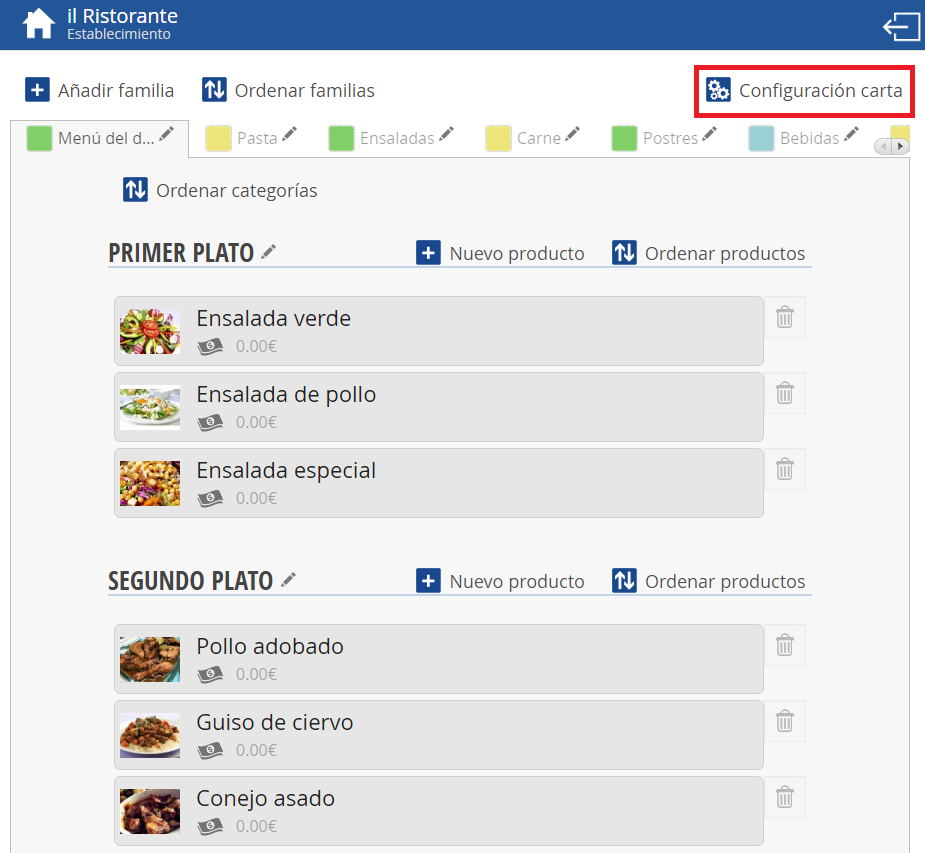
In the settings, the app allows you to configure the rate that the restaurant will use. To do this, PortalRest provides a dropdown menu with the various existing rates so we can select the one we will use.
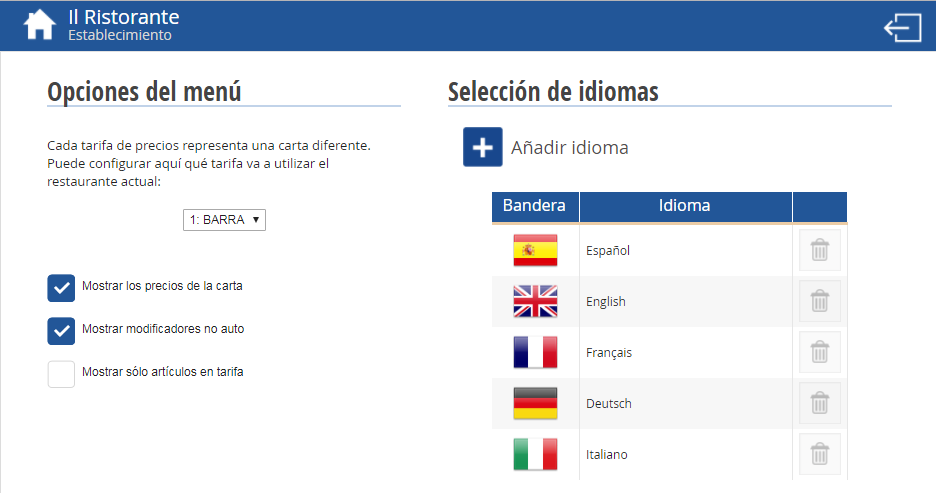
Within the menu options, we also find the possibility to activate or deactivate:
1. That prices be shown on the menu.
2. Display the non-automatic modifiers.
From the menu's settings, we can also select the languages that will be displayed. We can add a language with the button Add language.
Pressing Add We will see the selectable option with over 140 languages.
AI Assistant
Section summary
AI can generate inaccurate information; verify the results.