En esta sección
Purchase Process from the App
The following details the procedure that the user (final consumer) will follow to place an order on PortalRest.
The user will see the establishment's menuthe menu contains the list of product categories that the restaurant has configured. To enhance the customer's shopping experience and associate this experience with the restaurant's brand image, PortalRest allows you to incorporate the business's logo in the upper margin of the screen. To configure the logo, navigate to Basic Data within PortalRest's main menu.
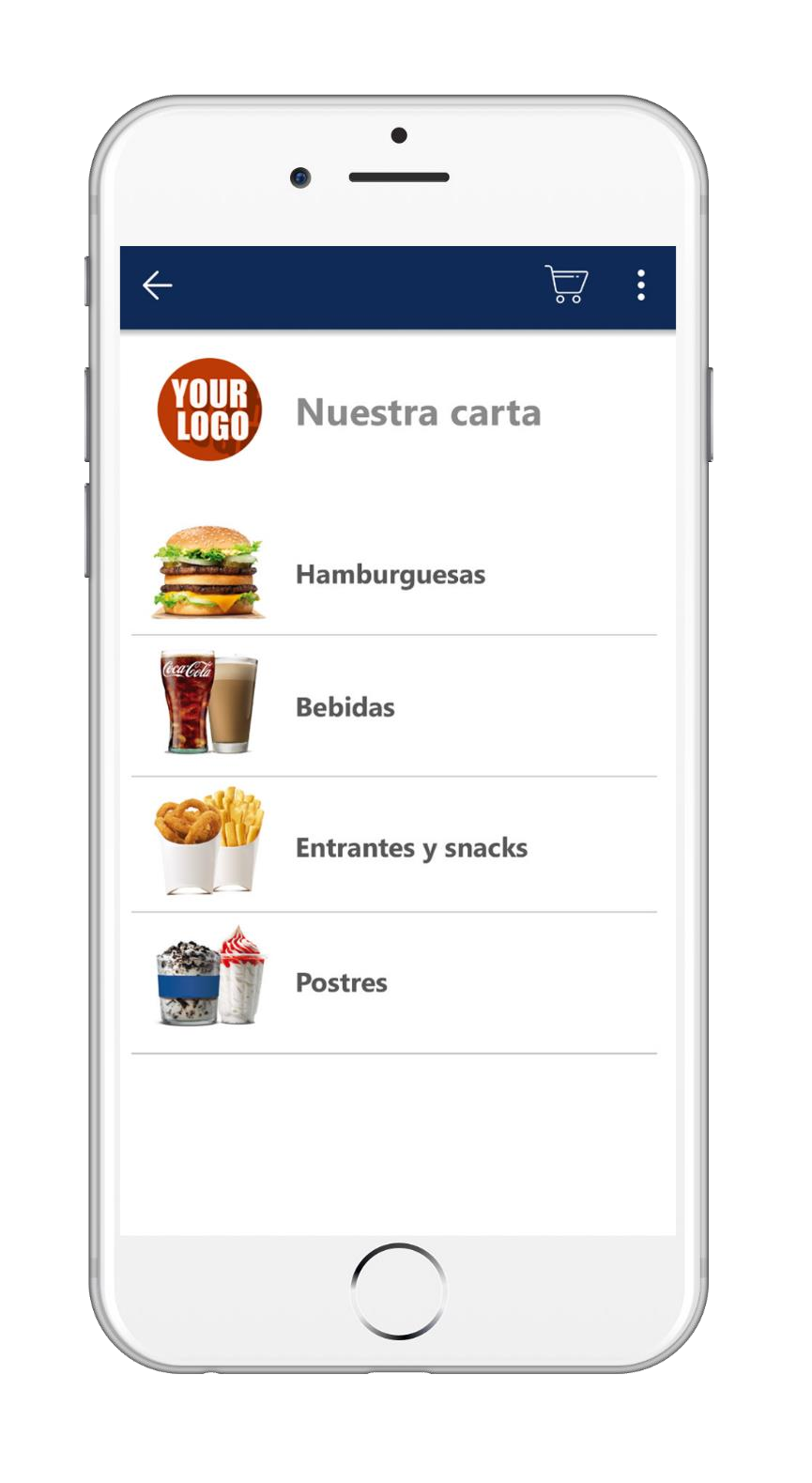
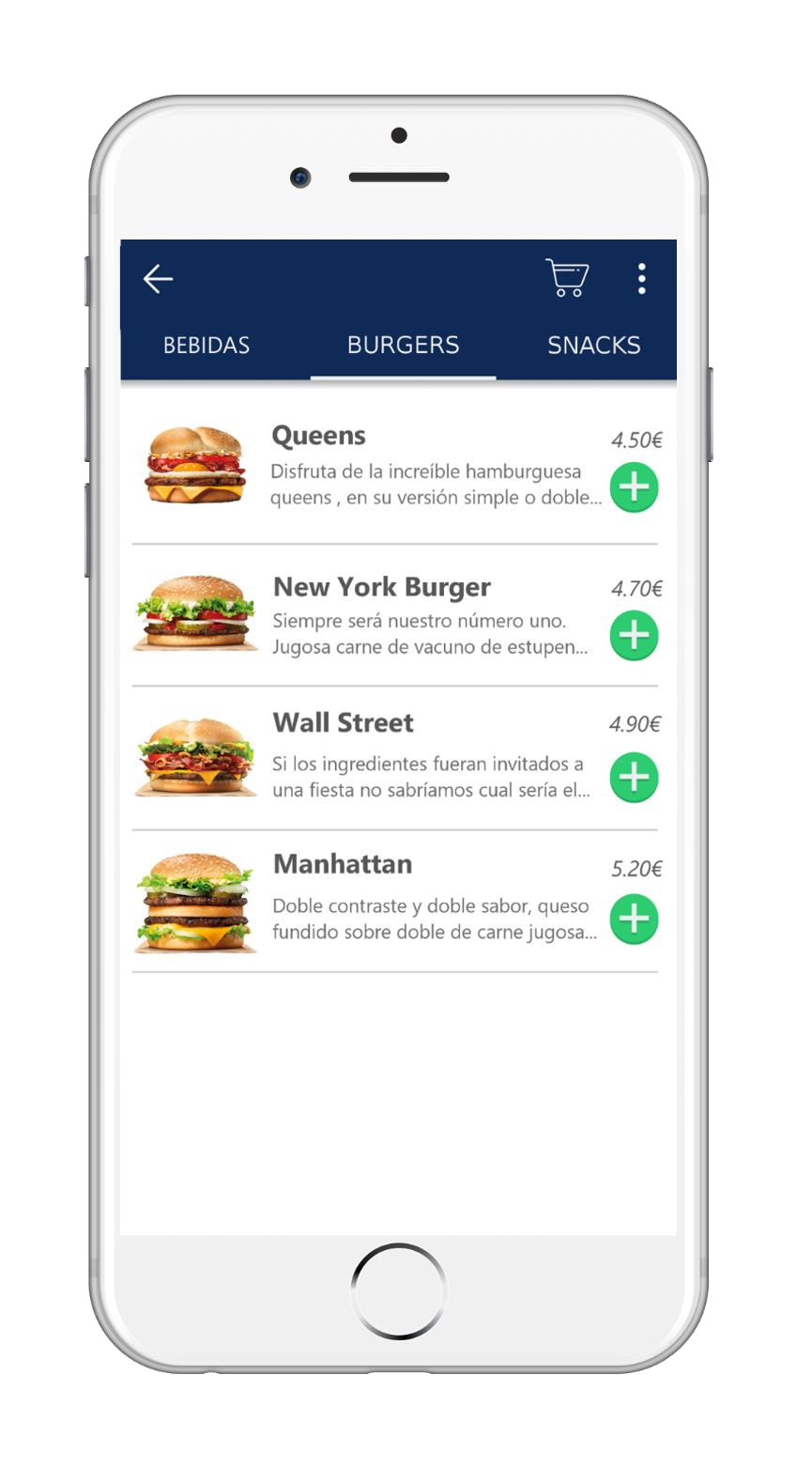
Once the family is selected, the items of this family. On this screen, the
user can view the item's name, a brief description of it, and its price.
By clicking on the add button + The item is added directly to the customer's shopping cart.
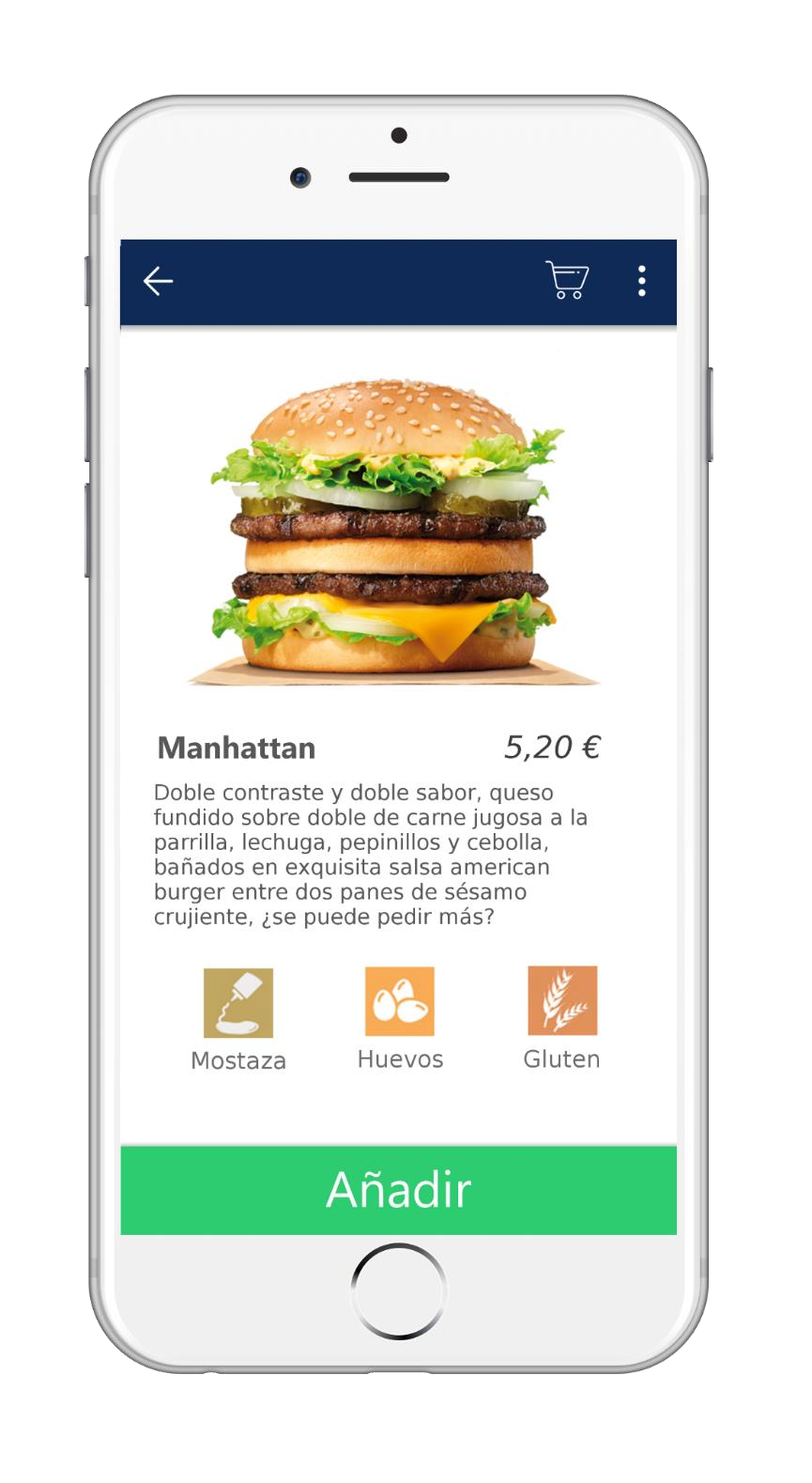
PortalRest allows the user to consult further The detail of the article. Once the item line is selected, a detailed description of the product will be displayed, along with the most relevant information about its composition to prevent the potential presence of allergens.
At the bottom of the screen and from button Aadd, we can directly add the item to the customer's shopping cart.
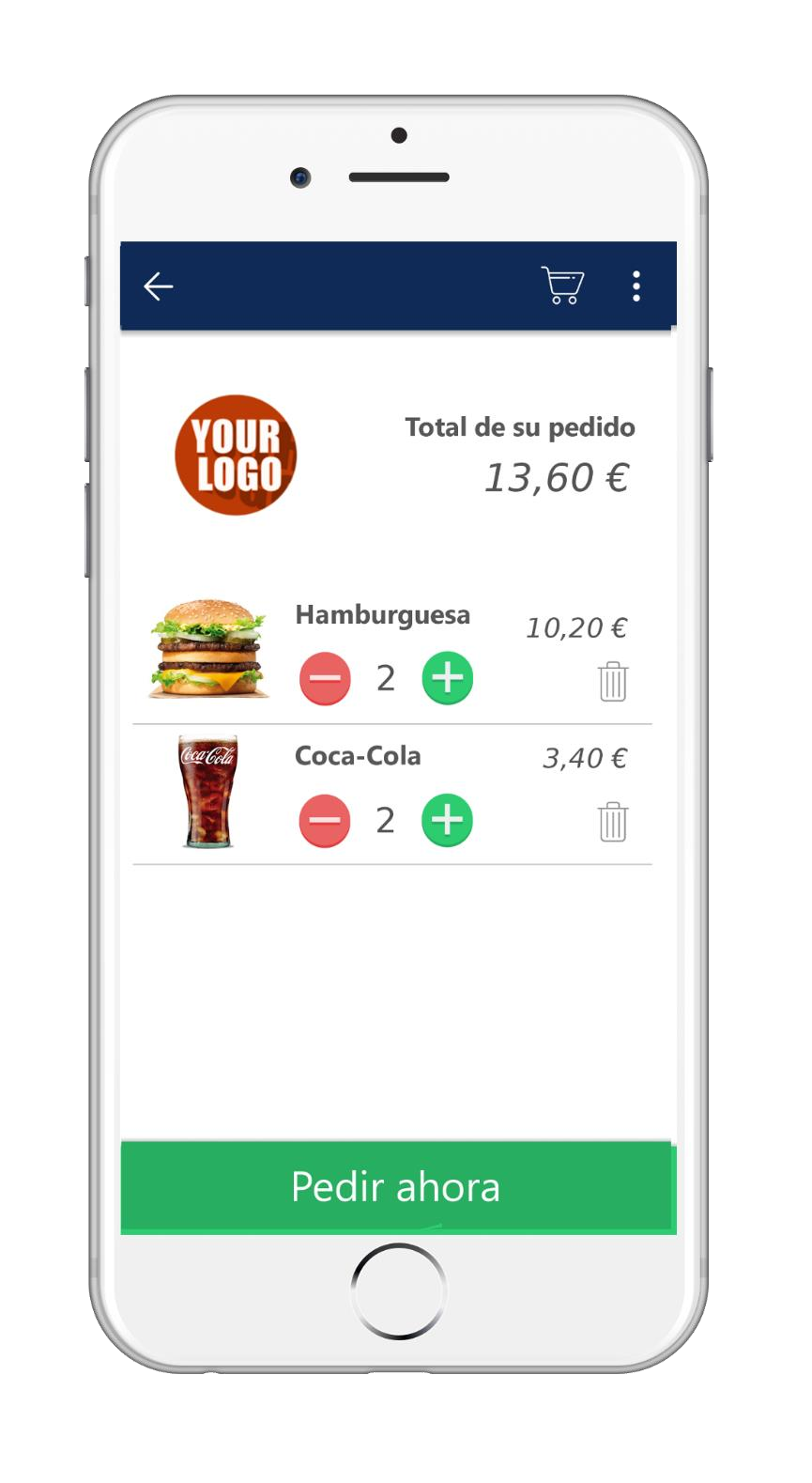
Once we have completed our purchase, we can Preview our cart before finalizing the payment for the order. To do this, we will select the option little cart in the upper right margin of the screen.
On the cart screen, we will be able to increase or decrease the number of selected items or delete an item line. The prices of the items will appear aligned, and the total amount of the order will be shown at the top.
We will be able to confirm the purchase by selecting the option in the bottom margin of the application: Order now.
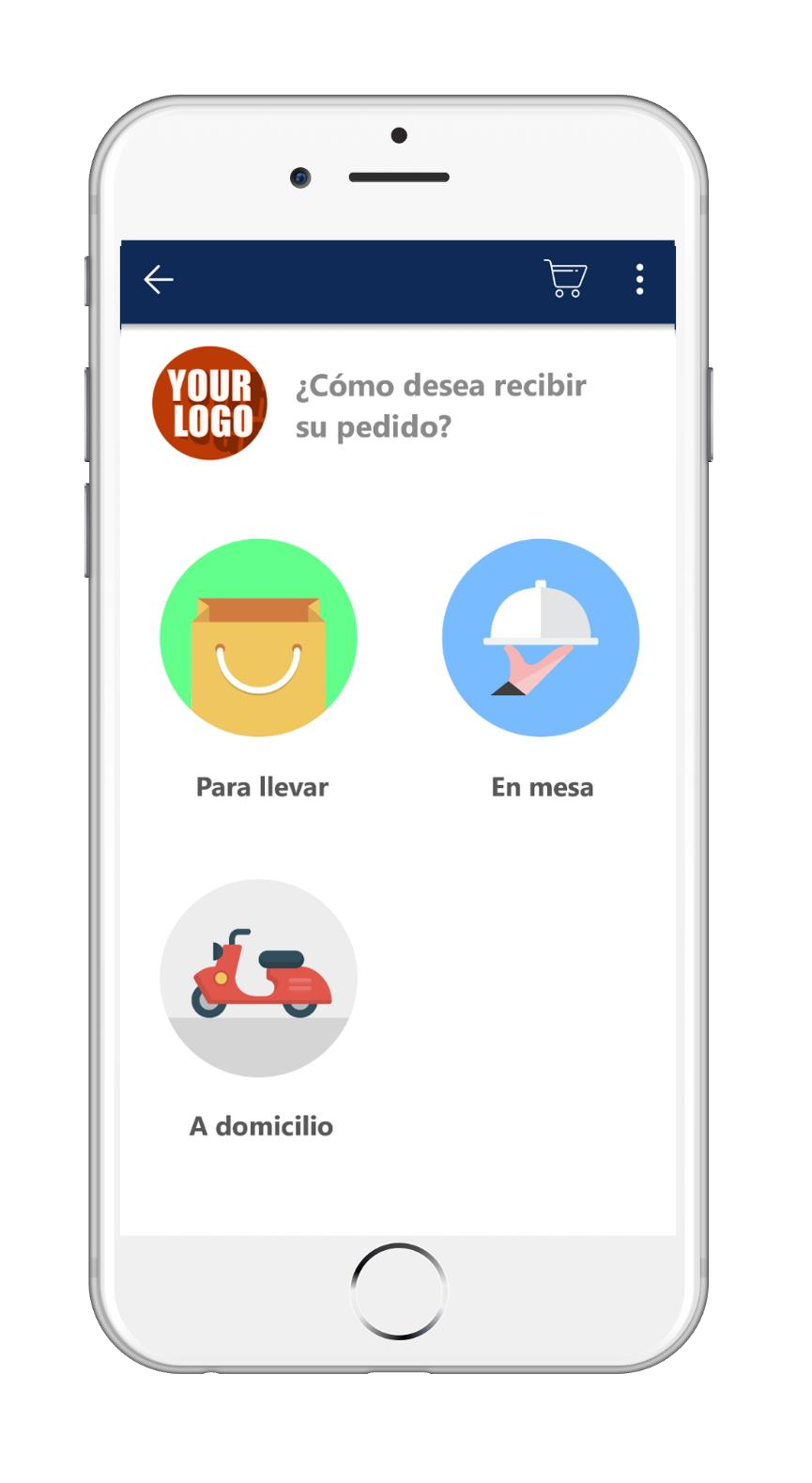
Before making the payment for the operation, PortalRest will ask us, how we wish to receive our order, being able to choose between 3 options: 1. Takeaway; 2. Dine-in; or 3. Delivery.
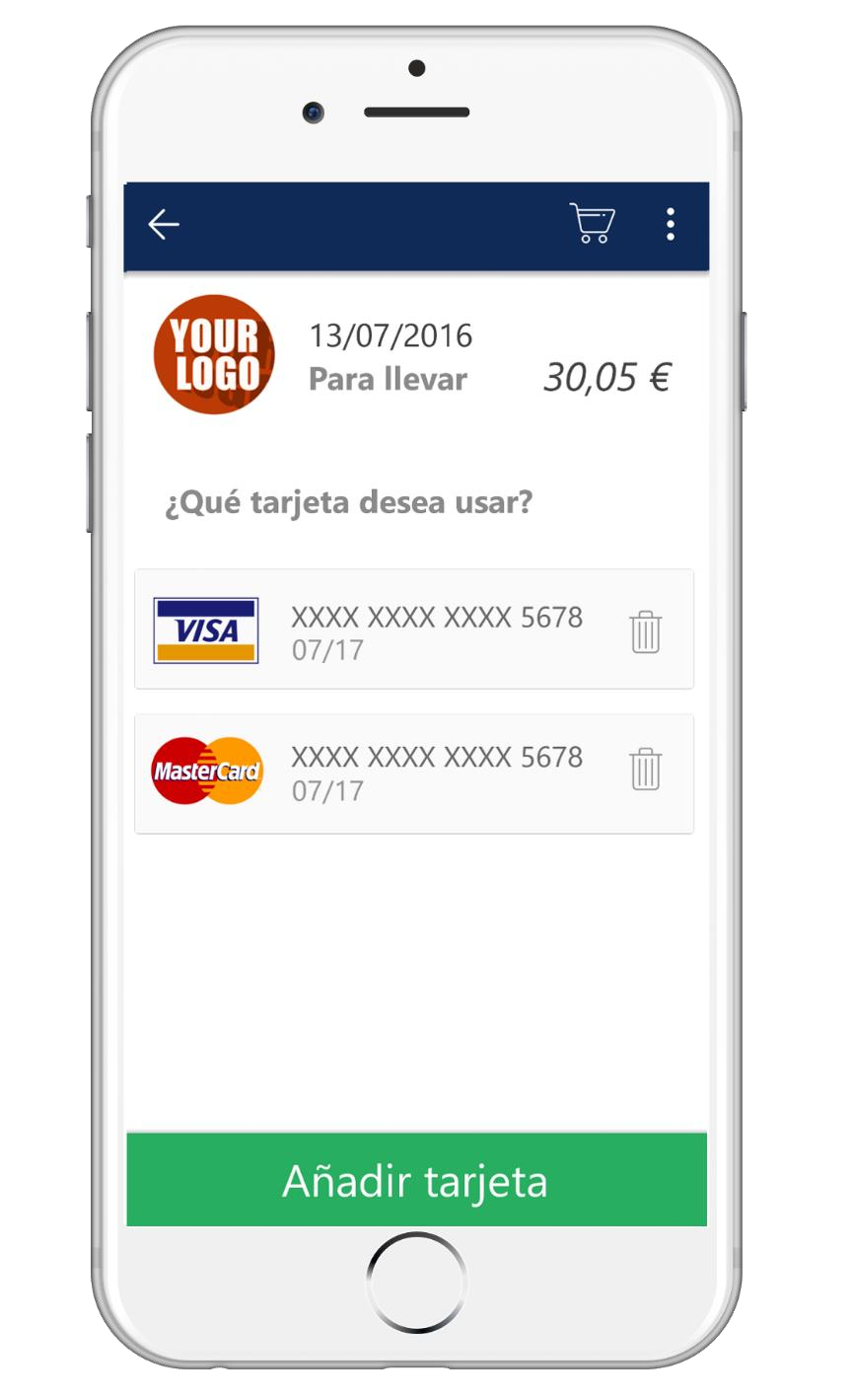
PortalRest can store customer card data to streamline the procedure of purchaseAt the time of payment, and in cases where the customer has more than one card, the user will be able to choose which card they wish to use. The customer's card details can be deleted using the delete icon provided for this purpose.
A card can be added to the system by pressing the add card button at the bottom of the screen.
There is an option for the screen of Reservation confirmed be customized by the distributor (re directing it to a specific page). For this configuration, contact your distributor or ICGSoftware.
AI Assistant
Section summary
AI can generate inaccurate information; verify the results.