En esta sección
Registration
To create a new PortalRest, we will access the website: www.portalrest.comOn the main screen of the application and, as indicated in the following image, the button: Restaurant Area will be displayed in the upper right corner.
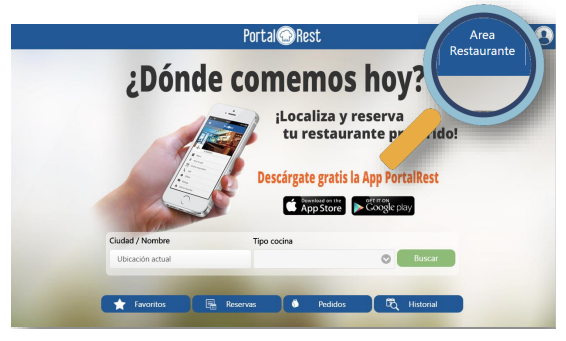
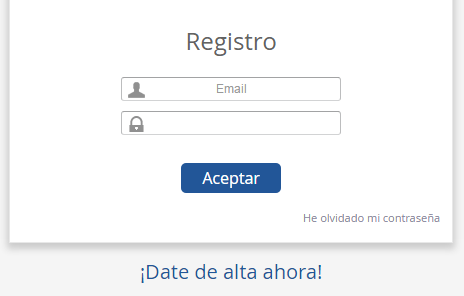
If we select the Restaurant Area option, the system links us directly to the registration screen in PortalRest. On this screen, the option 'Sign up now!' will appear.
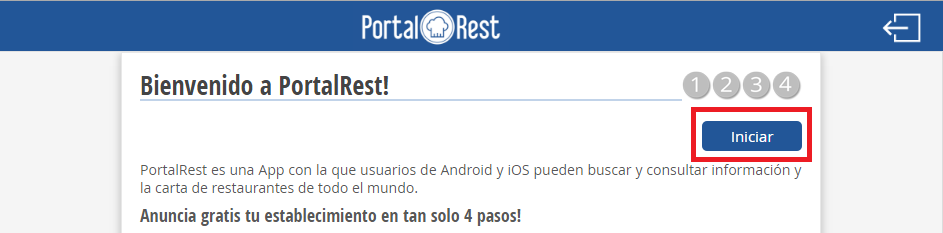
To register our establishment in PortalRest, we will select Start. The registration system consists of 4 screens that we will have to fill in with the basic information of our business.
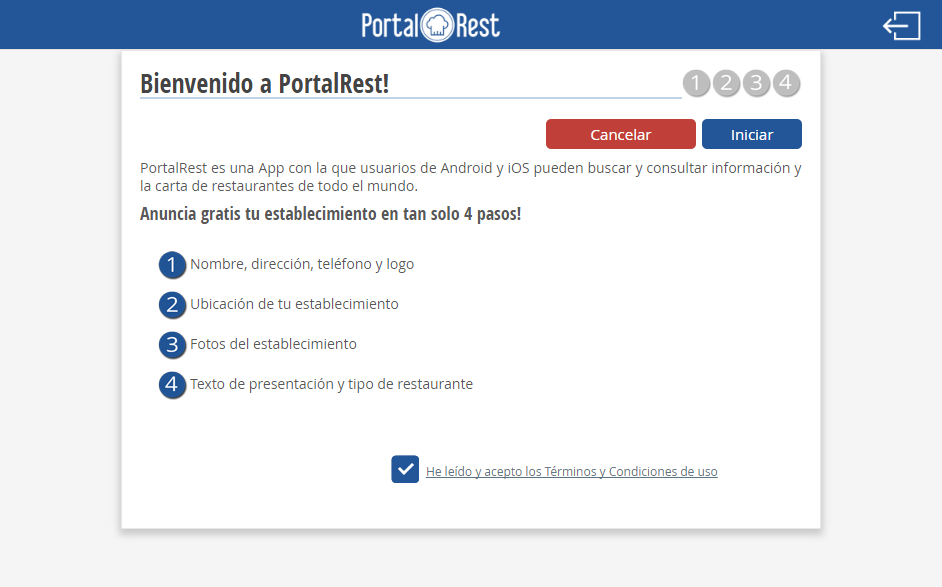
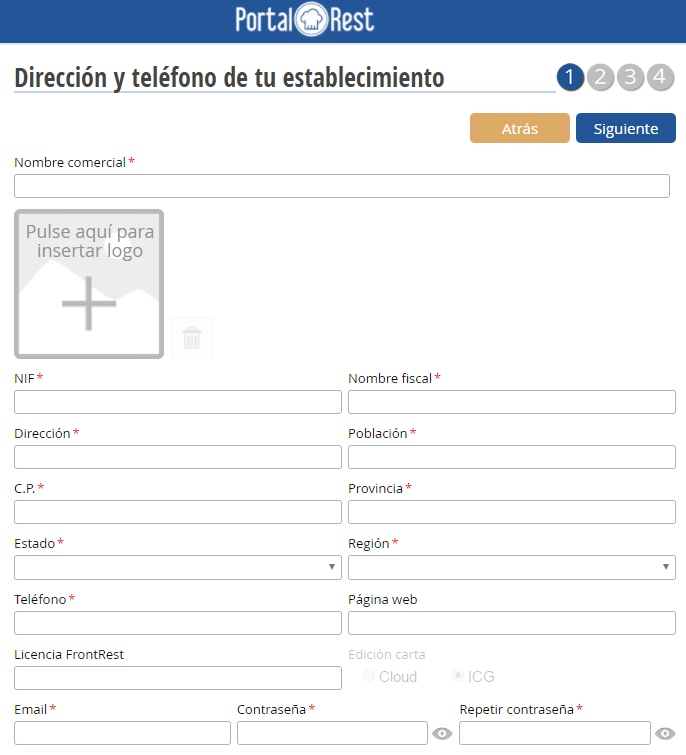
The first of them; Address and phone number of your establishment.
On this first screen, we will enter the trade name, logo, Tax ID, legal name, Address, City, Postcode, Province, State, Region, Phone number, Website, FrontRest License, Email, and Password. We can use this information as billing details.
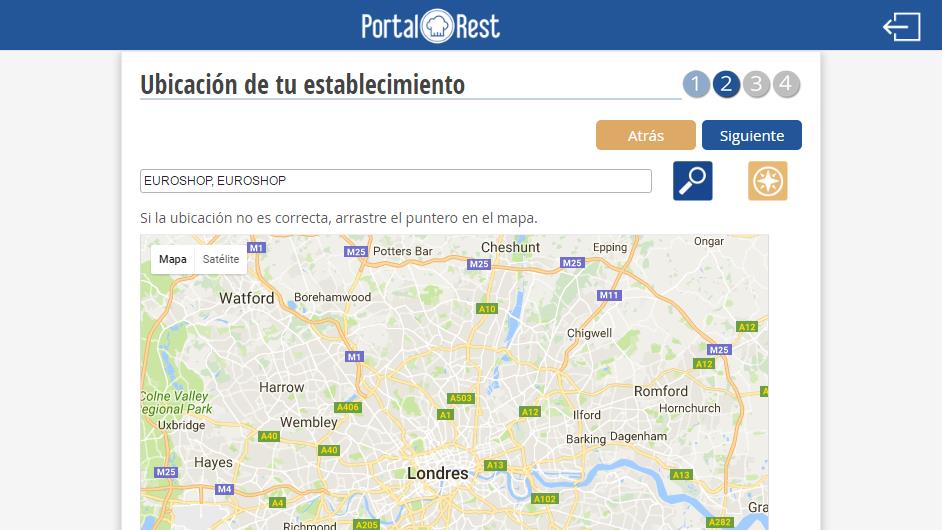
The next screen is: Location of your establishment. On this, we will need to place the pointer on the map location that corresponds to our establishment.
On the location screen, we can perform a quick search to more easily find the correct location of our establishment. To do this, we will fill in the empty field provided for this purpose and select the Search button on the right side of the screen.
The third registration screen is for uploading five photos that will be the images of our establishment on PortalRest. To upload a photo, you just need to select the enabled box and select the file you want to upload.
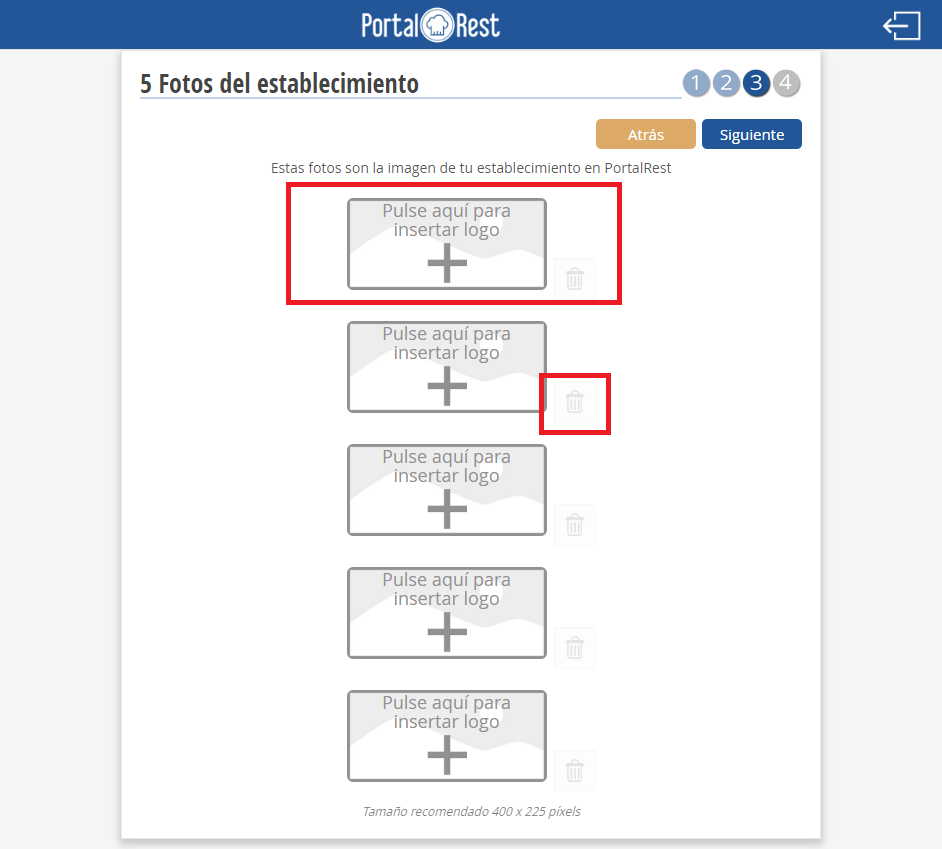
If we want to delete an already inserted image, we will have to click on the Delete icon in the bottom right corner of each of the images.
The last initial setup screen for PortalRest is: Details of your establishment. On this screen, we will configure the description of our restaurant and its operating hours. Descriptions must be brief and can never exceed 350 characters.
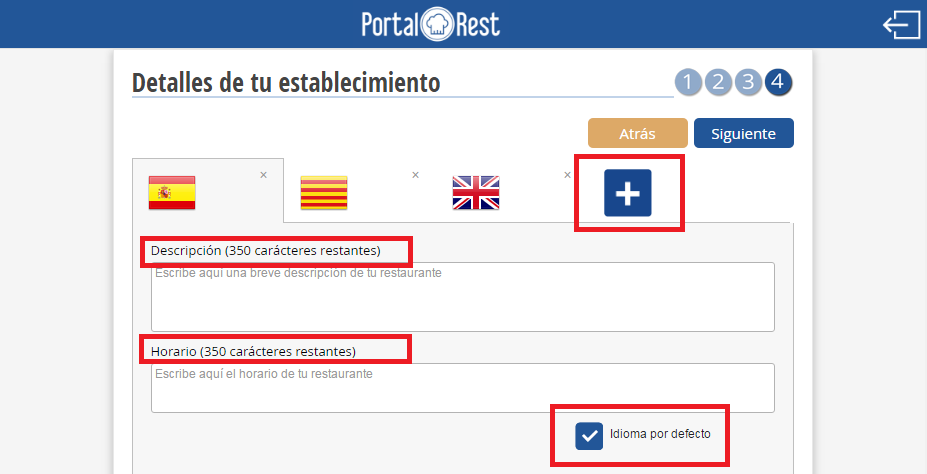
It is important to note that we will be able to configure the different languages with which we wish to present our establishment in the PortalRest application. To do this, we will click on the add icon and choose from one of the available languages.
If we want the descriptions to be displayed in all selected languages in our restaurant's details, we will need to write our establishment's brief description in the remaining languages. One of our languages must be chosen as the default language.
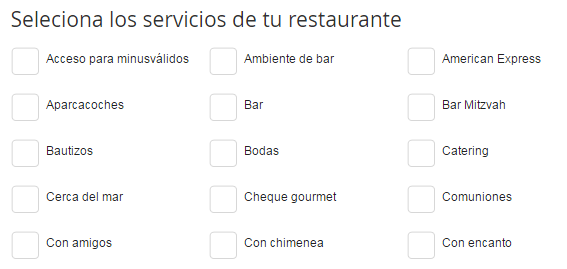
On this screen, we will also configure the average price and restaurant type for our business. It is important to note that the application provides us with a series of services that function as filters to make it easier for users most aligned with our services to find us more easily.
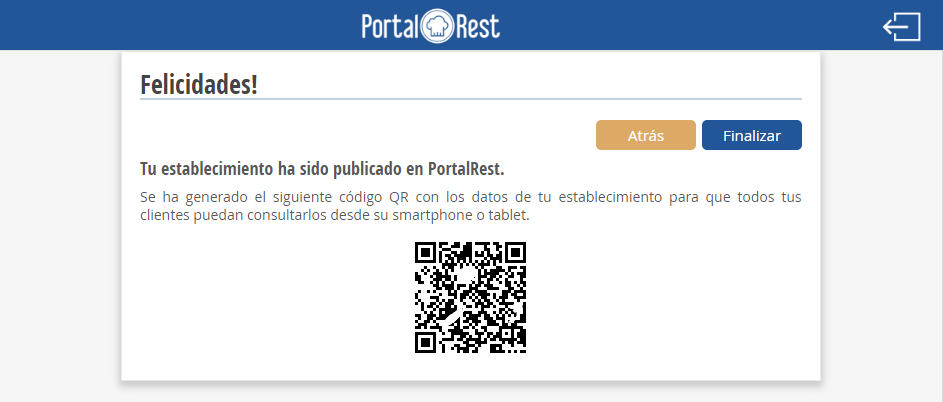
Once all mandatory fields have been filled in, we will be able to finalize the registration of our business. If the registration is successful, a final screen with a congratulatory message will appear. PortalRest will provide us with a QR code containing our establishment's data so that all our customers can consult them from their devices.
When we select Finish, the app will link us directly to the main menu of PortalRest where we will see all the available options.
AI Assistant
Section summary
AI can generate inaccurate information; verify the results.