En esta sección
The sales screen
The sales screen has three main modules: families, items, and the ticket.
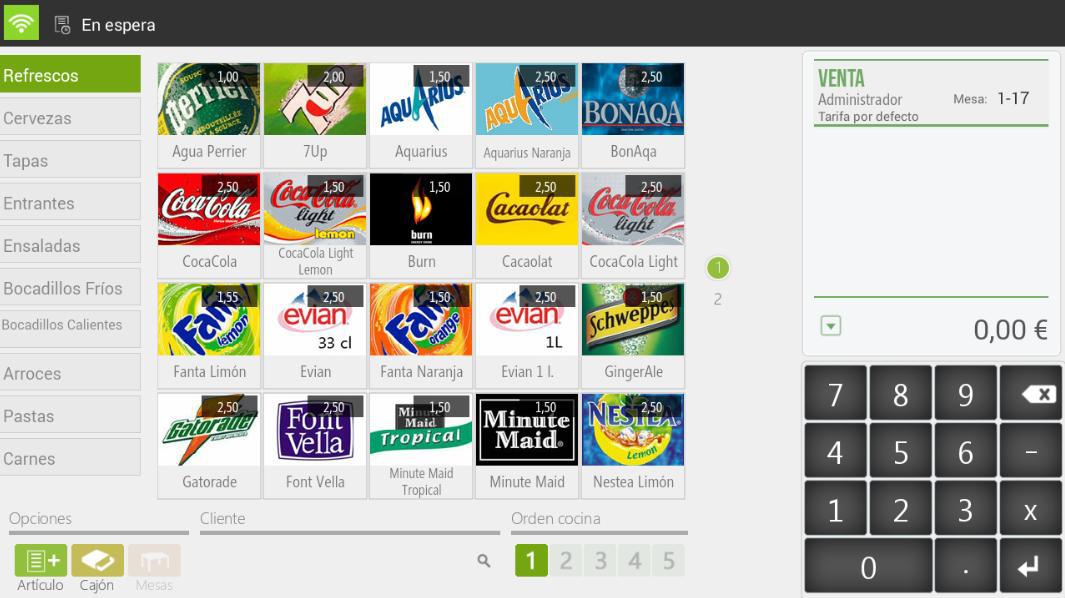
The order in which families and items appear can be modified from the Items option of the Settings.
If an item is selected, it is added to the ticket.
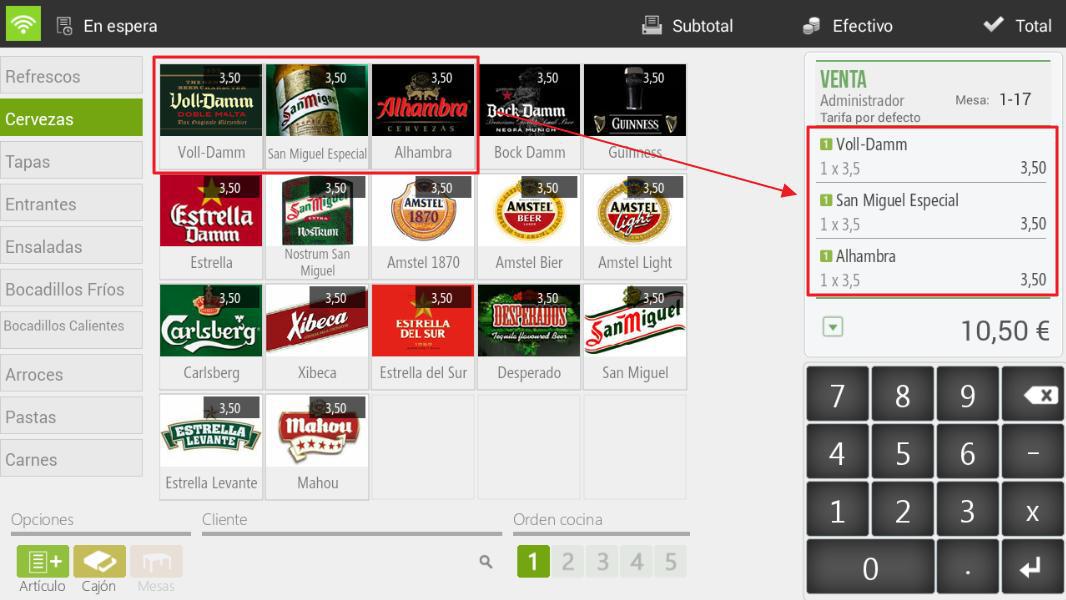
Modifications to ticket lines
We can make various modifications to each item we've added for sale; simply select the item or items on the ticket and the available options will appear:
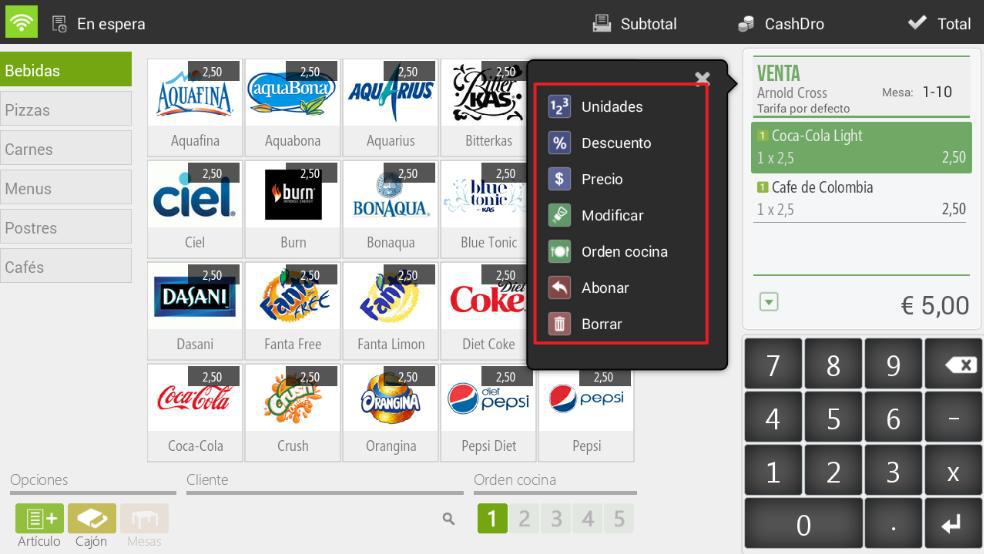
- Units: Allows you to modify the units of the item we select.
- Discount: Allows assigning a percentage discount to selected items.
- Price: Allow modifying the price of the selected items.
- Modify: Allows adding a modifier to the item we select. The modifiers must be created beforehand in the Modifiers section of the Configuration.
- Kitchen Order: Allows modifying the order in which an item will be printed to the kitchen.
- To pay: Allows payment for selected items. A paid item will appear as a negative line for the item's amount.
- EliminateRemove the item from the sale.
Modifications to the ticket total
If we click on the top of the ticket, it shows us a dropdown with the options that we have to modify the ticket as a whole:
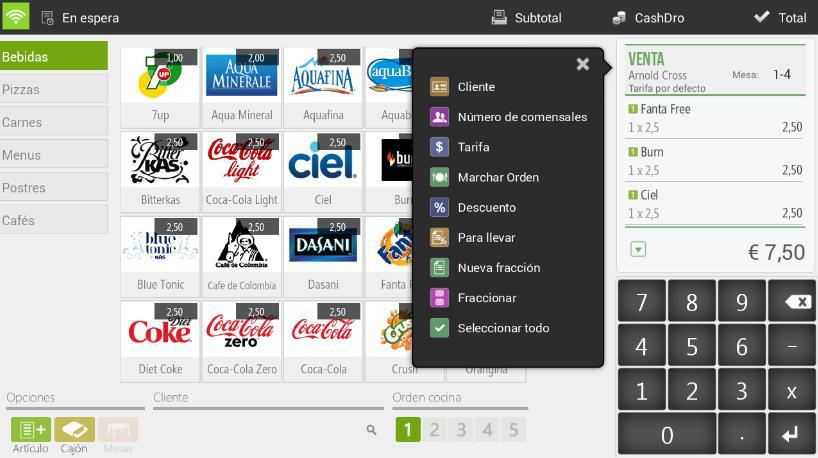
- Client: Assign the sale to a customer and create an invoice for it.
- Number of dinersAllows you to enter the number of diners for the sale. It has a statistical function.
- TarifaAllows changing the price rate being applied to the ticket.
- Marching order: You can select which order you want to send to the kitchen so that the ticket with the items of that order is printed.
- Discount: Apply a percentage discount on the sales total.
- To goThe ticket indicates that this order is for takeout. This is stated on both the kitchen ticket and the final ticket.
- New fractionCreate a second ticket within the same sale, allowing two tickets to be finalized at once and charged separately.
- To fractionate: Allows splitting the sale into two or more sales. Any item can be transferred from one ticket to the other, just by dragging it.
- Select all: Allows selecting all existing lines of the ticket automatically.
Reasons for discount
Discount reasons are necessary to apply a discount on the total. To create or modify a discount reason, we need to go to Configuration and select the option Reasons for discount.

In the discounts menu, we can modify the name and select the maximum and minimum percentage that the cashier will have as room for maneuver.
We can also make the discount percentage non-modifiable, so each time the discount is selected, it will apply a discount for the value of the Maximum percentage on the total.
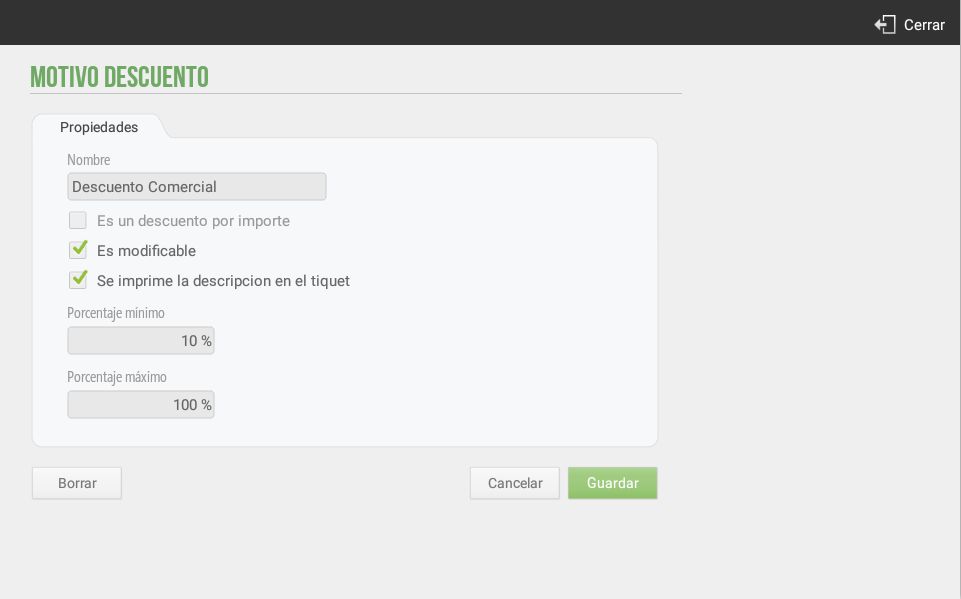
Additionally, there is the option to mark the Amount discount and not by percentage.
Example discount reason: Internal Consumption
There are many possibilities for creating discount reasons; trade discount, customer loyalty discount, early payment discount… In our case, the configuration of the discount for internal consumption of items will be explained below.
In Settings, Discount reasons, we will create the discount. When creating the Discount Reason, the application will request certain information from us; a name; whether it is an amount-based discount or a percentage-based discount; whether it is a discount that we can modify, and if we want the tax description to be printed on the sales receipt.
To apply the Internal Consumption discount (100% discount), we will need to be, at the moment of making a sale, on the Sales line of the application. We will select to open the options menu and choose the Discount option. It will prompt us to apply one of the configured Discount Reasons; we will select Internal Consumption.
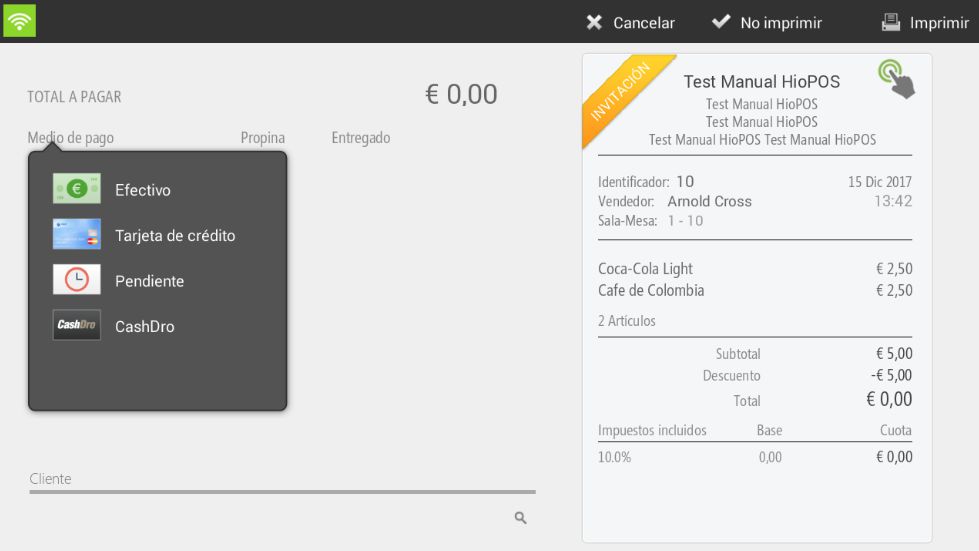
At this moment, HioPOS Cloud will generate an Invitation, with the total discounted price.
The user will always be able to view all internal consumption data by retrieving the information from the Consultations, Sales section and selecting the Invitations filter in the bottom right corner. This way, they will be able to consult the invitations generated during a specific period of time.
Whenever, on the configuration screen for the Internal Consumption Discount Reason, the option 'The description is printed on the ticket' has been selected, the Invitation will contain the Discount Name, which can speed up the viewing of internal consumptions within all Invitations.
AI Assistant
Section summary
AI can generate inaccurate information; verify the results.