Splitting a sale
The fraction of a sale is used to split a ticket among several customers.
To split an existing sale
Splitting a sale will allow you to divide a ticket into two or more parts, so you can charge multiple diners separately.
There are three points in the sales process where the cashier can split the sale:
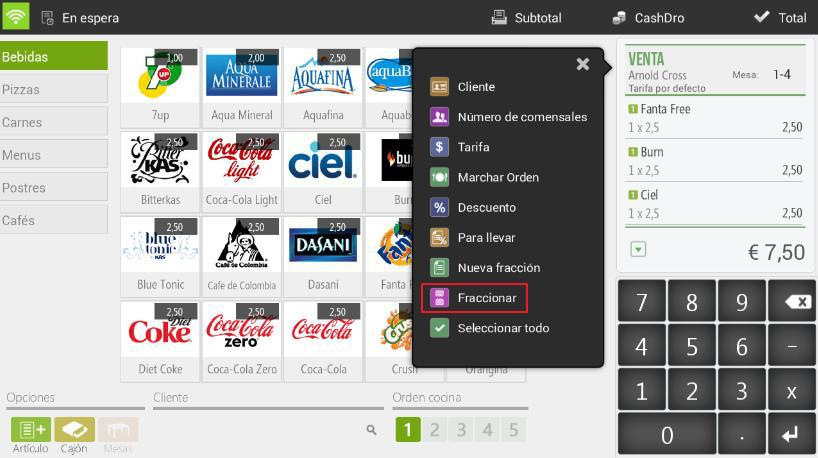
- The first one is found by clicking on the ticket header to then select To divide.
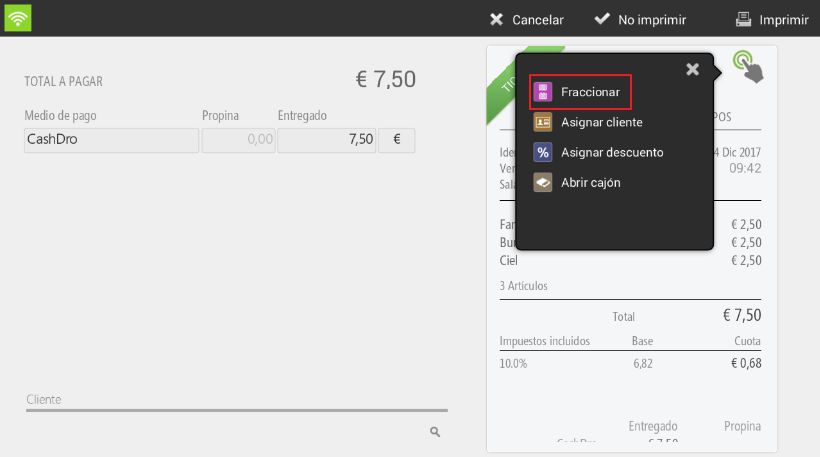
- The second one is found once we are on the payment method selection screen by clicking on the ticket and selecting To fractionate.
- The third one on the tables screen when pressing for a few seconds on an occupied table.
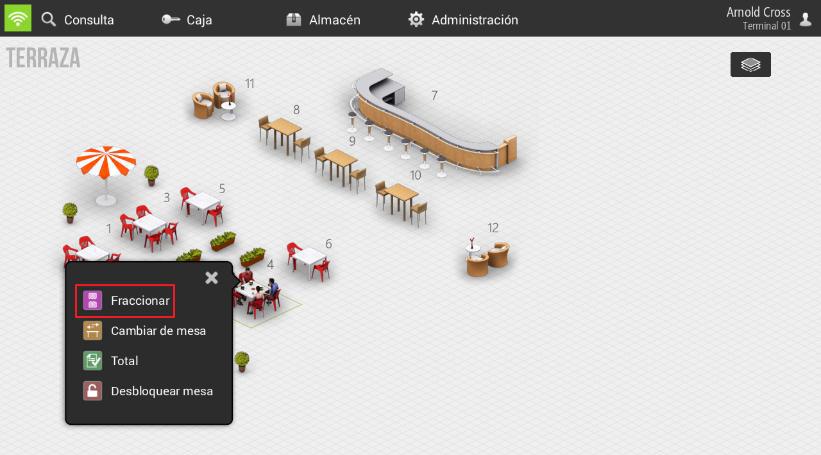
The result will be the same regardless of where we select.
When selecting Split, the program displays two tickets on screen: the current one and the second ticket with which we want to perform the split. To move an item from one ticket to another, simply drag it with your finger from one to the other, or select the item you want to split.
You can also split an item and have it displayed by the split value on the tickets you want. Just press and hold for two seconds on the item and select Divide.
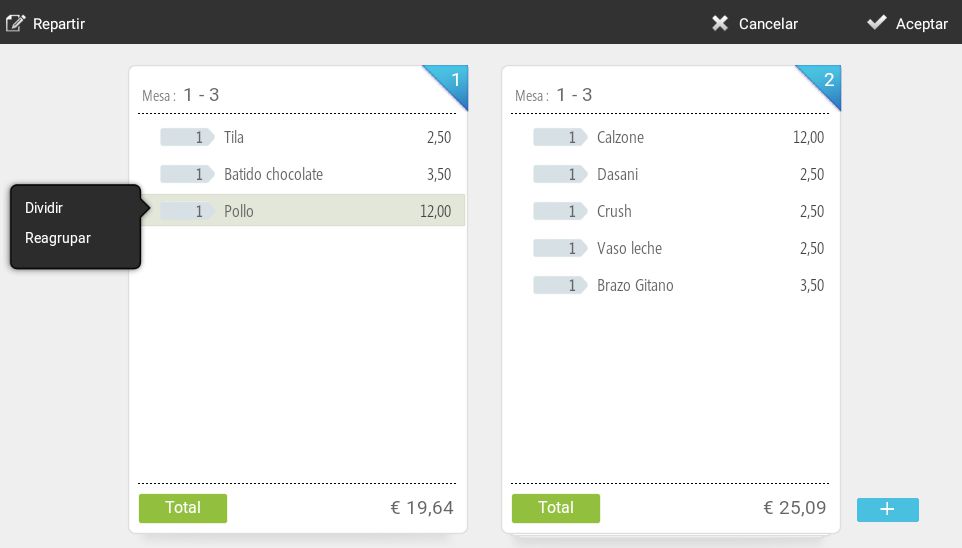
To move each division from one ticket to another, click on the pie chart icon created at the beginning of the item line.
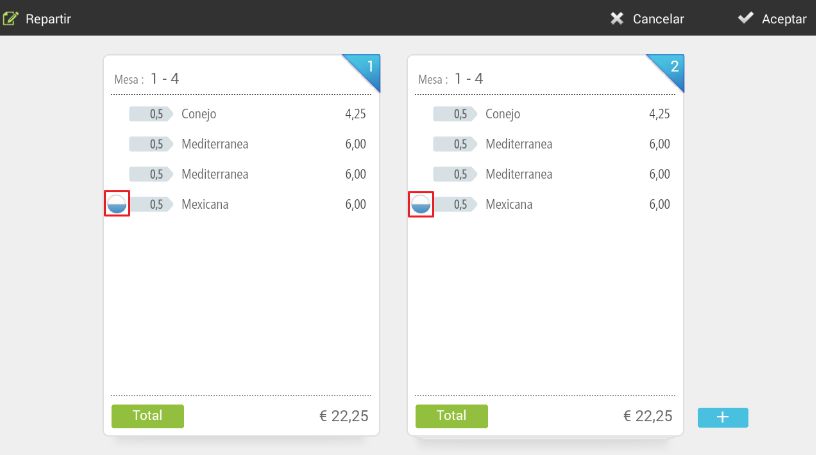
If you want to undo the division, click on the item and select Regroup.
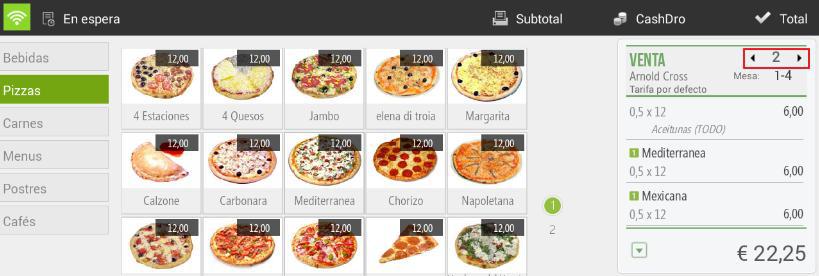
When working with split sales, you can view the different tickets using the arrows added to the ticket header.
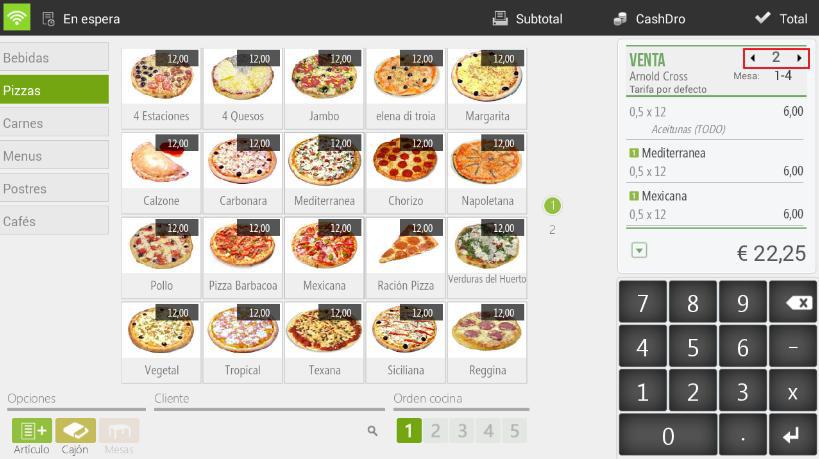
To total and finalize the split tickets, follow the usual sales procedure, press Total to access the selection of payment methods and then finalize the sale. Please note that each split ticket is finalized separately, one is done first and then the other.
New fraction
HioPOS Cloud includes a feature that allows you to start a second ticket for the same sale without having to finalize the current one or put it on hold.
Click on the ticket header and select New fraction.
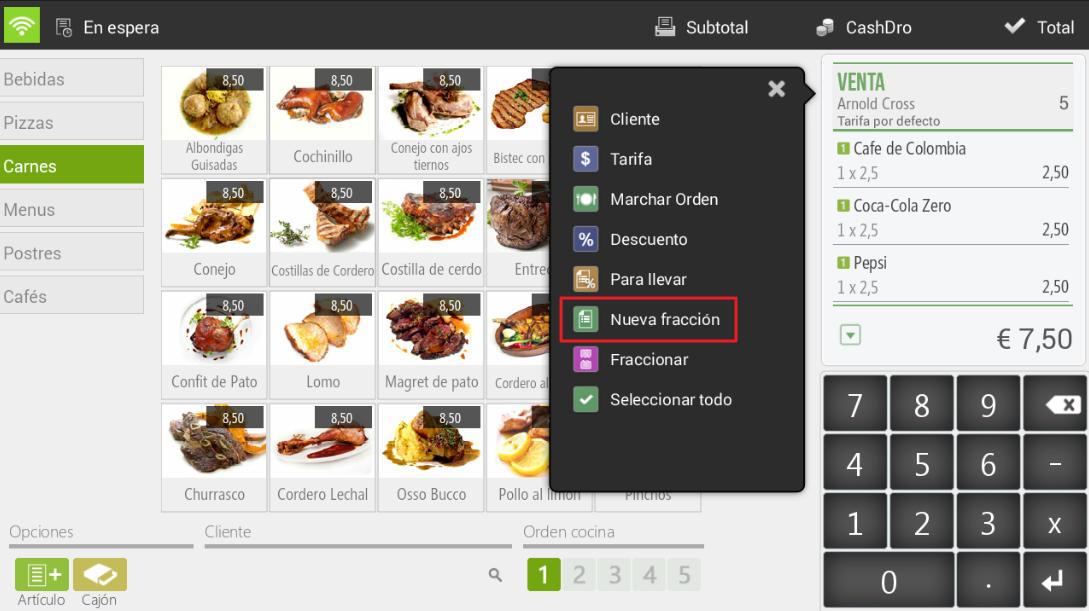
You will see the ticket reset to zero and the number two appear at the top of it. This means you are on ticket number two. To move between tickets, use the adjacent arrows.
To finalize the sale of a fractional share, follow the usual steps.
AI Assistant
Section summary
AI can generate inaccurate information; verify the results.