En esta sección
Room Rate Assignment
Rates can be assigned to a Room. This way, the entire price list for the items entered will be applied at the Room level as a whole. This would be the case when creating a special Rate depending on the Room, for example. Tarifa Terrace.
To assign a Rate to a Room, first we will have to create a new Rate or select an existing one. For the creation of new rates, see the section on creating new rates.
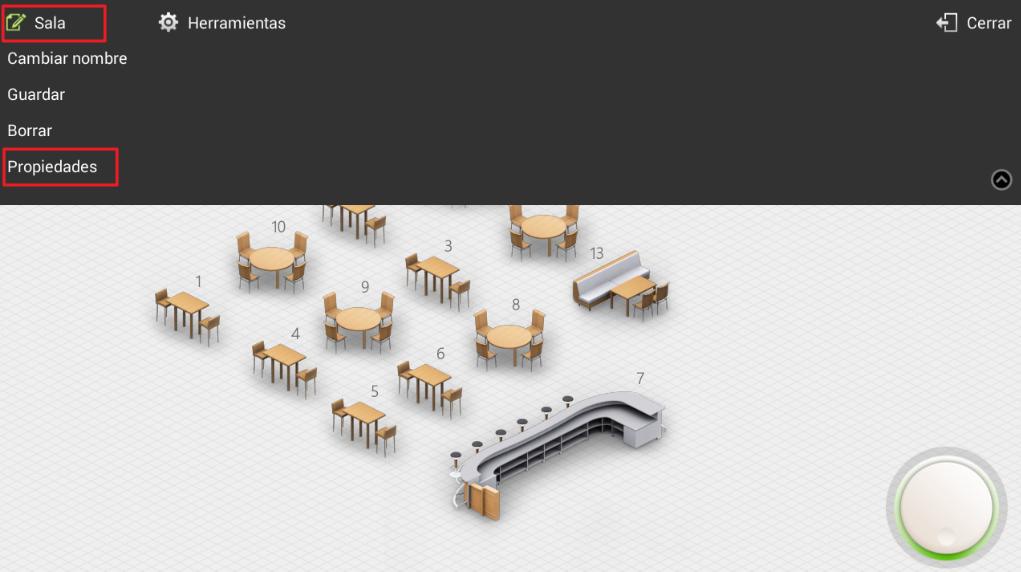
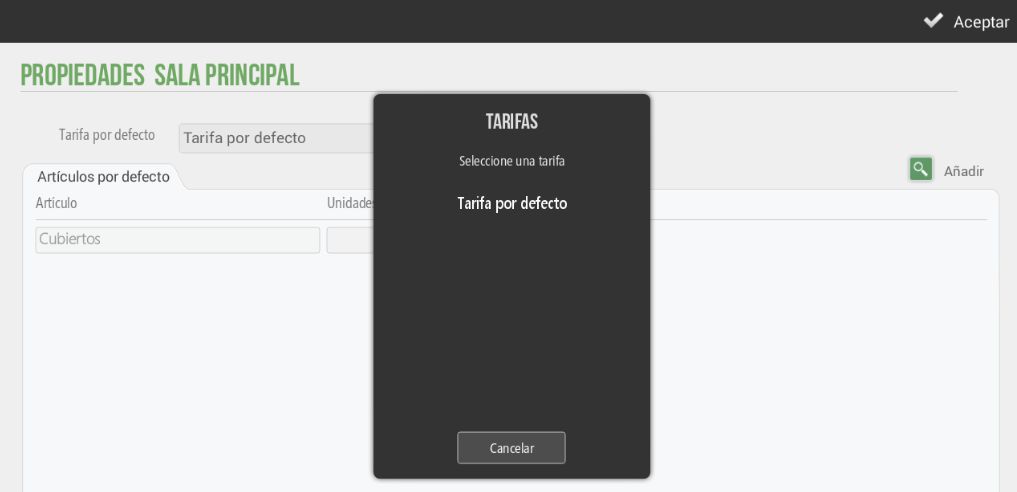
Secondly, we will go in Settings and in the option Salas We will select a room. When we are inside the room, in the upper left margin, the option to Edit Room will appear, we will choose the option Properties. When we are inside the Properties screen, we will select one of the previously created rates in the Default Rate box.
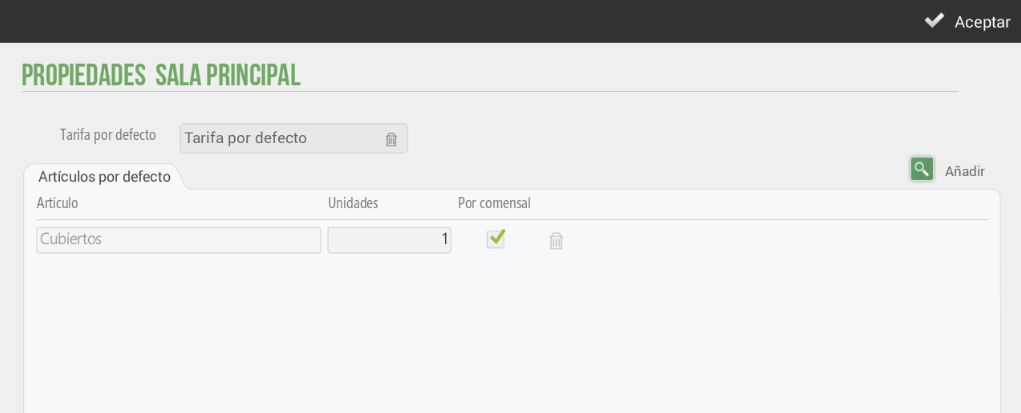
It can also be observed that there is a default item created, in this case it is the "Cutlery" item, and you can select how many units will be charged and if it is a variable item per diner. In the same way that this one can be modified, others can also be added.
AI Assistant
Section summary
AI can generate inaccurate information; verify the results.