En esta sección
Multiple Tax Configuration
The configuration of these will be done through the Taxes section of Configuration, by selecting the option New tax.
Once tax creation is configured, the user must apply them to the items they wish, by navigating to, Administration > Configuration > Items > Edit items and we will select the fourth section (%) of the bottom left margin, which we frame in the following image.
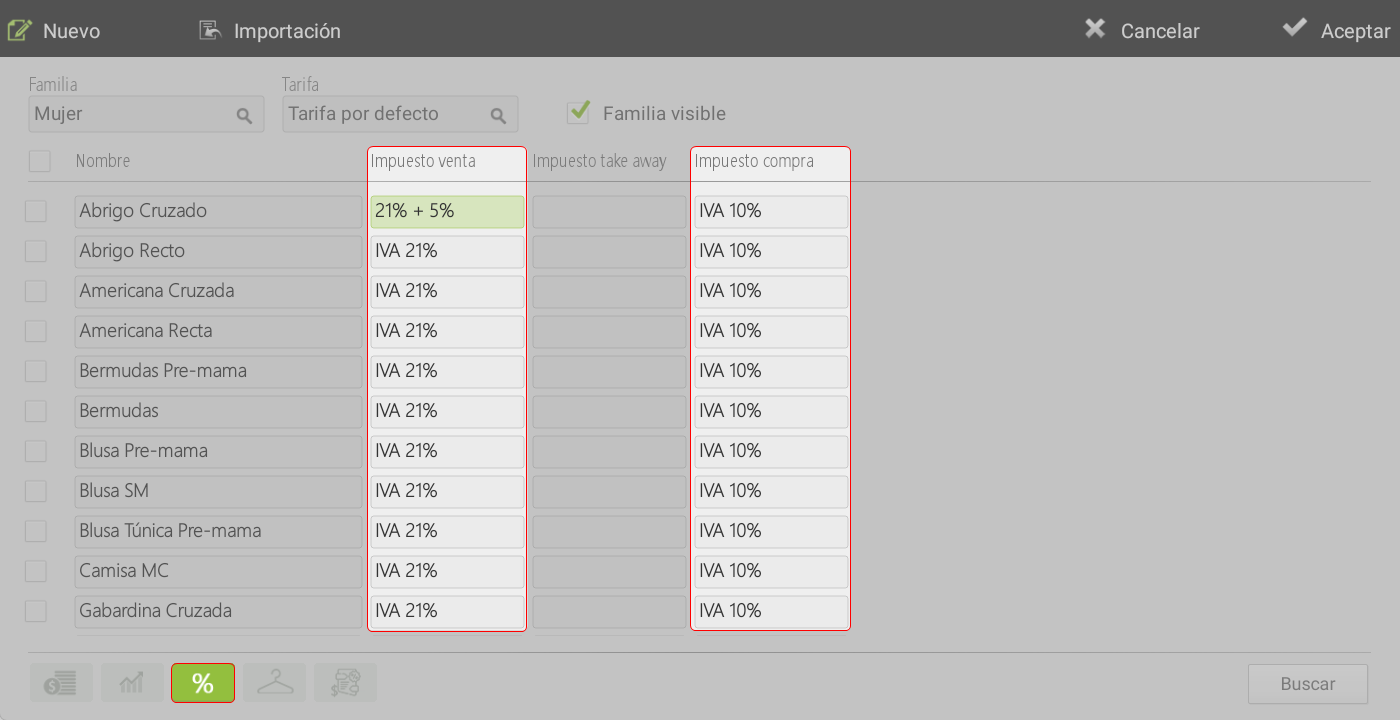
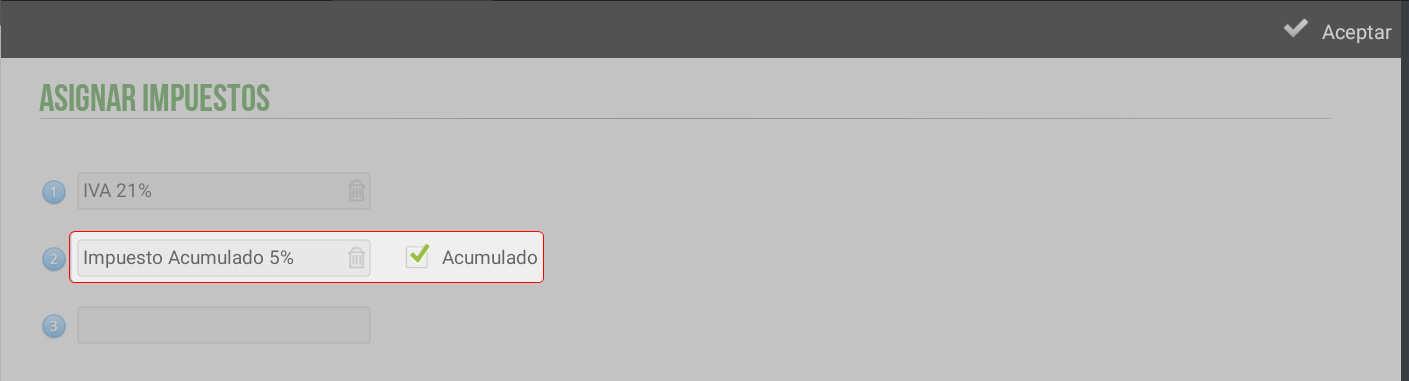
Once inside the Tax Assignment screen, if an additional tax is to be applied to an item, first the VAT to be applied will be selected, and then the other tax. This second tax has the option, disabled by default, to be a cumulative tax.

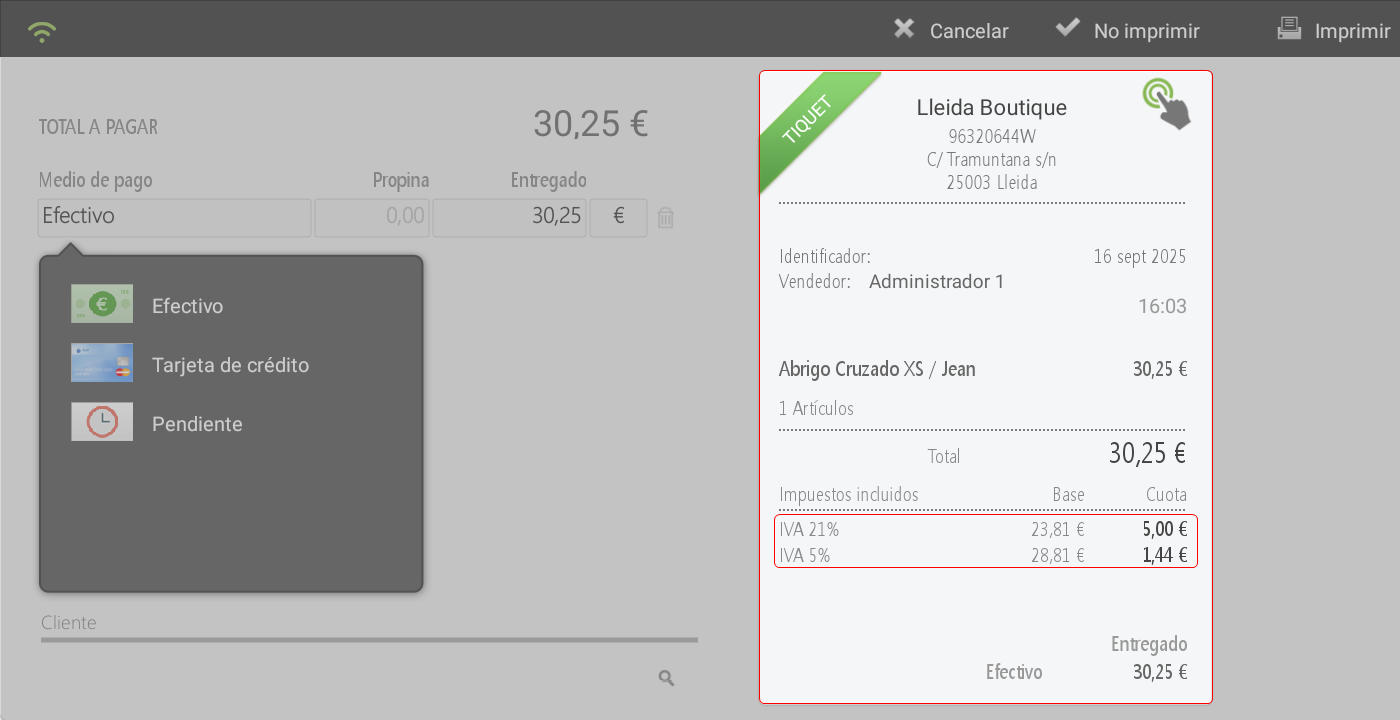
Once the item taxes are configured, the following image shows the sales receipt for the item with the two taxes applied.
In it, the application of two tax rates is observed:
The first, corresponding to the 21% VAT.
The second, corresponding to the IAdditional 5% tax.
AI Assistant
Section summary
AI can generate inaccurate information; verify the results.