En esta sección
Introduction
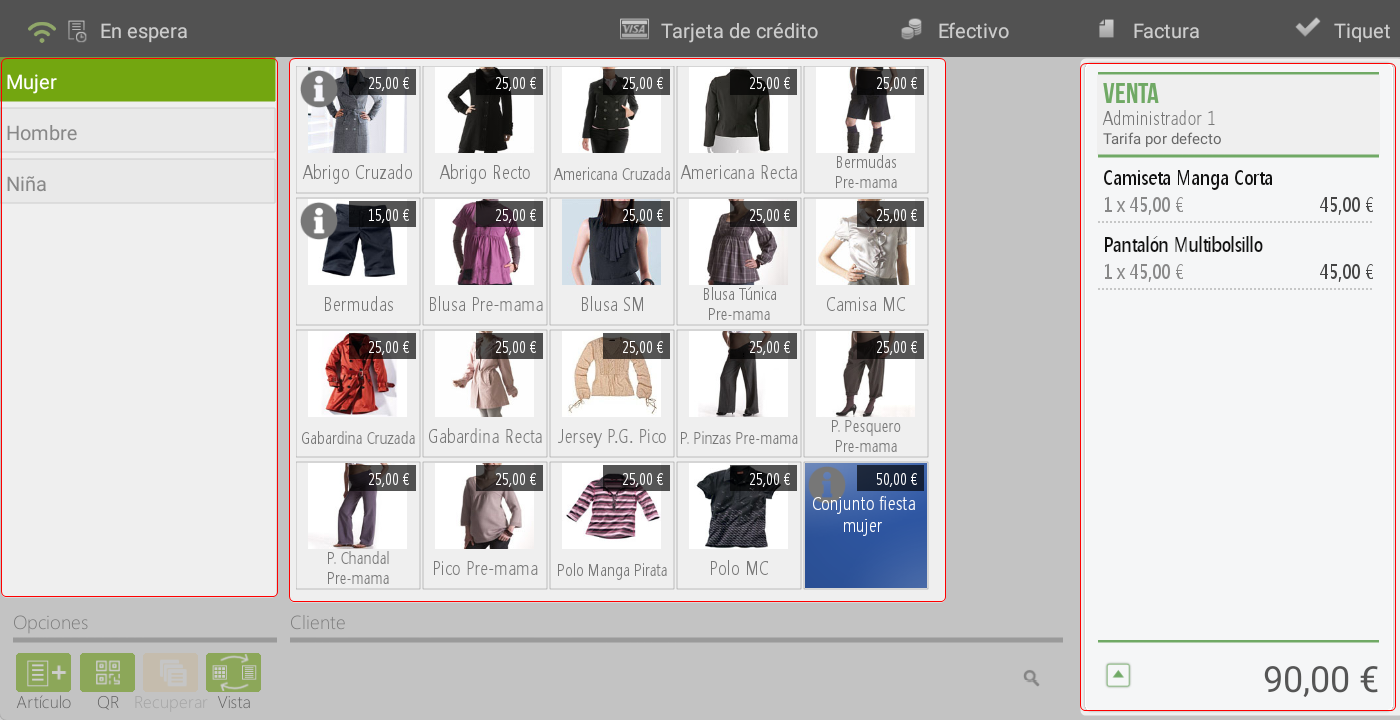
Once the user accesses the POS terminal, the sales screen is displayed, organized into different blocks:
Upper part: If no items have been added for sale yet, the management and configuration tabs appear. If a sale has been initiated, the configured and available sales options are displayed according to the profile of the user logged into the terminal.


Left-back: The product families are visualized.
Central panel: The articles corresponding to the selected family are presented.
Right-back: A summary of the items included in the sale is shown along with the ticket subtotal.
In the bottom left On the screen are the following options:
Article +: opens a new window that allows searching for products by different criteria: name, department, brand, or family.
QR: activate the device's camera to scan a QR code.
Recover: if the sale has not yet started, open a window displaying pending tickets, allowing them to be retrieved and the operation to continue.
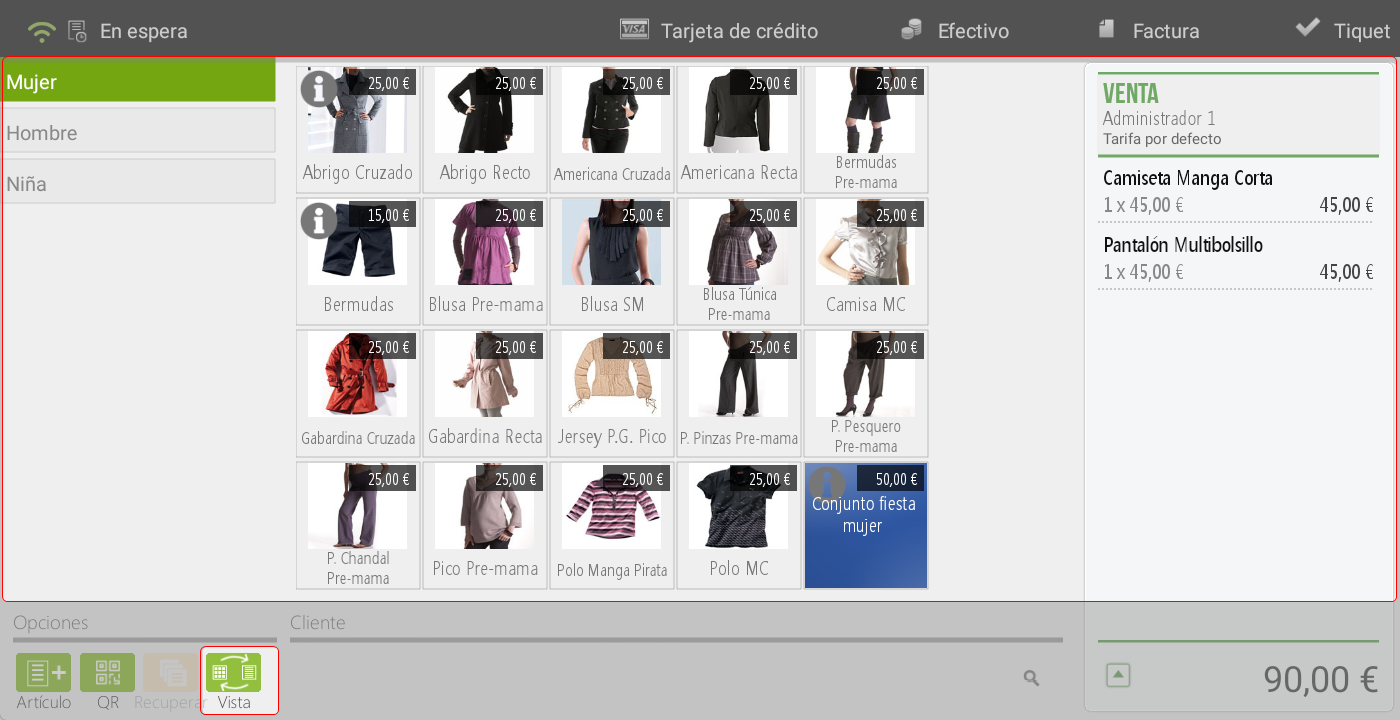
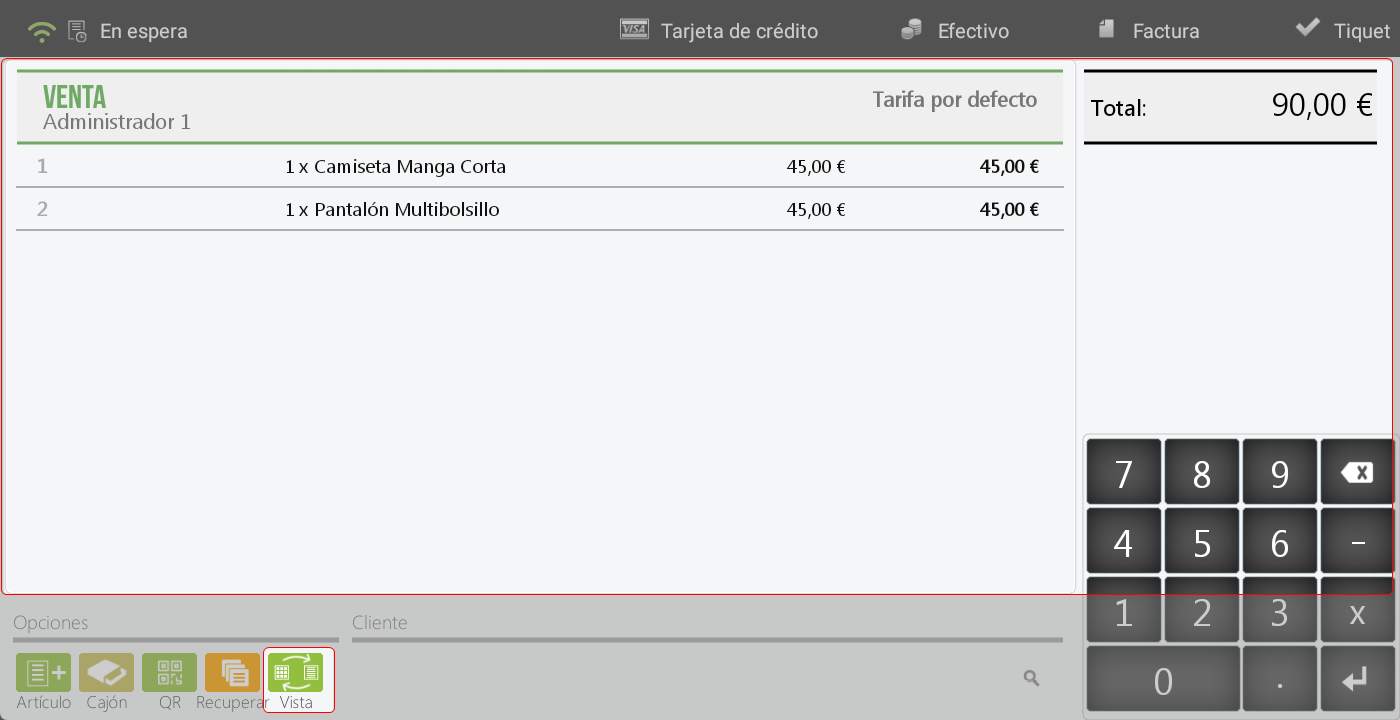
ViewBy default, the sales screen displays product families with their items, so that these can be added to the sale by tapping on them. However, if the establishment's workflow is based on scanning items, from this tab it is possible to change the view to show a full-screen breakdown of the items scanned in the sale.
Bottom center of the screen: In this section, using the magnifying glass icon, you can access the client search and selection function. Once the client is linked to the operation, the system displays on screen the data associated with them.
In this area, a set of buttons is available that provides direct access to customer-related information, including:
Documents earrings paid.
Cards of active loyalty
Vouchers Promotional items available.
Sales orders in progress or pending management.
Delivery notes associated with the client.
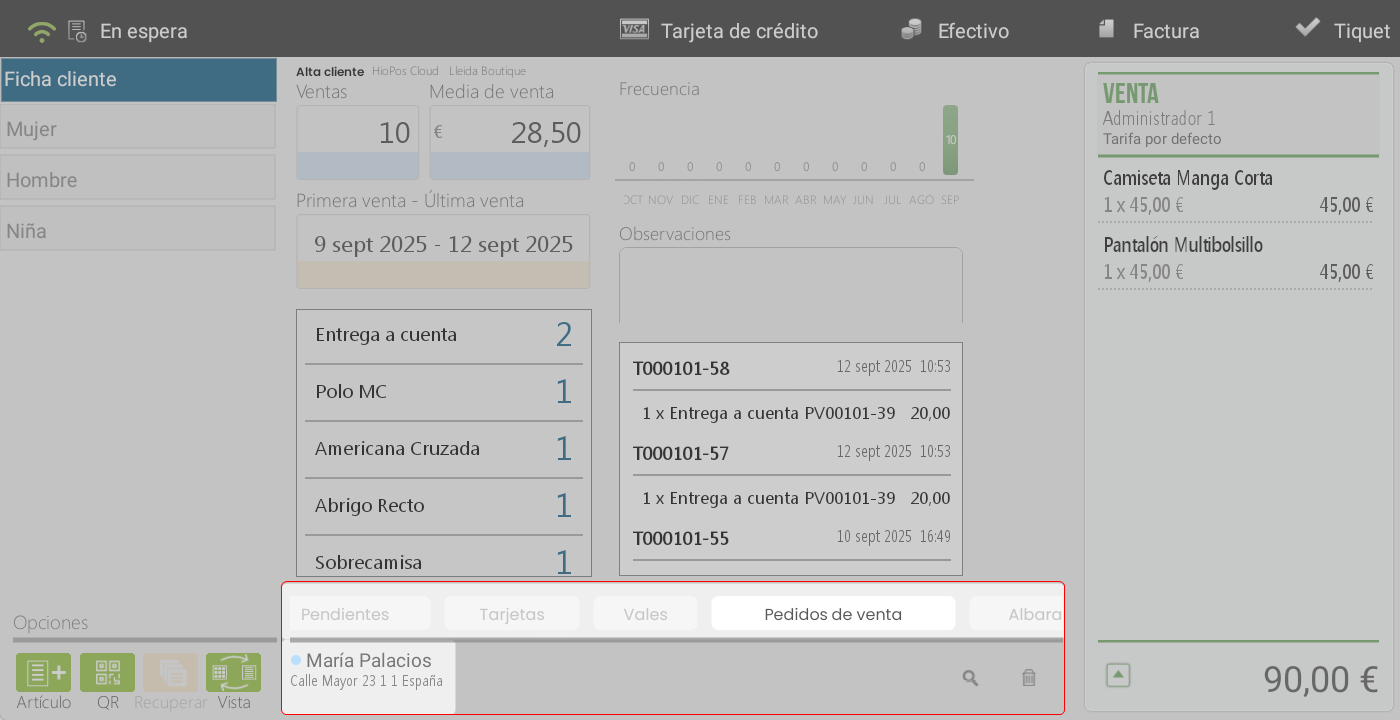
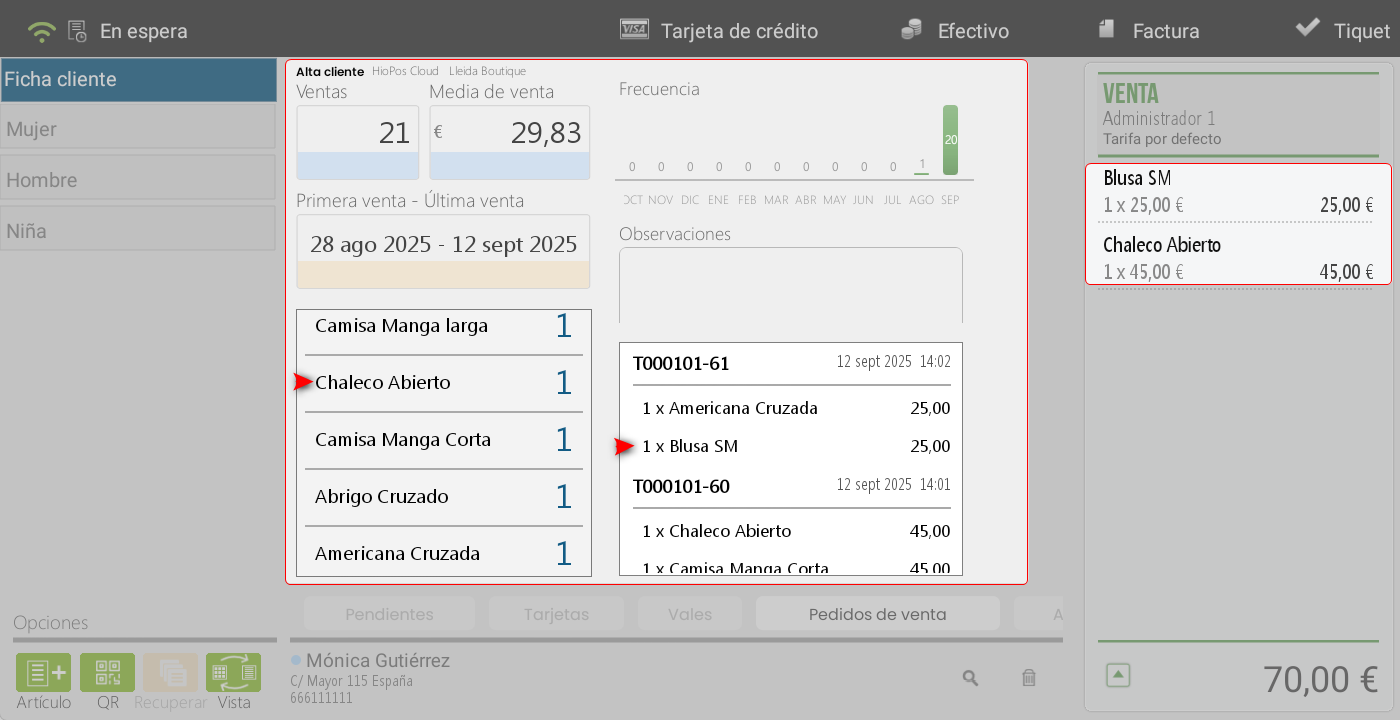
The client's record is displayed in the central part of the screen. This record includes:
Customer Statistics: information about sales volume, average purchase, purchase frequency, as well as the dates of the first and last transaction.
Latest acquired items: a list of the products purchased by the customer. By clicking on any of them, it can be added directly to the sales ticket.
Ticket history: allows consulting the customer's previous tickets. If desired, a complete ticket can be repeated by clicking on its number or on any of the items it contains.
AI Assistant
Section summary
AI can generate inaccurate information; verify the results.