Item reservation
The program allows managing Reservations (Sales orders) with the option to make one or more partial deliveries on account until the order is completed and invoiced.
Upon clicking the ticket header, the "Book" option is displayed. When making a reservation, it is mandatory to assign a customer to the sale.
- If a customer has not yet been registered, pressing the button will display the customer list to select them and add them to the reservation. Once assigned, the reservations screen will open.
- If the client had already been entered previously, the booking screen will open directly.
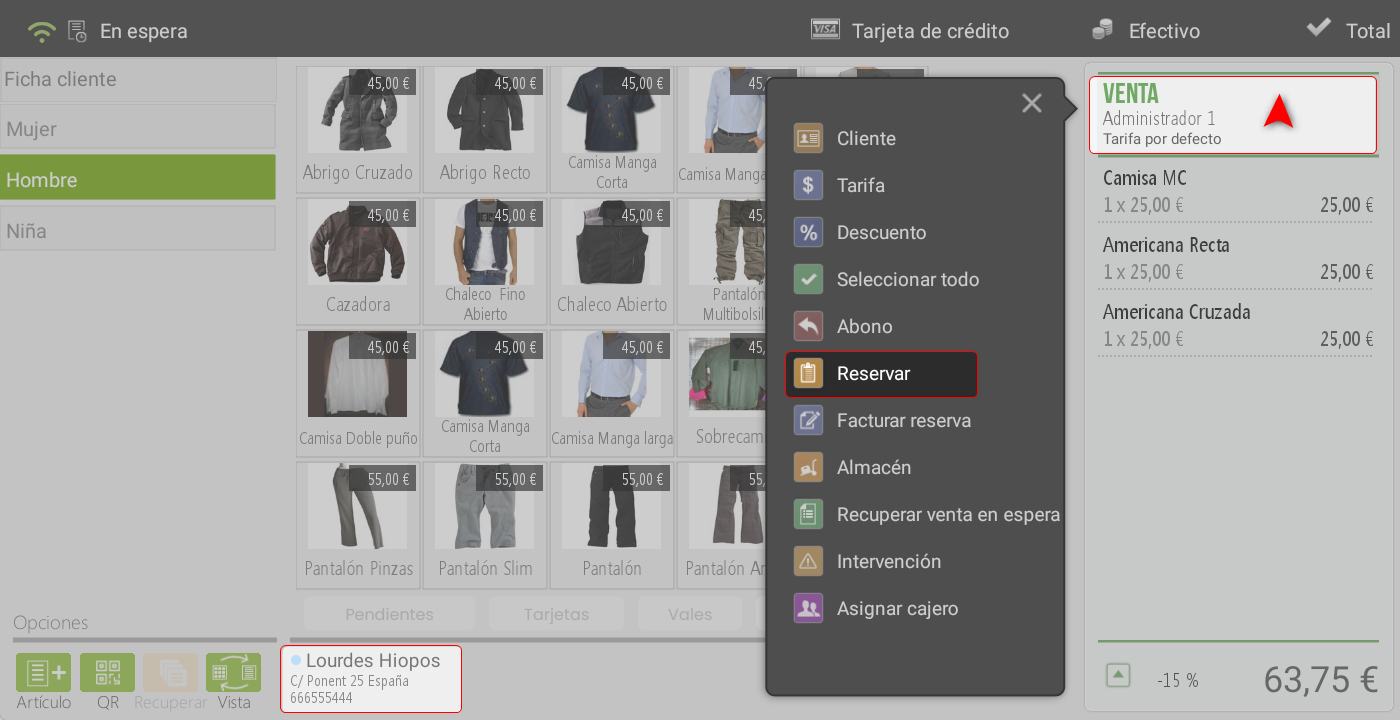
Book
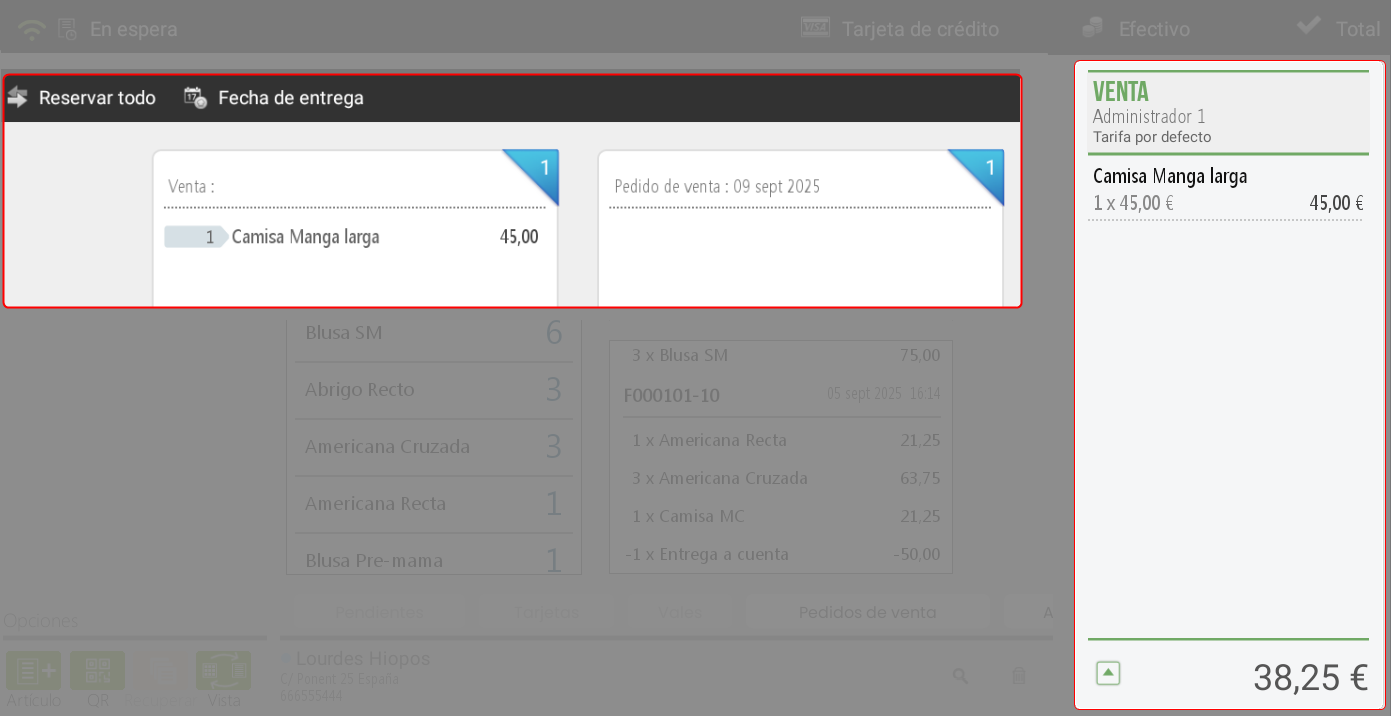
At the top of the interface, three buttons are presented that allow managing the item reservation process from a ticket:
Book all: By clicking this option, the system will automatically add all items included in the current ticket to the reservation. This function is useful when you want to convert the entire ticket into a sales order without manually selecting each item.
Delivery date:This option allows you to define the estimated date and time for the delivery of reserved items. When a date is selected on the calendar, that date will be assigned to the sales order generated from the reservation, to ensure stock availability on the selected date and to take delivery times into account.
Close: This action cancels the reservation process. Pressing this button will close the current screen without saving any changes, useful if the user decides not to continue with the operation.
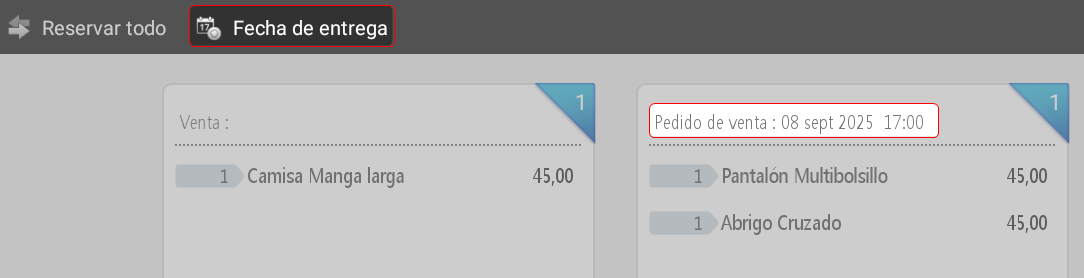
The main screen is divided into two clearly differentiated sections to facilitate the visual management of the items:
Left panel: receipt items. In this section, by default, a complete list of the products that are part of the original ticket is displayed. If not all items have been reserved, it will show the items that will remain in the sale at the end of the process. Each item is always presented with relevant information such as quantity, description, and price. The total amount of the items is shown at the bottom.
Right panel: reserved items.Only the items that have been added to the reservation are displayed here. As products are selected from the left panel, they are moved to the right panel, indicating that they have been included in the sales order. Additionally, when an item is added to the order, the quantity, description, and price (at the bottom) will be displayed, and in addition to the total, it will show the button Book
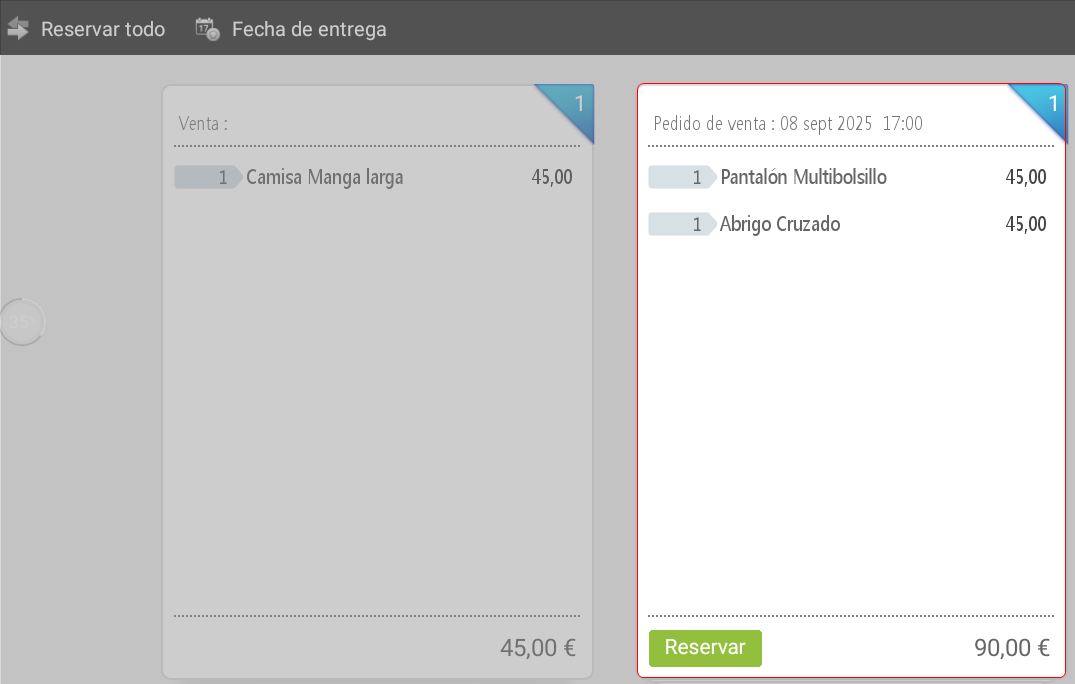
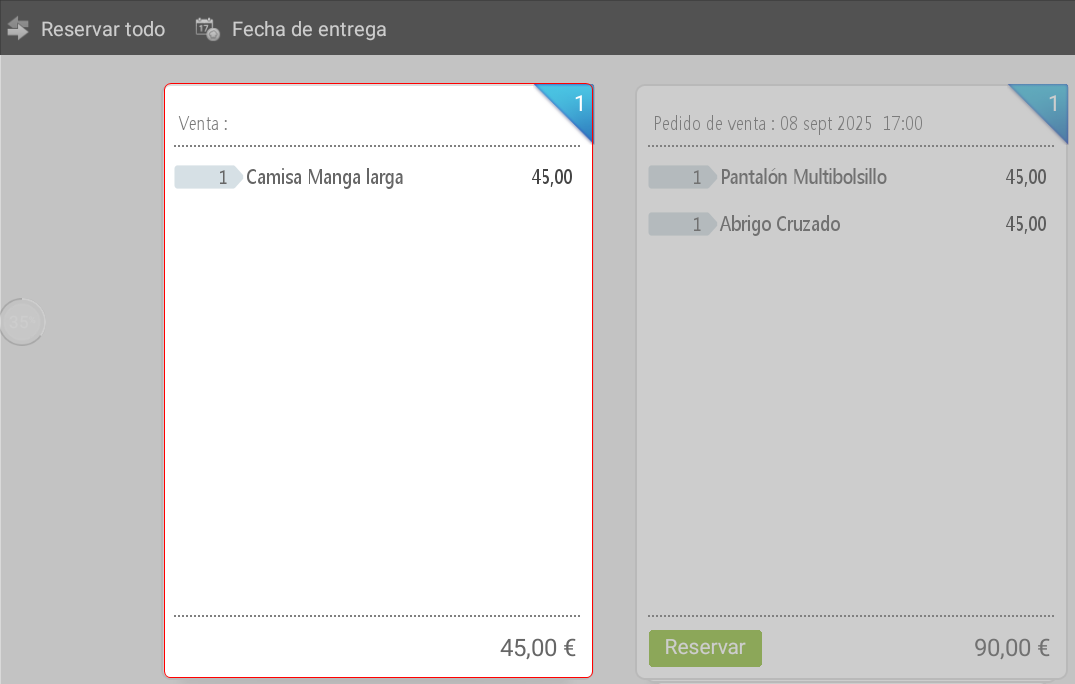
Upon pressing the button Book, a pop-up window will be displayed asking the user to confirm if they wish to perform a Payment on account About the current order.
The available options are:
Do not make a payment on account If selected NO, the system will finalize the booking process. The order will be generated with the Total amount due, without recording any payment at that time.
Yes, to make a payment on account If selected YES, we will proceed to the partial payment record corresponding to the amount that the customer pays at the time of booking. This amount will be reflected in the order as an advance payment.
Regardless of the chosen option (Yes or No), the system will automatically print a Ticket with the sales order details.
Once the order has been generated, the system evaluates if any items from the original ticket still remain that have not been included in the reservation:
If there are items pending reservation: The booking screen will remain active, allowing the user to generate a new order with the remaining items. The user will need to press the button Close, which will automatically open the sales screen with the non-reserved items, to finalize the sales process from there.
If all items have been reserved: the system will load automatically the sales screen, allowing the employee to continue with the normal operation of the establishment
Deliveries on account
As explained in the previous section, upon pressing the button Book It is possible to perform a Payment on account regarding the reservation (Sales order). When the desired amount is entered, two possible scenarios are generated:
Sales Receipt (Proof of Payment): no sales document is created.
Sales receipt: a sales document is generated with its corresponding taxes.
The behavior will depend on the configuration set in:
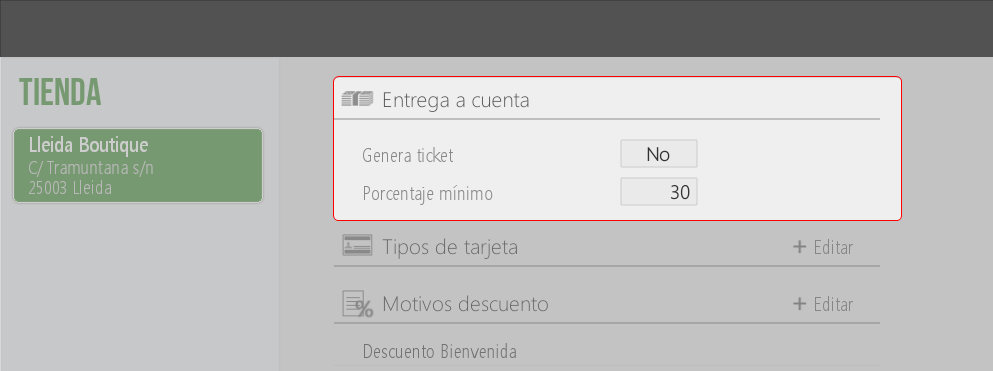
Administration > Settings > Store, where it is defined:
Whether a ticket should be generated or not.
If a minimum percentage is required to make the reservation.
Minimum percentage
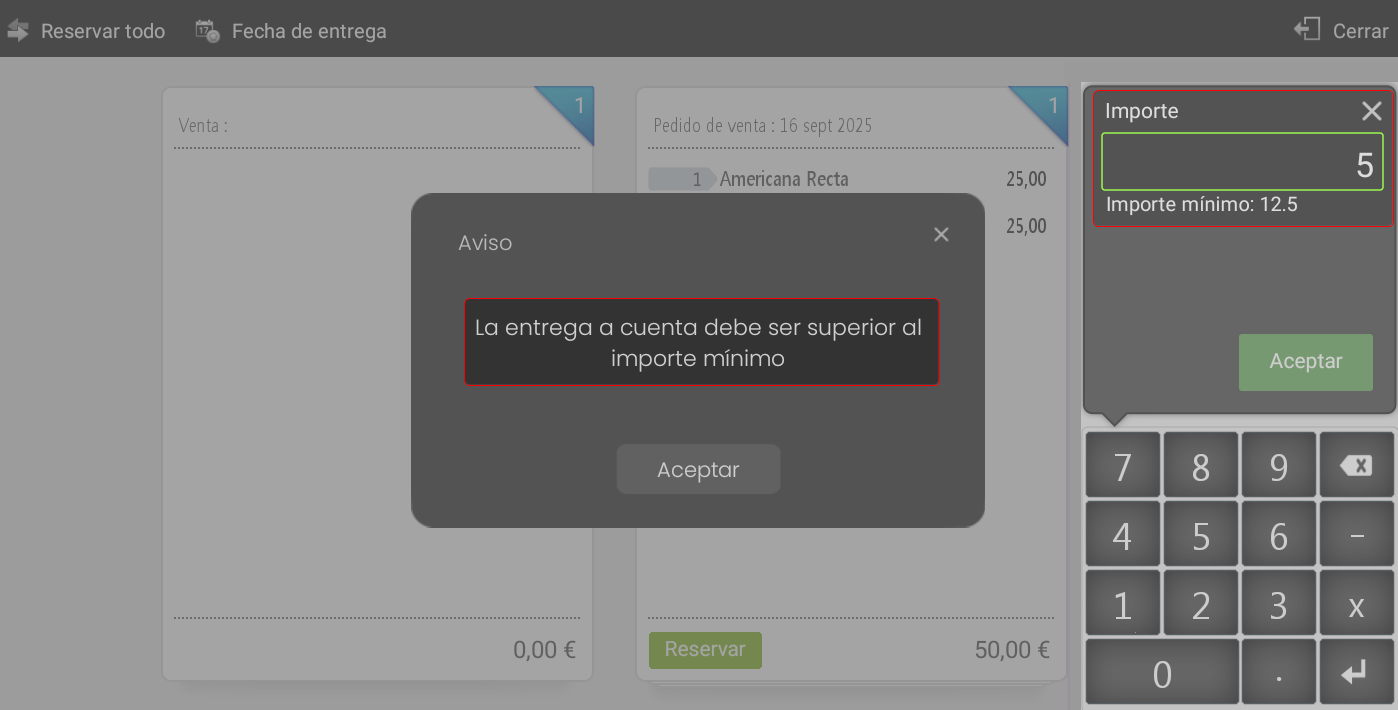
When setting up a Minimum delivery percentage for reservations, when pressing the button Book,the system will display, on the right side of the screen, the payment option with the amount calculated based on that percentage; this amount will be applied to the base (if no ticket is generated) or on the total (if it is generated ticket)
The amount may be modified by the user, provided it is greater than or or equal to the established minimum.
If a lower value is entered, a pop-up message will appear stating that the amount must be higher than the minimum amount. In this case, it will be necessary to repeat the operation with a valid amount.
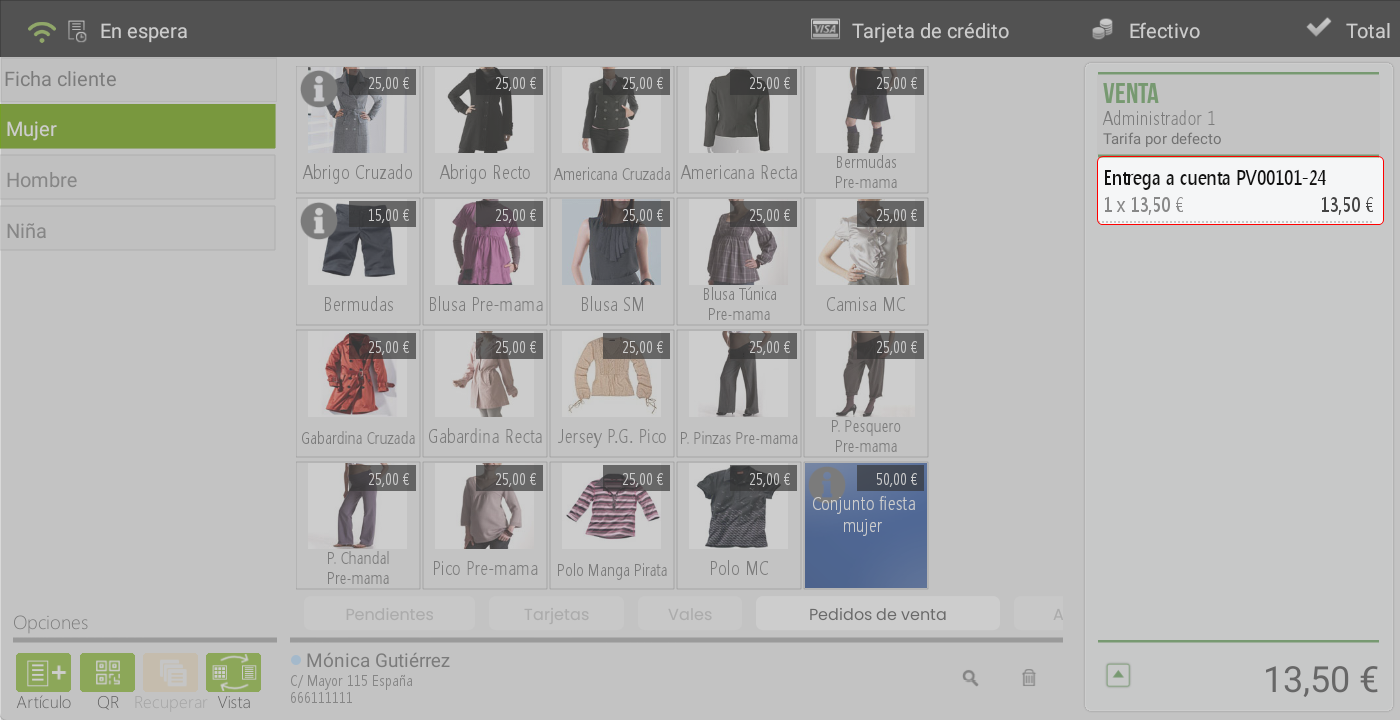
Once the correct amount has been entered, press AcceptThis opens the sales screen with a line reflecting the down payment and the corresponding order number.
The system allows adding other items for sale.
Configuration based on ticket generation
Option YES (Payment on account generates a ticket)
If no minimum percentage is configured, the user can freely enter the delivery amount and press Accept.
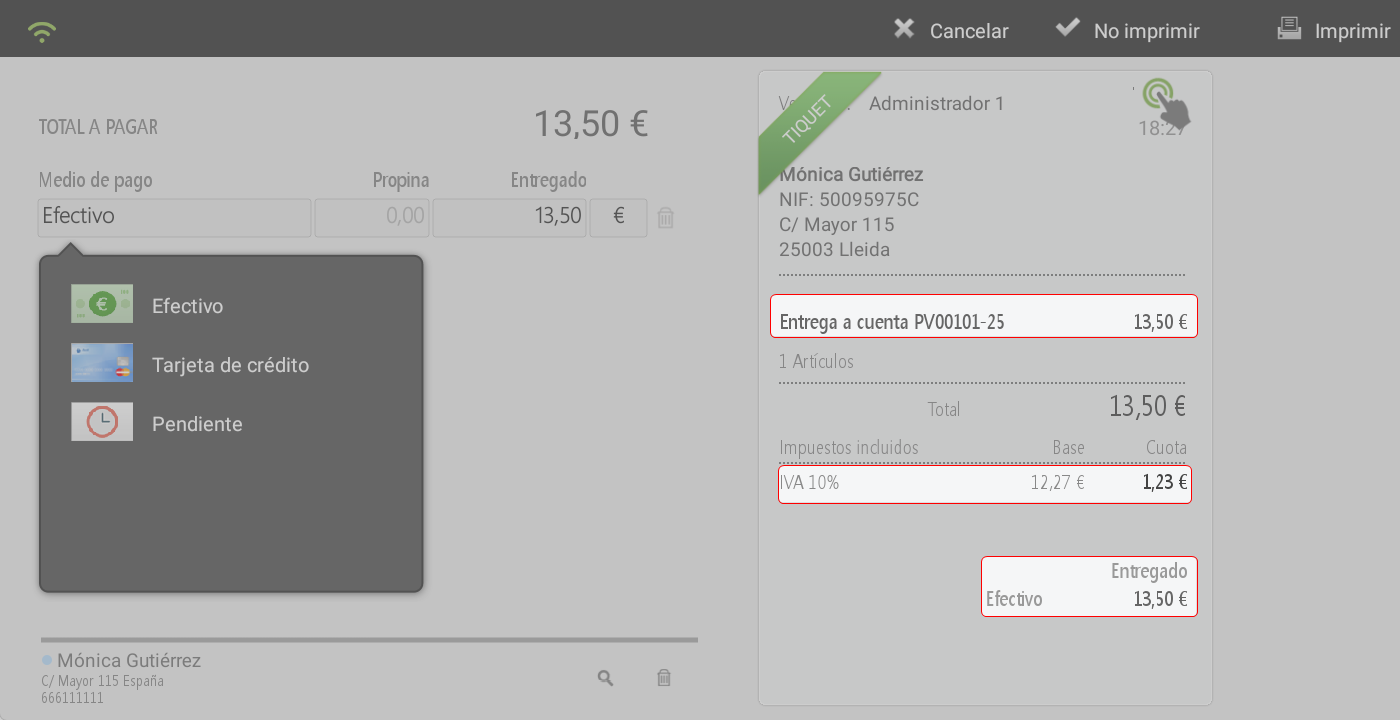
The sales screen opens with the line corresponding to the payment on account (associated with the order number).
The system allows adding more items to the operation.
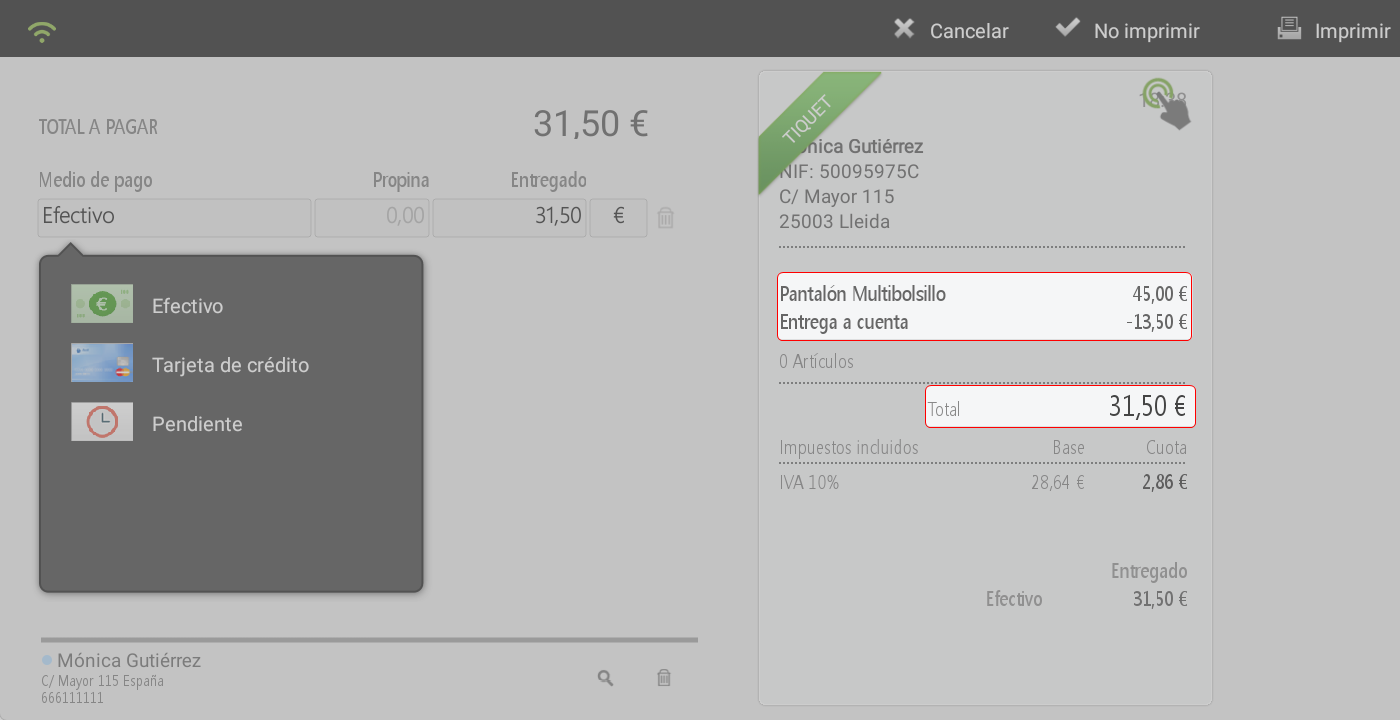
Upon completion, the sale is totaled like any other, applying taxes.
In the Cash close (reconciliation), payments on account are added to the amount of the payment method used in each case.
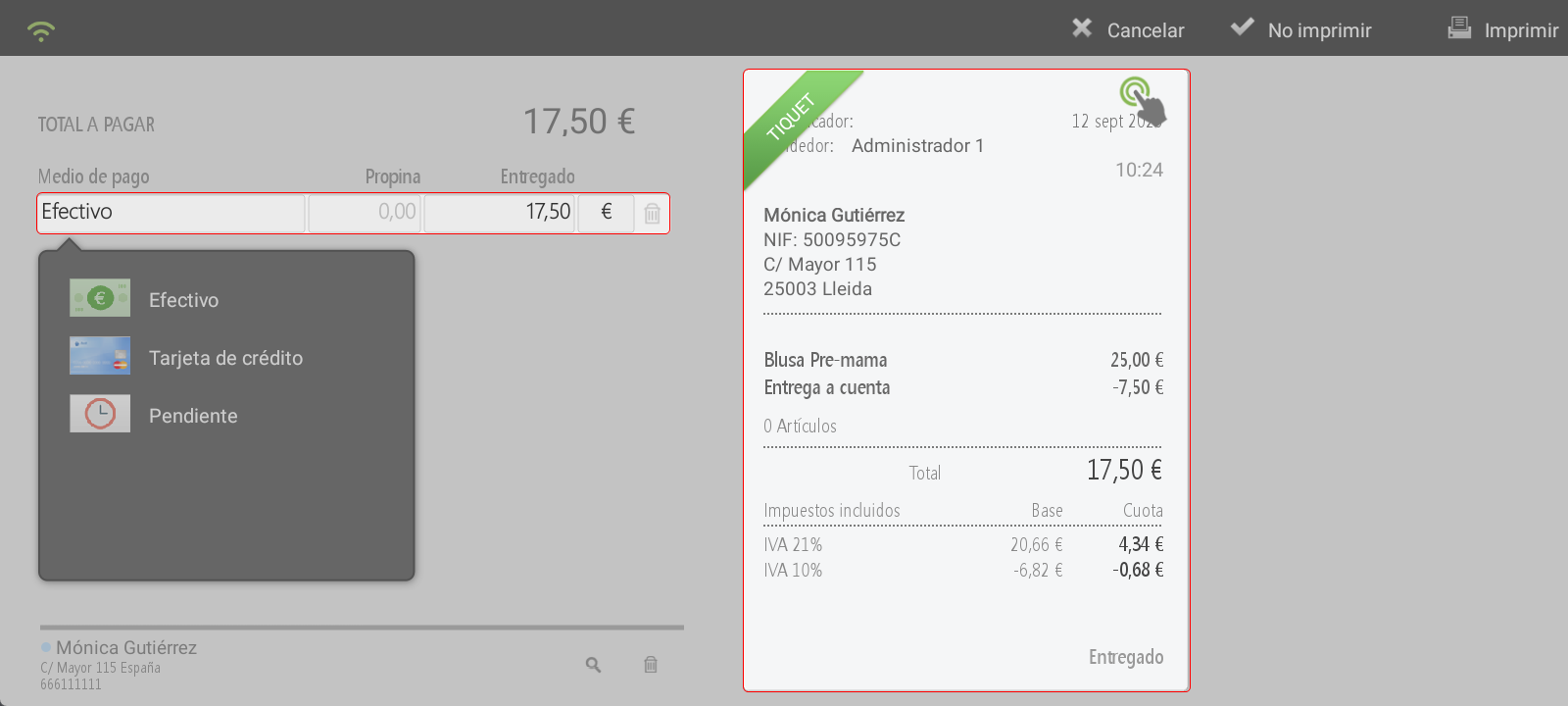
When invoicing the sales order, the advance payment will appear on the receipt as an additional line with a negative amount (deducting what was previously paid).
Option NO (Payment on account does not generate a receipt)
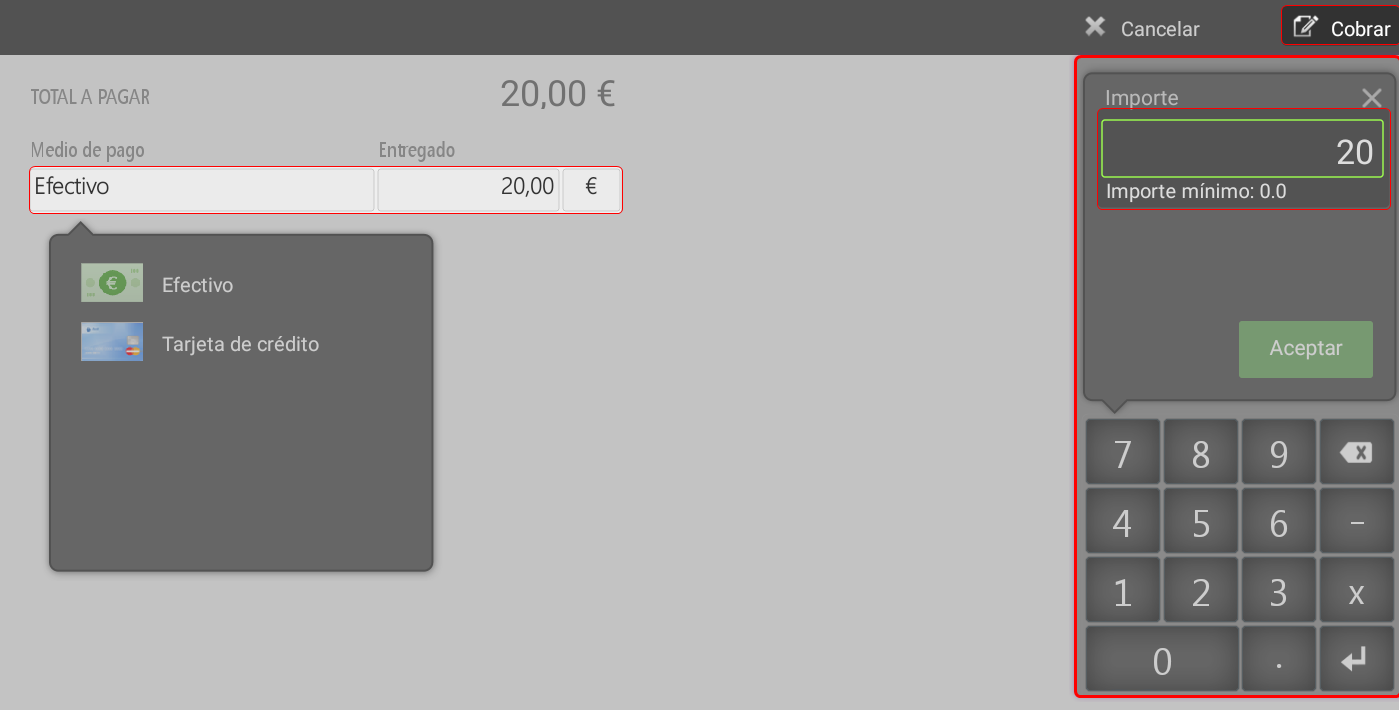
If no minimum percentage is configured, the user can freely enter the delivery amount and press Accept.
A totaling window will open to select the payment method, after which you press To charge in the upper right.
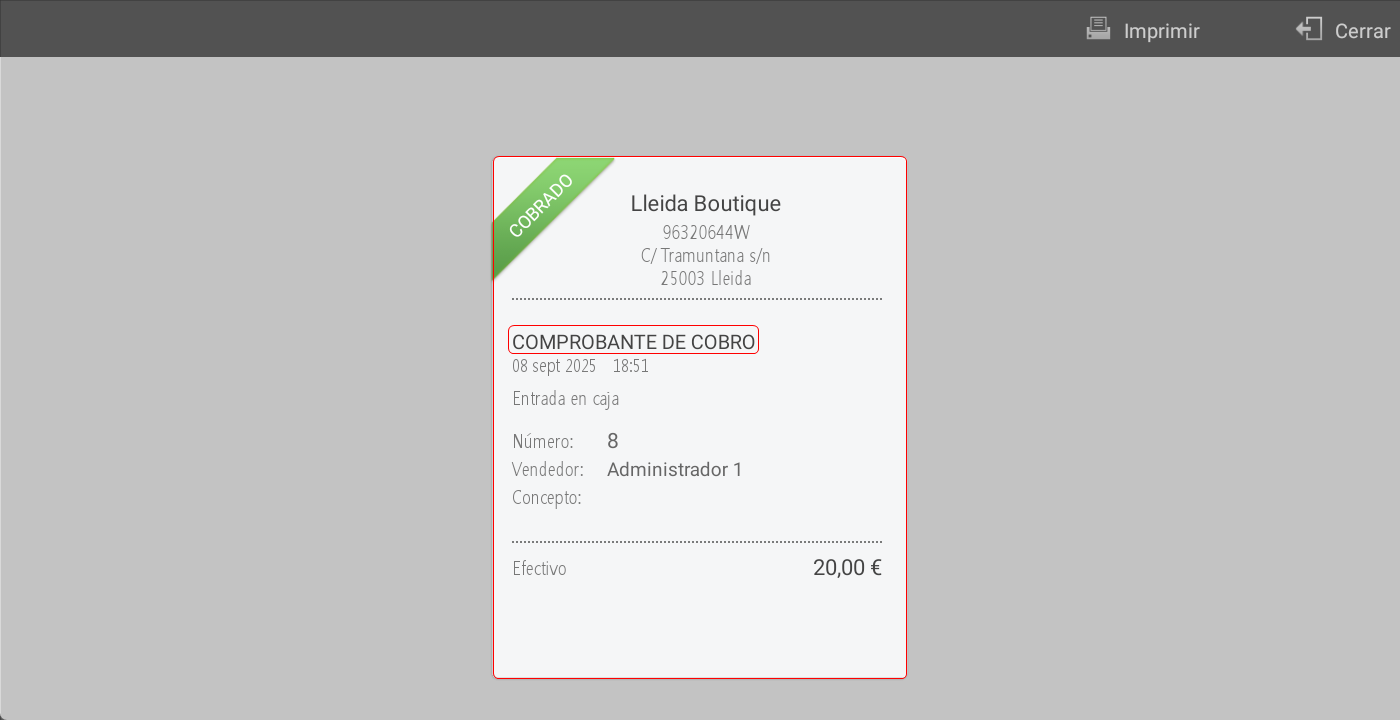
It will then be shown the Payment Receipt.
The amount delivered is registered as a Cash entry, which must be declared as such at the cash closing (cash count).
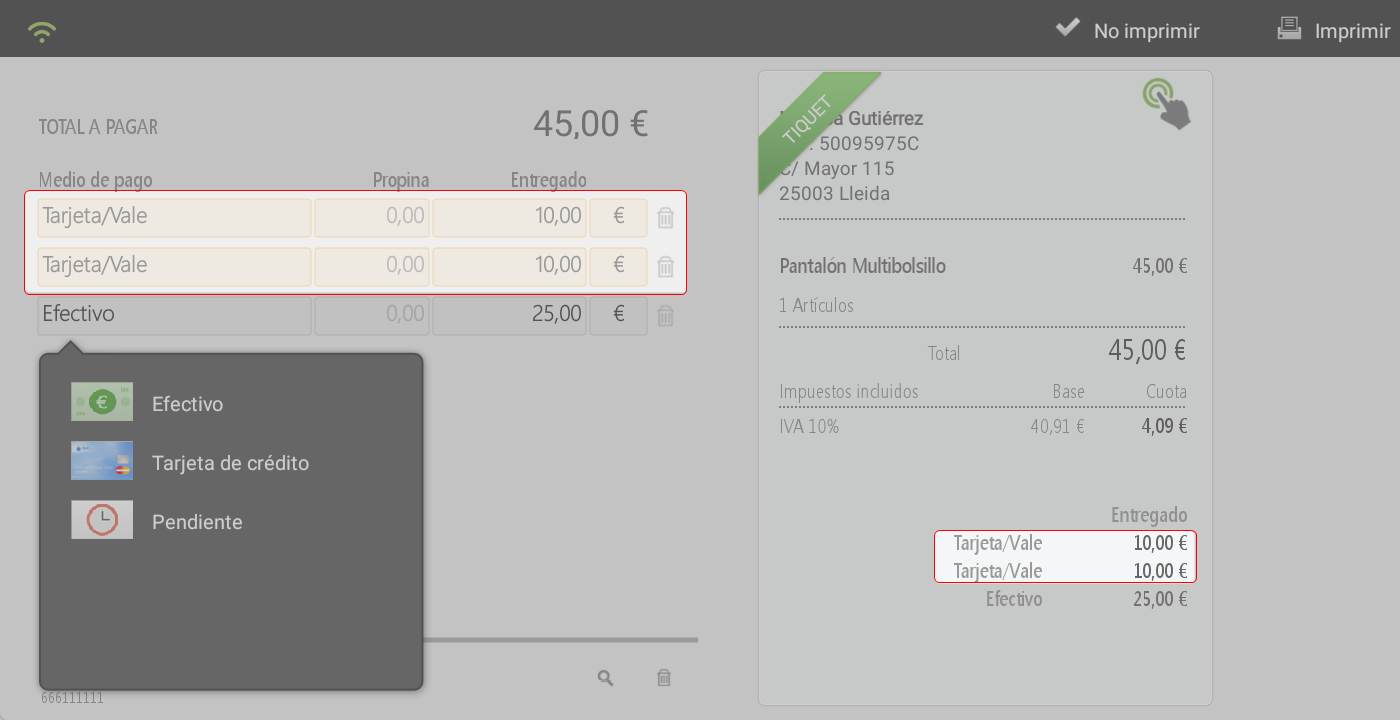
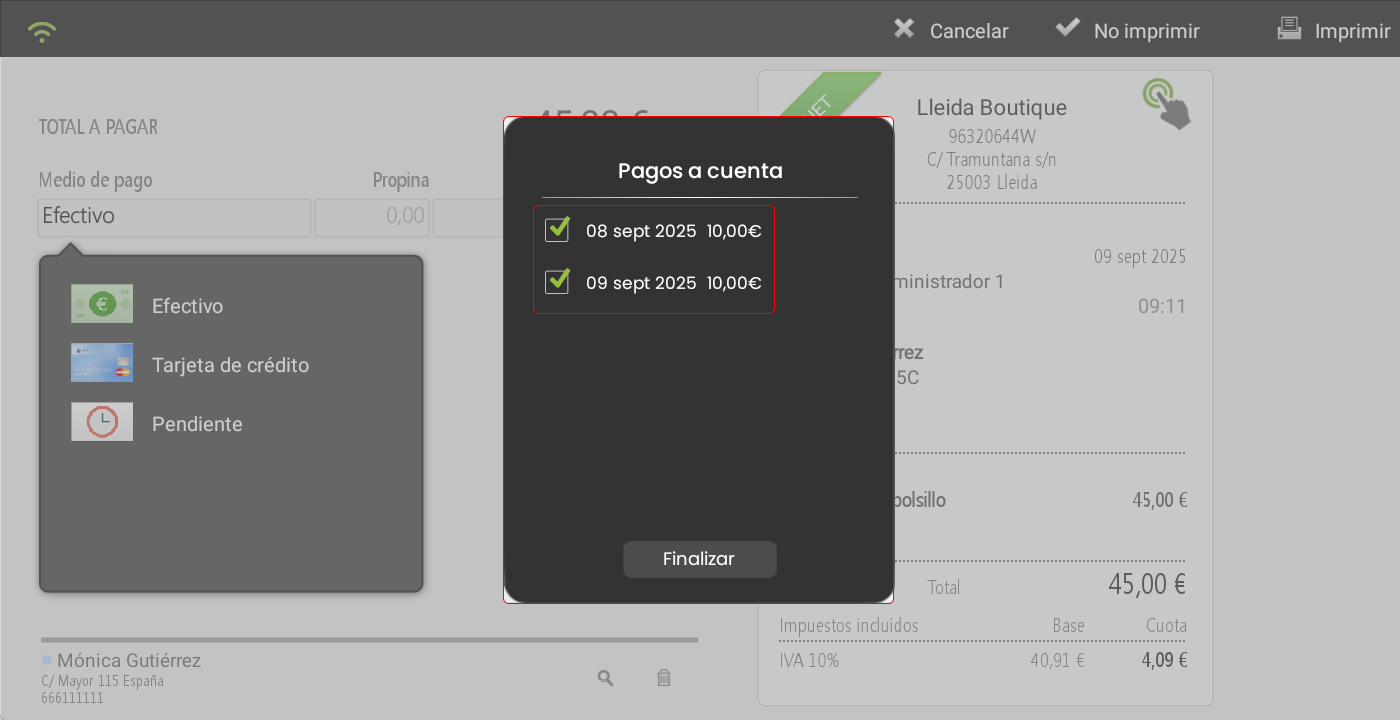
When invoicing the order, on the total screen, a PopUp will appear with all advance payments registered for that client. If there are several, you can select those you wish to apply as a discount.
The discounted amount will be reflected with the payment method card/voucher, while the remaining amount can be charged using the chosen payment method.
Serve reservation
When adding a customer to the sale, if they have the tag active for Sales orders, when pressed, all orders associated with that customer will be displayed.

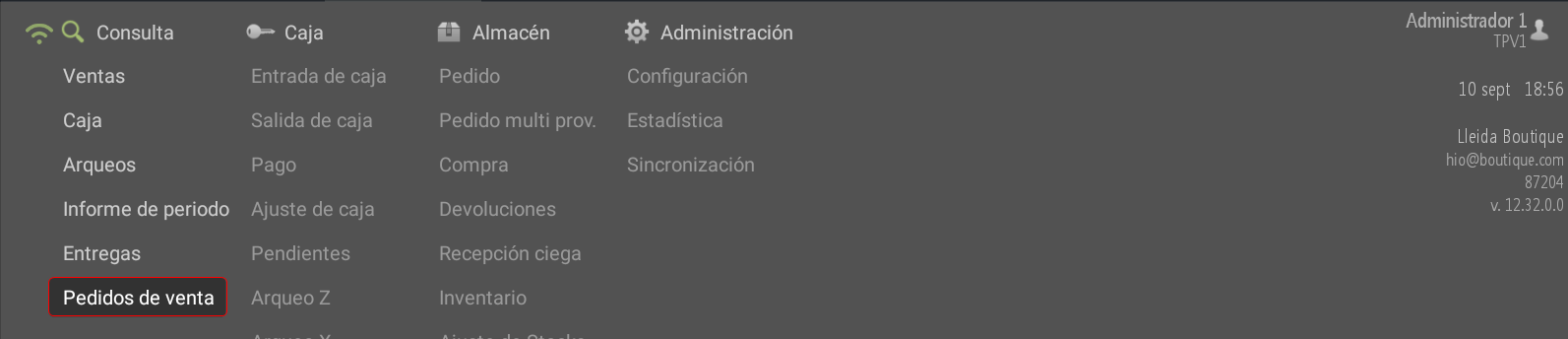
Additionally, it is possible to view all orders from the menu:
Queries > Sales orders
Order screen layout
Upper part
RefreshUpdate the information on the screen.
Scan: if the customer has a ticket with a QR code, scanning it will directly display the order.
Print: Print the selected order.
Close: Return to the sales screen to continue with normal operations.

Left panel (list of orders)
Show all the Orders pending delivery.
Included at the top is a filter by series and number to locate specific orders.
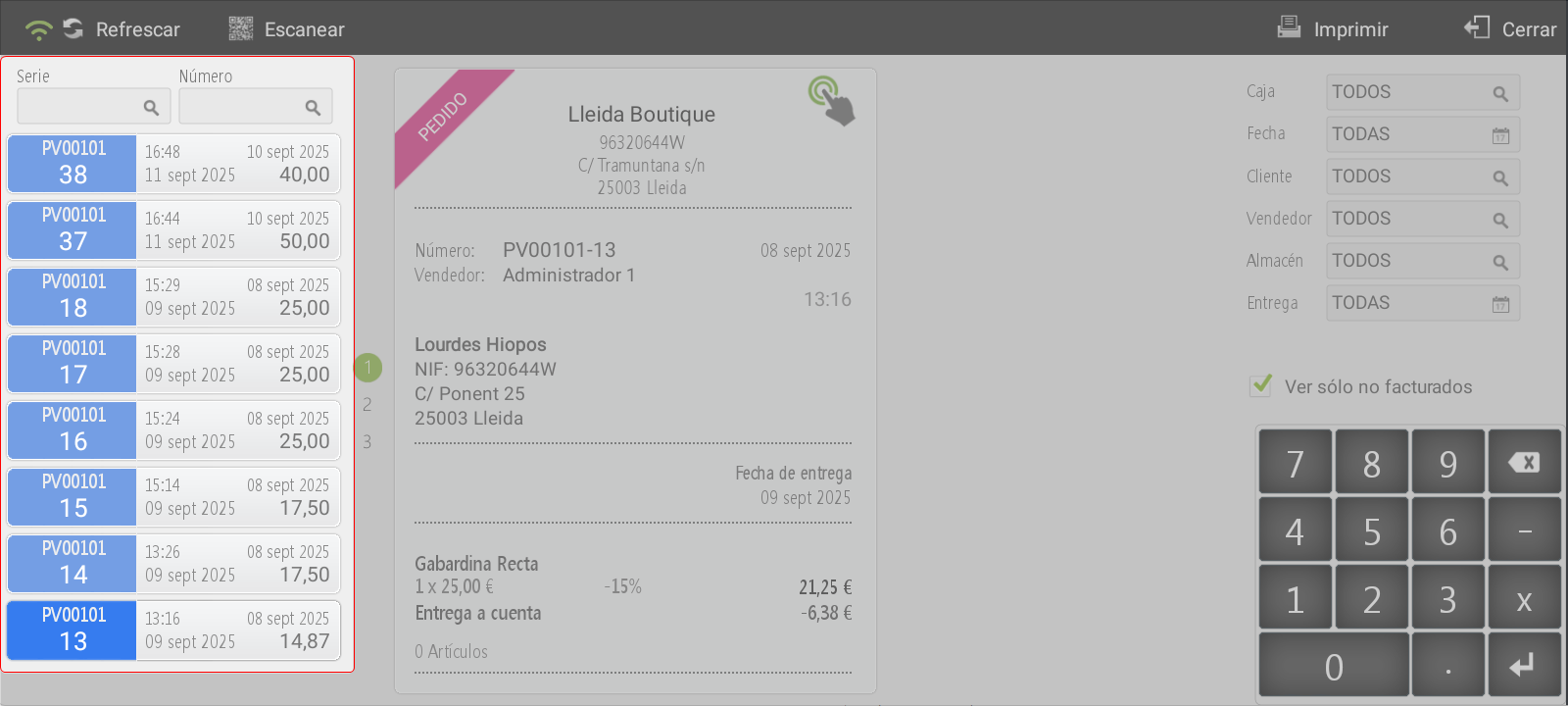
Right panel (search filters)
Boxallows you to select the till whose orders you wish to view. The magnifying glass opens a pop-up window with the available establishments and terminals.
Date: search by order date. The magnifying glass opens a calendar that allows filtering by day, week, month, or year. When selecting two different dates, a range will be applied.
Client: The search opens the customer list with a search bar.
Seller: displays the list of sellers and filters only the orders placed by the selected seller.
Warehouse: displays the list of warehouses and filters the orders associated with the chosen warehouse.
Deliverysearch by order delivery date. The magnifying glass opens a calendar that allows filtering by day, week, month, or year. When selecting two different dates, a range will be applied.
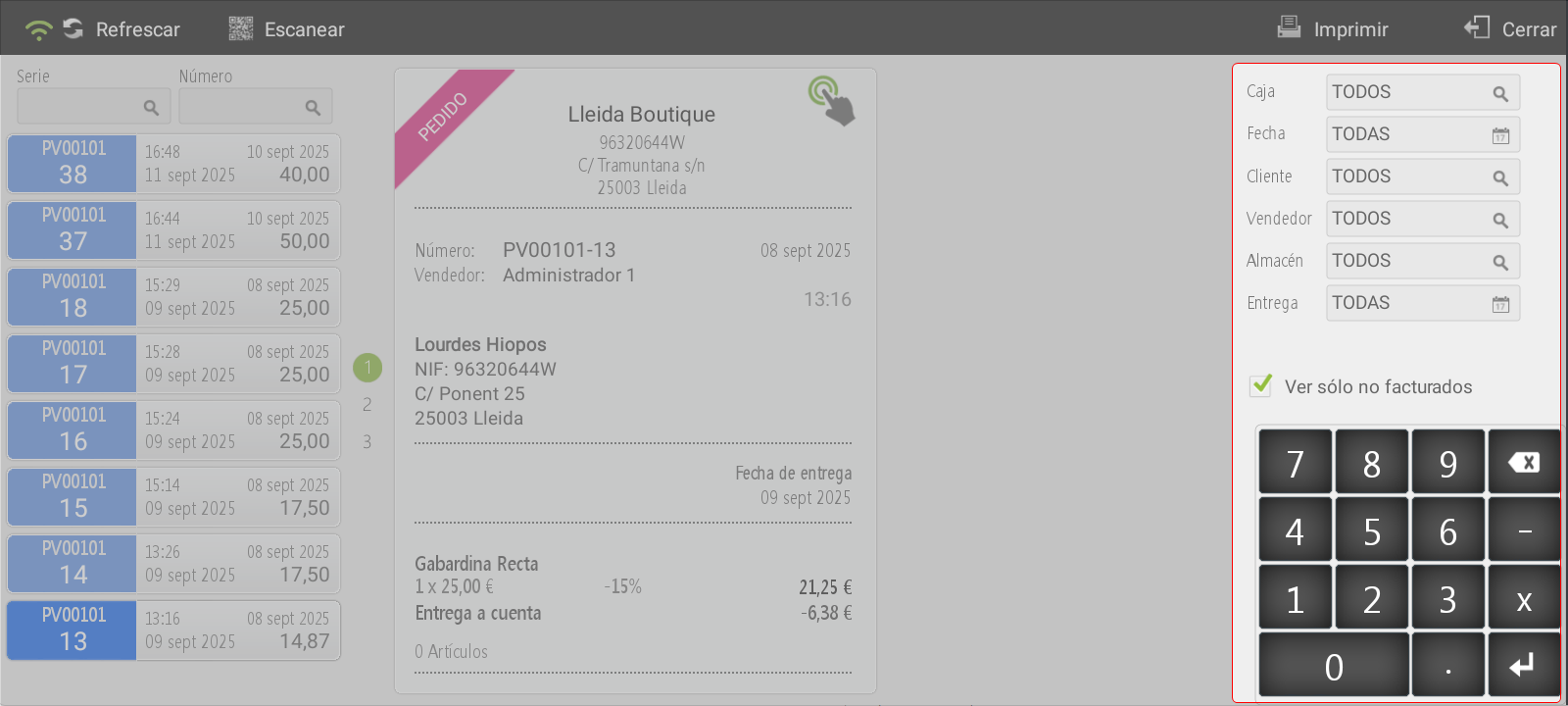
Central panel (order detail)
Show the detail of the selected order.
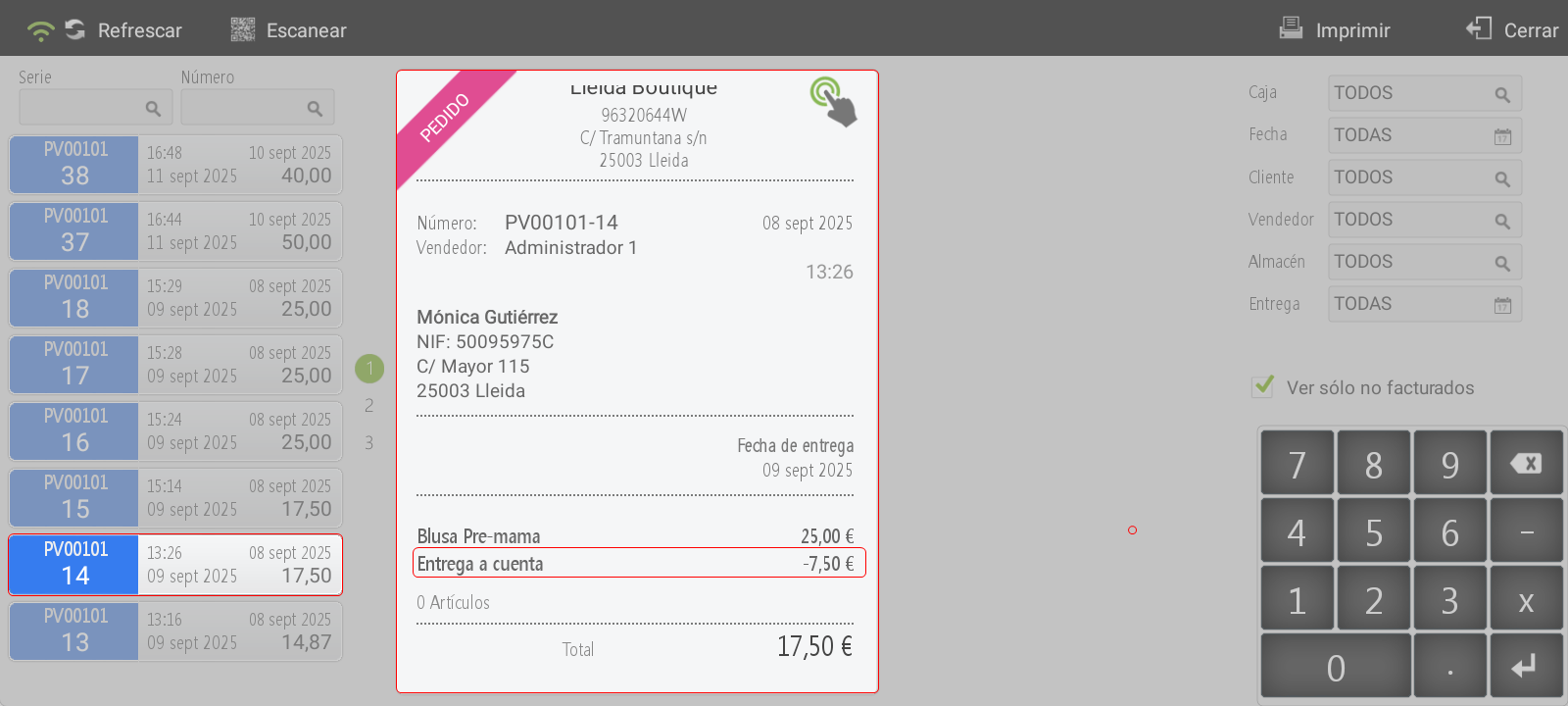
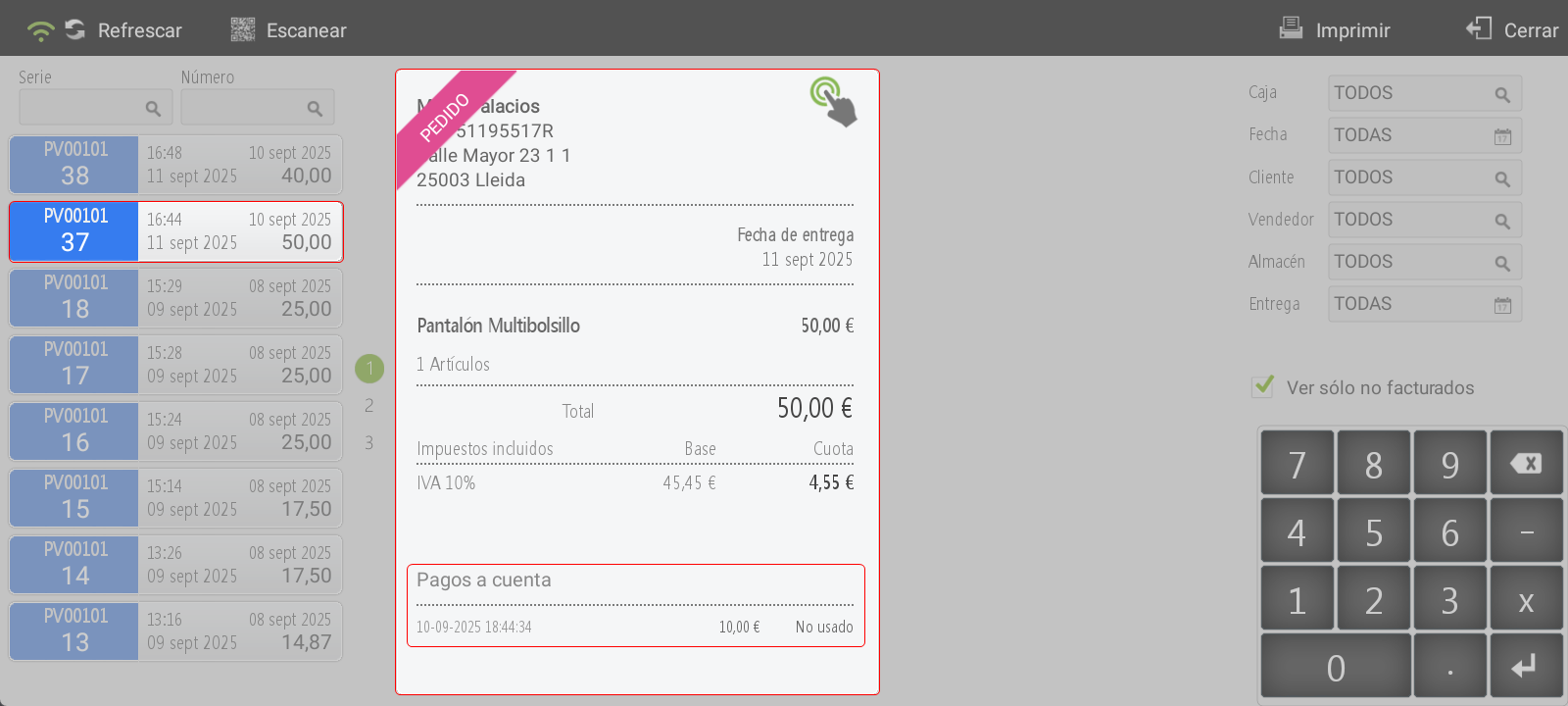
Included are the Payments on account, which can be viewed:
how lines in negative (if they generate a ticket), or
how payments on account (if they do not generate a ticket).Below, it indicates whether the amount paid has been applied to the order or not.
Available options for an order (via long-click)
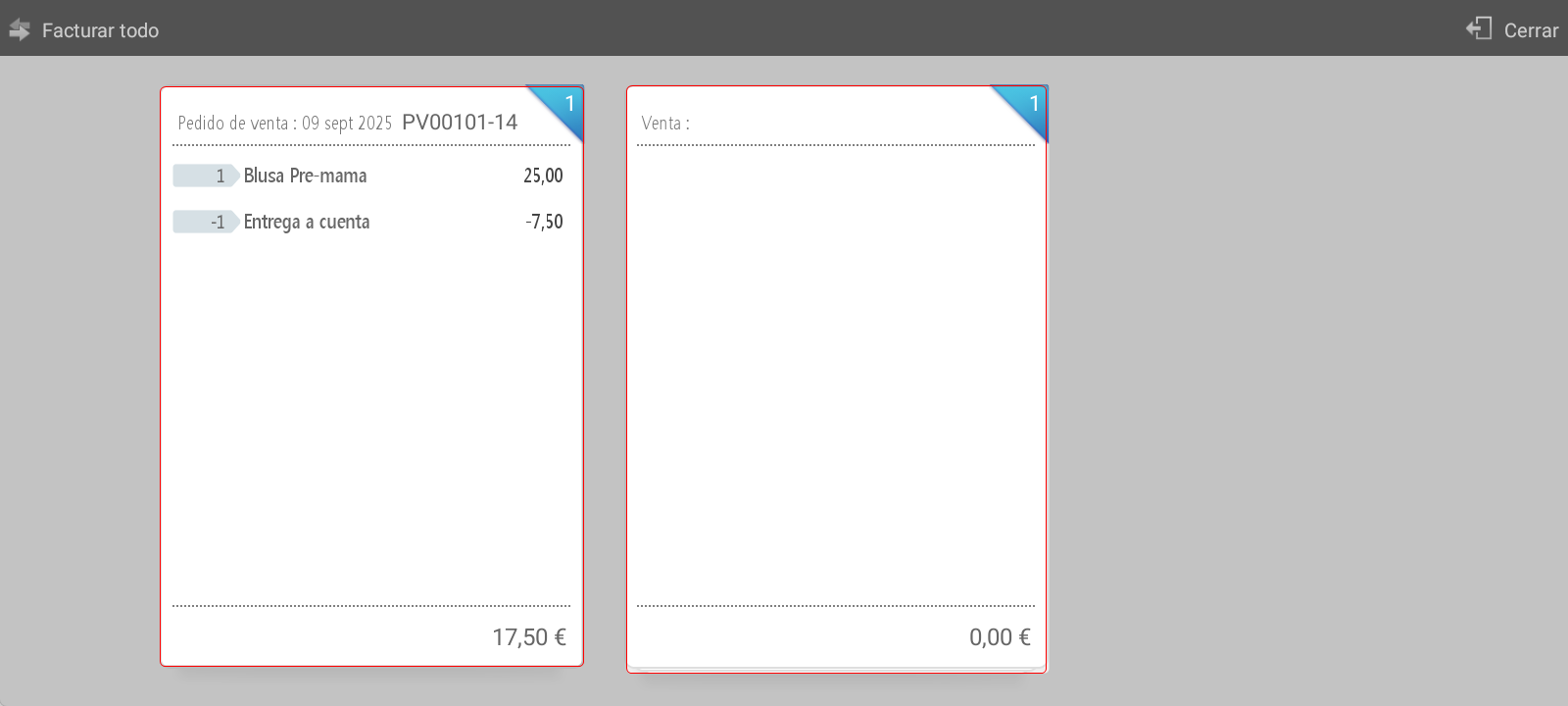
Invoice: open the order billing screen.
Top: option Invoice everything.
Central Zone:
On the left, the lines with the order items appear.
You can drag them to the right or select specific units to assign them to the ticket.
By clicking Close, the sales screen loads with the selected items.
It is possible to add additional items to the sale or to invoice the order directly.
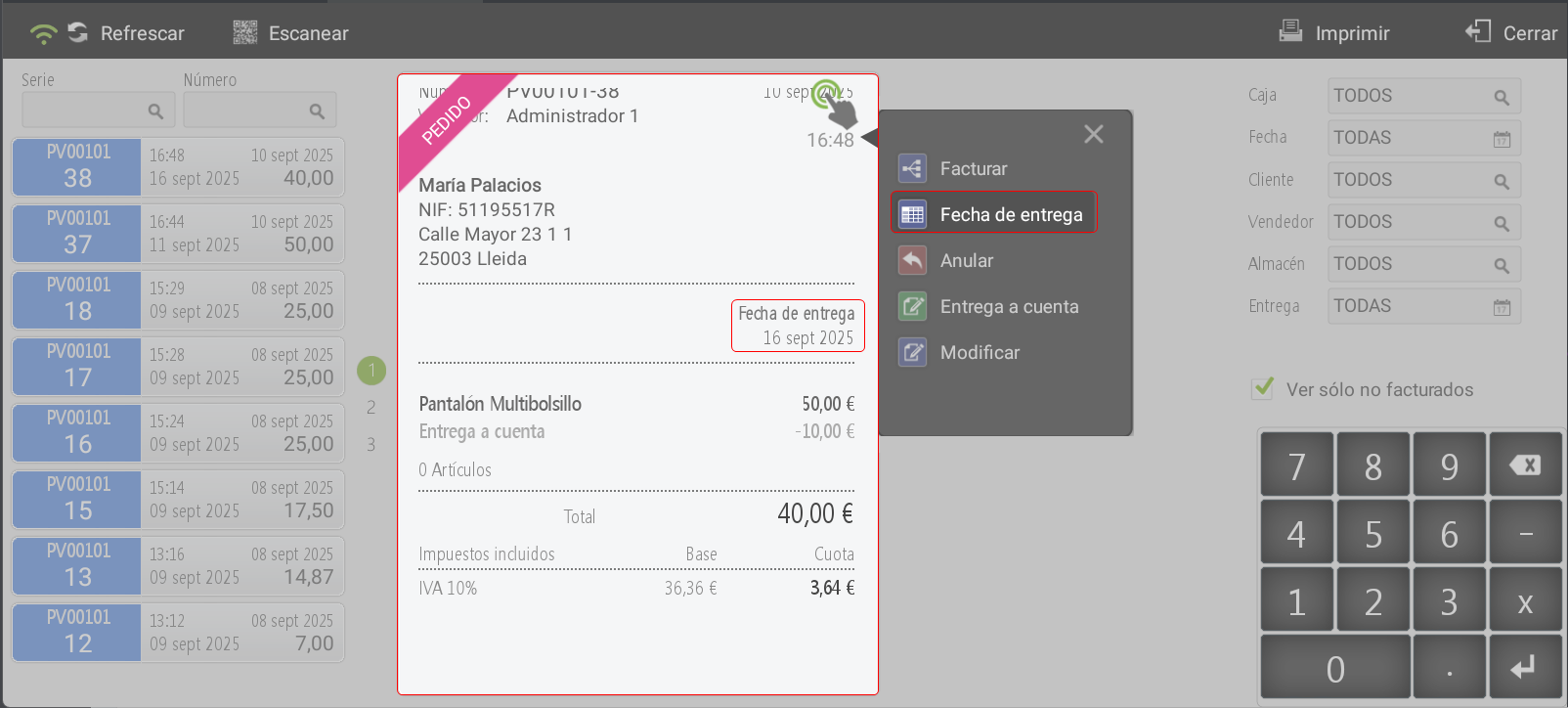
Delivery date: Open a calendar to assign or modify the order's delivery date.
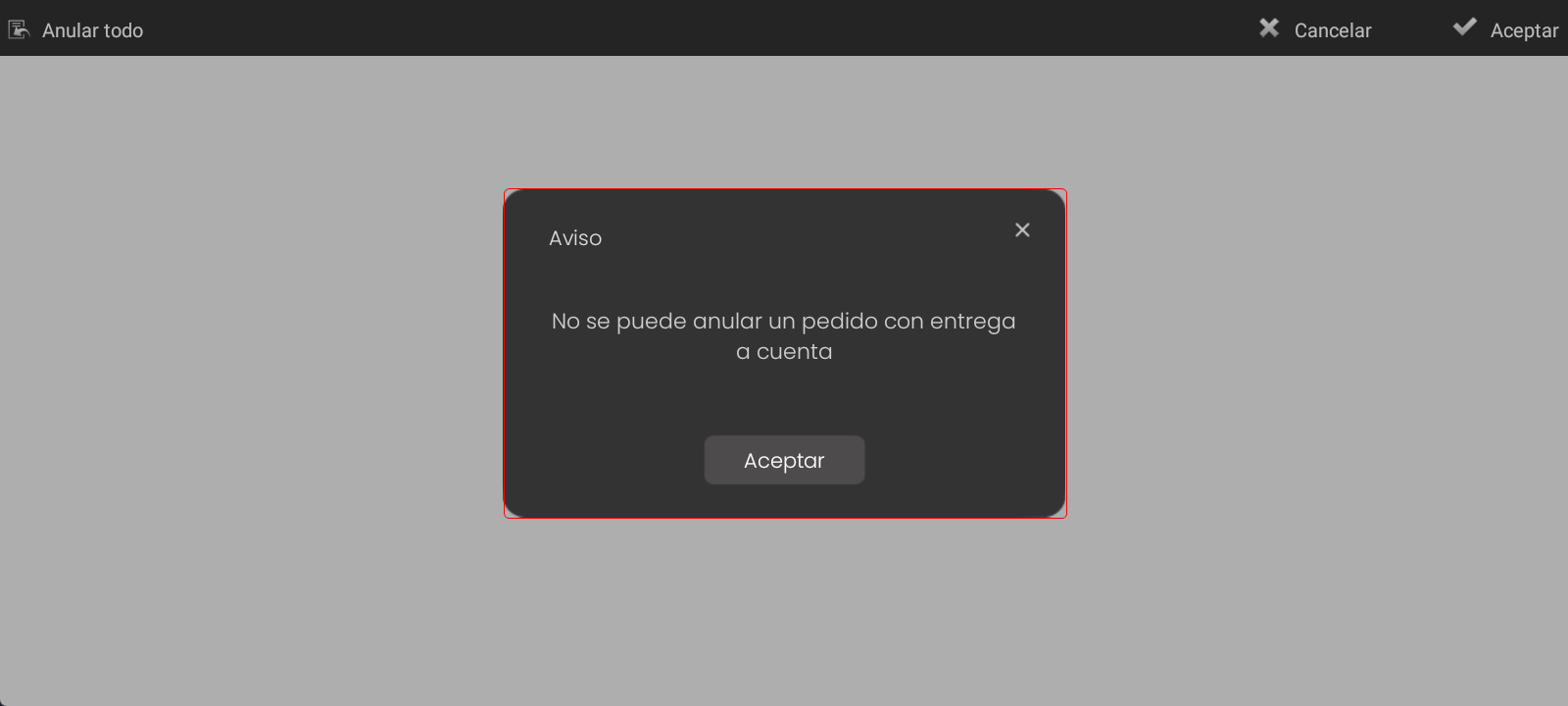
Annul: cancel the selected order.
If there is a payment on account and a ticket has been generated, the system will display a notice indicating that it is not possible to cancel the order.
Payment on account: allows recording a new partial payment against the order's outstanding amount.
If there is an advance payment and a ticket has been generated, the system does not allow the advance payment to exceed the remaining amount.
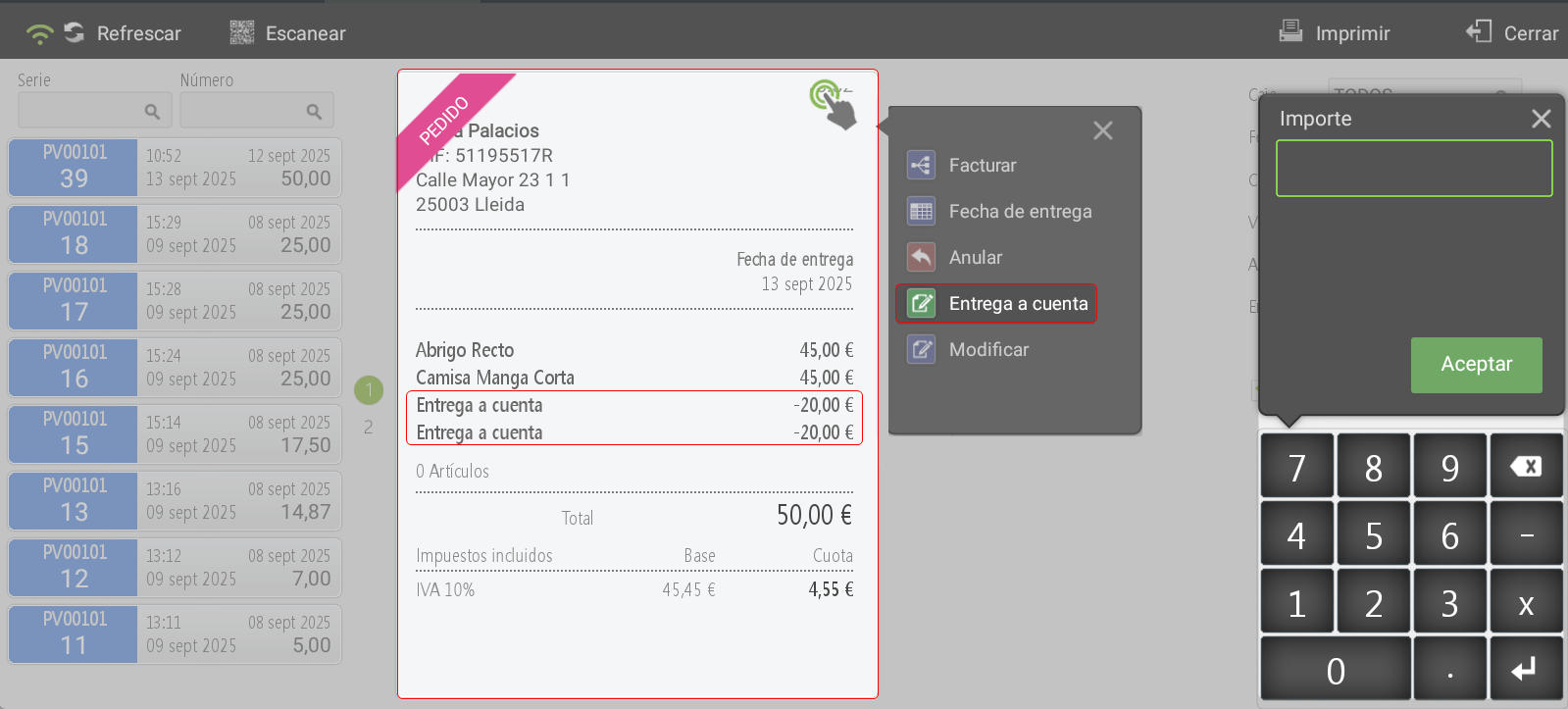
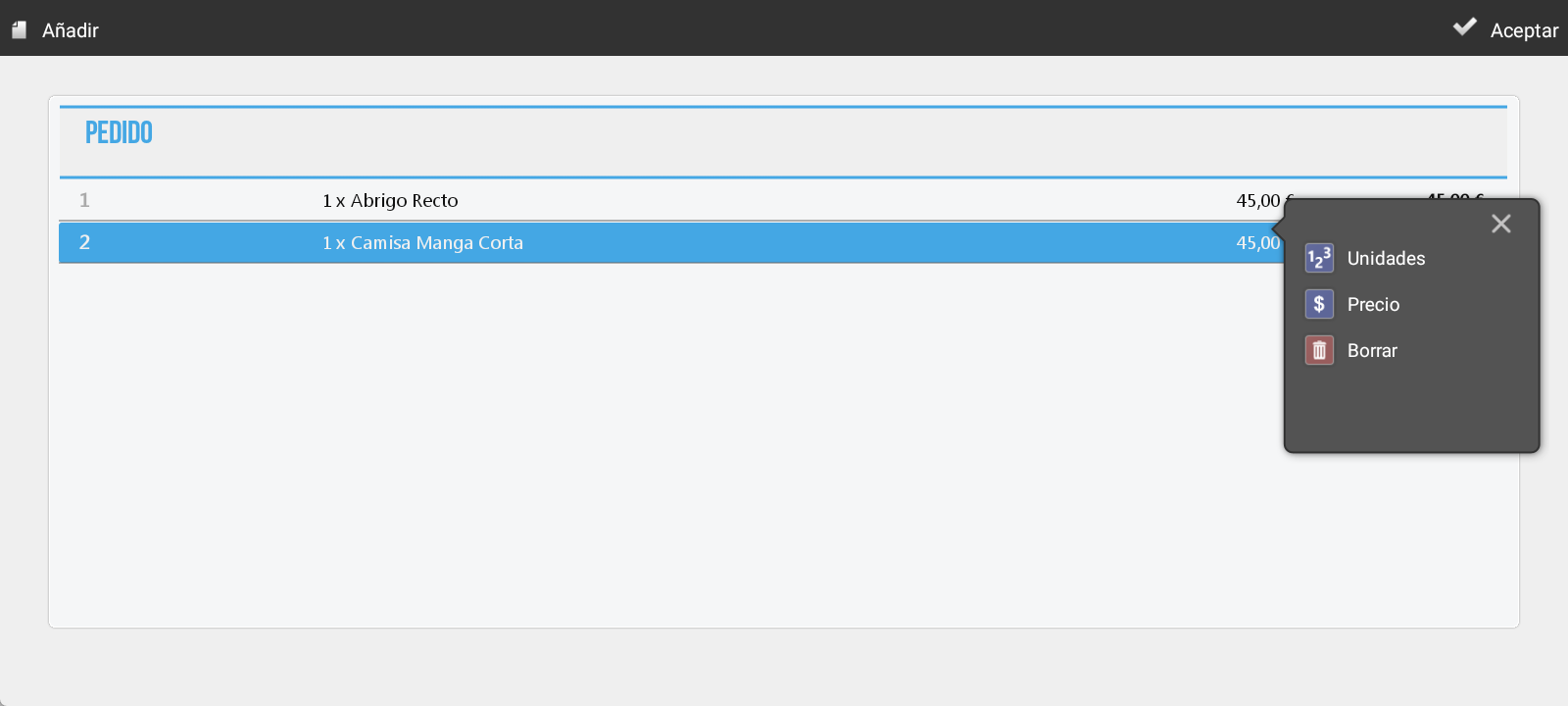
Modify: enables manual order editing of the order, including:
add articles,
modify units,
change prices,
or remove lines from the order.
AI Assistant
Section summary
AI can generate inaccurate information; verify the results.