En esta sección
Format-type article
Format items are those we buy in a unit of measure and sell or consume fractions of. For this type of item, it is possible to associate a measurement family and its respective unit of measure. By default, we have the following families with their reference measure:
- Length → Subways
- Peso → Kilograms
- You → Units
- Volume Liters
Within each family, there are different units of measurement that comprise them. For the volume family, it is recommended to use the most common units, such as liters, cl, or ml, and for the weight family, we will work with kg and grams.
Articles with formats can also be created as a "Normal Article" and then adapted to a FORMAT. The following are examples:
- Creation of a NORMAL article and how to change it to another format:We create an item by selecting the normal type and access its record. If we go to the "formats" tab, it is created with the default "units" format. However, we can modify it to associate the FORMAT we want.
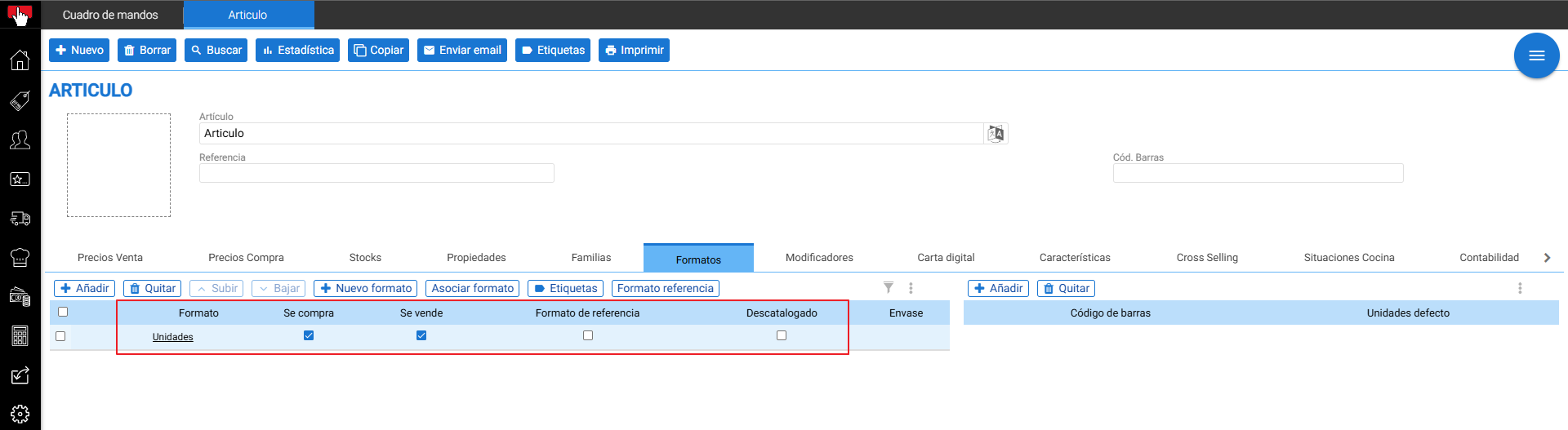
All we need to do is click on the operation Associate Format and select the format we want to assign.
Example: When selecting the 1kg format, it is already linked as the format:
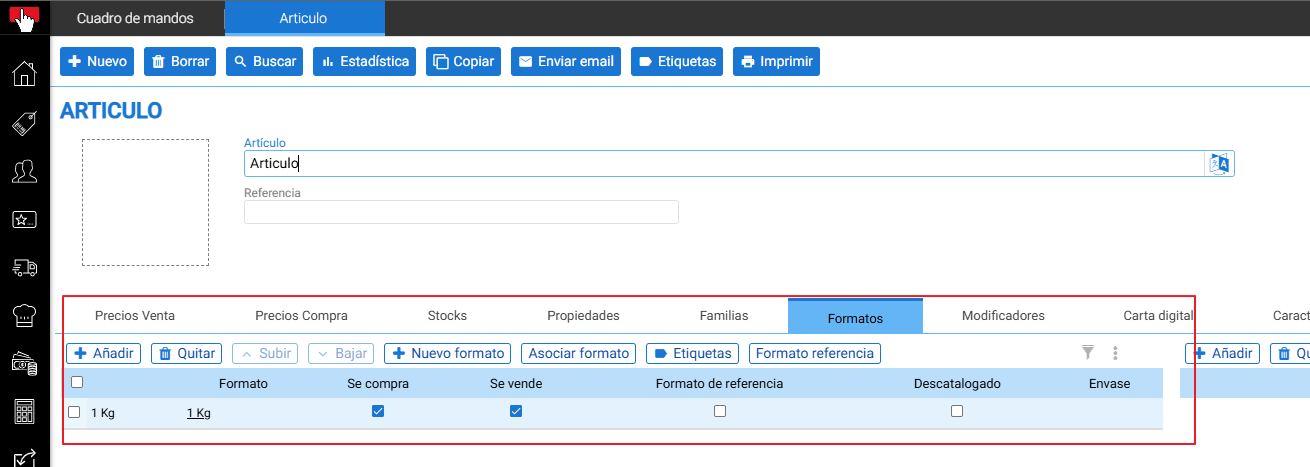
Did you know that? Using the "associate format" option is not the same as "new format" or "Add" / "Remove". We will discuss operations on formats later.
- Creation of format-type articles
When we create an item, it is very important to identify how we are going to use it for both sales and purchases, and how we are going to control its stock. This way, we will be able to determine what the best combination will be to manage the stock of each format. In this regard, we can ask ourselves the following questions:
- Is it going to be a buy and sell item?
- Will it be a purchase item and be a component of another item, where its stock will be consumed through the sale of the bill of materials item?
- Is it going to be a product for sale that will be manufactured?
If it's an item that comes in different formats and is bought and sold, it's very likely that it's purchased in one or several formats and then sold in others. Like, for example, bottles of alcohol.
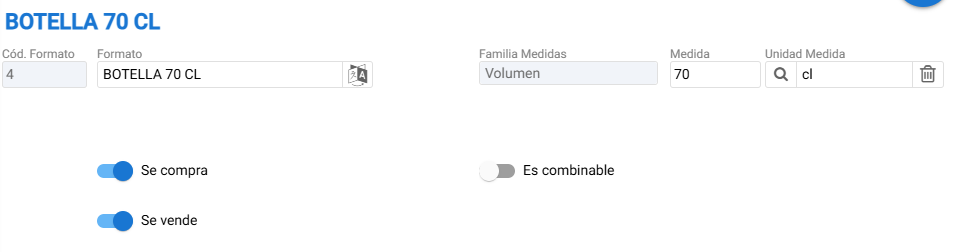
To manage this type of item, we need to create the different formats, assigning to each of them its respective family and measure. In the following example, we will see how to create a 70cl Vodka Bottle that is sold in formats. First, we will create the different formats:
- Bottle format 70cl. Measurement type: Volume. It is bought and sold. Size = 70cl
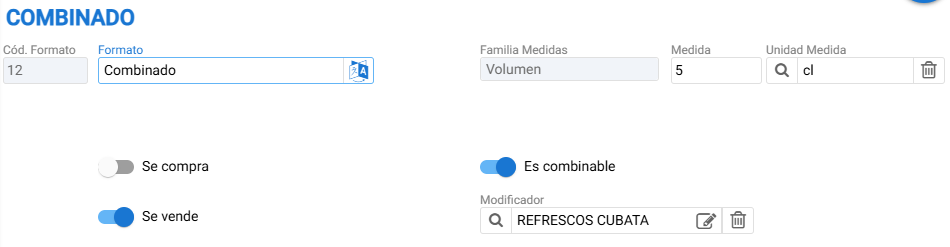
- Combined Format
For sale only. Measurement Family: Volume; 5cl Measure. If we want to combine it automatically with a group of modifiers, we will select the "is combinable" checkbox + Modifier Group.
- Shot format
For sale only. Measurement type: Volume. Size 5cl.
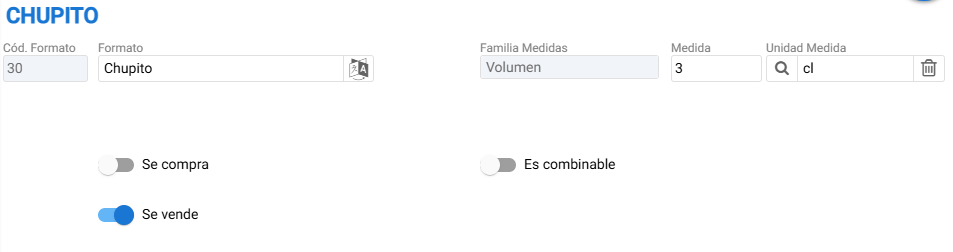
Once the formats are created, we access the articles menu and click on the "new" button to create the article, associating the formats.
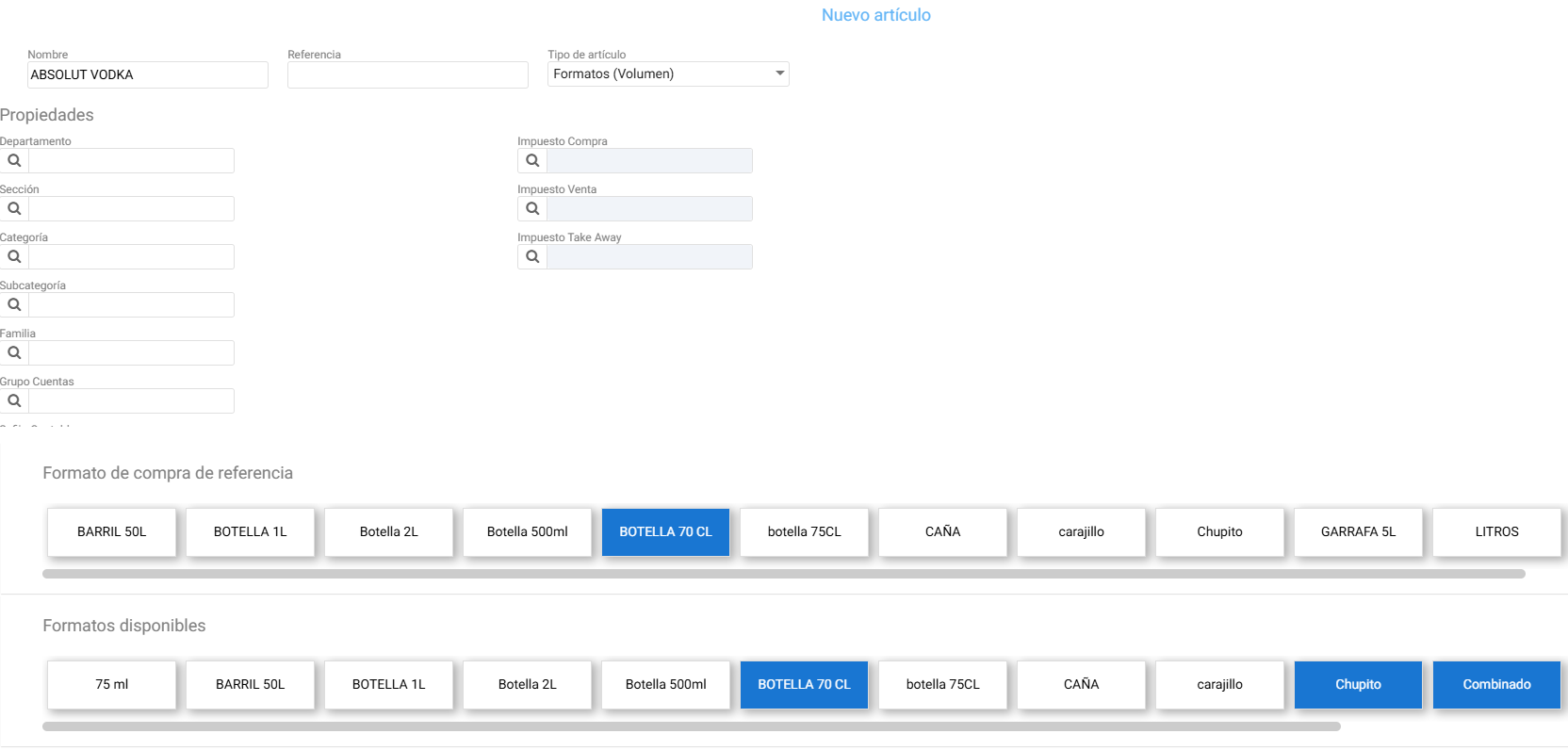
Next, we select the article format type (volume): When selecting this type, we will see 2 rows with all the formats from the Volume family.
In the first row, we will select the reference format, that is, the format with which we will want to control the stock of this item. In this case, we will select 70cl Bottle and in the second row, corresponding to the available formats, we will select the sales formats: Shot and Mixed Drink.
Logically, having selected the 70cl Bottle reference format, it is also automatically added as an available format.
Example:
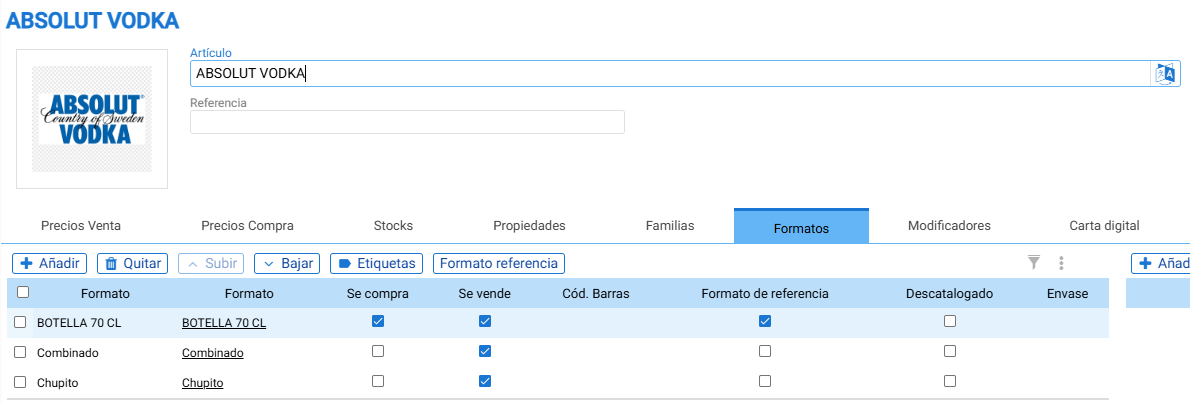
Once we accept, it will create the item for us as follows: In the formats tab, we will have the 3 formats, of which the 70cl bottle will be for both purchase and sale and will be the reference format. The cocktail and the shot will only be sales formats. (The formats already had the buy/sell checks configured previously, but we can also edit them from this screen)
AI Assistant
Section summary
AI can generate inaccurate information; verify the results.