En esta sección
Stores
Premium*
Upon opening the Warehouses tool, from the Configuration Menu, a selection window is displayed with a dashboard from which new records can be deleted or created.

To create a new warehouse from this window, select the [+ New] button. Clicking this button will open a floating window where you must enter the code or name of the new warehouse.
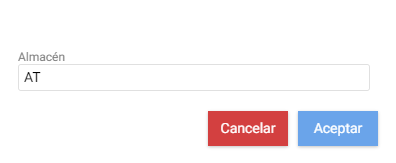
Upon clicking [Accept], the Warehouse creation wizard screen will appear, from where you can configure the new Warehouse's data, or even delete or create a new one.
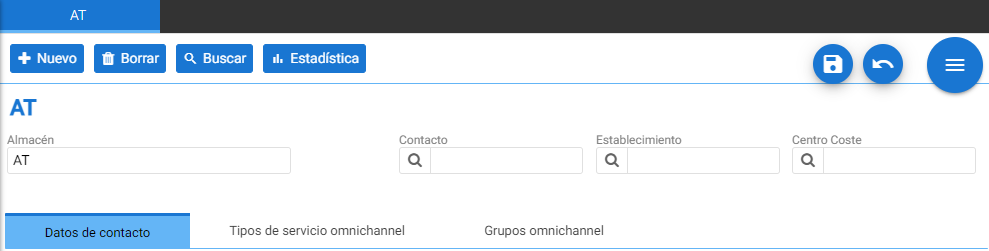
Note: By default, all warehouses are joined under a single generic warehouse group.
At the top of the warehouse creation form is its name, which will in turn serve as a locator.
The Contact field allows assigning a contact supplier or customer to the warehouse for the B2B link between central and store: the supplier represents the B2B central and the customer will represent the destination customer.

The Establishment field will apply an establishment-specific visibility filter for this warehouse, so that if the employee accessing HiOffice only has access to the establishment in question, they will not see any warehouses other than the one that has the filter for that same establishment.
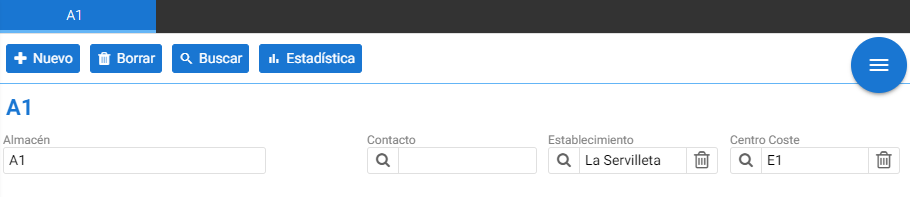
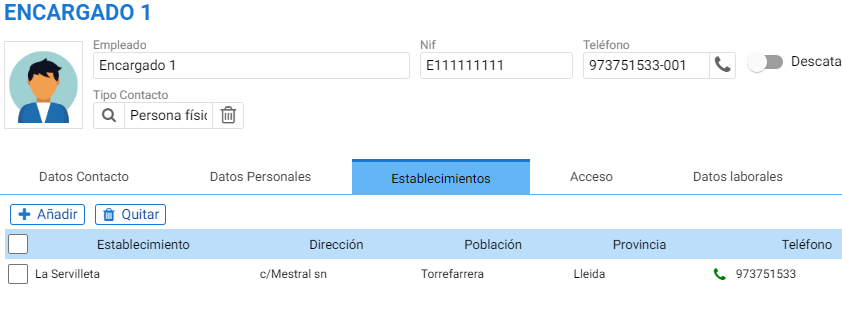
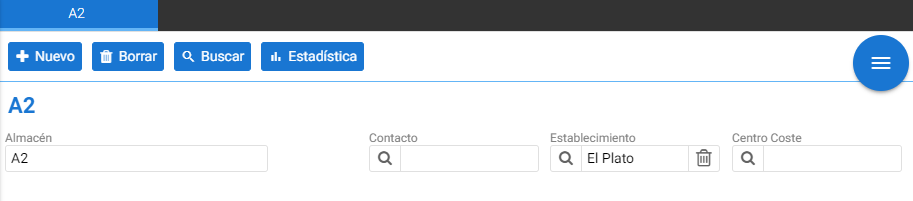
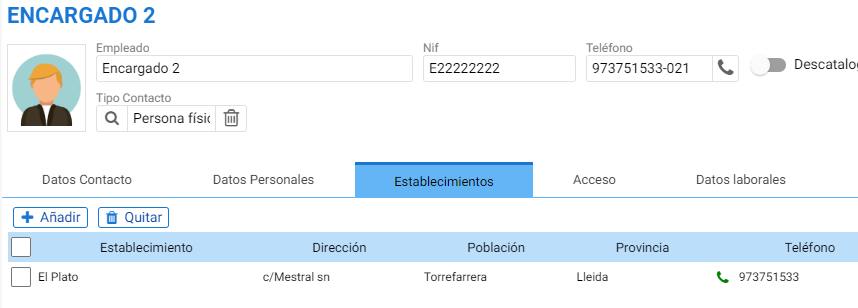
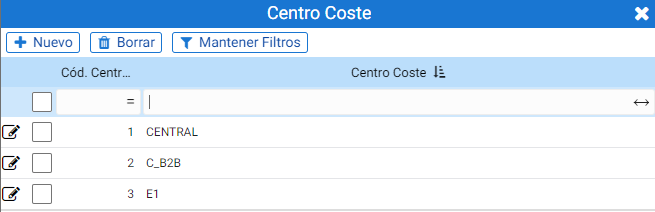
The cost center can be created directly from the search field in the header of the warehouse record. Clicking on the magnifying glass opens the search filter for existing records, and this same search field contains the [New] creation button at the top.
In addition to the previous fields, at the top of a warehouse's tab, the [Statistics] button is located, which allows access to the Sales and Purchases Dashboards.
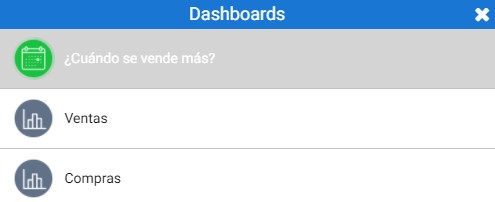
In addition to the options mentioned, the warehouse configuration tool contains three additional tabs:
- Contact details
- Types of Omnichannel service
- Omnichannel Groups
Contact details
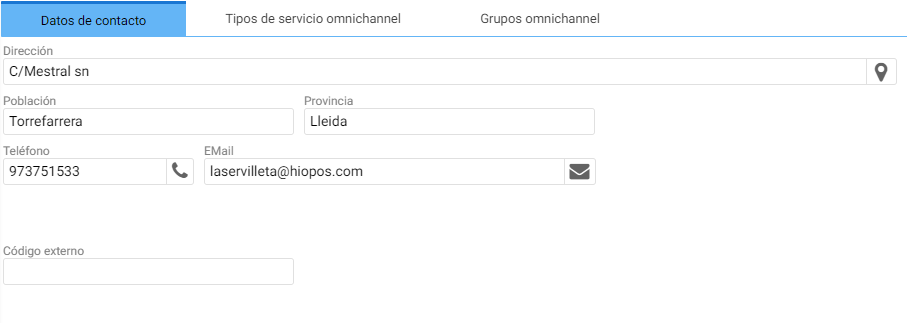
The Contact Details tab contains the warehouse address. Additionally, the database has a field labeled 'External Code' that allows assigning the code from the destination database in the B2B link.
Types of omnichannel service
Enables home delivery and in-store pickup for this warehouse.

Omnichannel groups
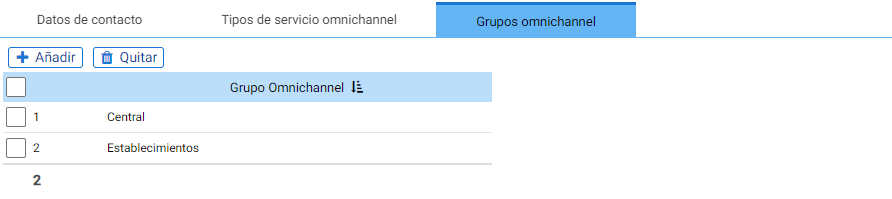
These are warehouse groups that can later be used in Hiopos so that when checking the stock of a product or generating omnichannel for another warehouse or establishment, it only shows as available stock from those warehouses linked to that group.
AI Assistant
Section summary
AI can generate inaccurate information; verify the results.