En esta sección
Articles
The first option displayed is the Articles configuration. Once inside, you can see the search tool from which you select or create a new record.
Clicking the [+ New] button accesses a quick item creation screen, where the Name, Reference, and Item Type must be defined:

The [Open Record] button will open the new item maintenance window, and by clicking [Accept], the program will automatically return to the search screen where the new item is now displayed.

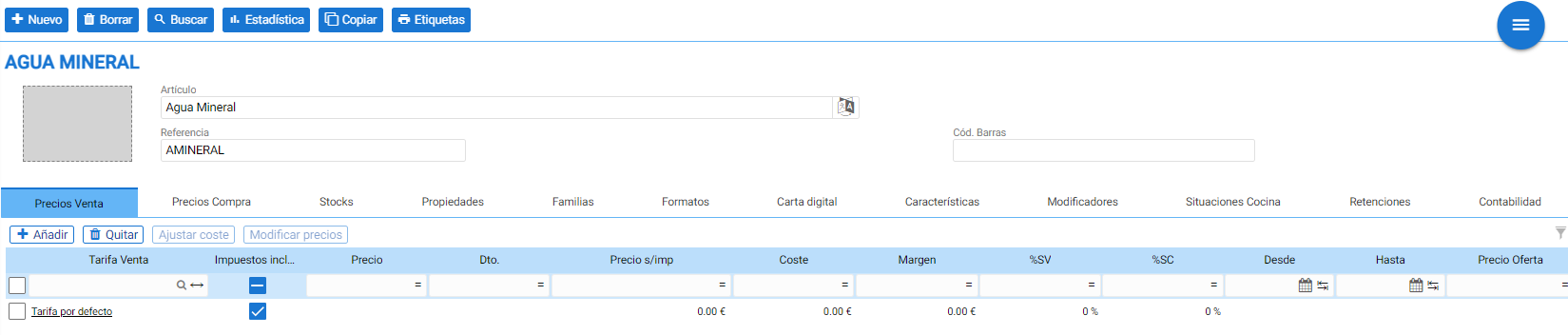
The item record consists of a header containing a grey field for the image and three fields for the name, reference, and barcode. Below the header, twelve additional tabs can be seen for defining the parameters and properties of the item in question:
- Sales Prices
- Purchase Prices
- Stocks
- Properties
- Formats
- Family
- Digital menu
- Modifiers
- Kitchen situations (only in hospitality mode)
- Accounting
For expense type items, the Stocks tab is not available.
Image:
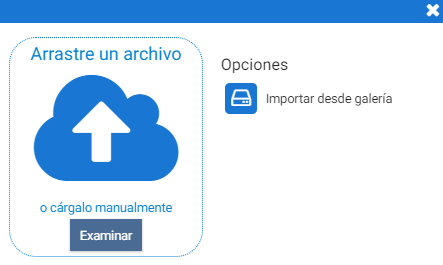
Upon selecting the gray field in the image, a floating window appears that allows for the selection of images in three different ways: by dragging an image, browsing for it from a computer directory, or entering the Cloud gallery.
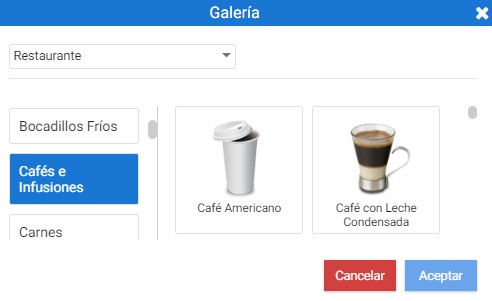
Cloud Gallery: The gallery allows you to select the item most similar to the merchandise available; to do this, it is possible to filter by business type.
Sale prices:
To insert and modify sales rates, access this first section.
Above the table are the tools to create new records and delete existing ones, as well as two options to calculate a new cost on a date (Current Cost) or a new price (Modify Prices).

AI Assistant
Section summary
AI can generate inaccurate information; verify the results.