En esta sección
Price modification
With the button of Modify prices Changes are applied to the item's price based on a formula that can be manually drafted.
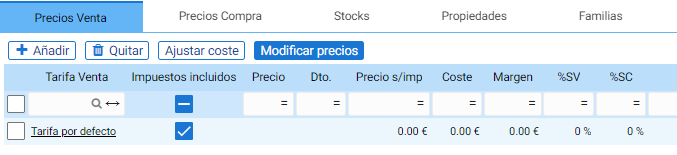
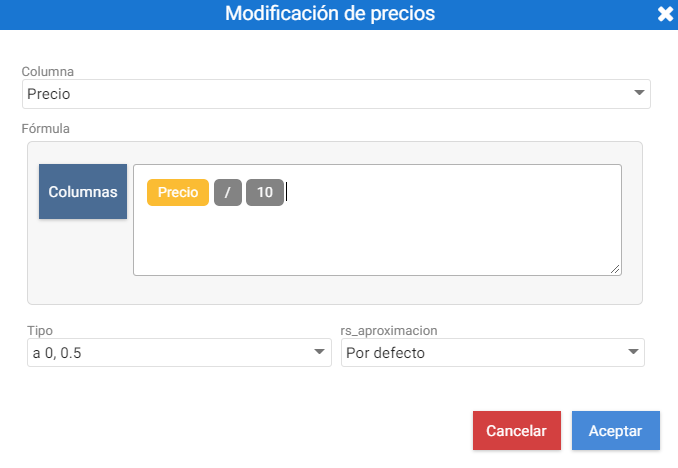
Example price value change:
This image shows a very simple function: the value of the [Price] column is changed to the value of the [Price] column divided by ten. Additionally, rounding of the calculated amount can be configured at the base.
Stocks:
In a table, you can see the warehouse where this item is located and how many units it contains. Next to it are the Maximum and Minimum columns, which can be modified, and the fields for stock to Receive and stock to Serve.
Maximum stock is the maximum quantity that fits in the warehouse for the specified item, and the minimum is the minimum quantity needed to cover sales from the last time a purchase was made until the next. The values in these two columns will be used for the purchase forecast, which will be explained later.
It is not possible to modify the units from the table itself. This table contains three options for modifying stock per warehouse that refer to the module's tools for Purchasing and Inventory: Internal consumption, Inventory, and Shrinkage.

Digital letter:
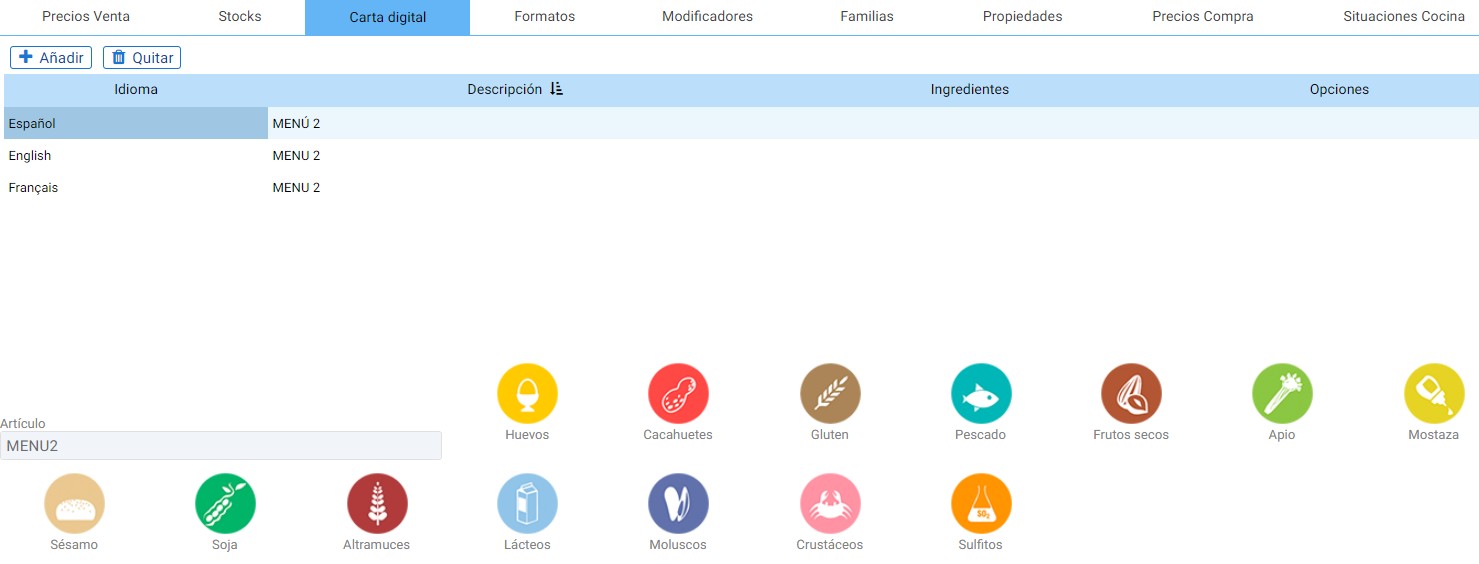
This tab contains the record of the languages into which the item's name is translated. Here, you can add an additional description for the product and list the ingredients in different languages.
Additionally, in the database, it is possible to select the allergens that the ingredients contain.
Formats:
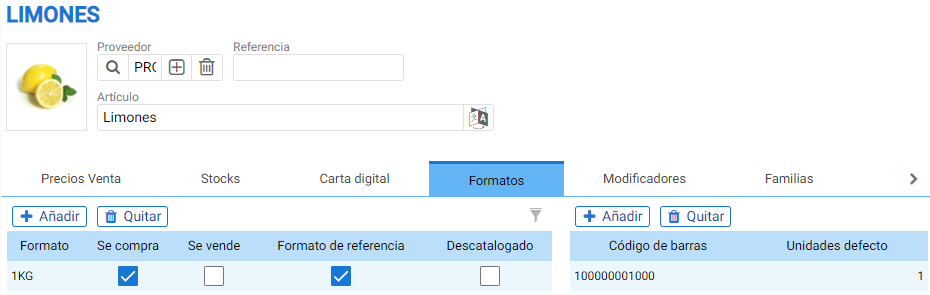
This is the section where articles are linked to the formats created in format maintenance.
Here you can see a block for defining formats and another block linked to the first one to define a reference barcode. Upon selecting one of the associated formats, you can see if it has a default barcode configured and its default units.
Reference format:
It is important to note that the unit of measurement of the format does not necessarily always have to be the same because HiOffice itself calculates the conversion from one unit of measurement to another internally.
The reference format is the format in which stock is purchased and accounted for, so that when destocking, it must always be done from it. Therefore, only one reference format can be configured.
Example format:
To make lemonade, 50g of lemons are needed, but these are bought in 1KG bags. Therefore, the reference format and the one that must be destocked is the KG of lemons.
The maintenance of modifiers is shown later, in this section there is just a small list of the modifiers associated with the article.
The table allows you to select the groups of modifiers that are expected to be applicable to the item. With the [Up] and [Down] buttons, you set the order in which these modifiers are displayed, and within the table, you can indicate whether it will automatically jump when the item is selected ([Auto] button), and the maximum or minimum number of items that can be added from this group of modifiers.

On this tab, families are created and associated.
Product families determine the display order of items on the sales screen, but they are not the item's department or section. In other words: internally, items are ordered by their section.

Clicking the [+ Add] button opens access to family maintenance. From here, if you select [Edit], you can create a new family.
The first thing displayed when creating the new family is a text field where you must enter its name, and next to it, the settings buttons.
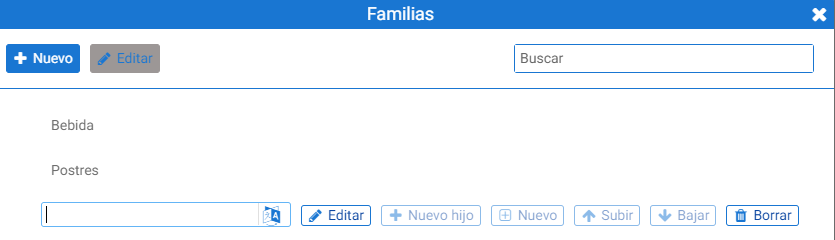
Once the name is provided, a subfamily can be added by clicking the [+ New child] button. By double-clicking on the created family or subfamily, it will be assigned to the item.

Properties:
The additional item data must be defined in the Properties tab. It consists of selectors and parameter toggle buttons.
Here you can configure departments, sections, item category and subcategory. To the right are the tax selectors depending on whether it is for sales, purchases, or home delivery.
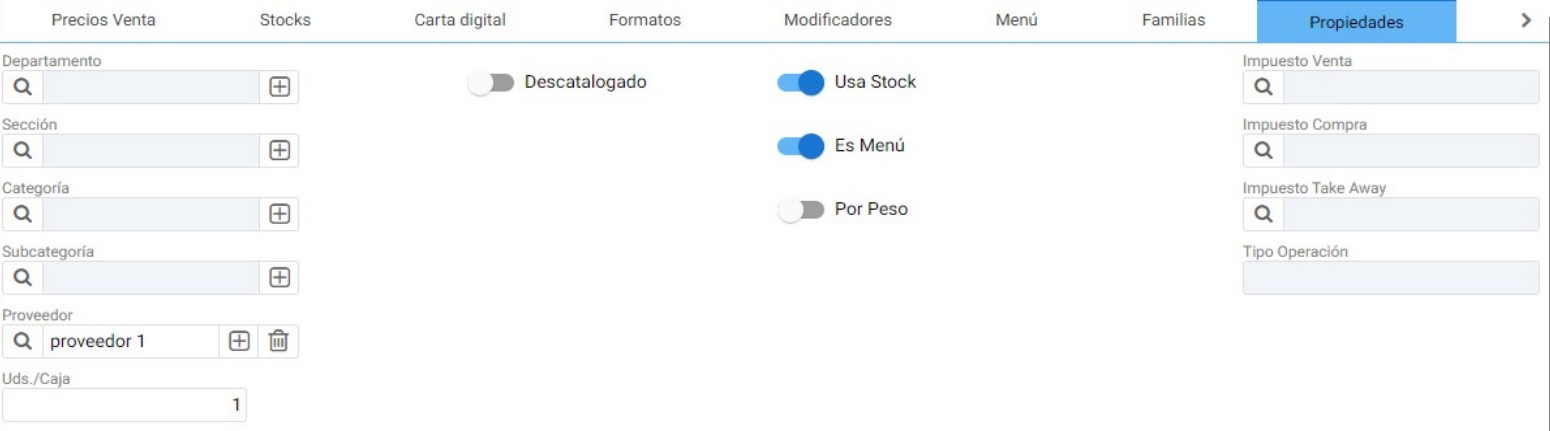
In the center are the [Es escandallo] and [Es Menú] buttons; checking these options displays a new tab for each of Menu / Escandallo.
Cost breakdowns consist of format-type items; the format to be used as a component will be the one marked as Reference Format.
Cost Breakdown Example:

The cost calculation shown in this table for each item is explained in the Cost Recalculation section.
Buy prices:
This window contains two sections with the [+ Add] and [Remove] buttons.
The first block, on the left, allows selecting the available suppliers and formats for them. In this first table, the purchase price and the offer price are indicated, defining the range of dates during which the offer will be valid.

In the second block, you can define the item's reference according to the supplier.
Kitchen Situations:
To define an item's kitchen status, you must access the maintenance record for this status.

When you click [+ Add], if no situation has been created, the screen for creating the new kitchen situation will automatically open, where you must specify the name and the items affected by this configuration.
If the situation has already been created, it will be automatically assigned.
Accounting:
The assignment of the Account Group and the Accounting Suffix to which the item belongs, in addition to withholdings and taxes by region.
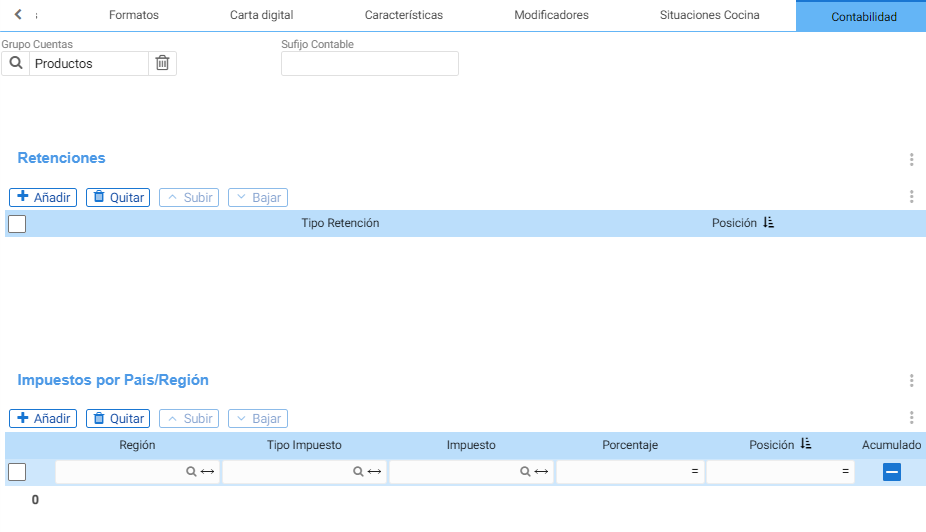
The account group as well as the accounting suffix allow for the configuration of the accounting account to which the movements of the item in question must be recorded.
The withholdings assigned to an item can be managed from the Withholding settings and from the item's record, in the Accounting tab.
Finally, the Tax by Country/Region table allows distinguishing the tax applied to the item by zone. An example is the difference in taxes for the same items between Spain and the Canary Islands.
AI Assistant
Section summary
AI can generate inaccurate information; verify the results.