En esta sección
Selling rates
To access the rate settings, you must select the 'Items' option from the side menu, and then, from the subsequent selectable menu, select the 'Sales Rates' option.
Once selected, a list will open with all the created rates. From here, you can create or delete rates. By default, a created rate called "Default Rate" appears.

Once a rate is selected, the screen with information about it will appear. From the main screen, you can define the rate's name, whether it includes taxes, or the default currency.
The rate header consists of the name, the date range of its validity, the currency it uses, and the [Taxes included] and [Discontinued] buttons.
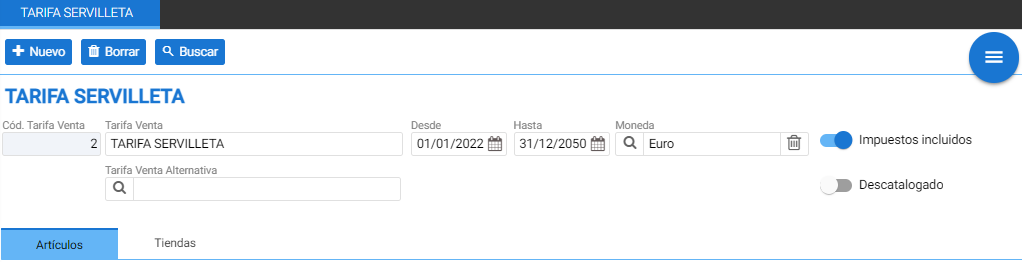
Additionally, below the description is the Alternative Rate selector, which allows the terminal to search in that second rate for items not found in the first, so that items assigned to the establishment will always be visible and those from the alternative rate will be "Optional".
In two tabs, the price configuration for Items and the establishments where they will be visible is distinguished.
Articles:
Here you can see the items that are part of the rate. To add or remove items, use the New or Delete buttons. In this section, the price of an item for a specific rate can also be modified; to do this, simply change the price value in the [Price] column or use the [Modify prices] button. Just like in the item's detail sheet, the [Current cost] button is available; its function is explained in the Cost Recalculation.

Establishments:
From the Establishments section, you can assign the rate to the various establishments you have. Using the New and Delete buttons, you add or remove the rate from your establishment.

AI Assistant
Section summary
AI can generate inaccurate information; verify the results.