En esta sección
Modifiers
To create and manage modifier groups. Once this option is selected, a list of all available modifier groups will appear. From here, you can modify an existing one or delete it, and also create new groups.

Selecting one of the modifiers or using the [+ New] button opens the modifier group maintenance tab.
Example modifier:
Opening the modifier creation tab, the first thing you can see is a text field for the description, a button for divisibility, and the print mode selector.
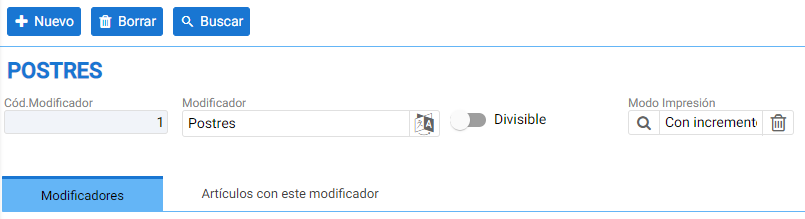
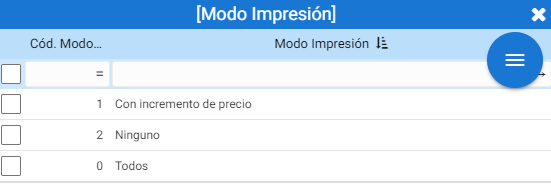
The print mode setting is used to determine whether the price increase is printed on the document or not:
In two lower tabs, the items that make up this group of modifiers and those that these modifiers will contain are configured.
Modifiers:
Tab to add items that act as a modifier in a modifier group. By accessing the item search list, you can select different items using the multi-selector on the left or search for the desired item.

Example:
In the case of the example in the previous image, it is a modifier that is configured with the "units" measure, and the increment price is associated with the table on the right according to the rate. For this example, no increment is added.
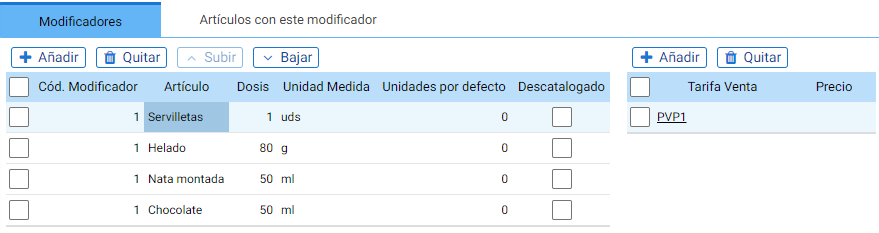
On the other hand, the "Ice Cream" modifier, being a portion equivalent to a large scoop of ice cream, is defined as a measure of 80 grams and a price increase of €0.50.

Articles with modifier:
This tab is informative and only allows adding items. If you wish to modify the [Auto], [Minimum] and [Maximum] fields, you must access the item's record through the Modifiers tab.

AI Assistant
Section summary
AI can generate inaccurate information; verify the results.