En esta sección
Purchase Orders
Premium*
The first type of document that can be created is the purchase order, which is accessed by selecting the option Purchase orders.
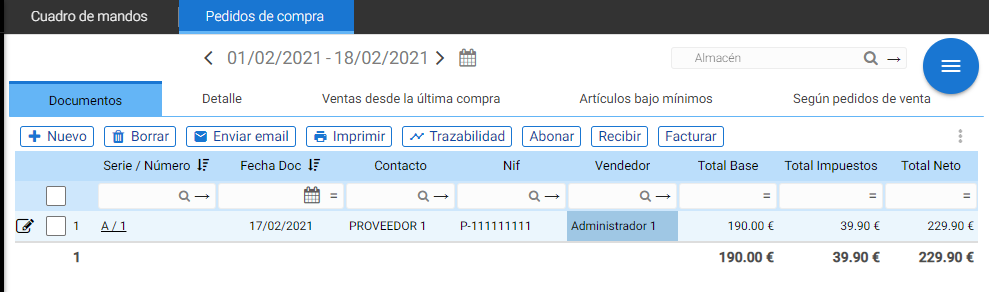
Once selected, a screen with date and warehouse filters is displayed. This screen
contains five tabs:
- Documents.
- Detail.
- Sales since last purchase.
- Articles critically low.
- According to sales orders.
The first and second tabs allow viewing, creating, and modifying purchase orders, the next three are for purchase forecasting.
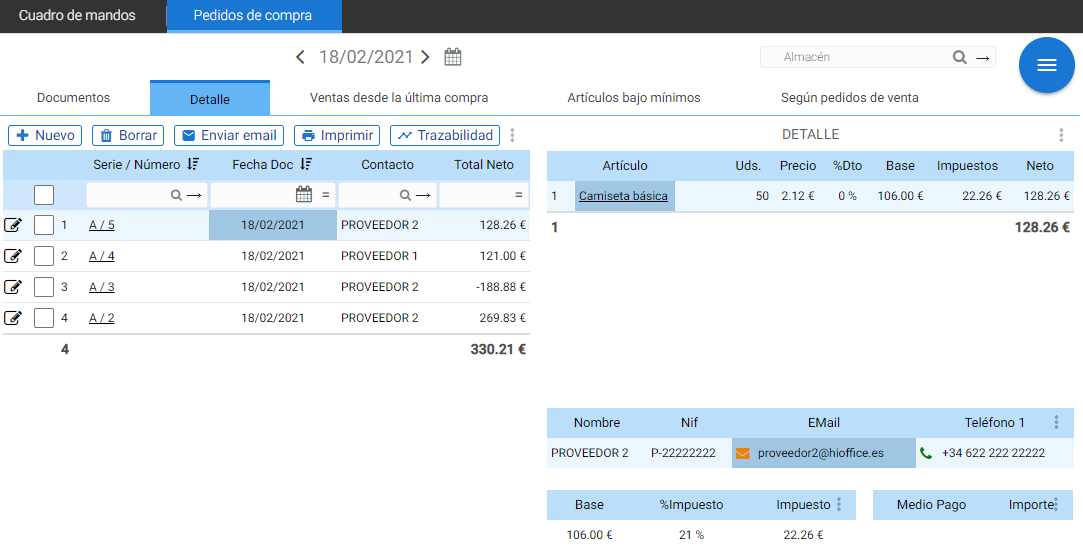
On the Documents and Detail screens, a table is displayed that filters already placed orders: The document selection. The Series / Number and Contact fields link to the document and the supplier's record respectively; these options can be accessed with a double click.
The Detail tab contains four more blocks that are linked to the Document selector, these are: The selected document's detail, The supplier's data, The totals, and The payment methods.
Furthermore, the detail links to the article's record.
Above the document selection block, the document interaction tools are displayed. To view all options, a document must be selected.
From here, a new order can be generated with the [+New] button, and a window will open with the new document.
The header indicates the supplier from whom the purchase is made, the seller performing the operation, the type of transaction or billing regime, as well as the document series and the generation and delivery dates.
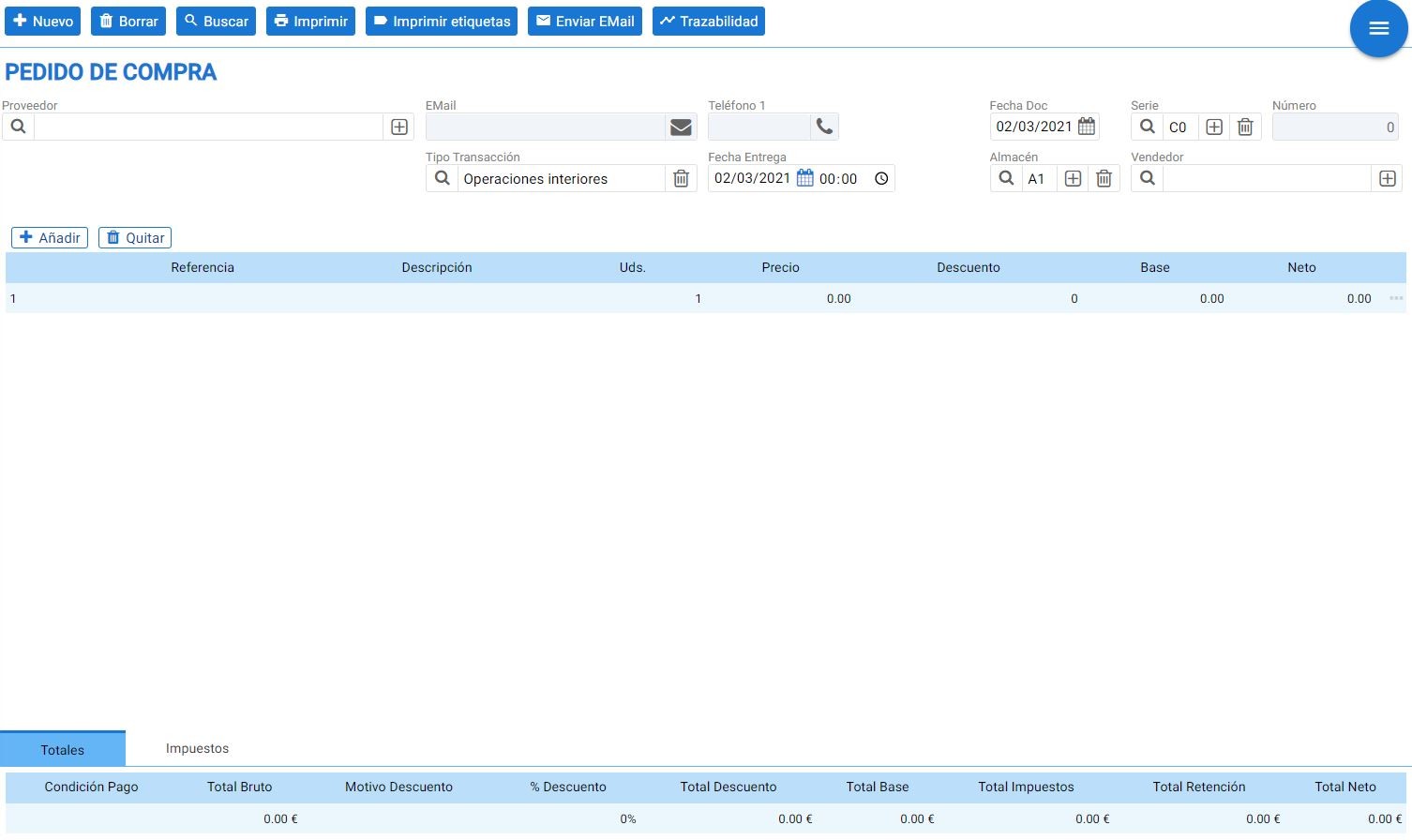
In the detail with the buttons [+ Add] y Remove Lines are inserted and modified, indicating the units, price, and discount. You can also search for already created items by reference or by description from their respective fields.
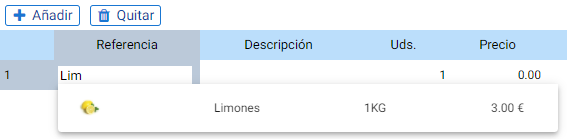
The detail shows the good or service, the units, the price per unit, the line discount, the base and the net for each line.
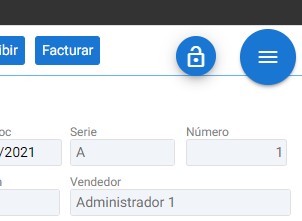
In the top right corner of the screen, a button with a padlock icon will be displayed that allows you to unlock a document that has been finalized. Once selected, it can be edited.
Document interaction buttons:
Document generation windows have additional buttons at the top of the screen by default. These buttons will allow: deleting the document, opening the document search tool, printing it or sending it by email, printing labels for the detail items, or accessing the traceability of that operation. These same options are found in the document search filter.
Once the document has been saved, new actions are activated that perform transition actions from one document type to another: In the case of purchase orders, it is possible To receive o Invoice. In addition, the button will be activated To pay.

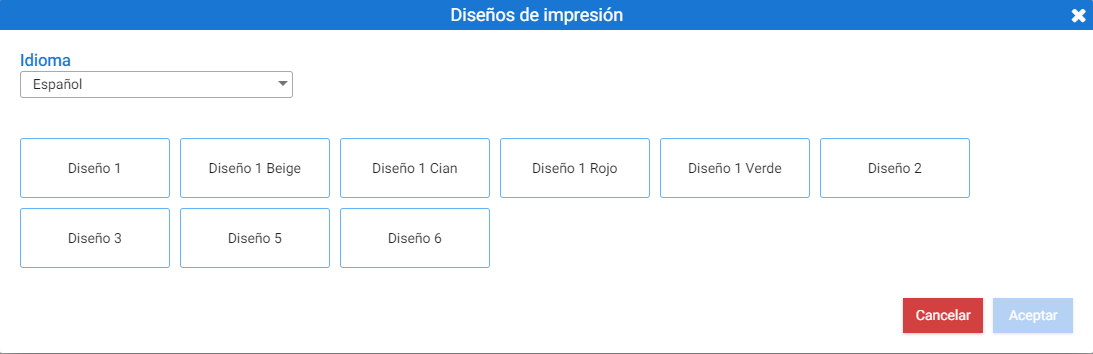
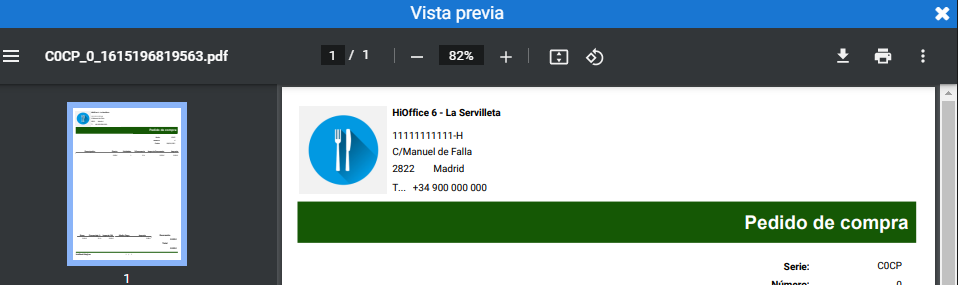
Pressing the button Print a floating screen will be displayed where you must select the Document Design that is needed, and upon pressing Accept The preview opens, from where you can select a printer or save the document as a PDF.
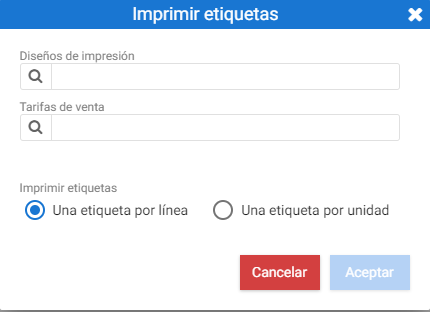
If desired Print labels The first thing you see is a PopUp that features: a selector for label design and another for the sales rate.
At the bottom of the floating screen there are two options for printing the labels: one per line or one per unit.
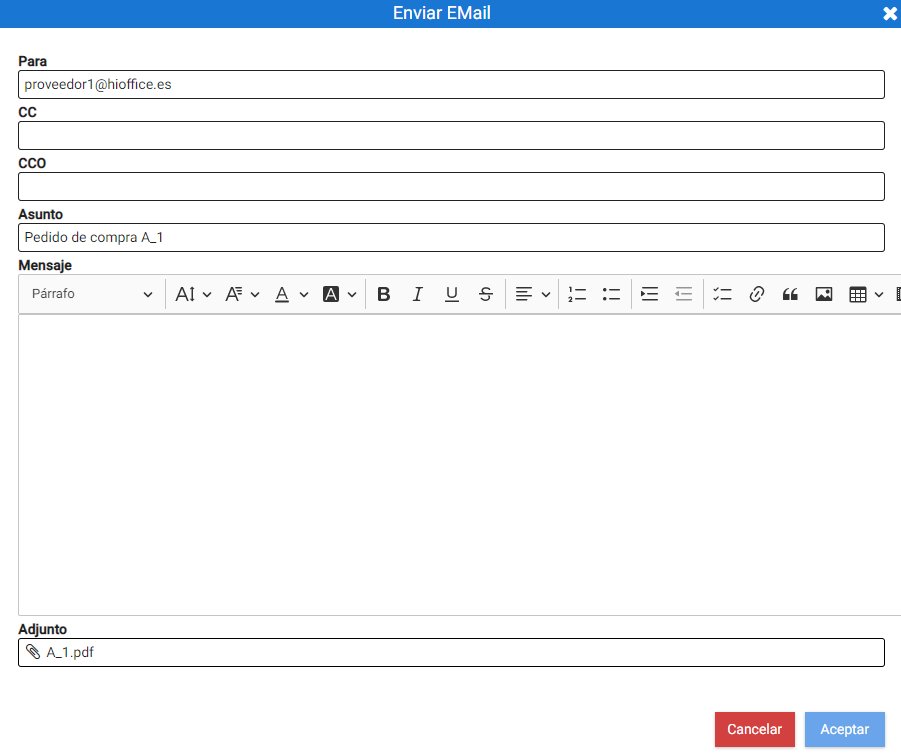
The button of Send Email A box opens with different text fields where you must enter the recipient, the subject, and the body of the email. The document is sent attached with a default design.
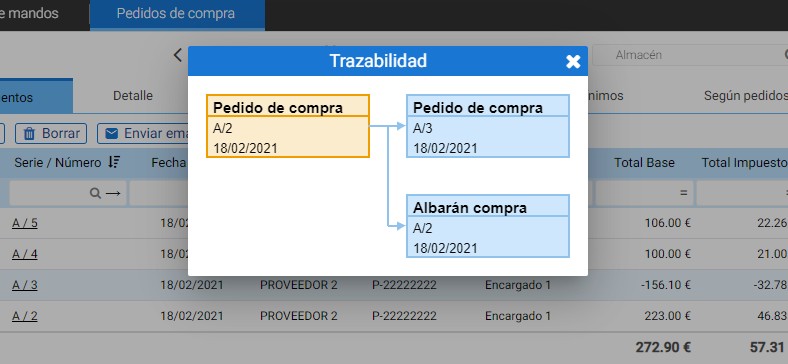
The option of Traceability allows you to see the cycle a document has gone through, that is to say, all documents generated from it:
Order Reception:
To receive an order, you can do so from the document itself or in the Purchase Orders filter and select the order you wish to mark as received with the [Receive] button. From here, multiple orders can be selected to receive them all in a single document. Next, the system will ask you to specify the quantity of items delivered for each line.
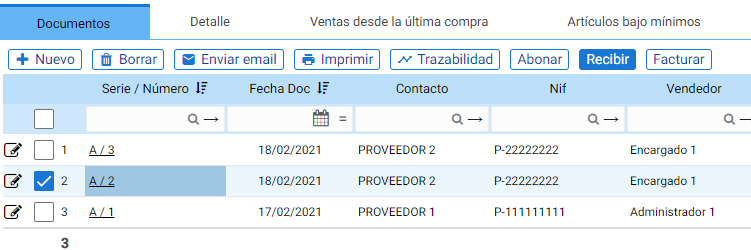
Using the selectors on the left, it is possible to select or deselect one or more lines.
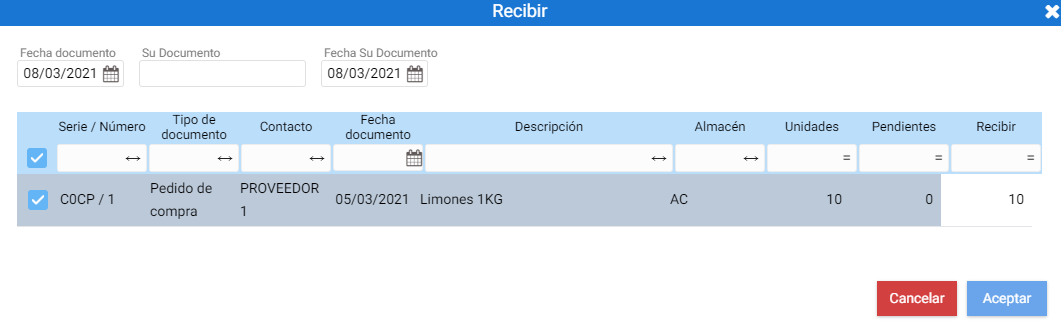
When selecting Aceptar, automatically the order will be transferred to a Purchase Delivery Note, and it will be possible to invoice it.
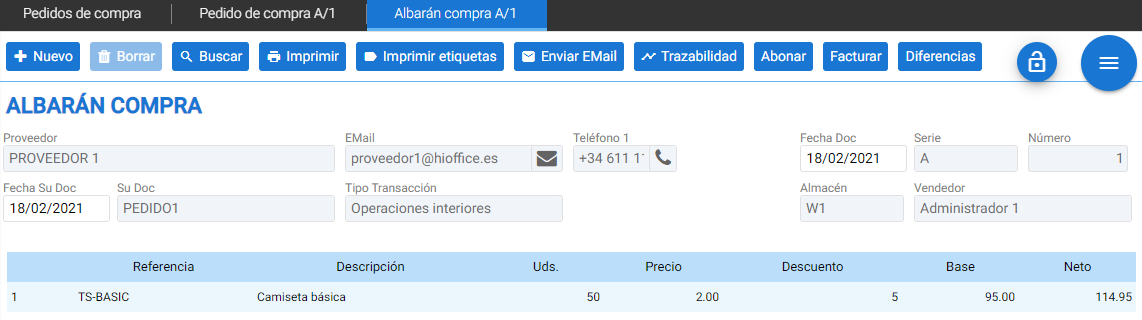
Invoice order:
The function of Invoice it works like the one for receiving, but with the exception that an invoice is being generated, and the payment methods with which the document will be settled must be indicated.
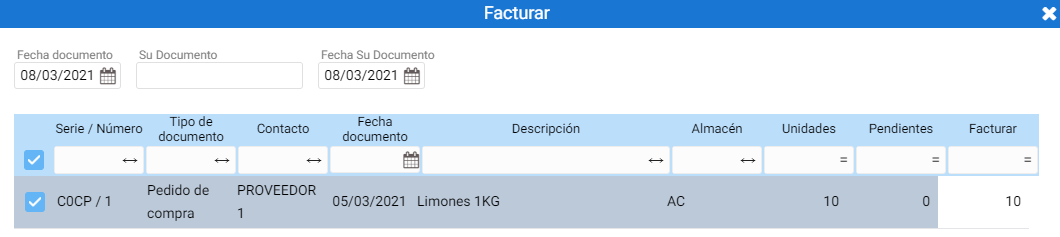
Once the lines and units to be invoiced have been indicated, the payment method selection window pops up.
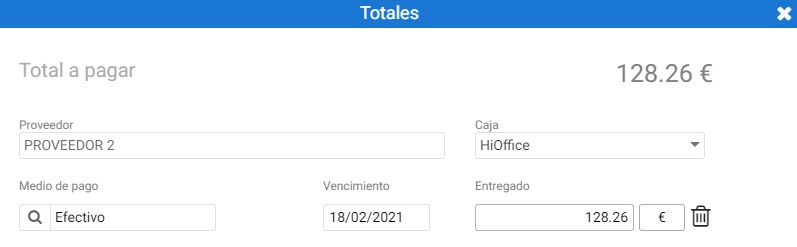
If a payment method associated with a bank document is indicated, such as a Promissory Note, a text field will be activated to allow for the entry of the instrument number.
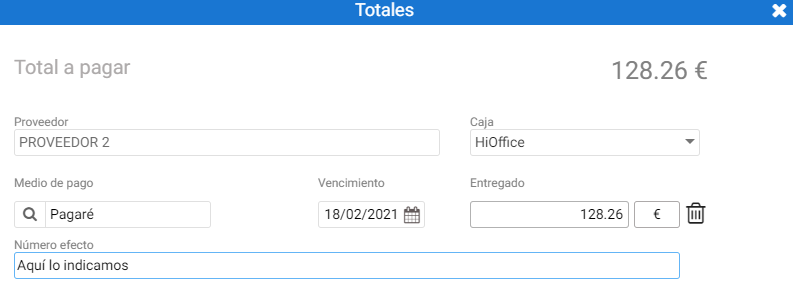
Upon accepting, the Invoice is automatically generated.
AI Assistant
Section summary
AI can generate inaccurate information; verify the results.