En esta sección
Pending sales
The function of putting sales on hold will vary depending on whether we work with a table screen or without one. Below, we explain both cases.
Sales on hold without a table screen
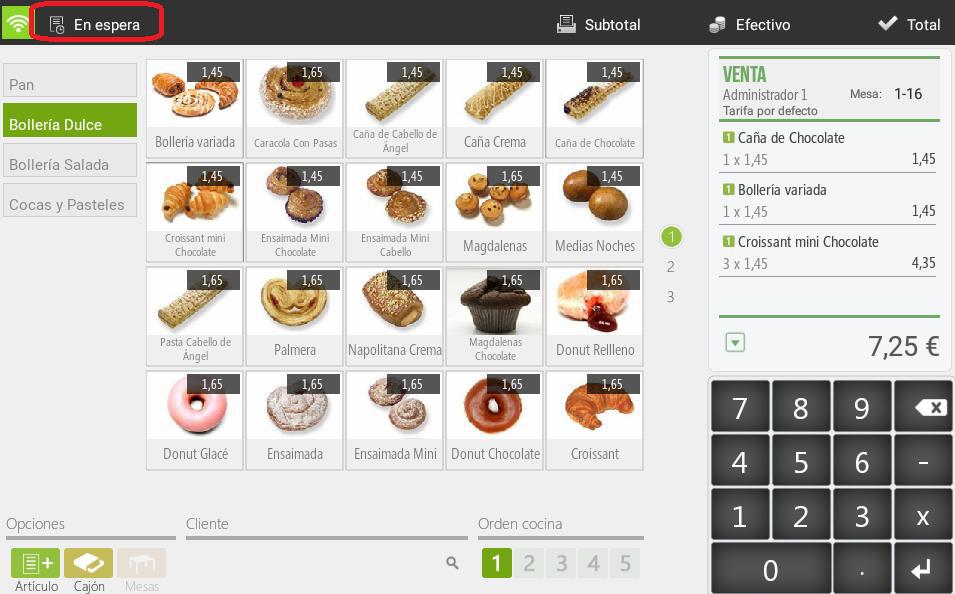
If we are in the process of making a sale, with items already on the ticket, and we want to put it on hold to return to it later, we have to click on the button Waiting that is located in the upper left margin of the screen.
For this pending sale, we will have to enter a sales identifier, which can be numeric or alphabetic.
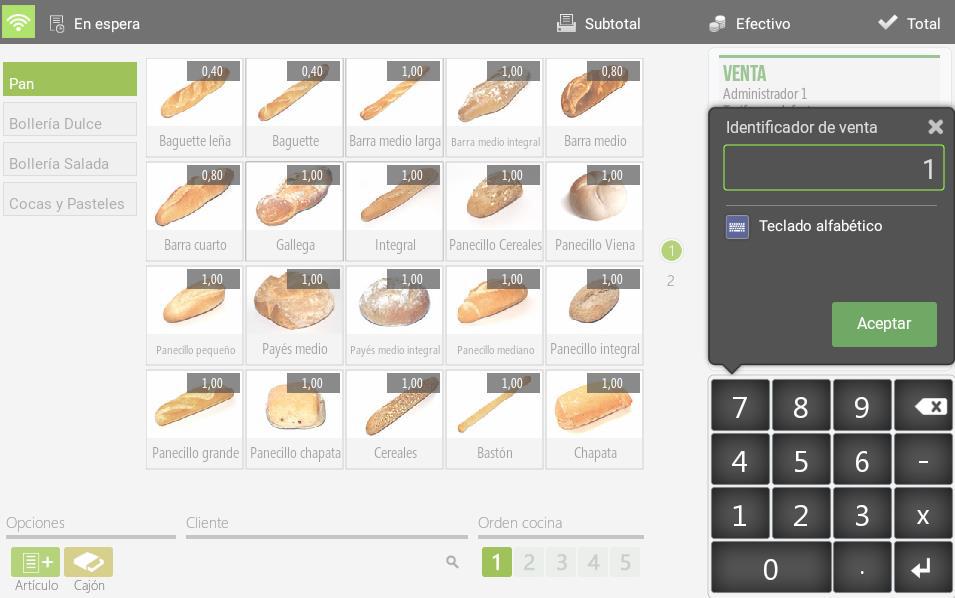
If we swipe a card as an Open Tab through the magnetic stripe reader, the card identifier is automatically saved. This way, it will be easier to locate a customer's pending sale.
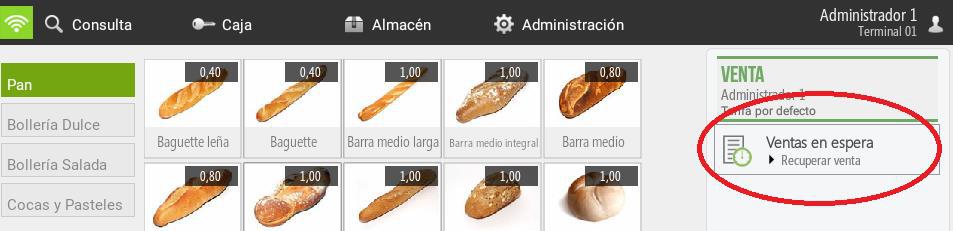
To recover a pending sale, we have to select the option Sales Waiting appears on the receipt when no sale is in progress.
We select from the list the sale that has the identifier we provided. Once selected, we can continue adding to the ticket, place it back on hold, or totalize.
Direct pending sales allows filtering among pending sales for those belonging to the user we are currently using; we can also access those pending sales that are assigned to a table.
Sales on hold with table display
This type of held sales is much more visual, as it allows you to see at a glance all the tables in the room, showing whether they are occupied or free. An occupied table means it has an assigned ticket, or in other words, a held sale.
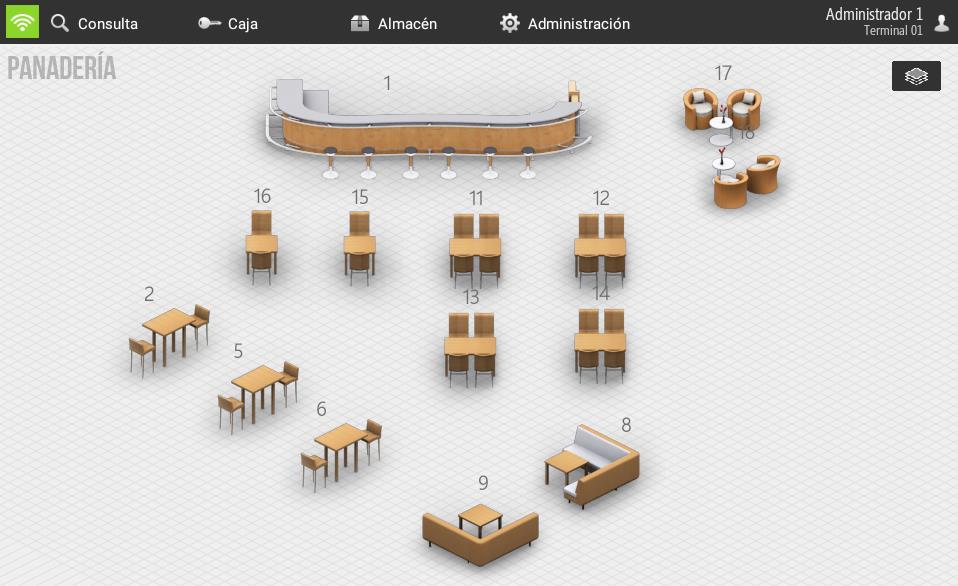
We select an occupied or an empty table to access the ticket. The operation is similar to direct sales that are put on hold: we select the items to add to the ticket and then we can finalize the sale or put it back on hold.
AI Assistant
Section summary
AI can generate inaccurate information; verify the results.