En esta sección
Introduction
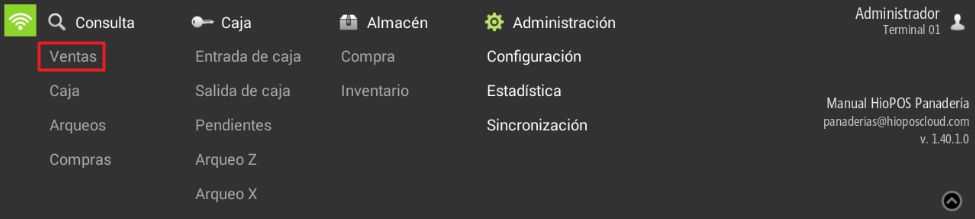
To view past tickets, we need to perform a sales query. Click the Query button and select Sales.
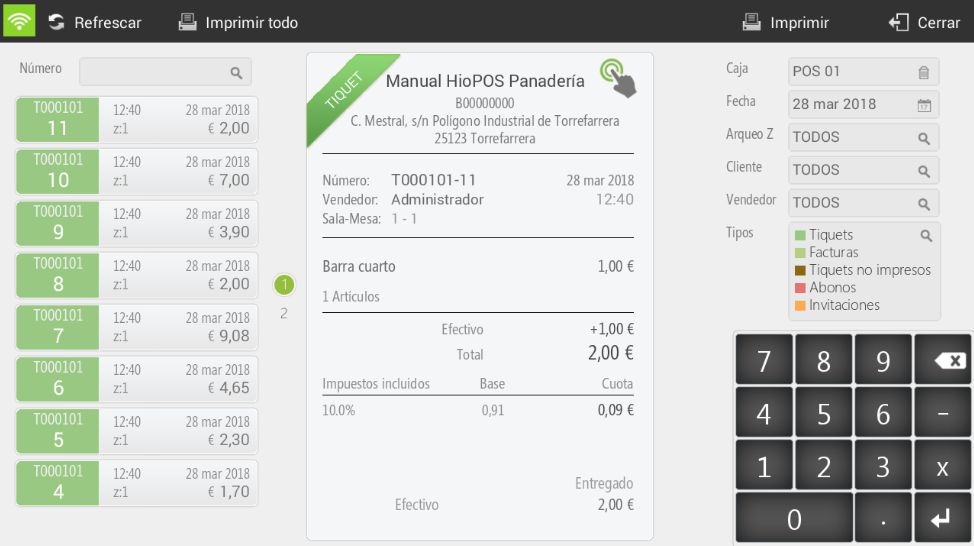
You can enter the sales number in the top left field to access it or filter by Cash, Date, Customer or Seller on the upper right panel.
By selecting the ticket, there are different options.
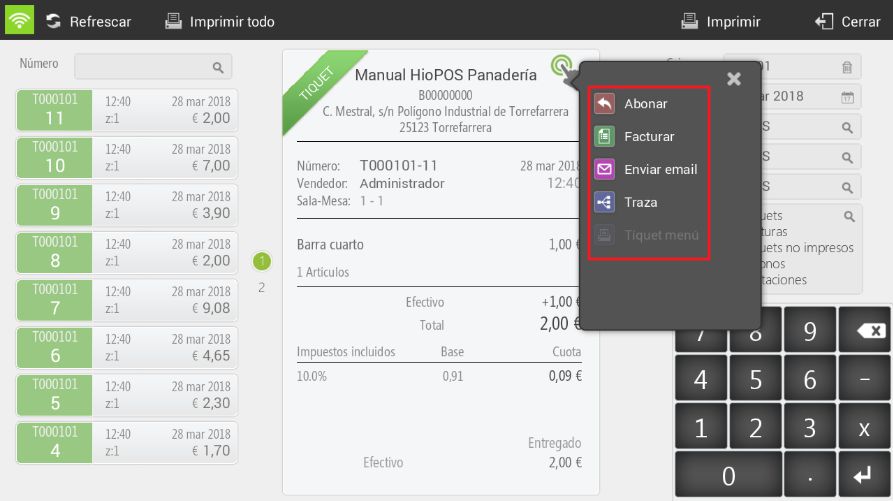
- To pay: You can pay line by line or all lines directly.
- Invoice: This option always requires selecting a customer. You can create a new one or select an existing one. Subsequently, the ticket and invoice will be credited directly.
- Send email: You must write the email address where you want to send the ticket.
- Trace: You will be able to view the tracking of this ticket to check if there is a credit note or an invoice.
- Boutique menu: This option will only be available on tickets that include Menu/Combo type items. The ticket will be printed without the details of the dishes consumed, meaning the name of the menu will appear but without its components.
Additionally, in the upper margin, the option appears Print everything, where all tickets will be printed by the printer. And if you only want to print a specific ticket, we will have to view that ticket and select Print.
AI Assistant
Section summary
AI can generate inaccurate information; verify the results.