En esta sección
Time and Attendance
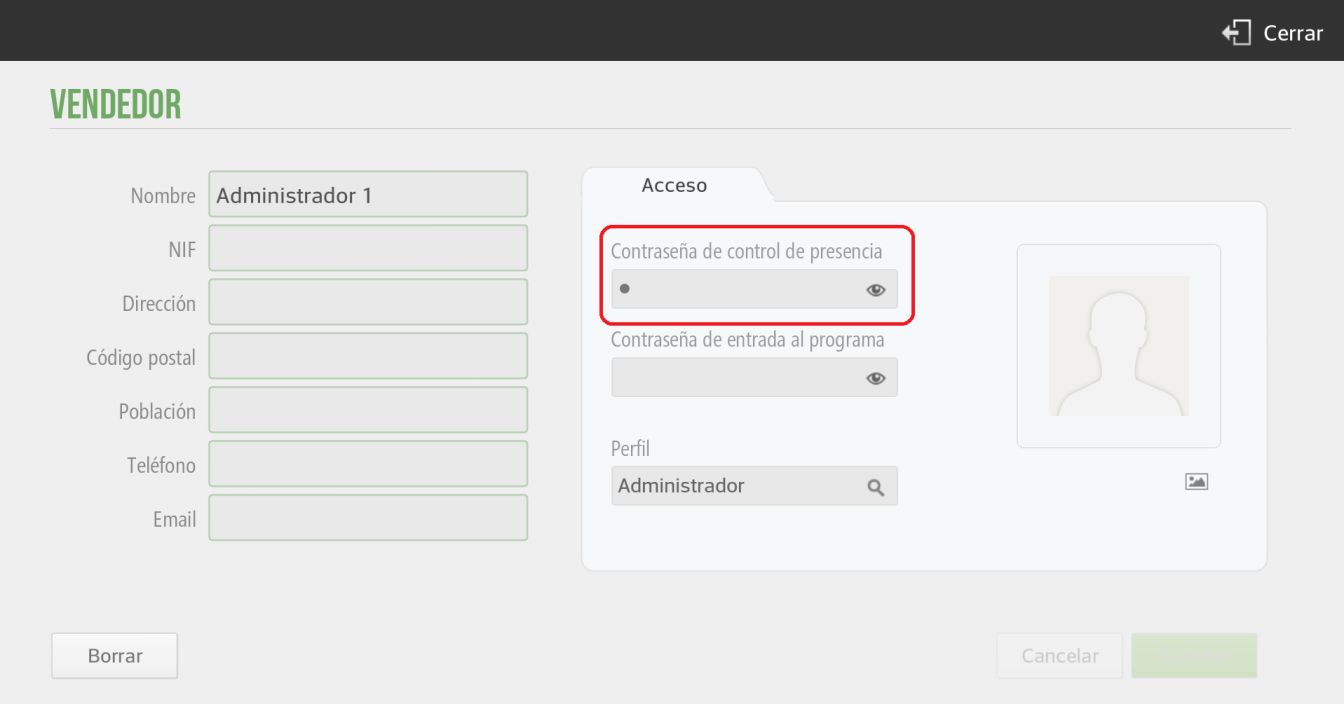
HioPOS Cloud allows for attendance control of the different user profiles that access the application. The correct implementation of Attendance Control is divided into three steps. Firstly, the configuration of the salesperson's Access on the terminal. To do this, we will go to Settings, Seller and we will select Seller
On the resulting screen, we will be able to modify the information fields, such as the Name, the NIF, etc. In the section on the right; Access, HioPOS allows us to configure a password for attendance control as well as a password to enter the program. If what we want is to configure attendance control, we will set a password in this field.
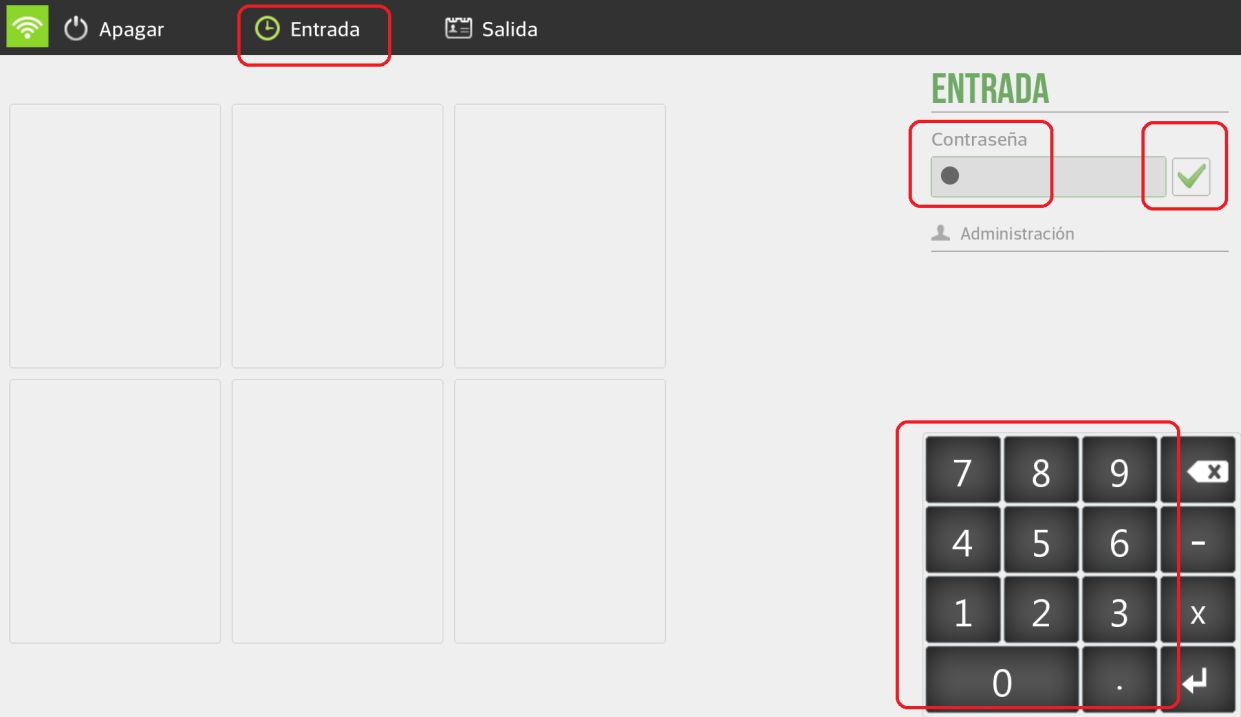
Once we have configured the attendance control password in Configuration, Seller, Access, we will go to the initial screen. To launch the application and view the tables screen, we will need to select Entry and enter the user's password.
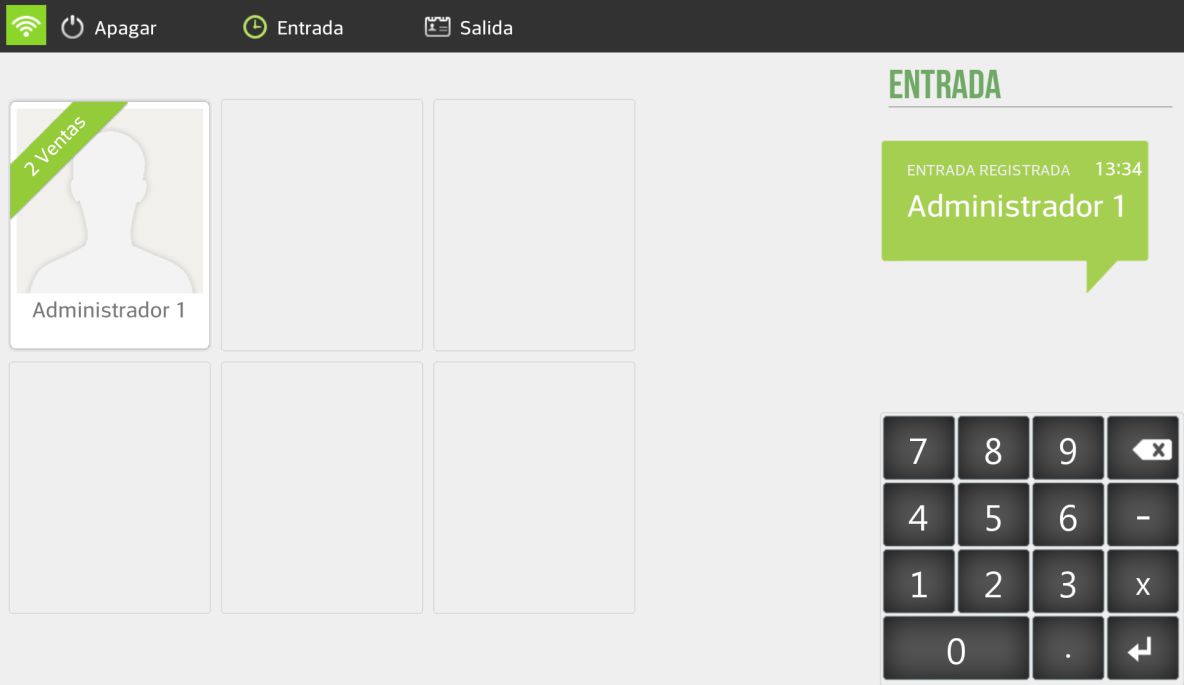
To confirm the user's successful registration when launching the application, HioPOS displays the following alert message; Entry registeredIn the message, the registration time and the registered user appear.
For the analysis of all information retained in the Attendance Control system, the user must go to the section of Administration, Statistics, Auditing and the option; Attendance Control from where you can check the attendance records of the different registered users, as well as modify the entry and/or exit time, if applicable.
In the Presence Control report, a table appears from which the user can view the Salesperson, the entry time and the exit time, and the total number of minutes the user has been connected to the application.
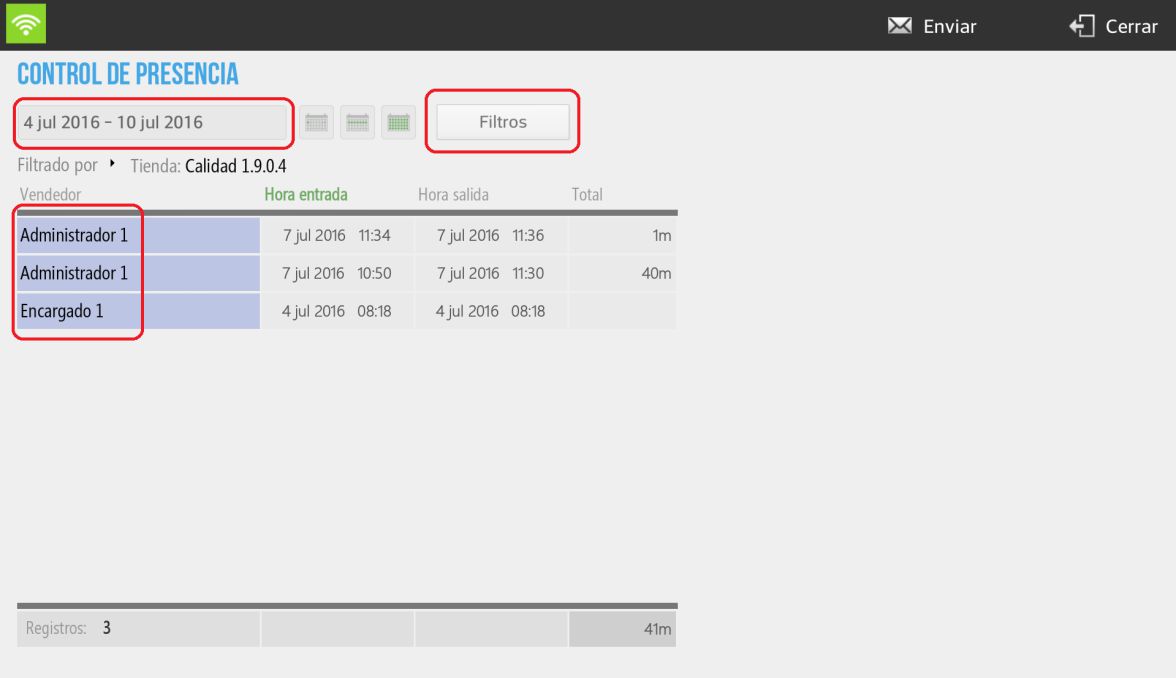
Attendance reports can be filtered by store and by salesperson to obtain a more detailed and in-depth analysis of the information contained. We can filter attendance by date, choosing the period of time we want to analyze.
AI Assistant
Section summary
AI can generate inaccurate information; verify the results.