En esta sección
Kitchen printers
HioPOS Cloud can work with up to ten kitchen printers. This option is very interesting if it is a bakery that offers a cafeteria service where they serve items that require cooking.
You can configure them from the Kitchen Printers option in the Settings menu. If the Kitchen Printers button is not visible on the Settings screen, please contact your distributor, as it is an additional paid option.

Each printer must be configured according to its corresponding printing situation. Printing situations refer to the kitchen printer where the order must be printed. Additionally, you can also set which items are prepared in each kitchen situation on the item editing screen.
Kitchen printers can only be configured via local network (they can be wired or wireless), so we will need to have all devices within the same network.
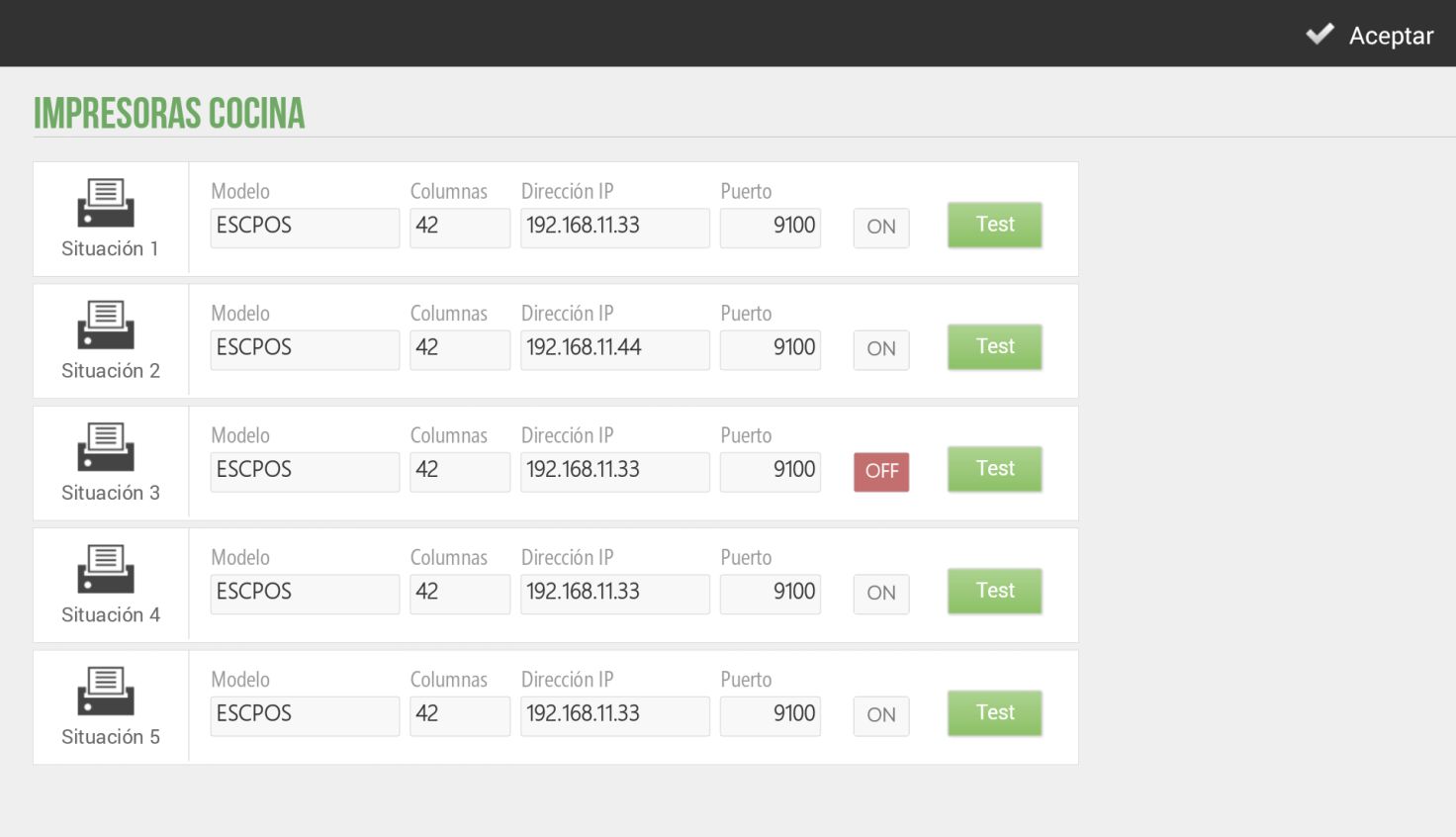
First, we select the Printer model, then we add the IP address of the same and the Port that it has (by default 9100). We press Test to verify its operation.
Each printer can be turned on or off as needed using the ON/OFF option.
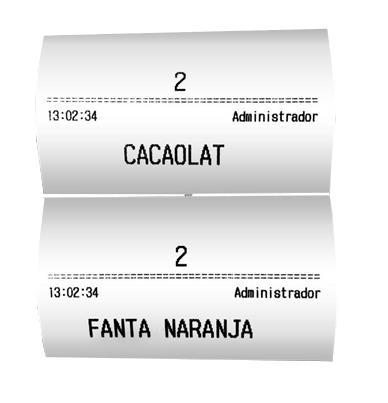
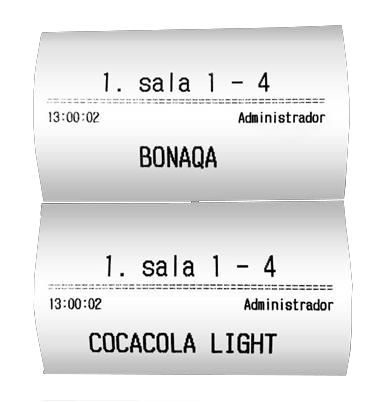
Within kitchen printing, we have the Consumption Mode option. If we activate this option, a ticket will be printed in the kitchen solely with the item in large font, without informing of the corresponding order, and with information about the print time, the salesperson who printed the ticket, and the sale identifier. We show an example of the printed consumption ticket:
AI Assistant
Section summary
AI can generate inaccurate information; verify the results.