Settings
Once the terminal has been created and configured, we are going to configure the online booking module.
To access the settings, we need to go to the following link:
co.icg.eu/a/XXXXX (database number)
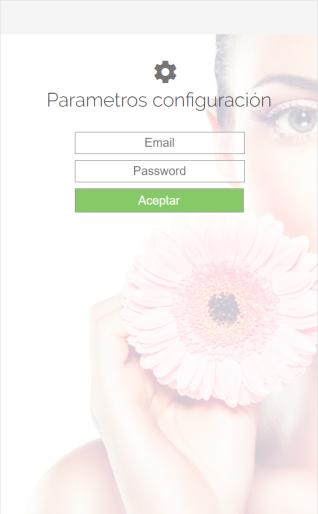
Once here, the customer's database login credentials must be entered.
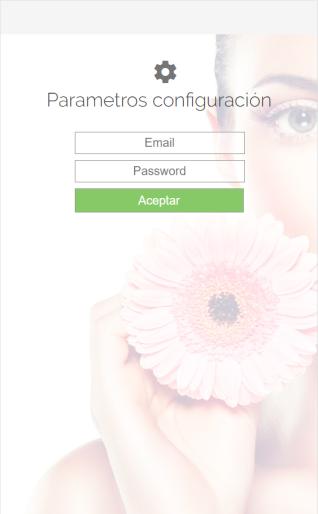
EmailEmail address assigned to the client database in CloudLicense.
Password: Password assigned to the client's database.
If you do not know the credentials, you will have to contact the distributor.
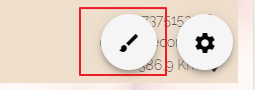
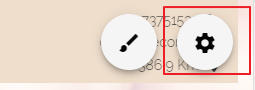
Once the access credentials have been entered, all the client's establishments that have contracted the booking module will appear. In the bottom right, two icons appear; if we select the brush icon, we will be able to configure the appearance of the booking engine.
If we select the tool icon, we can access the parameter settings.
Color settings
To configure the colors of our booking engine, we have to select the brush icon.
Once inside, the settings menu opens. From this menu we can select the section we want to modify:
-Global: This is the main screen, from here you can modify the general appearance of the engine.
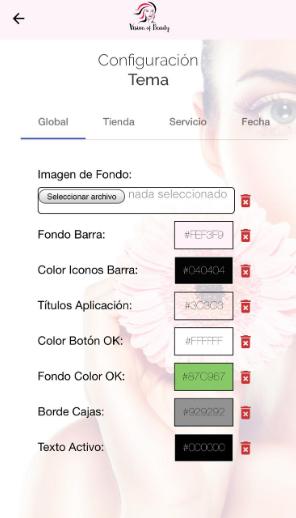
-StoreFrom this section, we can modify how we want the information about our establishments to be displayed.
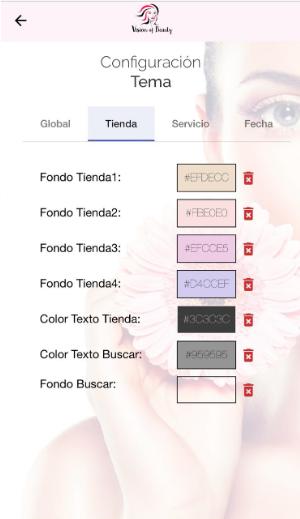
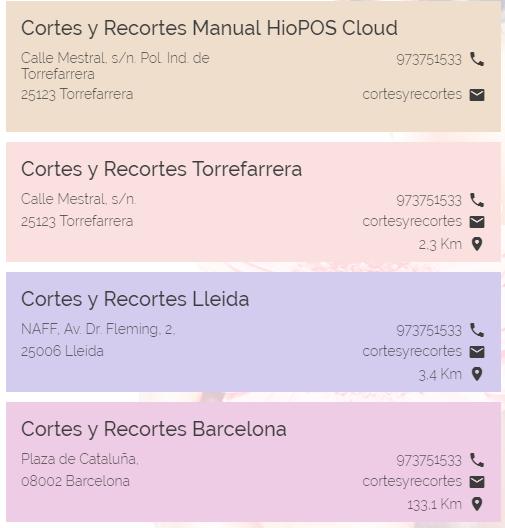
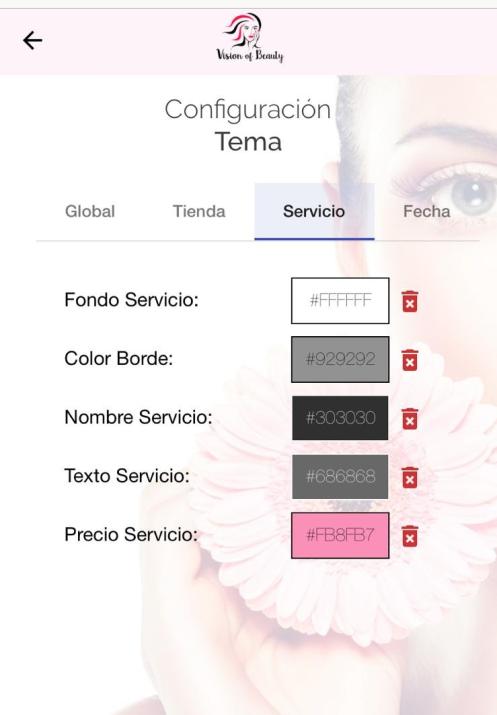
-ServiceFrom this section, we can modify how we want our service information to be displayed.

-DateFrom this section, we can modify how we want the information to be displayed on the calendar screen and the schedule.
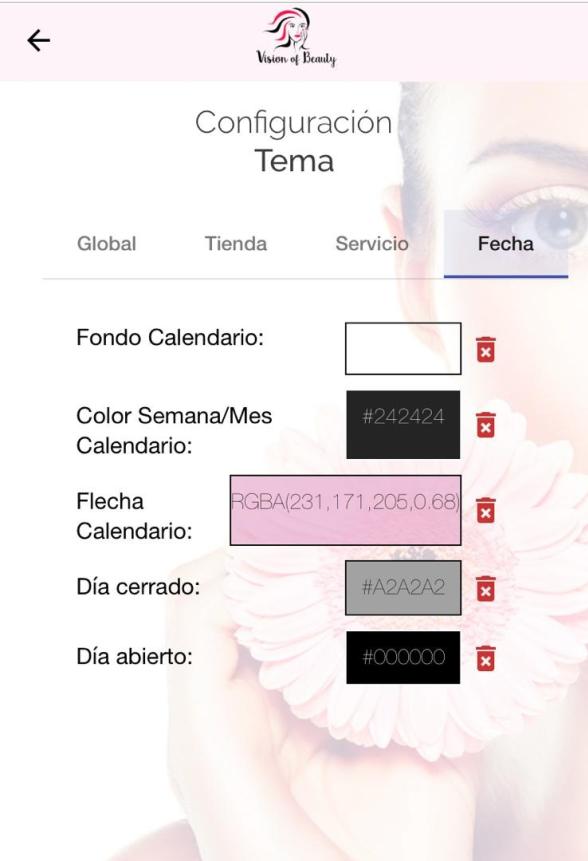

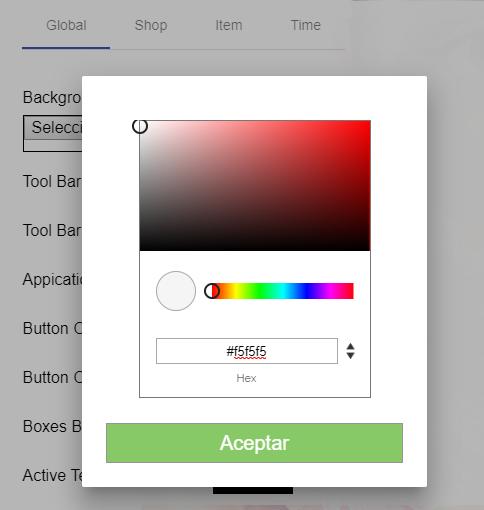
If we click on any box, a pop-up will open where we can choose the color.
Parameter configuration
To configure the booking engine parameters, we must select the tool icon.
Once this is done, the settings menu will open. From the General section, we can modify the following parameters:
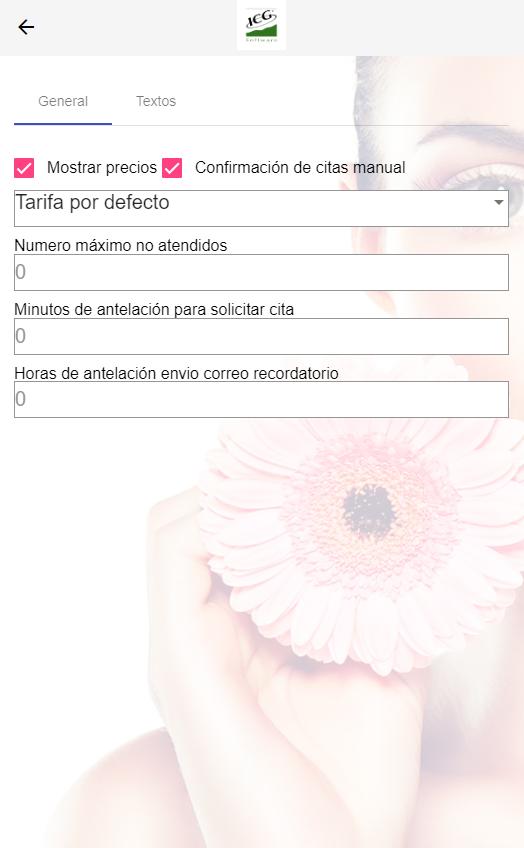
-Show prices: We can decide if we want the prices of our services to be displayed.
-Manual appointment confirmation: We can configure whether we want appointments to be automatically accepted or, conversely, if we want to manage them manually from HioPOS Cloud (See section 16).
-Maximum number of unattended: We can configure the maximum number of no-show reservations per client. Once this maximum is exceeded, the client will not be able to make reservations.
-Minutes in advance to request an appointment: We can set the minimum number of minutes' notice required to make a reservation.
-Hours in advance for reminder email sending: We can configure how many hours in advance we want an email to be sent to remind the client of the appointment.
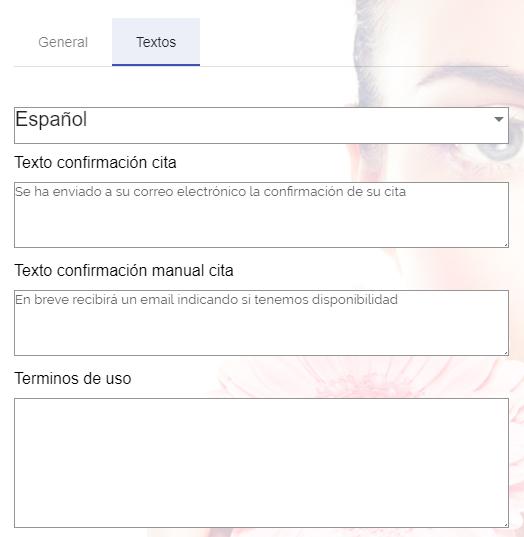
From the Texts section, we can modify the texts that are displayed when making a reservation. The text can also be modified if there are terms of use.

AI Assistant
Section summary
AI can generate inaccurate information; verify the results.