En esta sección
Customer View
Using the link mentioned above, the end customer will be able to access the online appointment booking engine to book an appointment, let's see a step-by-step example:
1. Select the establishmentEnter the booking engine and select the establishment. If the hair salon or beauty center only has one establishment, there will be no need to select it. If the hair salon or beauty center has several establishments, the online appointment booking engine will suggest the closest establishment.
2. Choose the service: In the second step, we will have to select the family of
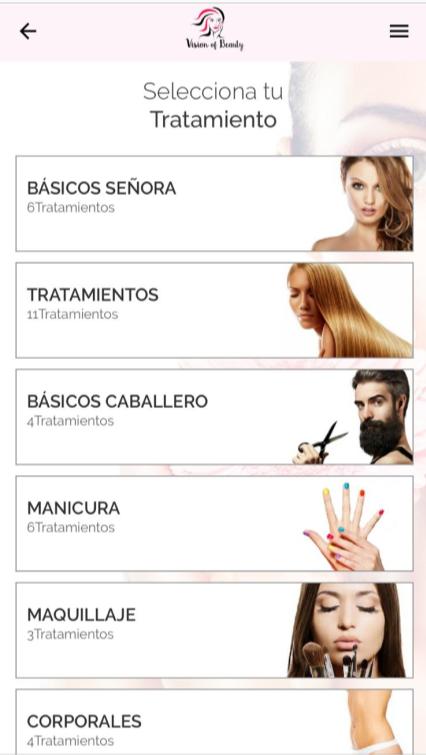

3. LogIn: We must log in
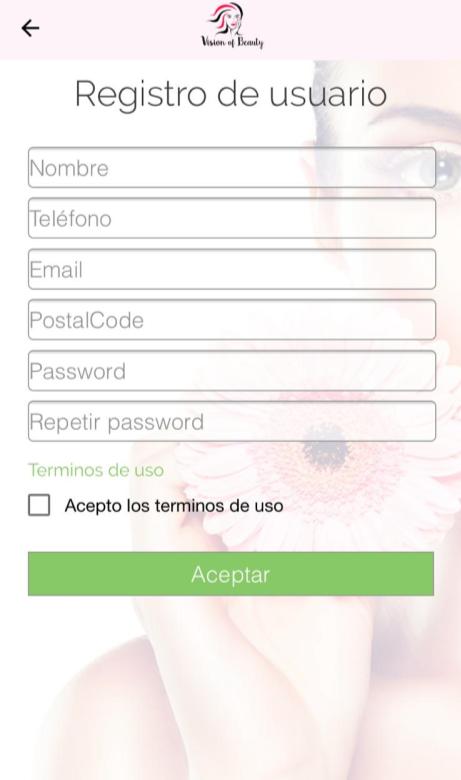
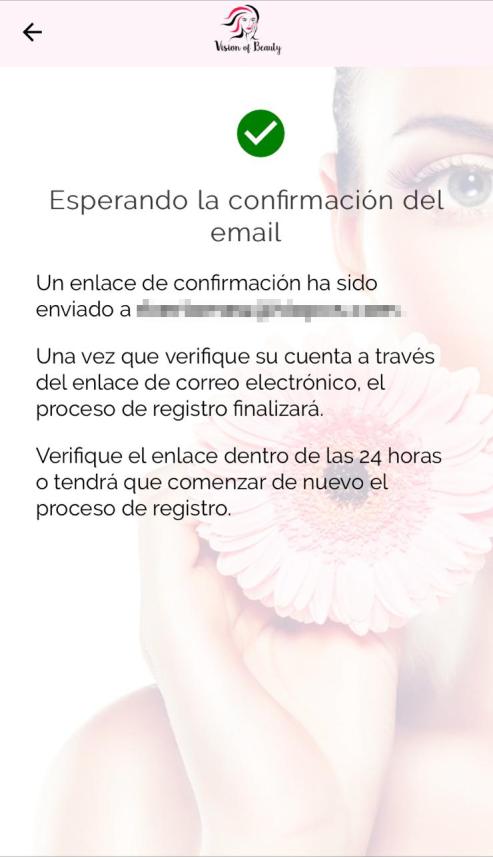
Once we have entered the different fields, an email will be sent to verify the account. By accessing the link in the email, the account will then be successfully verified.
5. Day. Next, we will have to select the day and time of the service.

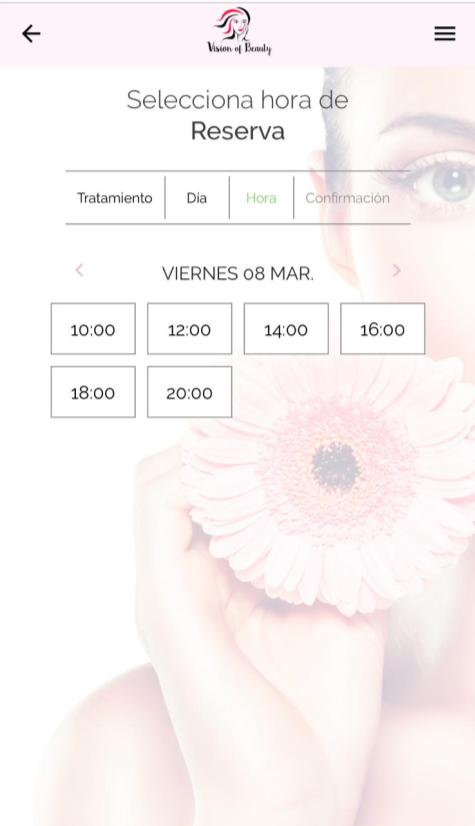
To choose the service time, HIOPOS takes into account several parameters such as the duration of the service, the group of salespeople who can perform this service...
For clients with a history, when selecting the time, we will be able to choose the employee who will perform the service. The first employee suggested by the online appointment booking engine will be the employee who performed the last service for this same client.
6. Booking confirmation: The last step the client will have to take is the reservation confirmation. They will be able to modify the selected reservation as well as create a new one.
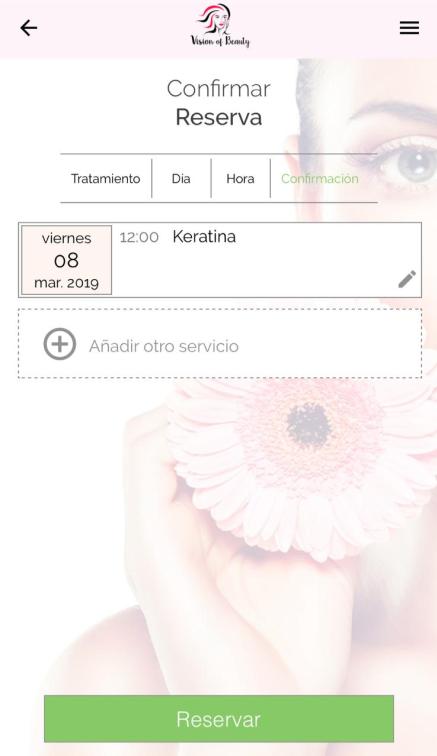
7. ReservationOnce the reservation is confirmed, we will be able to book.
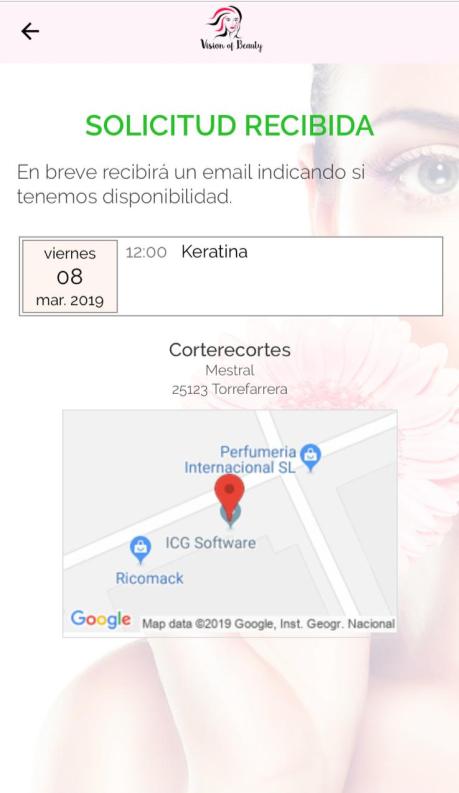
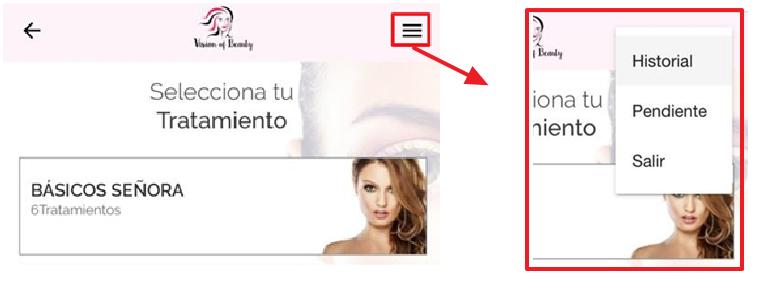
Finally, once the appointment is made, we can access the top right where we will see an option to view and manage our history and pending services. We can also log out of the account we are logged into.
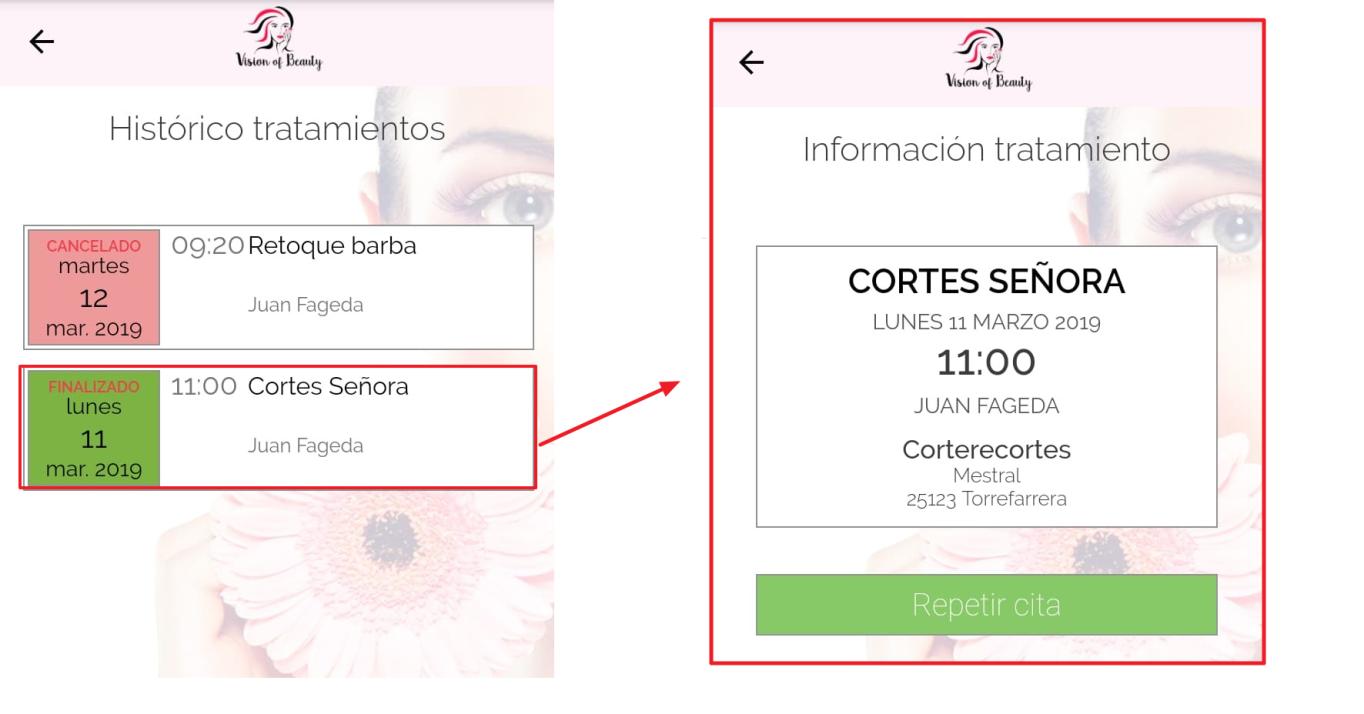
-- HistoryThrough the History option, we can view our history, and this way we can find out what services this hair salon or beauty center has provided us. As we can see in the following image, we have a service in red which indicates that it is a canceled service. In contrast, the second service, the green one, indicates that it is a completed service, and if we click on it, we will be able to repeat the service.
- PendingIn the Pending option, we will be able to see all the services that we have pending. If we select a service, we will be able to modify or cancel it.
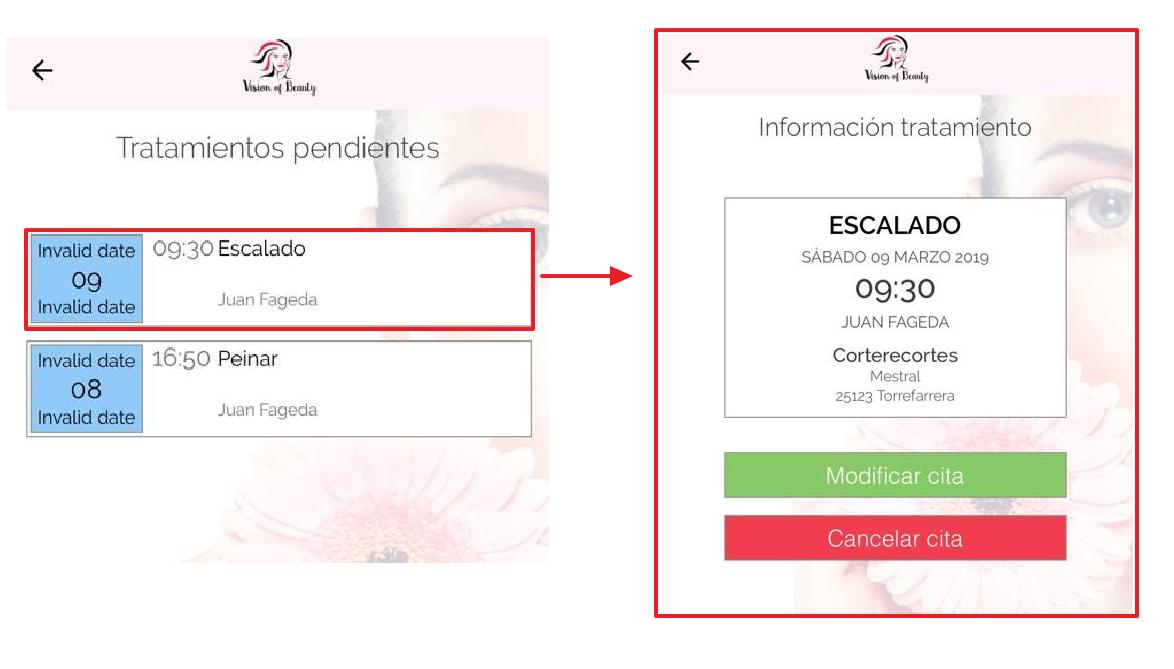
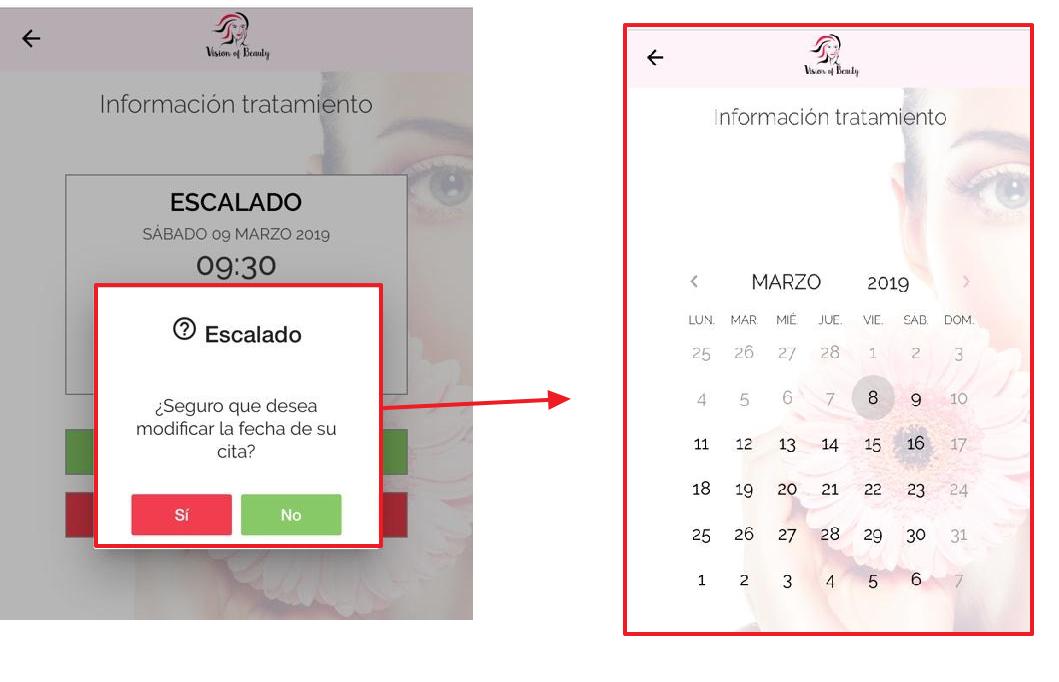
-Modify Service: To modify a service, we will have to select the modify service button and then follow the steps to select the date of the new service.
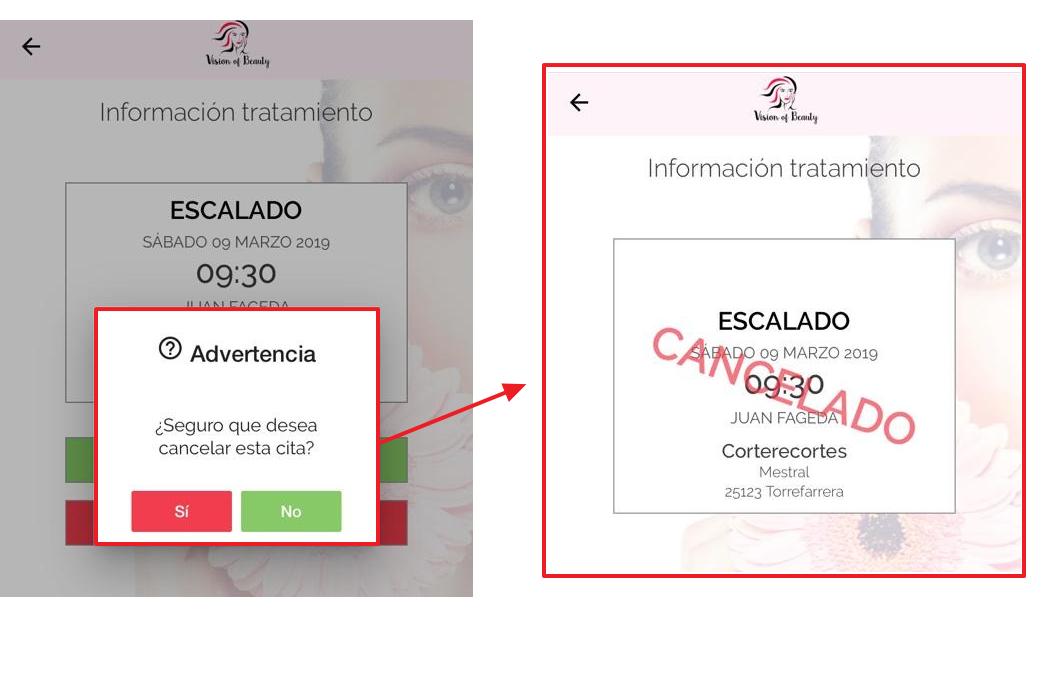
o Cancel Service: To cancel the service, simply click on the cancel service button.
-To leave: This last option will allow us to log out.
AI Assistant
Section summary
AI can generate inaccurate information; verify the results.