En esta sección
Item maintenance
From the Configuration section, Articles, we will access the customer maintenance screen.
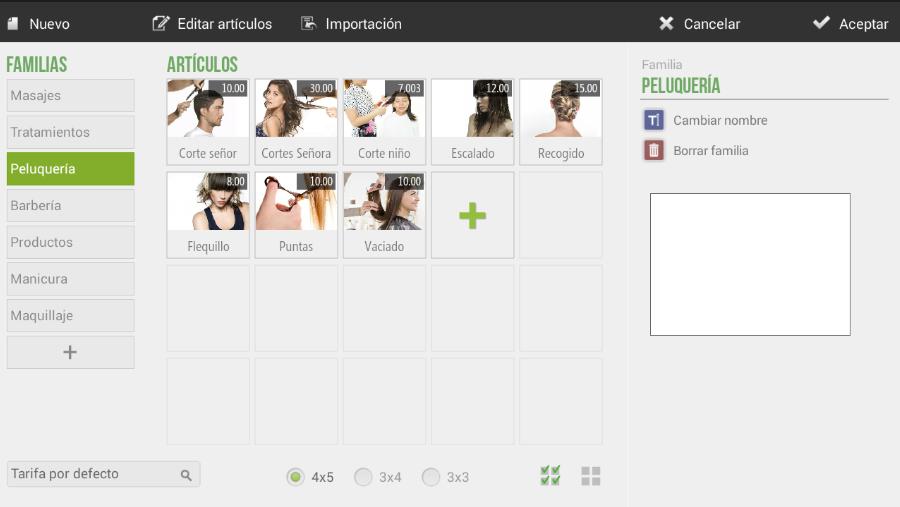
From this screen, we can change the family name or directly delete it. It's important to note that you cannot delete a family that contains items. Therefore, you would first have to delete the items within that family and then delete the family.
From the white box, you can select an image from a file for the product family. This image will not appear on the sales screen, but it will be visible in the Online Booking engine, as explained in section 15 of this manual.
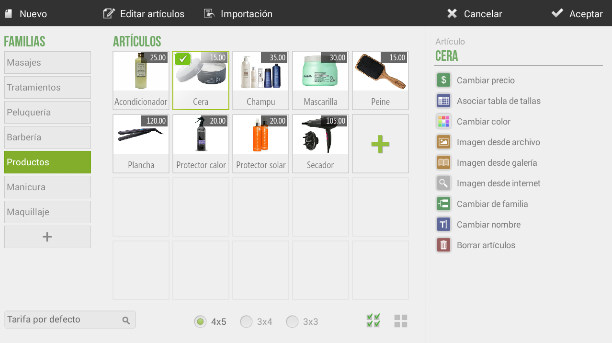
If you select a specific item, new options will be proposed:
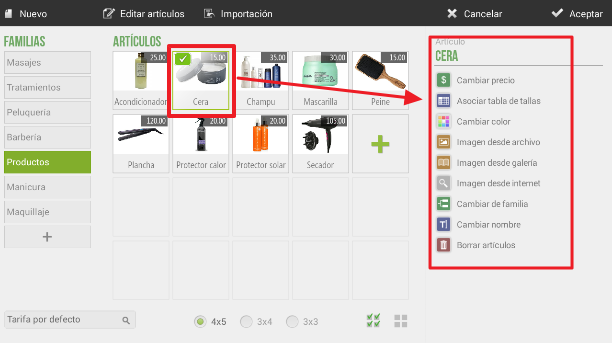
- Change price: allows you to manually change the price of the selected item.
- Associate size chart: With this option, we can add a size chart to our product or service.
- Change color: this option changes the color of the item, whether it has another color or an image.
- Image from file: you can add an image by searching for it on your device.
- Image from gallery: an image can be added from the gallery depending on the business type, which HIOPOS makes available to customers.
- Image from the internet: this option allows you to search for an image directly from the terminal's default browser. Upon selection, the Google Images page will open with the article's name. To select any of the photos, simply long-press on the desired image, and it will be set as the article's image.
- Change family: allows changing the family of the selected item. A pop-up will open with all families to select the desired one.
- Rename: allows you to change the name of the item.
- Delete article: allows deleting the article
AI Assistant
Section summary
AI can generate inaccurate information; verify the results.