Customers
You can view, modify or create new customers in the section Customers inside of Settings.
Press the button New customer in the bottom left of the screen to create a new client record

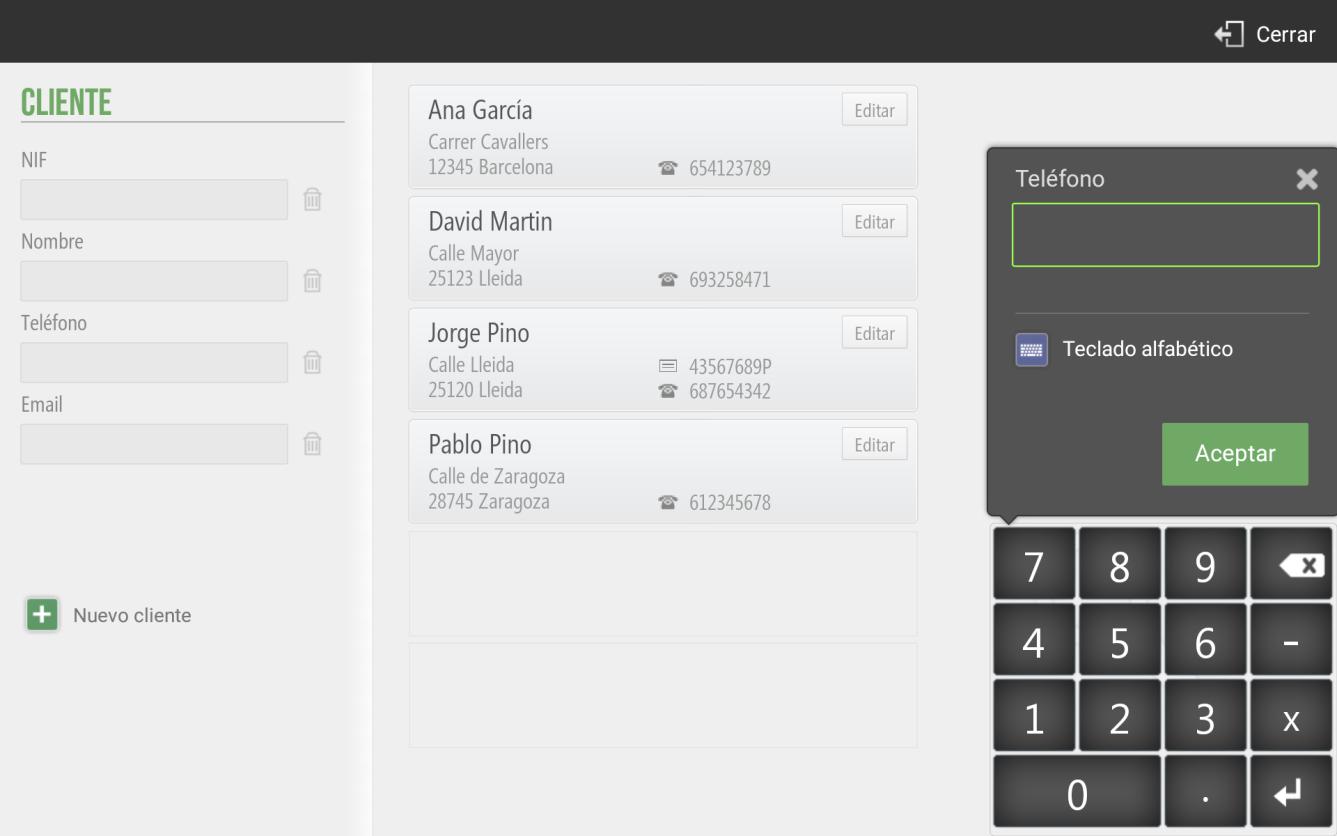
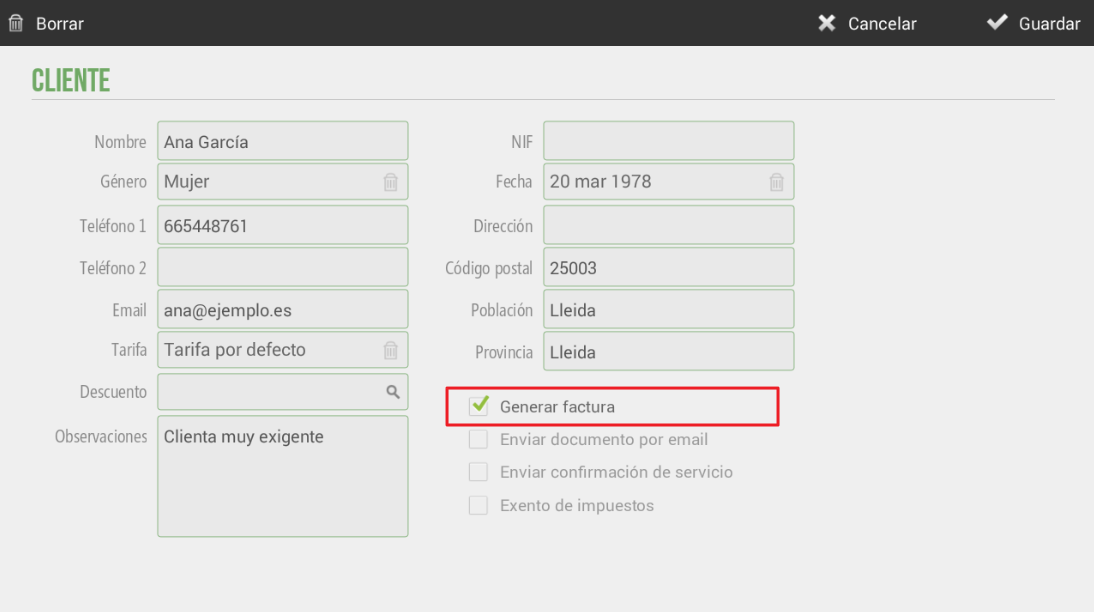
For each client, we can enter all their personal data and select the options Generate invoice Send document by email Send service confirmation And if the client is tax-exempt on the billing.
Additionally, a discount and/or a default rate can be set for a customer. This way, whenever a document is assigned to this customer, the specific rate and discount will be directly applied.
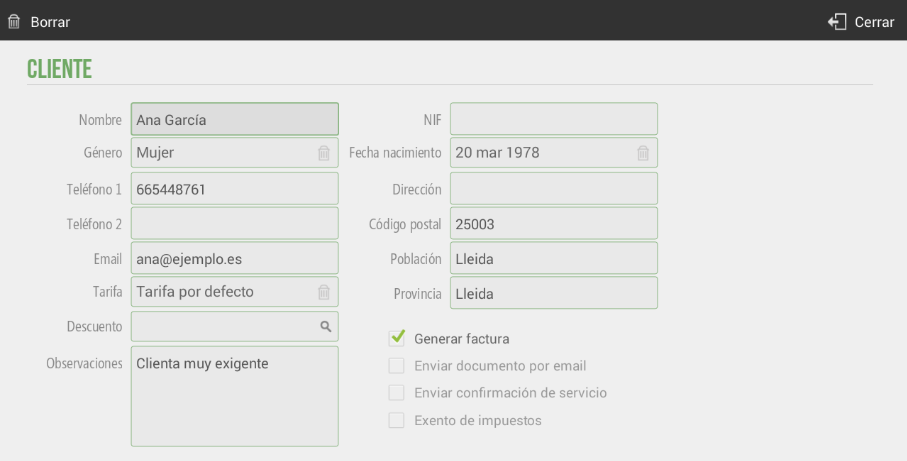
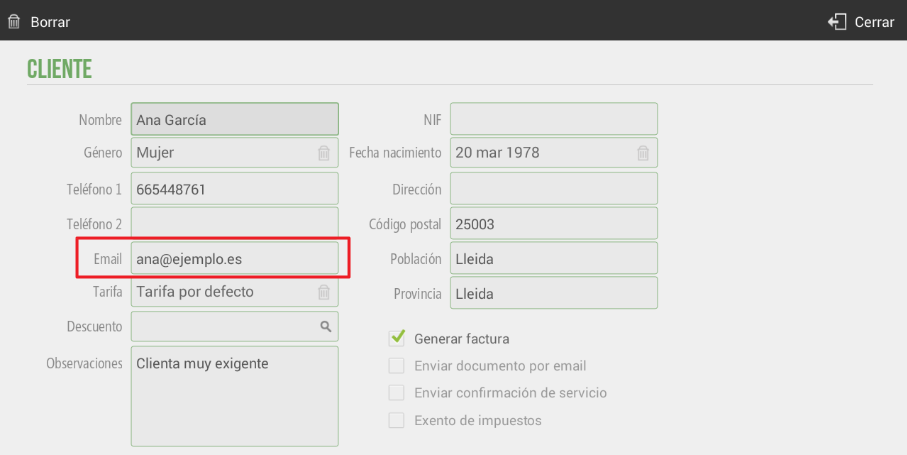
Send appointment confirmation by email
When an email address is set in the client's record, for each appointment that is scheduled, a confirmation of that appointment will be automatically sent to them (if the option for Send service confirmation).
For example, if Pedro calls our hair salon for a "Beard Trim" service and decides to have it done on February 14th at 10:45 AM, we schedule the service for that day at that time. Pedro will automatically receive the appointment confirmation in his email.
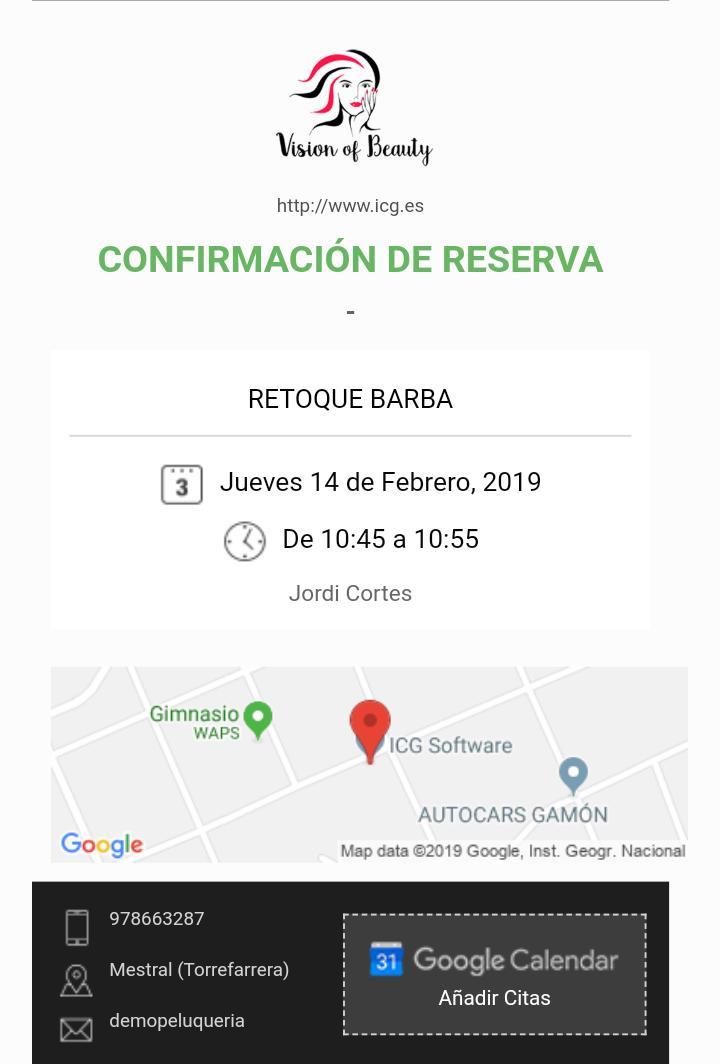
This indicates, the service, the appointment date, the duration of the service, the employee, the location via Google Maps, the establishment's details, and the option to add the appointment to your Google Calendar and synchronize it with your smartphone's calendar.
To schedule our appointment in Google Calendar, we have to select 'Add to Calendar' in the email, and it will automatically update.
Generate invoices
On the same customer data modification screen, we can enable the option Generate invoice, so every time we make a sale to this client, an invoice will be generated instead of a ticket.
Note: HIOPOS uses different numbering for ticket-type documents, for invoice-type documents, and for credit notes for tickets and invoices. You can set the series for each document type per terminal in the section Configuration Terminal
AI Assistant
Section summary
AI can generate inaccurate information; verify the results.