En esta sección
Purchases
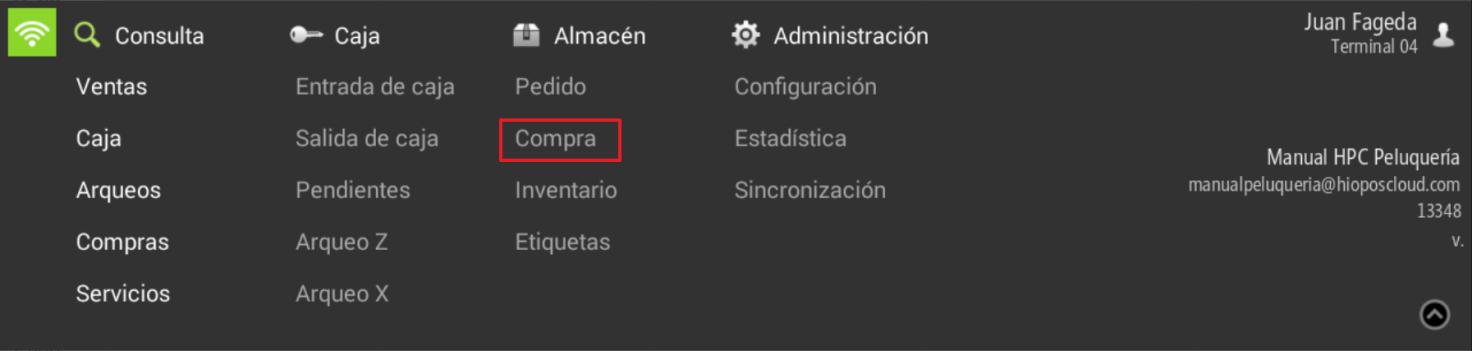
The HioPOS purchasing module allows managing product procurement. Go to the tab Warehouse and select Shopping.
Select the products you wish to stock up on, as well as the purchase quantity and its cost. The quantity you purchase will be added to the total stock we have of the item.
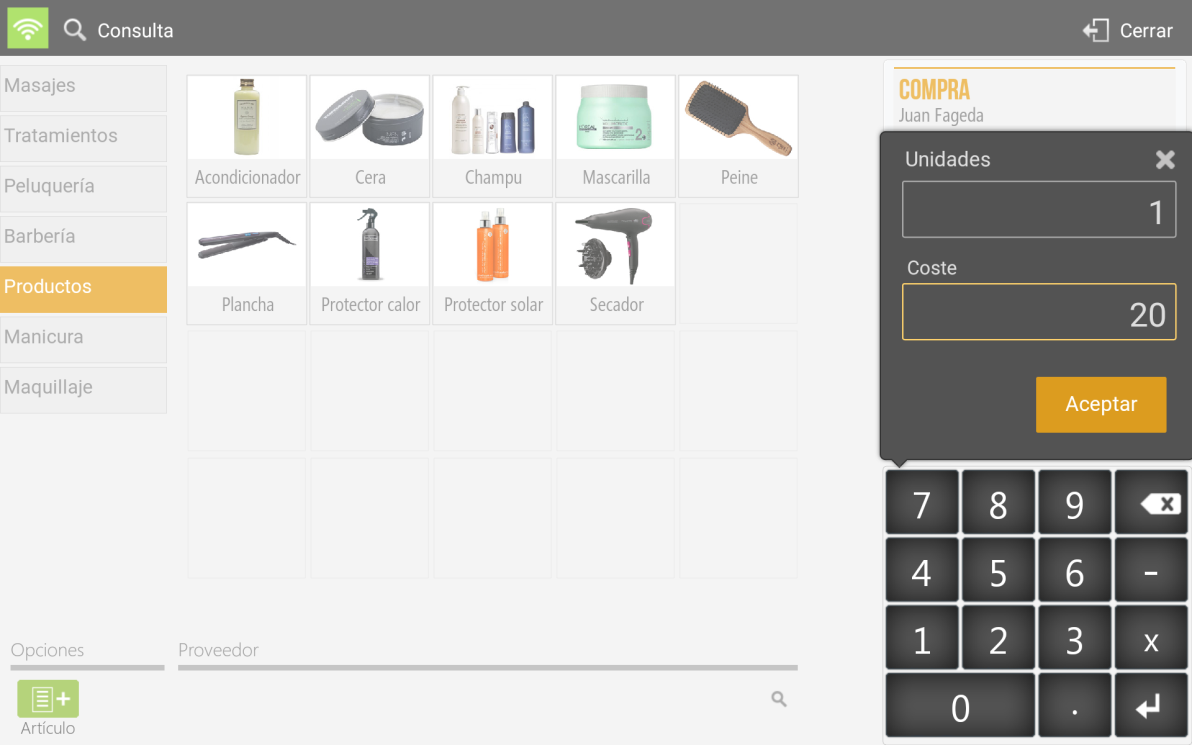
If we select one or several of the items that we have added to the receipt, we will be able to modify the Units, apply a Discount as a percentage of the price, change the Cost unit of the purchase and Delete the lines of the ticket.
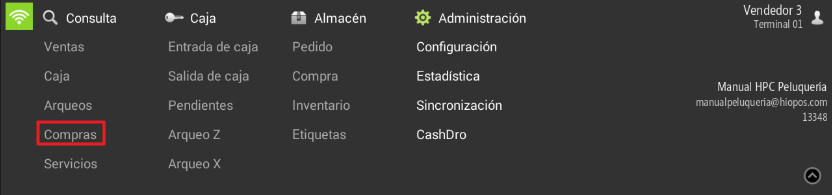
From the top menu, we can view all delivery notes for purchases made. Select the option Shopping of the menu Consultation.
Supplier purchases
In the same purchasing module, click on the box at the bottom where it says Supplier and select one from the list.
The delivery note you generate when totaling the purchase will be assigned the supplier you have selected.
Purchases from suppliers
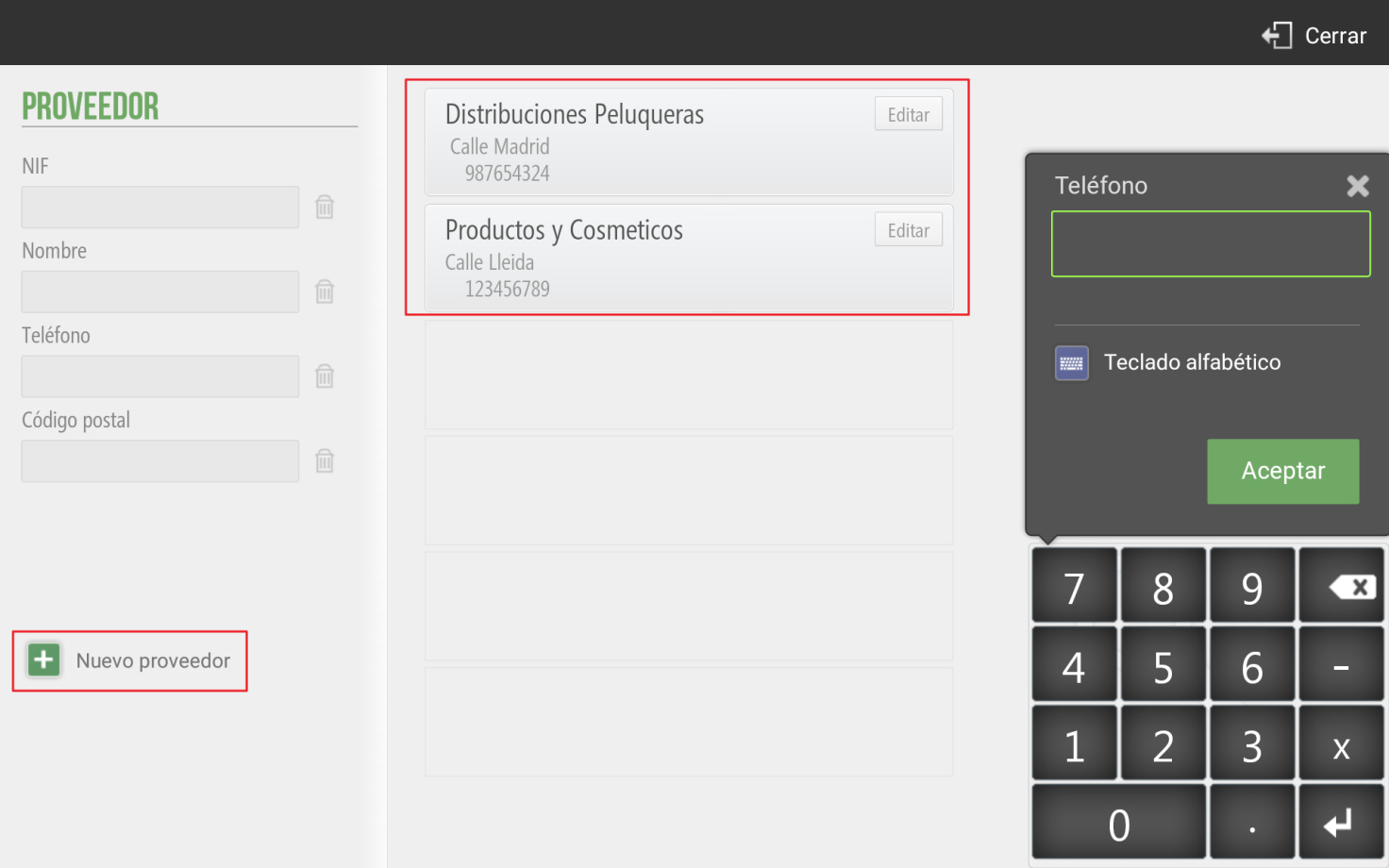
In the same purchasing module, click on the box at the bottom where it says Supplier and select one from the list.
The delivery note you generate when finalizing the purchase will be assigned the supplier you have selected.
HioPOS Cloud does not allow the purchase of services, meaning items marked as out of stock, in the Item Editing section of Configuration.
Purchase delivery note inquiry
Search for the purchase delivery note by Number or filter by Cashier, Date, Supplier, and Seller. If you wish, you can reprint the documents one by one, or process a credit for a purchase delivery note by selecting the document.
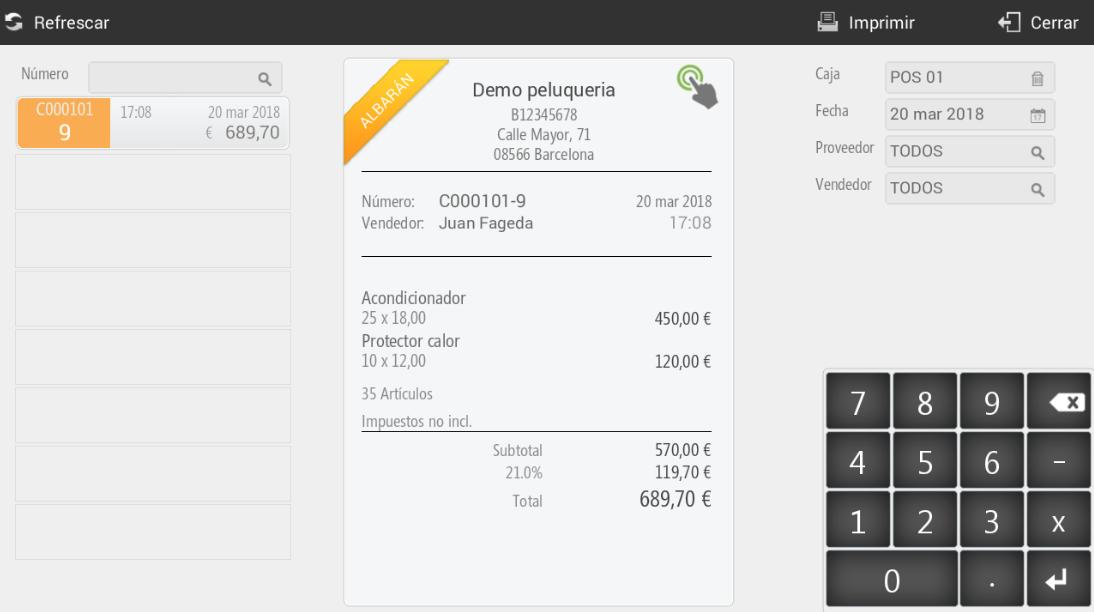
By selecting the purchase delivery note, partial or full payment can be made.
AI Assistant
Section summary
AI can generate inaccurate information; verify the results.