En esta sección
Orders
PortalRest enables you to configure how online orders work in the Orders section. We can configure seven sections: general, schedules, delivery, pickup, observations, legal terms, and payment.
In the first section, under General, we can enable and disable orders, configure whether menu access requires authentication, or if customers can be authenticated remotely.
1. Requires authentication to view letter: Checking this option means that there will be no anonymous registrations; all will require access authentication.
2. Accept orders only when there is connectivity with the POS.: having this option activated means that orders can only be placed on PortalRest when the POS is open.
3. Authenticate clients remotelyBy selecting this last option, the system will connect to a Web Service that will store the client's data and automatically authenticate the user to allow access to the menu display.
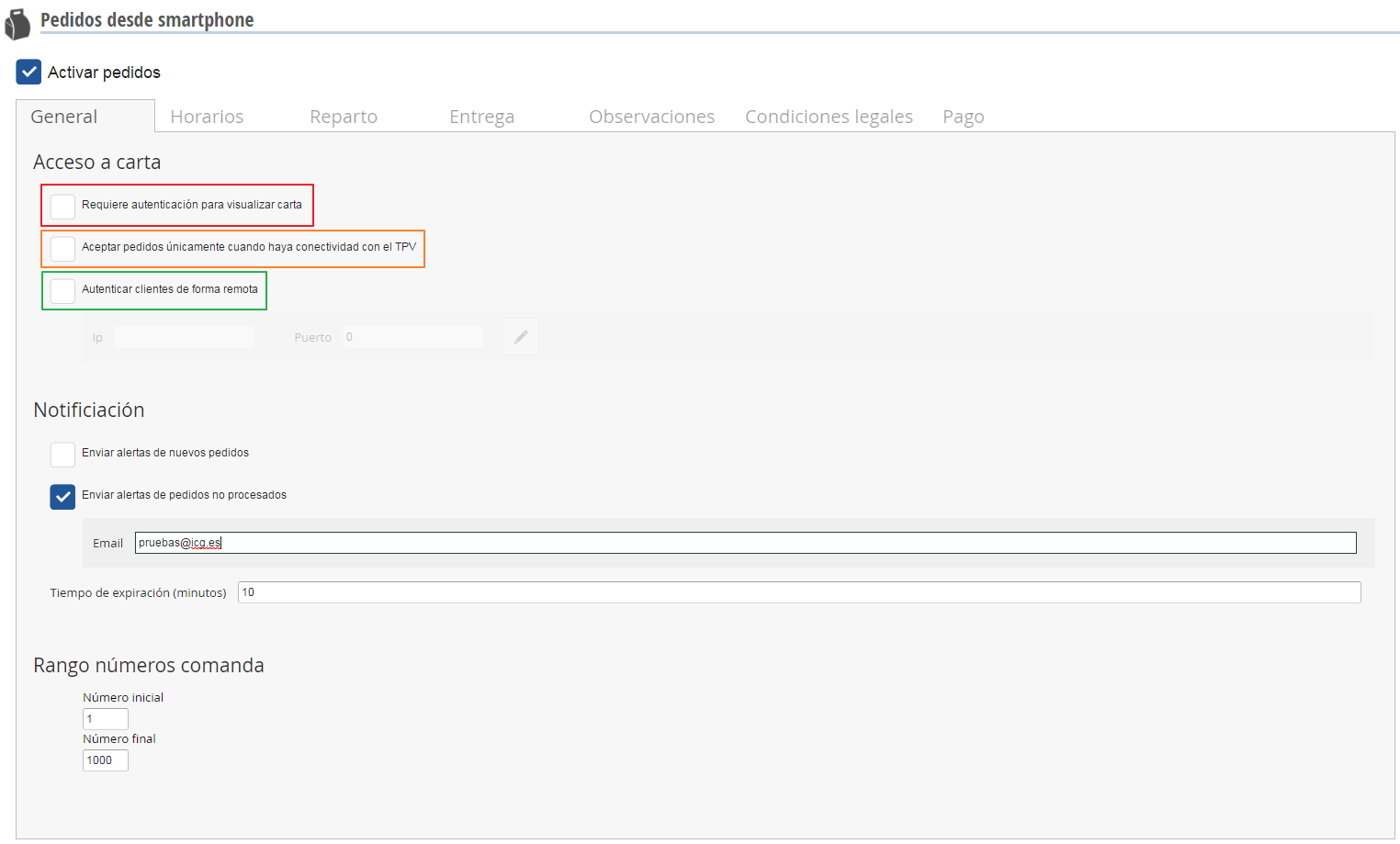
From this screen, we can also configure the sending of new order alerts. By selecting this option and entering our email address, this email will receive alerts for new orders generated by the client. We can also activate/deactivate the sending of unprocessed order notifications, by specifying the minute threshold and the email address that will receive the message.
This feature allows you to receive an email alert if incoming orders are not being downloaded to the restaurant. This could be because the terminal configured for downloading is not switched on.
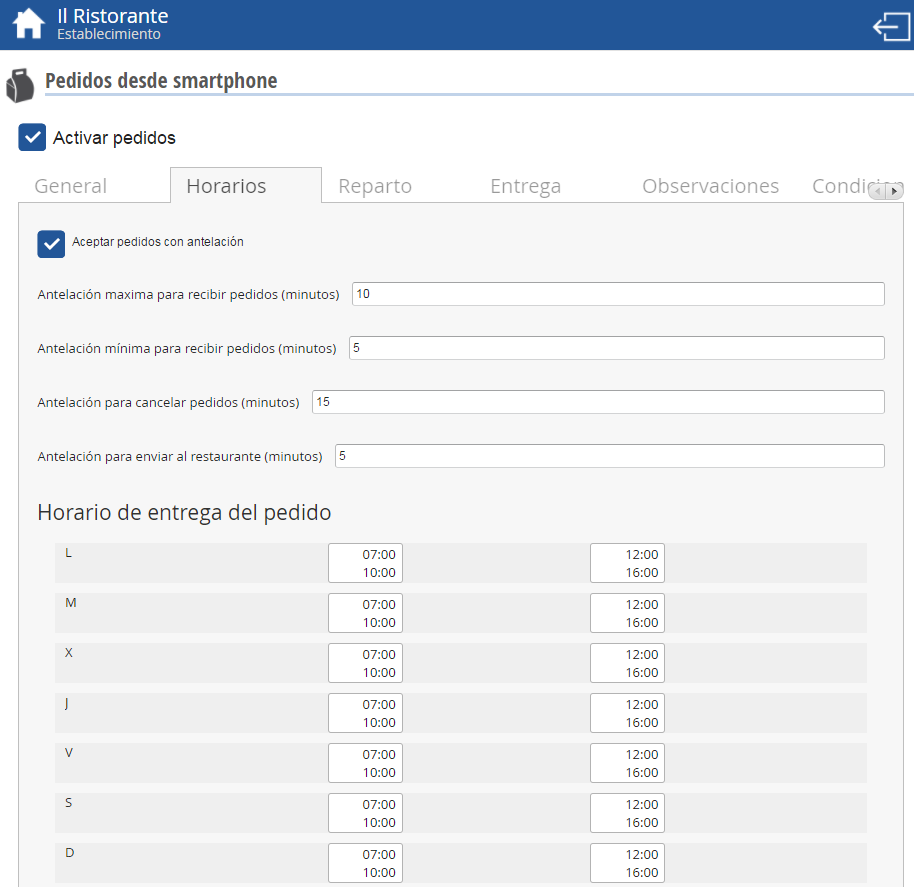
In the Schedules option, the days of the week and time ranges during which orders are accepted are configured.
On this screen, we can enable/disable whether we want to accept advance orders. This will allow us to accept orders at a specific date and time. We can also specify the maximum advance minutes for receiving orders; the minimum advance minutes; the advance notice, in minutes, for canceling orders; and the advance notice, in minutes, for sending to the restaurant.
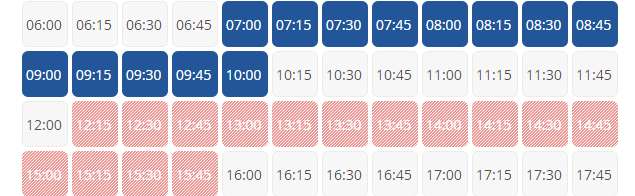
In the second configuration section, PortalRest allows us to choose the order delivery schedule, which can be selected via the previous selectable option.
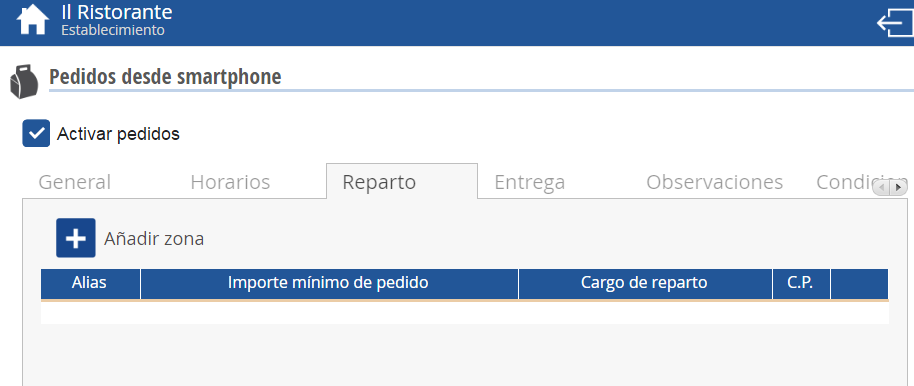
In the Delivery section, we can add the different zones where the restaurant delivers orders. When we select Add zone, we can add an Alias to the zone for easy recognition, the minimum order value required for processing, the delivery charge – if any – and the postal code of the zone.
In the Delivery section, the accepted service types will be configured. If the option of delivery is enabled, the user must also enter the delivery address when confirming the order from the website.
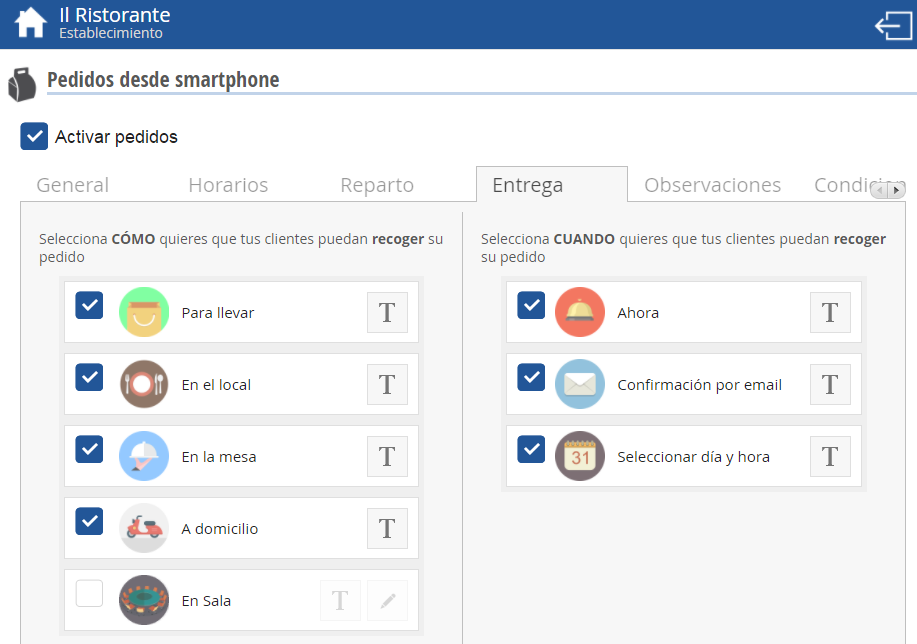
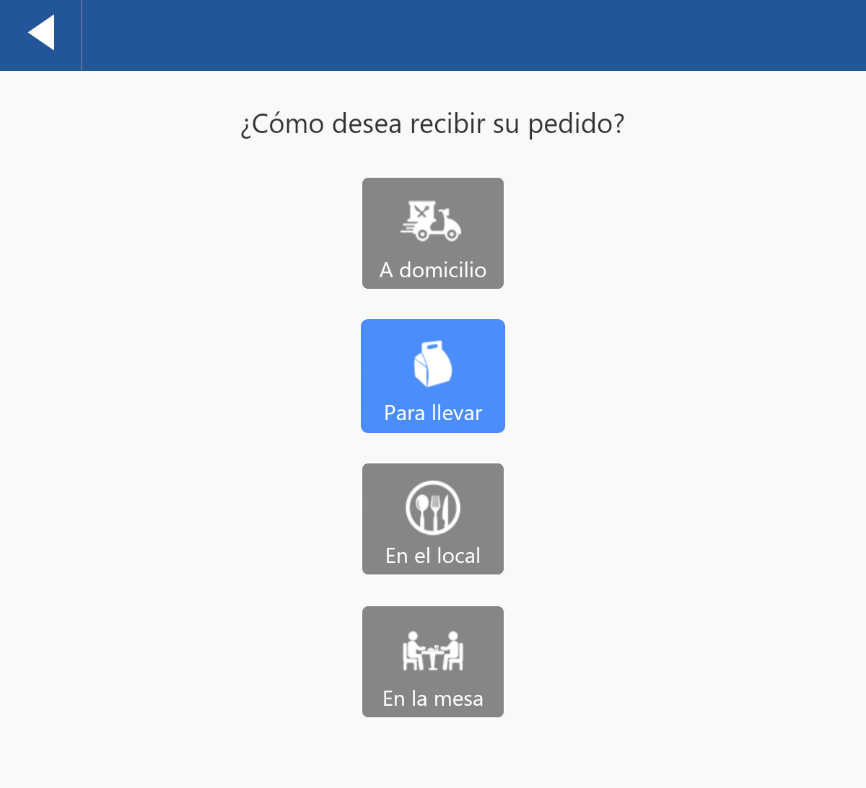
From the delivery option, we can select how we want our customers to receive their order. We can choose between: takeout, dine-in, at the table, delivery, or in the lounge.
We can also configure when we want our customers to be able to pick up their order.
1. NowThe order is sent immediately to the restaurant. If the order is attempted outside of the order acceptance hours, it will not be completed.
2. Email confirmation. The customer confirms the order but does not send it to the restaurant yet. The customer receives an email with a confirmation link. The order will be sent to the restaurant when the customer clicks on the link received by email.
3. Select day and timeThe customer selects the date and time of delivery for the order, taking into account the days of the week and time slots configured in the Schedules section.
Orders placed for delivery on a specific date and time are sent directly to FrontRest, without the need for confirmation, a few minutes in advance according to the configuration made in PortalRest. For this, it is necessary to update the WSRestToPortalRest service.
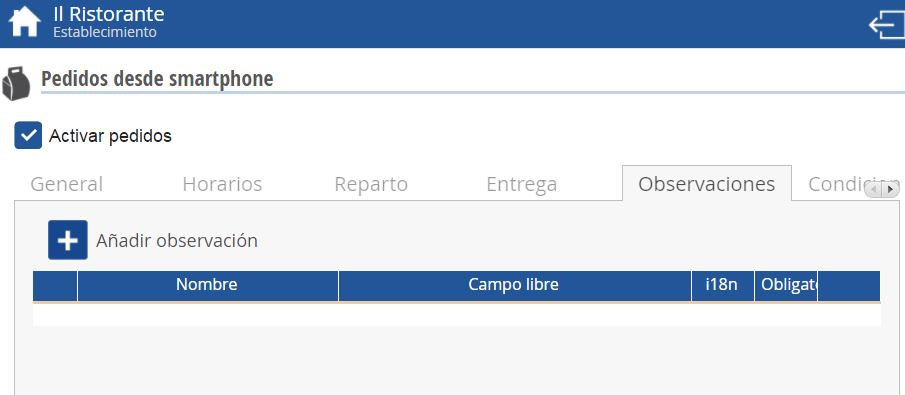
In the Observations section, you can add comments/observations that will appear when the customer places the order. You can add as many observations as you want, and also create them in different languages (those configured in the PortalRest Initial Configuration).
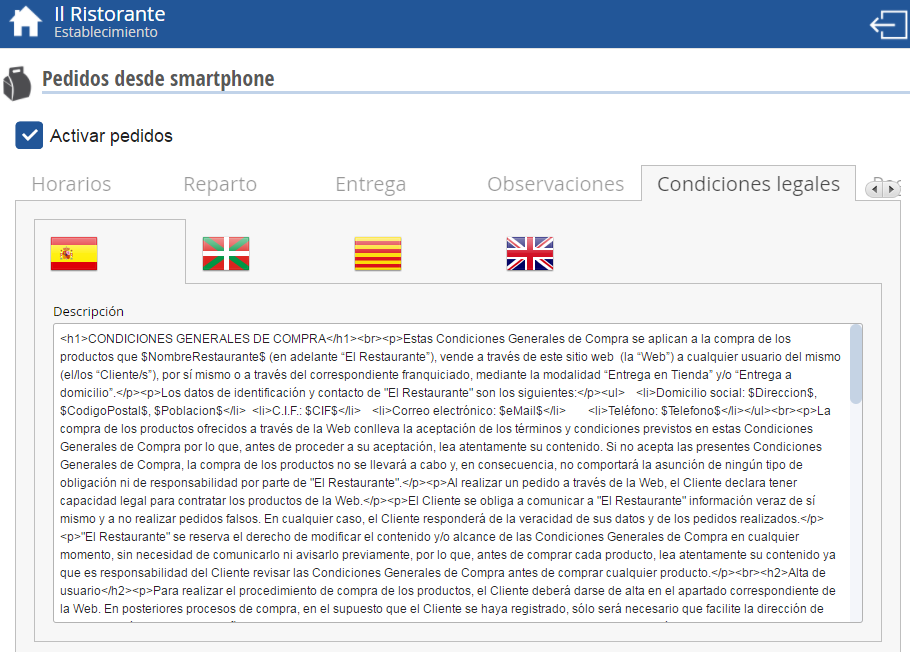
In the Legal Conditions section, the legal conditions that the customer will have to accept when finalizing the order are indicated. These conditions can be written in the different configured languages.
On the Payment tab, the available payment methods will be displayed. These are configured in the Cloud License portal (CloudLicense). If you do not have access, you must contact ICG Software to enable the available options for you.
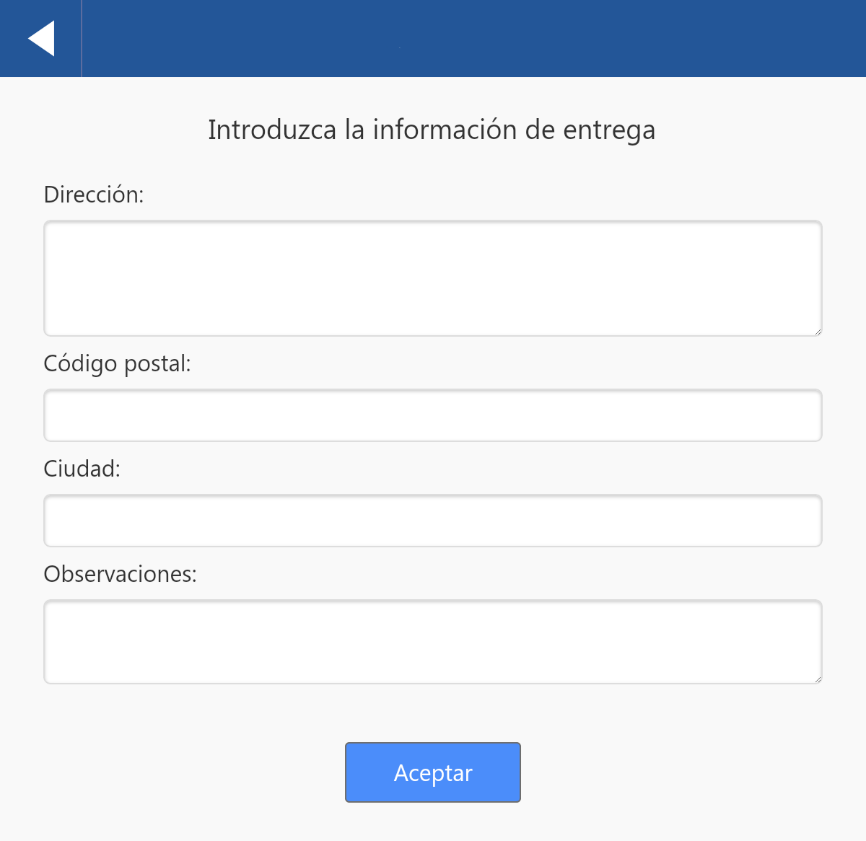
If the restaurant has enabled the 'Delivery' option, the user, upon selecting this option, will need to provide; address, postal code, city, and observations (if applicable).
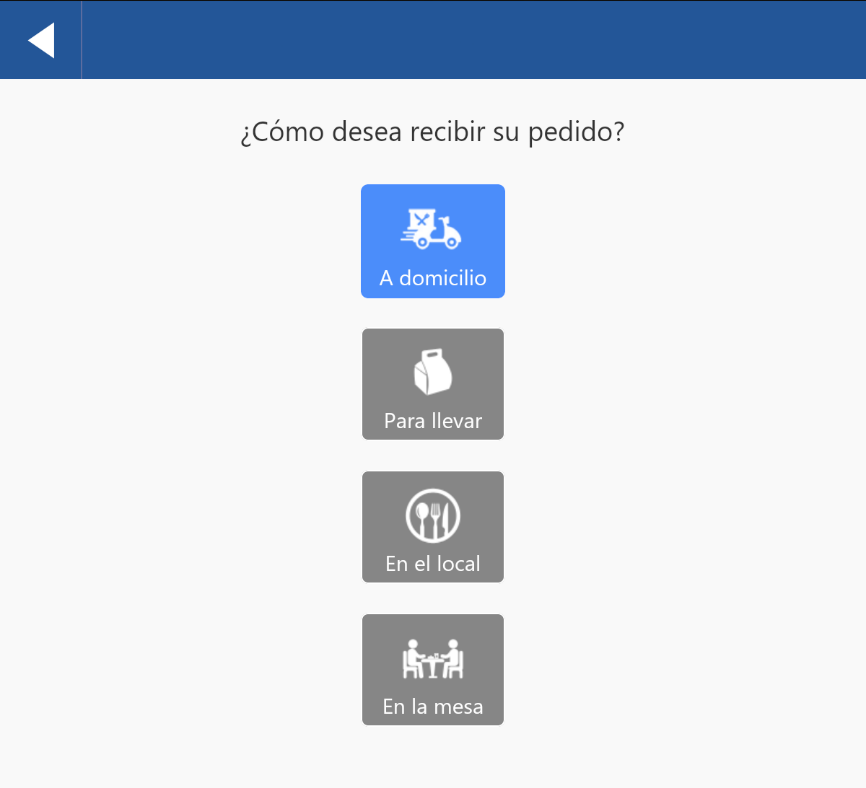
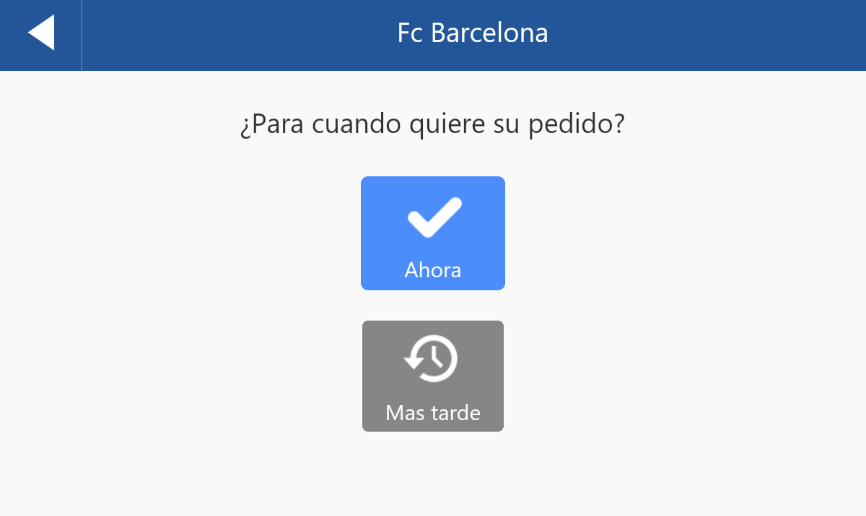
In the order pickup or consumption options: for takeout and dine-in, the user will have to select when they want their order, being able to choose between: now or later. This way, if we select Now, the order will be printed on the kitchen printers and the preparation procedure will begin. If the final customer does not want to consume the order immediately, they will select later and will have to confirm their request at the moment they want the preparation procedure to start.
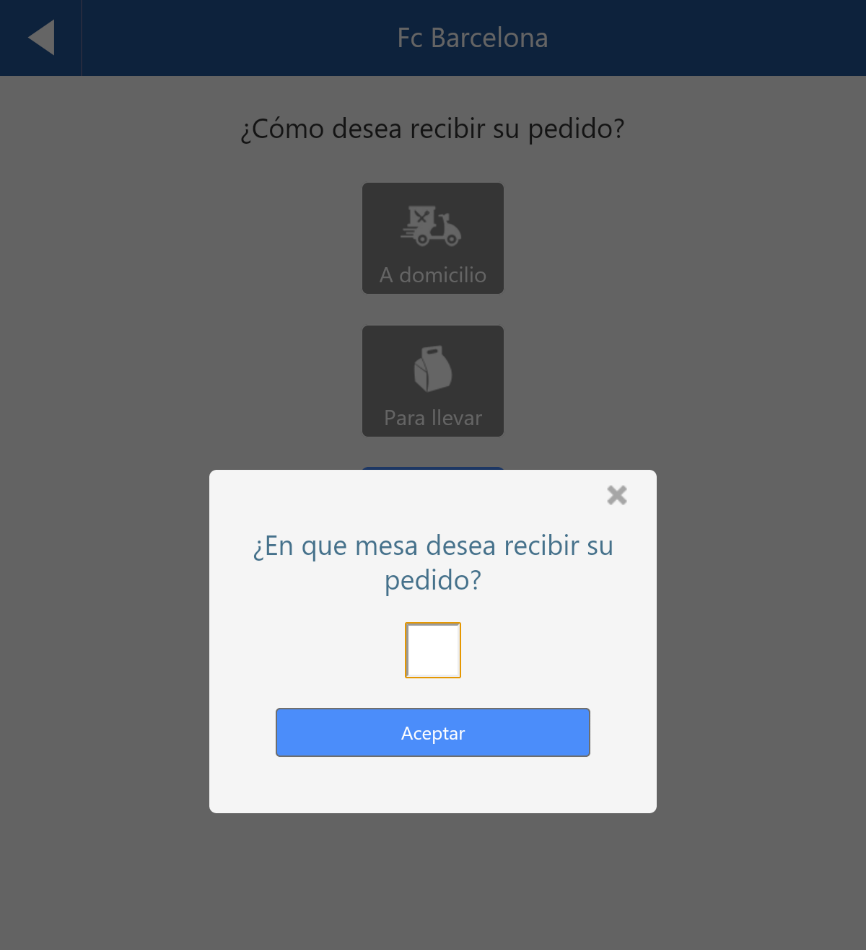
If the establishment allows the order to be delivered directly to the table, the user will have to provide the table number where they wish to receive their order.
AI Assistant
Section summary
AI can generate inaccurate information; verify the results.