En esta sección
Change of series and terminal configuration
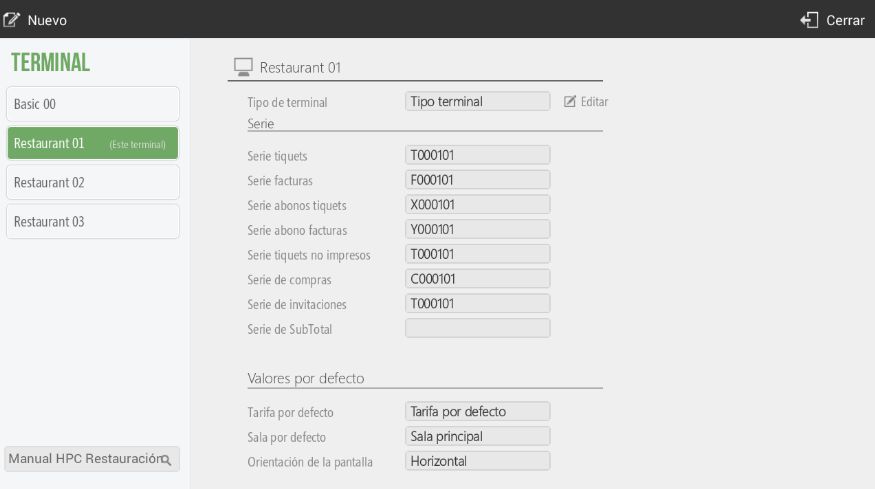
The series refer to the initials of the serial number of each document issued by HioPOS Cloud. These are used to distinguish between documents. To modify the series, go to the Terminal option in Configuration.

There you can freely modify the series, as long as it is not already in use. Select another terminal on the left side to modify it from the current terminal.
The series I use will appear in the documents followed by a hyphen and the document number, always starting with number one and incrementing by one.
In Spain, in accordance with the provisions of Article 6 of the 2012 Invoicing Regulation, all invoices and their copies must contain certain data or requirements. One of these requirements is the number and, where applicable, series. The numbering of invoices within each series must be correlative. Legislation allows invoices to be issued using separate series, maintaining the obligation to issue separate series in cases of invoicing by the recipient or a third party, in the case of corrective invoices, and in cases of deliveries due to administrative and judicial enforcement procedures.
In Configuration, Terminal The user can configure the default Rate that the terminal will use, the default room where it will operate, and the screen orientation. The latter is especially useful when mobile devices are used as handhelds.
In Configuration, Terminal We can assign a CashDro to a terminal by providing the CashDro's IP address, username, password, and administrator terminal. The "Link with CashDro" option must be activated in CloudLicense, Terminal modules. To activate this option, you will need to contact your distributor

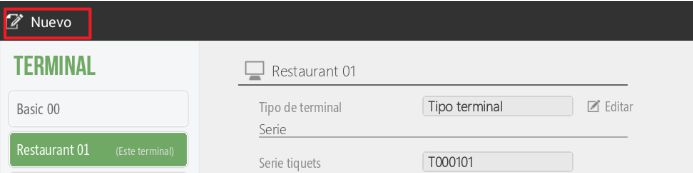
A very important point on this screen will be the "New" option, through which we can create new terminals.
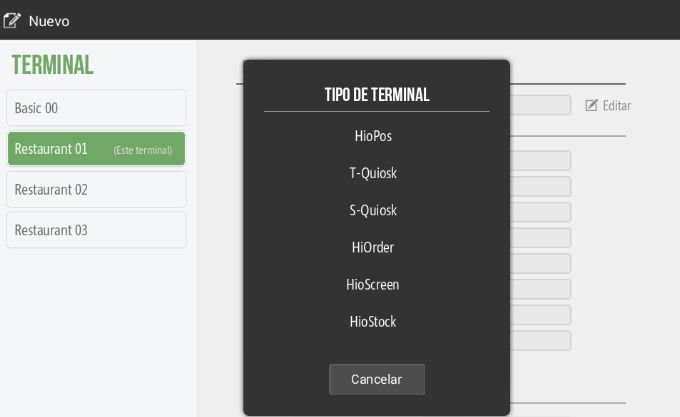
As we can see in the following image, we can very easily create a new Hiopos, T-Quiosk, S-Quiosk, HiOrder, HioScreen, or HioStock terminal. We can create the aforementioned terminals without the need for CloudLicense.
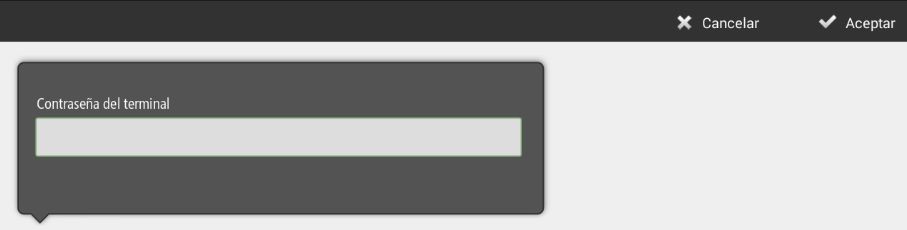
When creating a new terminal, we will have to enter its login password.
Also, we will need to enter our promotional code as a Partner.
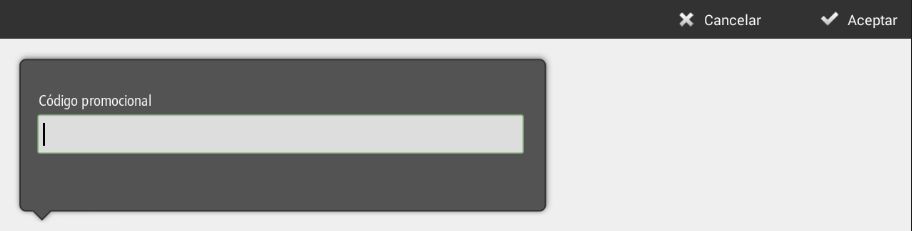
The Promotional Code will allow associating the installation with the installer who carries it out, in such a way that by entering this code, the new terminal will already be associated with the Partner The corresponding one. If you do not have a promotional code, you must request one.
In the following section, the configuration of terminal types is detailed.
AI Assistant
Section summary
AI can generate inaccurate information; verify the results.