En esta sección
The sales screen
The previous section explains the user interface of the sales screen. Next, the different options offered by the system for modifying the ticket header or lines during the sale will be explained.
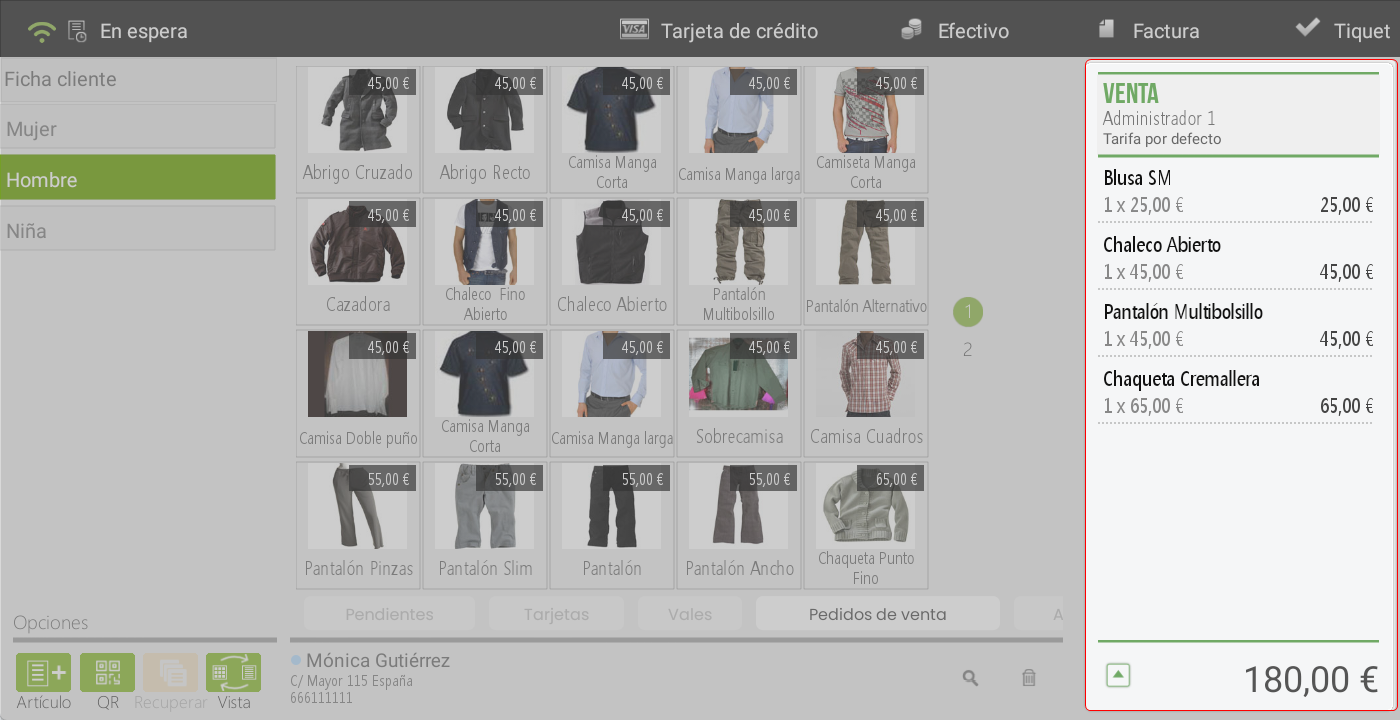
Changes to ticket lines
Upon clicking on one or more items from the sale, the will be displayed options available for ticket modification. The selected lines will be highlighted in green, indicating that they are active for editing. It is important to note that, according to the permission level assigned to each user, not all functionalities will be visible.
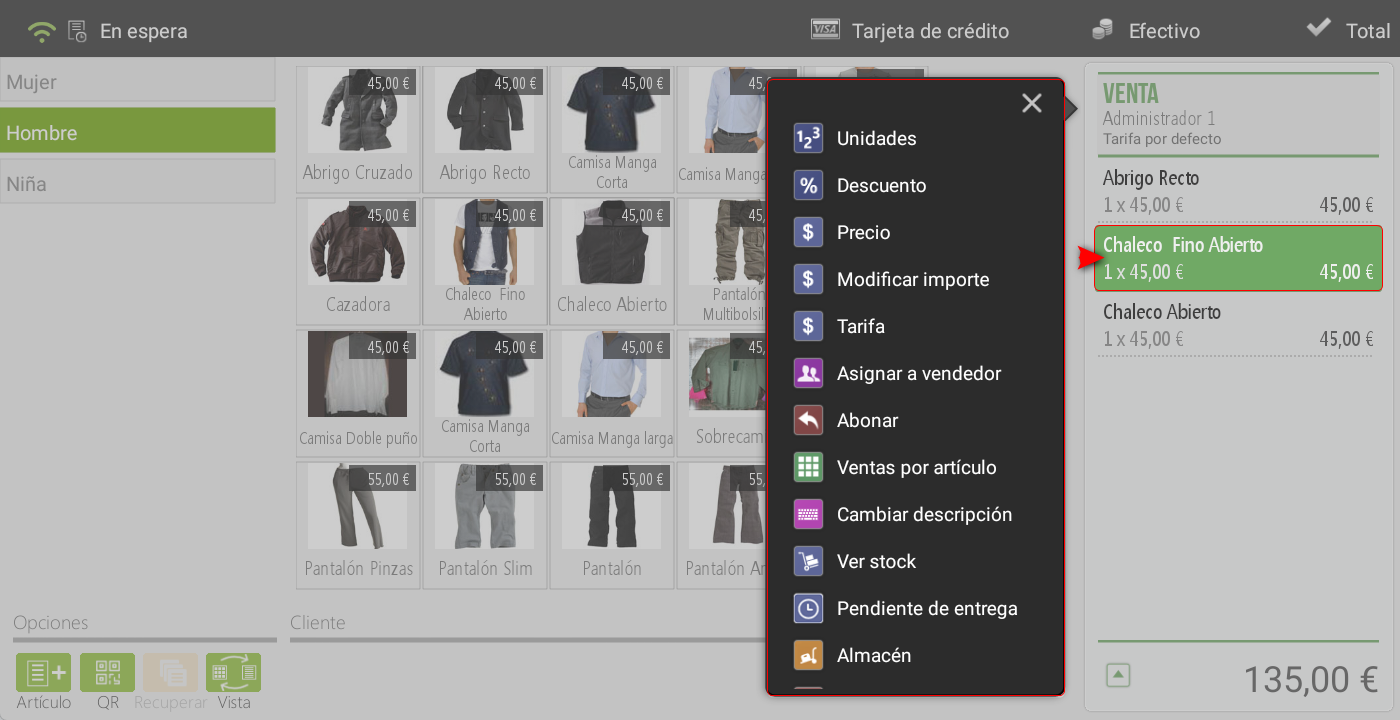
The available actions are detailed below:
Units: allows adjusting the number of units of the selected item.
- Discount: It enables applying an exclusive discount on the selected line or lines. When selecting this option, a PopUp is displayed with the Discount Reasons. By default, the program includes a 'Commercial Discount' that allows you to enter any desired discount percentage. In the section of Administration > Configuration > Discount reasons, new designs can be created according to the needs of the establishment.
Price: enables editing the item's unit price.
Modify amount: recalculates the unit price based on the units, when modifying the total amount of the line.
Tarifa: offers the option to assign a different rate to the document line.
Assign to salesperson: is used when the seller associated with the item differs from the employee responsible for processing the payment.
To pay: allows payment for the selected items. These will appear in red as negative lines reflecting the corresponding amount.
Sales by item: displays sales statistics specific to the selected item.
Change description: allows modifying the item name on the sales line without affecting the original name in the database.
View stock: check the availability of the item in the warehouses associated with the establishment.
Pending delivery: marks the selected items as pending delivery, identified by a clock icon. Subsequently, upon re-selecting the line, the option to register them as delivered is enabled.
Warehouse: allows changing the origin warehouse of items. For example, in a hardware store with a gardening and DIY warehouse, stock will be deducted from the selected warehouse and not from the default one.
Delete: removes the sales line without leaving a trace on the receipt. However, in the section Administration > Statistics, will be recorded in L's reportErased lines.
Modifications to the ticket header
By tapping on the top or header of the ticket, a dropdown menu appears with options to modify the ticket as a whole:
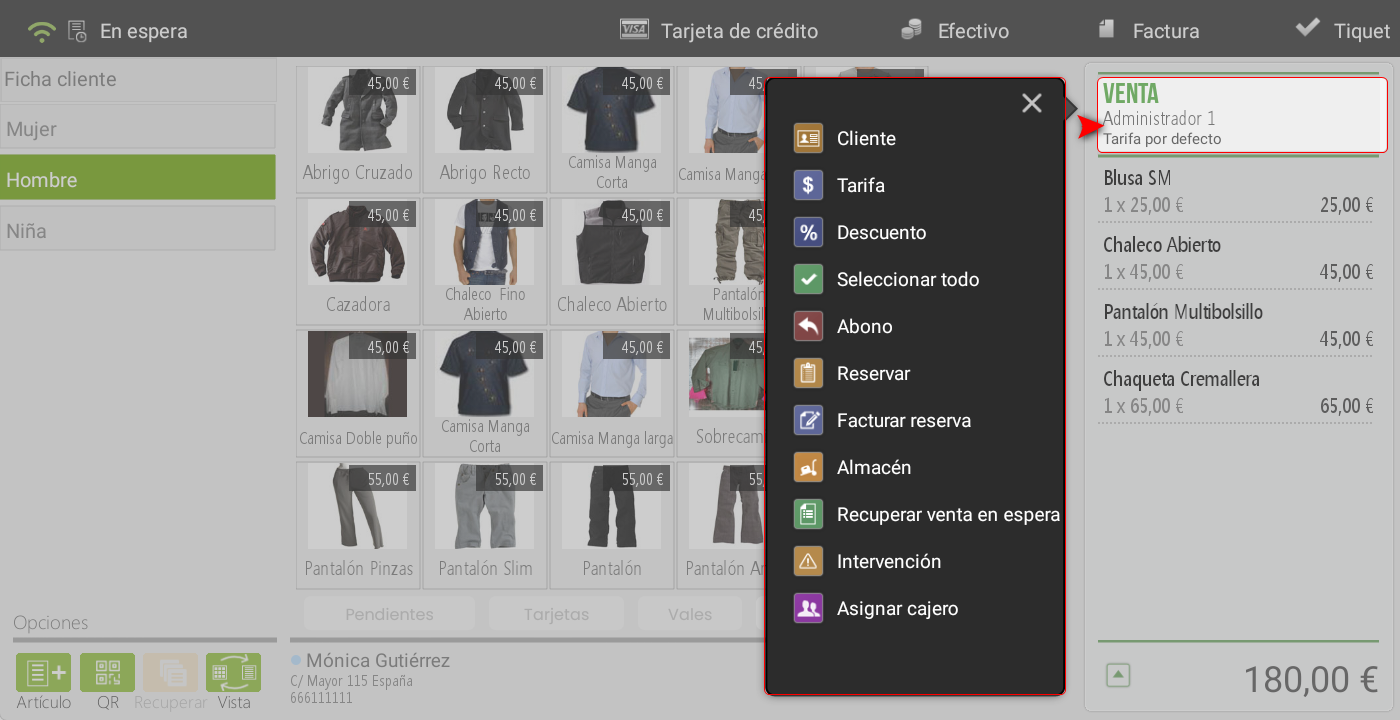
Upon accessing the ticket options menu, the following functionalities are displayed. Depending on the user permissions, some of them may not be unavailable:
Client: allows assigning a client to the sale.
Tarifa: modifies the rate applied to the entire ticket.
Discount: upon selecting a discount reason, it will be applied globally across all lines, affecting the taxable base when the ticket is totaled.
Select all: select all ticket lines for bulk modification. When you do so, the menu reopens, showing only the options available for collective application.
Pay: allows payment for an entire ticket or a specific item by scanning it.
Book: enables reserving one or more ticket items. Activating this option opens a new window where items can be manually selected, either by dragging them from left to right or via the option Book everything. Once the selection is confirmed, the button is pressed Book (located in the bottom right of the screen). Next, it is possible to make an advance payment on the reservation.
Invoice reservation: allows to add an order or reservation to the sale, either by scanning the document or by selecting it manually.
Warehouse: change the sales warehouse for all items on the ticket.
Recover pending sale: adds a previously held ticket to the current sale. If the sale already contains items, those from the recovered ticket will be added to them.
Intervention: in cases where an employee does not have sufficient permissions, they may request the intervention of an authorized employee to complete the operation.
Assign cashier: allows assigning a different cashier than the one who logged in on the device.
AI Assistant
Section summary
AI can generate inaccurate information; verify the results.