En esta sección
Assign sales to a customer
Hiopos allows assigning customers to sales, creating invoices, and tracking them.
You can assign a client to a sale from three different places:
- Pressing The she-wolf at the bottom center of the sales screen (in the customer section).
- Clicking on the ticket header on the sales screen.
- Tapping on the top of the ticket displayed on the total screen.
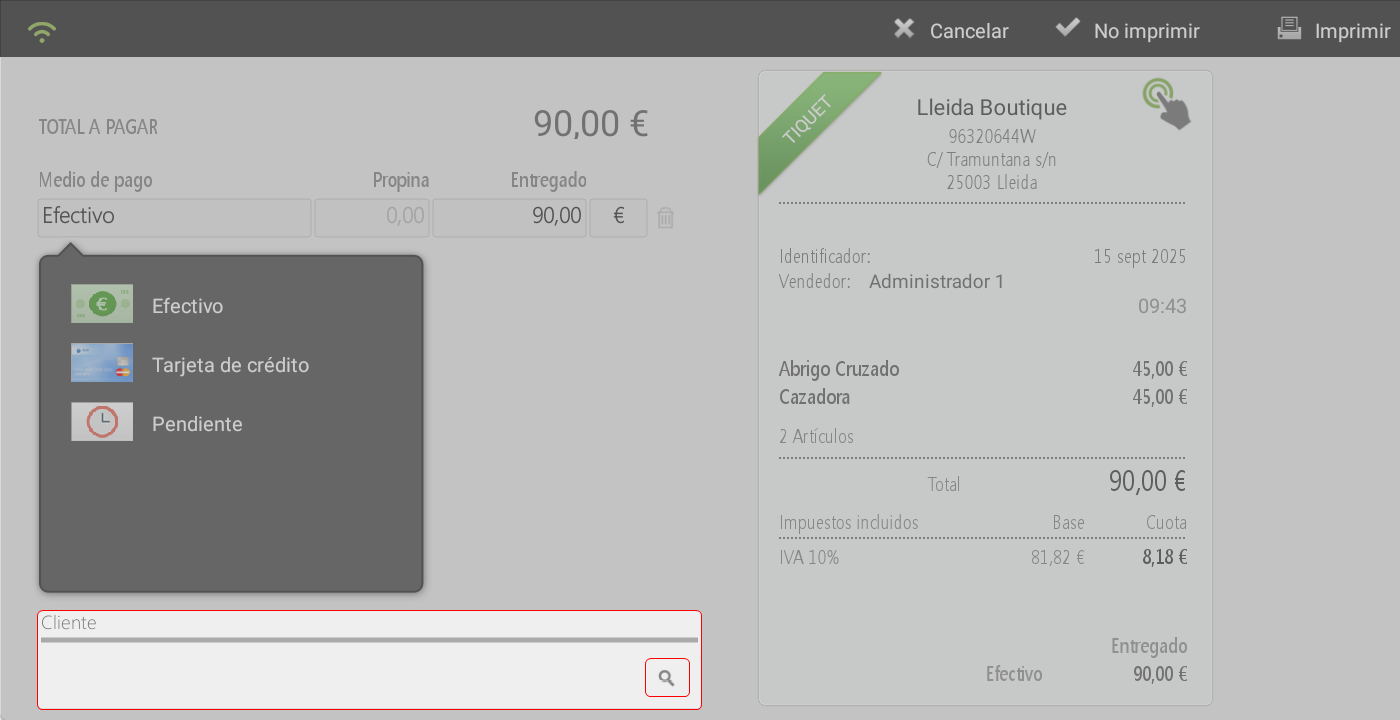
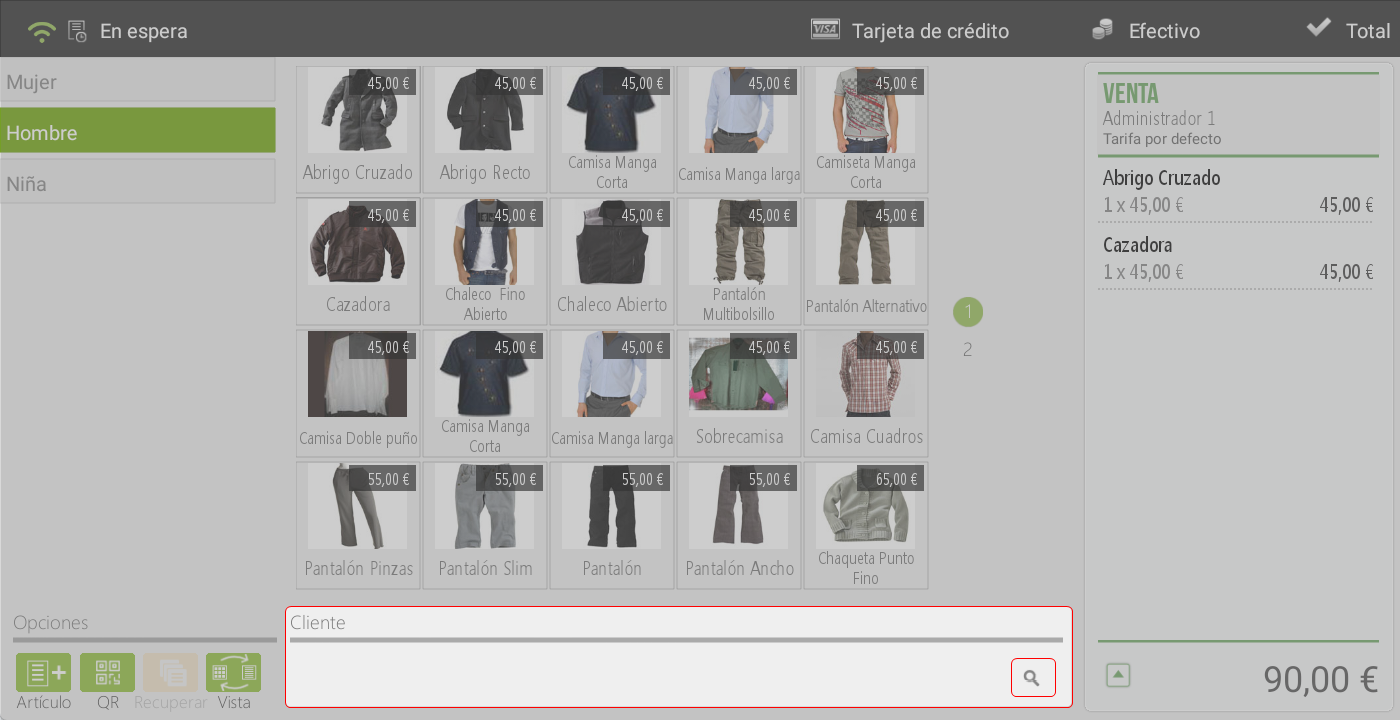
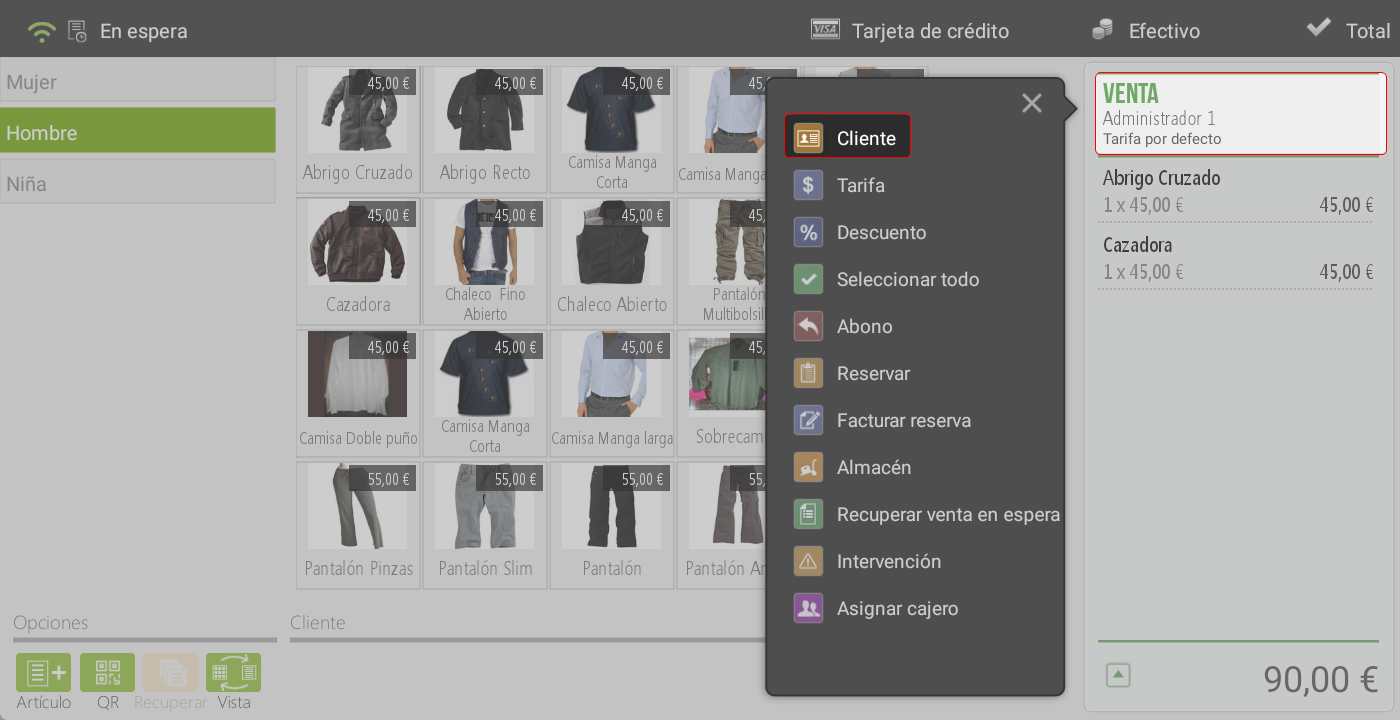
In all three cases, the Customer Inquiry screen will be displayed, where customers can be searched for by entering the phone number via keyboard or using the search tool by NIF, Name, Phone, Email, or address.
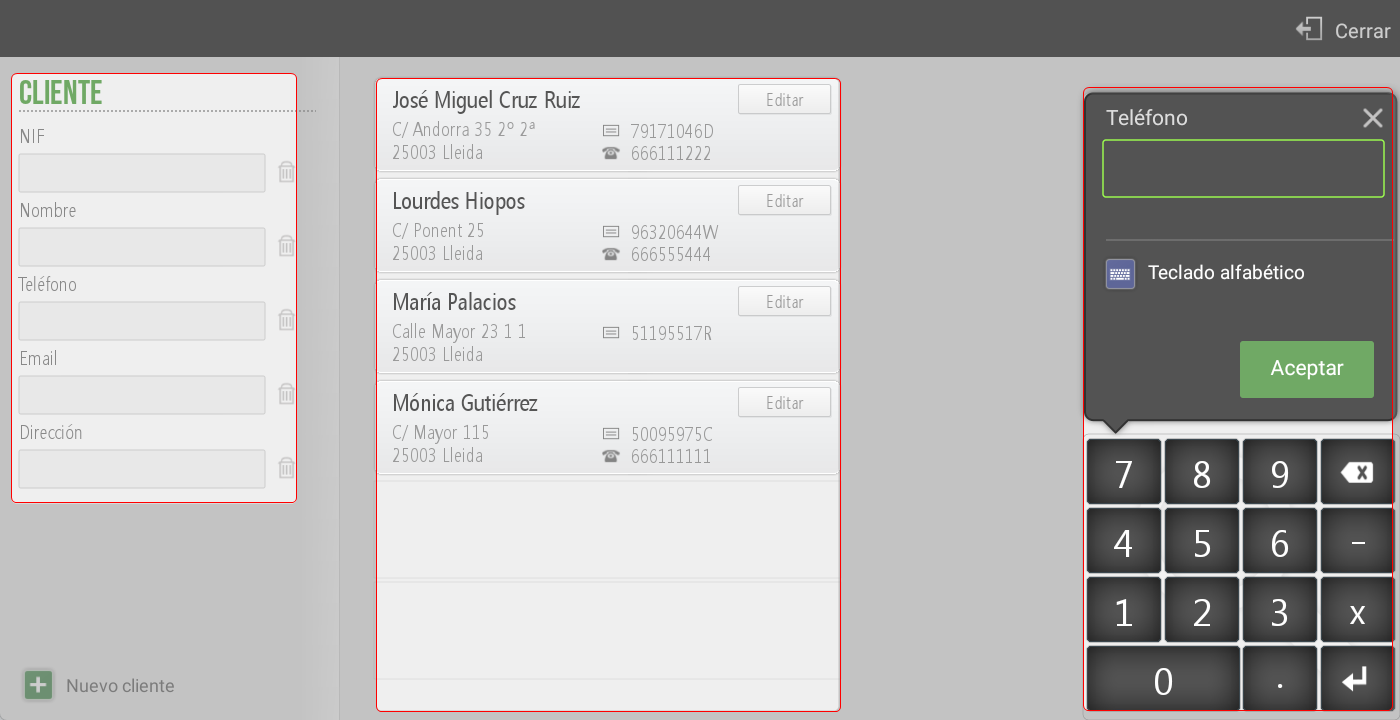
You can also view, modify, or create new clients in the section Customers inside of Settings.

Pressing the button New client In the bottom left of the screen, the tab for creating a new client will open.
The client's file is separated into three tabs or sections. Basic Information, Conditions, and Directions
Basic client data
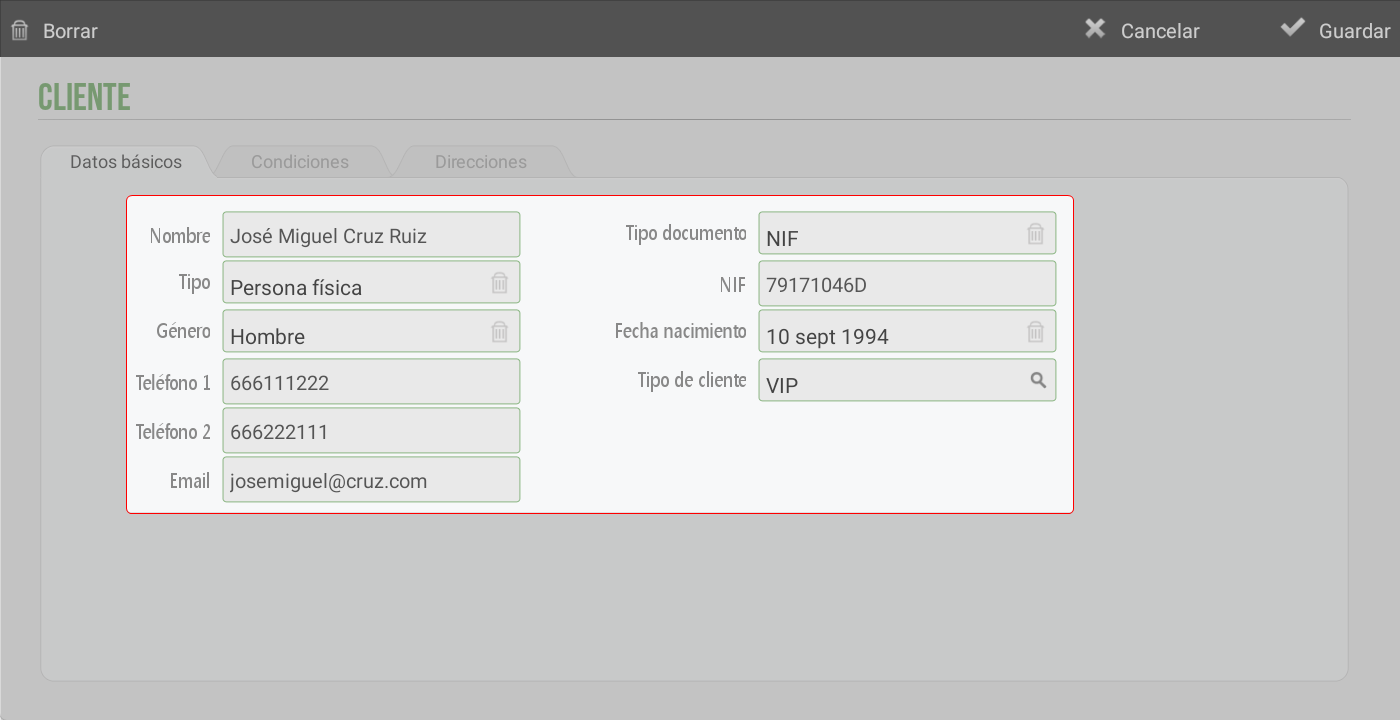
On the first tab, the client's personal data is added:
Name and last names
Type: Whether it is a natural person or a legal entity.
Genre: Male or Female, it can be left blank if it is another gender or if the client does not wish to define it on their record.
Phone 1 y Phone 2You can add 2 customer phone numbers if desired.
Email: The email is added; if more than one email is to be added, they must be separated by (;).
Type of document: Tax ID, Tax ID / Intra-community operator, Passport, Document issued in country of origin, Certificate of tax residence or Other document.
Tax Identification Number: The NIF number or document type to be used.
Date of birthIt is useful to have the date of birth so we can run promotional campaigns or birthday discounts.
Customer type: If the client needs special attention, whether they are an Employee, Standard client, or VIP.
Customer Terms
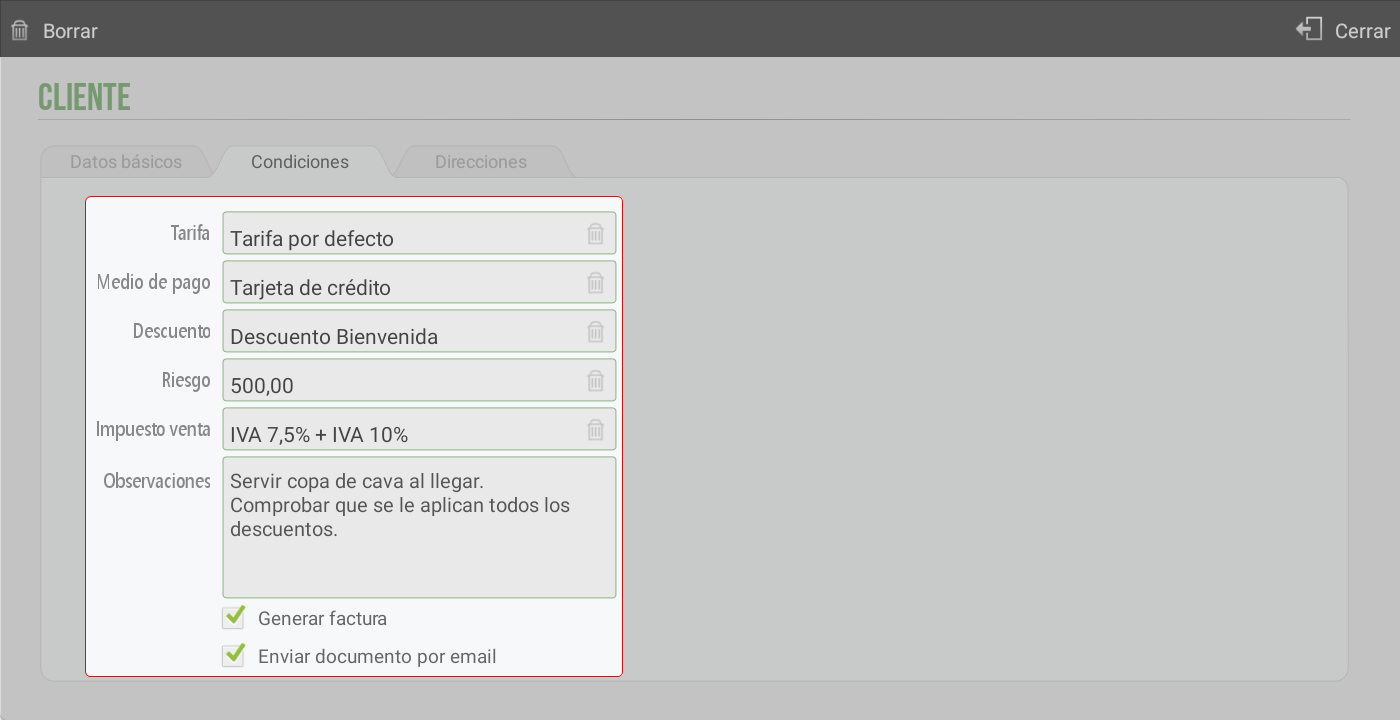
In this tab, the specific conditions for this client will be added.
TarifaIf this customer is going to use a rate different from the establishment's, it will be defined in this box.
Method of paymentThis option allows assigning a default payment method to a specific customer. Once configured, this method will be applied automatically on the total screen when generating a sale. However, during the payment process, the user can manually select another payment method without affecting the default configuration assigned to the customer.
Discount: One can configure a Default discount reason for each customer. Upon finalizing the sale, this discount will be automatically applied to the total ticket amount.
Risk: Allows assigning the customer's risk amount. It is necessary to have configured in Terminal type > Check customer riskThe employee with the administrator profile has active permissions to accept or reject the client's excess risk. In subsequent sections, the client risk options will be explained.
Sales tax: A default tax can be assigned to the customer.
ObservationsIf a client has special needs or something to note, it will be added in this box.
Generate invoiceWhen this checkbox is active, an invoice is automatically generated for the customer upon ticket completion.
Send documents by email: When generating a document, it will be sent by default to the client's registered email address. If, when consulting a document, the option is included Send by email, the email address associated with the client's record will automatically be displayed. Before sending it, you will have the option to preview the email, modify the destination address, or add additional addresses.
Tax-exemptIf the customer is tax-exempt, this checkbox must be activated.
Apply cascading tax: By default, with the checkbox active, the cascading tax will be applied to the customer.
Client Instructions
A customer can have more than one address, for example, for home deliveries.
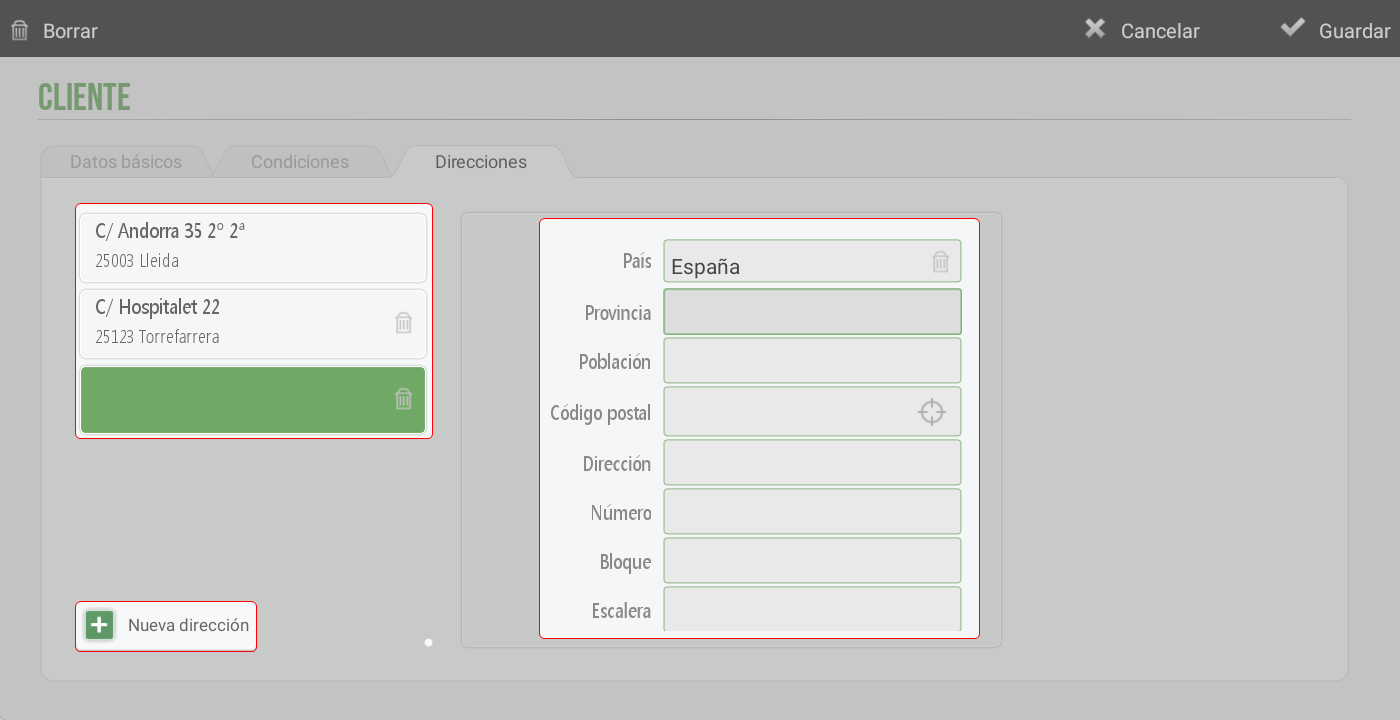
The address tab interface shows:
On the right side: The form to fill in the data, Country, Province, City, Postal code (If the postal code is entered before the above data, pressing Enter will automatically fill them in), Address, Number, Block, Staircase, Floor and Door
In the top left: The list with all the customer's addresses is displayed as cards.
New addressWhen the button is pressed, a new blank card is added to the top left. To the right, the form's address fields are cleared to allow new data to be entered.
AI Assistant
Section summary
AI can generate inaccurate information; verify the results.